Add context to chat
Providing relevant context helps the AI give more accurate responses. Add files, folders, symbols, images, web content, and other information directly to your prompt when you want the AI to consider specific details.
The features on this page work in both the Chat view and the Agents window.
For background on what context is and how VS Code assembles it, see Context concepts.
#-mentions
You can explicitly add context to your prompt by typing # followed by the context item you want to mention. VS Code supports different types of context items: files, folders, code symbols, tools, terminal output, source control changes, and more.
Type the # symbol in the chat input field to see a list of available context items, or select Add Context in the Chat view to open the context picker.
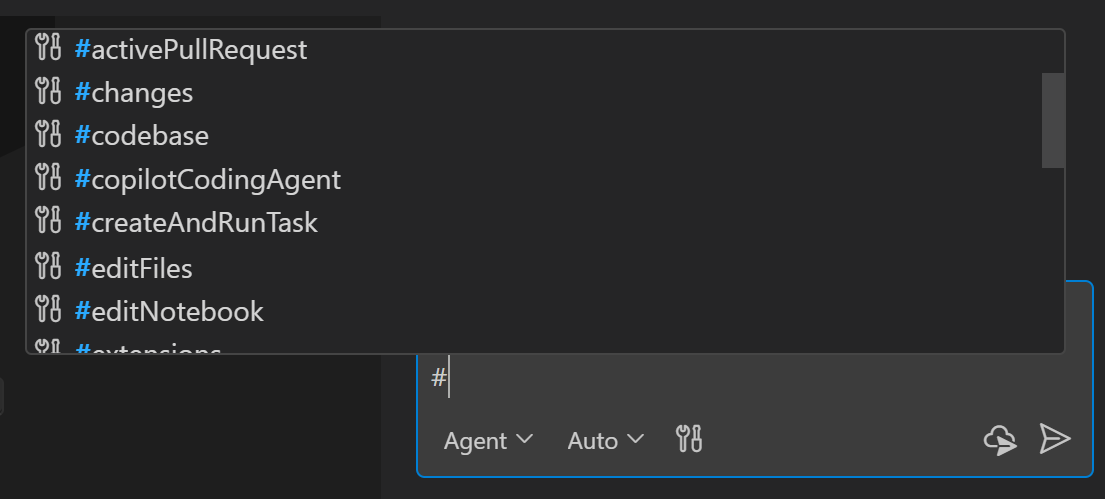
View the full list of supported context items.
Add files as context
By default, VS Code uses workspace indexing to automatically include relevant files as context based on the conversation. You can also explicitly add specific files, folders, or symbols by using #-mentions or the context picker. Explicit context is useful when you want to make sure the AI considers specific parts of your codebase.
To provide specific files, folders, or symbols as context, add them to the chat using the following methods:
-
#-mention the file, folder, or symbol in your chat message by typing
#followed by the name of the file, folder, or symbol. To reference a symbol, make sure to open the file containing the symbol in the editor first. -
Drag and drop files or folders from the Explorer view, Search view, or editor tabs onto the Chat view to add them as context.
-
Select Add Context in the Chat view and select Files & Folders or Symbols from the Quick Pick.
To explicitly inform the AI that you want to use the entire codebase as context, you can add #codebase to your prompt.
Reference content from the web
You can reference content from the web in your chat prompts, for example to get the latest API reference or code examples.
You can directly include a URL in your prompt to get information from that webpage, or use the #fetch tool to indicate that you want to retrieve content from the web. For example:
"What are the highlights of the latest VS Code release #fetch""Update the asp.net app to .net 9 #fetch https://learn.microsoft.com/en-us/aspnet/core/migration/80-90"
VS Code caches the content of the web page for a limited time to improve performance. If the content of the page changes, you can force a refresh by restarting VS Code. If the page cannot be reached, the cache will expire after a short time (approximately five minutes).
VS Code prompts for confirmation before accessing external URLs to protect your privacy and security. Learn more about configuring URL auto-approval.
Learn more about using tools with agents.
@-mentions
Chat participants are specialized assistants that let you ask domain-specific questions in chat. You can invoke a chat participant by @-mentioning it: type @ followed by the participant name. VS Code has built-in chat participants like @vscode or @terminal. They are optimized to answer questions about their respective domains.
The following examples show how to use @-mentions in your chat prompts:
"@vscode how to enable word wrapping""@terminal what are the top 5 largest files in the current directory"
Type @ in the chat input field to see a list of available chat participants.
Extensions can also contribute their own chat participants.
Vision
Chat supports vision capabilities, which means you can attach an image as context to your chat prompt and ask questions about it. For example, attach a screenshot of a block of code and ask to explain it, or attach a sketch of a UI and ask the agent to implement it.
You can drag and drop an image from a web browser onto the Chat view to add it as context.
Add browser context
Use the integrated browser to preview web pages and attach information from the current page to a prompt.
The browser toolbar has an Add to Chat split button with actions that let you attach different types of context from the current page to your chat prompt:
- Add Element to Chat: select HTML elements from the page to add as context, including their CSS styles and screenshots.
- Add Screenshot to Chat: capture a screenshot of the current browser viewport and attach it as an image.
- Add Console Logs to Chat: capture console output from the page and attach it as context for debugging runtime errors.
Learn how to add browser context to chat. To let an agent interact with a page instead of attaching it as prompt context, see browser tools for agents.