Artifacts panel (Preview)
The artifacts panel in Visual Studio Code surfaces important resources, such as screenshots, plans, and documents, alongside the chat conversation. Artifacts can come from multiple sources simultaneously and are displayed in a collapsible tree control, grouped by origin.
The features on this page work in both the Chat view and the Agents window.
The artifacts panel is currently in preview. To enable it, set
chat.artifacts.enabled
to true.
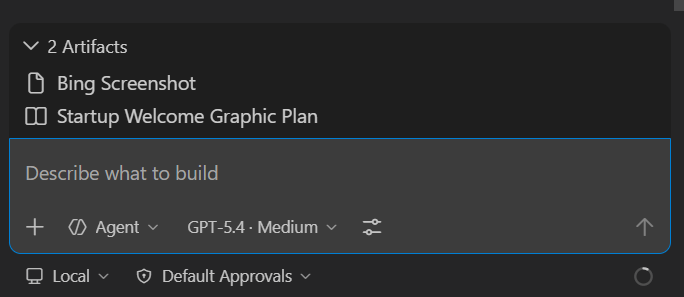
Artifact sources
Artifacts can appear in the panel from different sources, which are merged and grouped by origin:
- Rules-based extraction: VS Code automatically extracts artifacts from conversation content based on configurable MIME type patterns, file path globs, or memory file paths. For example, the built-in rules surface screenshots and plan documents. See Configure artifact extraction rules for details.
- Agent-set artifacts: the agent explicitly sets artifacts by using the
#artifactstool. Each update replaces the previous agent artifact list. - Subagent artifacts: when the agent delegates work to subagents, each subagent can set its own artifacts, shown in separate groups labeled with the subagent's name.
Configure artifact extraction rules
Rules-based extraction uses three settings, each mapping a pattern to a group configuration. The group configuration has a groupName (display label) and an optional onlyShowGroup flag (when true, only the group header is shown instead of individual items).
| Setting | Description | Default |
|---|---|---|
| chat.artifacts.rules.byMimeType | Match tool results by MIME type pattern, such as "image/*". |
{ "image/*": { "groupName": "Screenshots", "onlyShowGroup": true } } |
| chat.artifacts.rules.byFilePath | Match workspace files by glob pattern, such as "**/*plan*.md". |
{ "**/*plan*.md": { "groupName": "Plans" } } |
| chat.artifacts.rules.byMemoryFilePath | Match memory tool writes by glob pattern, such as "**/*plan*.md". |
{ "**/*plan*.md": { "groupName": "Plans" } } |
For example, to add a rule that surfaces HTML files written by the agent as artifacts, add the following to your settings:
"chat.artifacts.rules.byFilePath": {
    "**/*.html": { "groupName": "Web Pages" }
}
To disable rules-based extraction entirely, set all three rule settings to {}.
Use artifacts
When artifacts are available, the artifacts panel appears alongside the conversation. Artifacts are organized in groups based on their source.
- Select an artifact to open the corresponding resource. For example, selecting an image artifact shows a preview, while selecting a document artifact opens the file in the editor.
- Artifacts from the agent replace the previous agent list each time the agent updates them.
- Each subagent's artifacts are shown in a separate group. You can clear a specific subagent's artifacts independently.
- Rules-based artifacts update automatically as the conversation progresses. If you change the rule settings, the artifacts panel reflects the updated rules.
Ask the agent to create artifacts
You can ask the agent to store something as an artifact by describing what you want in your prompt. For example:
- "Take a screenshot of my app and set it as an artifact"
- "Write a project plan and set it as an artifact"
- "Save these links as artifacts"
The agent then uses the #artifacts tool to add the resource to the artifacts panel. You don't need to reference the tool directly. Just describe what you want to keep, and the agent determines when to surface it as an artifact.
The agent can also use the #artifactRules tool to override the extraction rules for the current session. This replaces any settings-based rules for the duration of the session.