Agent plugins in VS Code
Agent plugins bundle related customizations into one installable setup. Use a plugin to adopt a shared workflow instead of assembling its skills, agents, and tool integrations individually. For example, a testing plugin can package a test-running skill, review agent, and reporting integration that are intended to work together.
If you only need a project rule or a single skill, start with an individual customization. Choose a bundle when its components support a workflow you want to adopt together.
You can discover and install plugins from plugin marketplaces in Visual Studio Code. Plugins work alongside your locally defined customizations. When you install a plugin, its supported customizations become available in the relevant agent interfaces.
Agent Plugins is an open standard for packaging agent skills and MCP servers that works across multiple AI agents, including GitHub Copilot in VS Code, GitHub Copilot CLI, and the GitHub Copilot app.
VS Code also supports client-specific plugin capabilities, including slash commands, custom agents, rules, hooks, and automation templates. In an Agent Plugins package, most of these capabilities come from the com.github.copilot namespace. The existing Copilot and Claude plugin formats keep their own layouts.
For how plugins fit into the broader set of customization options, see Customization concepts.
Enable or disable support for agent plugins with the chat.plugins.enabled setting.
What plugins provide
Agent Plugins 1.0 defines skills and MCP servers as portable component types. Other capabilities are client-specific and use the standard's reverse-domain client extension namespaces. VS Code reads Copilot-specific components from the com.github.copilot namespace and ignores namespaces owned by other clients.
| Capability | Description | Client-specific | Standard |
|---|---|---|---|
| MCP servers | External tool integrations | ✓ | |
| Skills | Instructions, scripts, and resources that load on-demand | ✓ | |
| Agents | Specialized personas and tool configurations | ✓ | |
| Hooks | Shell commands that execute at agent lifecycle points | ✓ | |
| Automation templates | Reusable prompts and schedules for agent tasks | ✓ | |
| Slash commands | Commands you can invoke with / in chat |
✓ |
For example, a testing plugin might include a test-runner skill with scripts, a test-reviewer agent with read-only tools, and an MCP server for a test reporting dashboard. In the Agent Plugins format, the directory structure looks like this:
my-testing-plugin/
  plugin.json              # Plugin metadata and configuration
  skills/
    test-runner/
      SKILL.md             # Testing skill instructions
      run-tests.sh         # Supporting script
  mcp.json                 # MCP server definitions
  automations/
    review.automation.md   # Automation template
  scripts/
    validate-tests.sh      # Hook script
  com.github.copilot/
    agents/
      test-reviewer.agent.md  # Code review agent
    hooks/
      hooks.json           # Hook configuration
Plugins in the Copilot and Claude formats provide the same capabilities from different locations. See Plugin formats.
Once installed, plugin-provided customizations appear alongside your locally defined ones. For example, skills from a plugin show up in the Configure Skills menu, and MCP servers from a plugin appear in the MCP server list.
Plugins can include hooks and MCP servers that run code on your machine. Review the plugin contents and publisher before installing, especially for plugins from community marketplaces.
Plugin manifest (plugin.json)
An Agent Plugins 1.0 package has a plugin.json file at its root that declares the standard's schema:
{
  "$schema": "https://agent-plugins.org/schemas/1.0.0/plugin.schema.json",
  "name": "my-dev-tools",
  "description": "React development utilities",
  "version": "1.2.0"
}
| Field | Type | Required | Description |
|---|---|---|---|
$schema |
string | Yes | Canonical Agent Plugins schema identifier. |
name |
string | Yes | Plugin name and package identifier. |
version |
string | No | Plugin version. Semantic Versioning is recommended. |
description |
string | No | Brief description of the plugin. |
author |
object | No | Author information with optional name, email, and url fields. |
homepage |
string | No | Documentation or homepage. |
repository |
string | No | Source repository. |
license |
string | No | License identifier. An SPDX identifier is recommended. |
keywords |
string[] | No | Search and discovery terms. |
extensions |
object | No | Client-specific data keyed by reverse-domain namespace. |
Skills are discovered from the skills/ folder, and MCP server configuration is discovered from the mcp.json file. You don't list these component paths in the manifest. Custom agents, hooks, commands, and MCP server definitions are not portable top-level manifest fields.
Copilot-specific components live in the com.github.copilot directory at the plugin root, and Copilot-specific manifest data goes under the matching key in extensions:
my-plugin/
  plugin.json              # $schema declares Agent Plugins 1.0
  skills/                  # Portable: agent skills
  mcp.json                 # Portable: MCP server configuration
  com.github.copilot/      # Copilot-specific components
    agents/
    commands/
    rules/
    hooks/
      hooks.json
Other clients ignore the com.github.copilot namespace, so a package stays portable while keeping its Copilot capabilities.
For the full field constraints and validation rules, see the Agent Plugins manifest documentation.
Existing Copilot-format plugins that don't declare the Agent Plugins schema remain supported. For their manifest fields, see the GitHub Copilot CLI plugin reference.
Plugin formats
VS Code auto-detects the plugin format by checking the root manifest and format-specific manifest paths. A root plugin.json that declares the canonical Agent Plugins $schema uses Agent Plugins semantics. The Copilot format is used as the default when no other format marker is found.
| Plugin format | Plugin manifest |
|---|---|
| Agent Plugins 1.0 | plugin.json with $schema set to https://agent-plugins.org/schemas/1.0.0/plugin.schema.json |
| Copilot | plugin.json |
| Claude | .claude-plugin/plugin.json |
| Legacy OpenPlugin | .plugin/plugin.json |
Plugin environment variables
Some plugin formats provide a root token that you can use in hook commands and MCP server configurations to reference files within the plugin directory. VS Code expands the token at runtime and also sets it as an environment variable in the hook or server process.
| Plugin format | Plugin root |
|---|---|
| Agent Plugins 1.0 | ${PLUGIN_ROOT} |
| Claude | ${CLAUDE_PLUGIN_ROOT} |
| Copilot | ${PLUGIN_ROOT} or ${CLAUDE_PLUGIN_ROOT} |
| Legacy OpenPlugin | ${PLUGIN_ROOT} |
Agent Plugins 1.0 also defines ${PLUGIN_ROOT} for packaged files and ${PLUGIN_DATA} for writable state that persists across plugin updates. VS Code preserves these placeholders for the plugin runtime to expand. For details about where placeholders are supported, see the Agent Plugins specification.
Automations in plugins
Agent Plugins can contribute automation templates that appear under Templates from Plugins in the Agents window. A template provides a reusable name, prompt, and schedule. It doesn't create or enable an automation when the plugin is installed.
Automation templates are a VS Code-specific plugin capability, not a portable Agent Plugins 1.0 component type.
Automation template location
Store automation templates in an automations/ folder at the root of an Agent Plugins package. Each file must use the .automation.md suffix:
my-plugin/
  plugin.json
  automations/
    daily-review.automation.md
    weekly-review.automation.md
To add templates from other folders, configure extensions.com.github.copilot.automations.paths in plugin.json. These paths are relative to the com.github.copilot/ folder and supplement the default automations/ folder:
{
  "$schema": "https://agent-plugins.org/schemas/1.0.0/plugin.schema.json",
  "name": "my-dev-tools",
  "version": "1.2.0",
  "extensions": {
    "com.github.copilot": {
      "automations": {
        "paths": ["./team-automations/"]
      }
    }
  }
}
Set exclusive to true alongside paths to load templates only from the configured folders and skip the default automations/ folder.
Automation template format
An automation template is a Markdown file with YAML frontmatter. The Markdown body is the prompt:
---
version: 1
id: weekly-review
name: Weekly review
description: Review the workspace for regressions.
schedule:
  kind: cron
  expression: "30 10 * * 5"
  timeZone: local
---
Review the workspace changes from the past week.
Identify regressions and suggest follow-up actions.
The frontmatter supports these fields:
| Field | Required | Description |
|---|---|---|
version |
Yes | File format version. Use 1. |
id |
Yes | Identifier that is unique within the plugin. Use lowercase letters, numbers, periods, or hyphens, with a maximum of 64 characters. |
name |
Yes | Display name for the template. |
description |
No | Short description of the automation's purpose. |
schedule |
Yes | Manual, hourly, daily, or weekly schedule. |
Use one of these schedule formats:
| Schedule | YAML |
|---|---|
| Manual | kind: manual |
| Hourly | kind: hourly |
| Daily | kind: cron, a five-field expression such as "0 9 * * *", and timeZone: local |
| Weekly | kind: cron, a five-field expression such as "30 10 * * 5", and timeZone: local |
The five cron fields represent minute, hour, day of month, month, and day of week. Only local-time cron expressions that represent a daily or weekly schedule are supported. VS Code ignores invalid templates rather than changing their schedule.
Plugin templates can't specify a workspace, provider, model, permissions, enabled state, or run history. When someone selects a template, the New Automation dialog opens so they can review the prompt and choose the execution configuration. The Enabled checkbox is cleared by default.
Disabling a plugin removes its templates from the Automations view. Automations that were previously created from those templates and their run history remain available.
MCP servers in plugins
Plugins can bundle MCP servers to provide agents with additional tools and data sources. Plugin MCP servers start automatically when the plugin is enabled and stop when the plugin is disabled.
MCP configuration file
Place MCP server definitions in the mcp.json file at the plugin root and follow the portable MCP configuration format.
my-plugin/
  plugin.json             # Plugin metadata and configuration
  skills/
  mcp.json              # MCP server definitions
  servers/
    db-server             # Server executable
  config.json             # Server configuration
Place MCP server definitions in the .mcp.json file at the plugin root. VS Code discovers this file automatically when it loads the plugin.
my-plugin/
  plugin.json             # Plugin metadata and configuration
  skills/
  .mcp.json              # MCP server definitions
  servers/
    db-server             # Server executable
  config.json             # Server configuration
In the .mcp.json file, MCP servers are defined in a top-level mcpServers object. Each server entry specifies a command, arguments, and optional environment variables:
{
  "mcpServers": {
    "plugin-database": {
      "command": "${CLAUDE_PLUGIN_ROOT}/servers/db-server",
      "args": ["--config", "${CLAUDE_PLUGIN_ROOT}/config.json"],
      "env": {
        "DB_PATH": "${CLAUDE_PLUGIN_ROOT}/data"
      }
    },
    "plugin-api": {
      "command": "npx",
      "args": ["@company/mcp-server", "--plugin-mode"],
      "cwd": "${CLAUDE_PLUGIN_ROOT}"
    }
  }
}
Reference plugin paths in server configuration
For Claude-format plugins, use the ${CLAUDE_PLUGIN_ROOT} token in MCP server fields to reference executables and files within the plugin directory. VS Code expands this token in the following fields:
command: the executable pathargs: command-line argumentscwd: working directoryenv: environment variable valuesenvFile: path to an environment fileurl: for HTTP-based MCP serversheaders: HTTP header values
VS Code also injects a CLAUDE_PLUGIN_ROOT environment variable into the server process, so server code can access the plugin path at runtime.
How plugin MCP servers interact with other servers
Plugin MCP servers appear alongside workspace and user-level MCP servers. You can manage them through the same tools:
-
Select Configure Tools in the Chat view to see tools from all MCP servers, including plugin servers.
-
Run MCP: List Servers from the Command Palette to view plugin servers alongside other servers.
Plugin MCP servers are implicitly trusted when you install the plugin. Unlike workspace MCP servers, they do not show a separate trust prompt at startup.
Disabling a plugin stops its MCP servers. Tools provided by the stopped servers are no longer available in chat.
Hooks in plugins
Plugins can include hooks that run shell commands at agent lifecycle points. Plugin-wide hooks work alongside your workspace and user-level hooks. When a plugin is enabled, these hooks fire in addition to any other hooks configured for the same event.
Hooks are client-specific and are not a portable Agent Plugins 1.0 component type. In an Agent Plugins package, they come from the com.github.copilot namespace.
Organizations can distribute approved hooks through plugins. When managed settings specify allowManagedHooksOnly: true, plugin hooks run only when the plugin is force-enabled by a managed enabledPlugins["plugin@marketplace"]: true entry. User enablement alone is not sufficient, and allowManagedHooksOnly does not itself enable the plugin. See Deploy hooks through managed plugins.
Hook configuration and payloads depend on the session's harness. Start with choosing a hook implementation to find its supported events and configuration. For Local harness sessions, expand Configure plugin hooks for Local harness sessions below.
Hook file location
The hook file location depends on the plugin format:
| Plugin format | Hook file path |
|---|---|
| Agent Plugins 1.0 | com.github.copilot/hooks/hooks.json |
| Claude | hooks/hooks.json |
| Copilot | hooks.json (at the plugin root) |
VS Code auto-detects the plugin format and discovers the hook file automatically.
my-plugin/
  plugin.json
  com.github.copilot/
    hooks/
      hooks.json         # Hook configuration (Agent Plugins format)
  scripts/
    format.sh            # Hook script referenced by hooks.json
Configure plugin hooks for Local harness sessions
The following configuration, event, and matcher behavior applies to the Local harness.
Hook configuration format
For the Local harness, plugin hooks use the same base format as workspace hooks. The Local parser accepts Claude hook configuration, including matcher syntax, but ignores matcher values. As a result, all nested commands for the event run in Local harness sessions.
Flat format (same as workspace hooks):
{
  "hooks": {
    "PostToolUse": [
      {
        "type": "command",
        "command": "${CLAUDE_PLUGIN_ROOT}/scripts/format.sh"
      }
    ]
  }
}
Matcher format (Claude compatibility syntax):
{
  "hooks": {
    "PostToolUse": [
      {
        "matcher": "Write|Edit",
        "hooks": [
          {
            "type": "command",
            "command": "${CLAUDE_PLUGIN_ROOT}/scripts/format.sh"
          }
        ]
      }
    ]
  }
}
The Local harness parses the matcher field for compatibility with Claude Code, but ignores matcher values. To filter Local hook behavior, check the event input inside the hook script.
Reference plugin paths in hook commands
Use a plugin-root token in Local hook commands to reference bundled scripts and files without hardcoding the plugin's installation path.
| Plugin format | Token | Environment variable |
|---|---|---|
| Claude | ${CLAUDE_PLUGIN_ROOT} |
CLAUDE_PLUGIN_ROOT |
| Legacy OpenPlugin | ${PLUGIN_ROOT} |
PLUGIN_ROOT |
VS Code expands the token to the plugin's absolute path in hook commands and env values. This includes the command, bash, powershell, and platform-specific command fields. Expanded command paths are shell-quoted, so plugin paths can contain spaces.
The hook process also receives the matching root environment variable. For example, a Node.js script can read process.env.CLAUDE_PLUGIN_ROOT. These references resolve to the new root when the plugin is discovered at a different location.
{
  "hooks": {
    "PreToolUse": [
      {
        "type": "command",
        "command": "${CLAUDE_PLUGIN_ROOT}/scripts/validate-tool.sh"
      }
    ]
  }
}
The same expansion applies to hooks in the frontmatter of plugin-provided custom agents. For example, a Claude-format plugin can contribute agents/reviewer.md that invokes its bundled scripts/validate-tool.js script:
---
name: Code reviewer
description: Review code with plugin-provided validation.
hooks:
  PreToolUse:
    - type: command
      command: "node ${CLAUDE_PLUGIN_ROOT}/scripts/validate-tool.js"
---

Review code for correctness and maintainability.
For legacy OpenPlugin plugins, use ${PLUGIN_ROOT} in place of ${CLAUDE_PLUGIN_ROOT}.
These agent-scoped hooks are in Preview and require the Local harness, chat.useHooks , and a trusted workspace. They run only while the contributing custom agent is active, including when it runs as a subagent.
Supported hook events
In the Local harness, plugin hooks support the same events as workspace hooks: SessionStart, UserPromptSubmit, PreToolUse, PostToolUse, PreCompact, SubagentStart, SubagentStop, and Stop. See the Local hooks reference for event schemas.
How plugin hooks interact with other hooks
Plugin-wide hooks run alongside workspace-level and user-level hooks. When multiple hooks target the same event, all of them execute. For PreToolUse hooks, the most restrictive permission decision across all hooks wins: deny overrides ask, which overrides allow.
Disabling a plugin also disables its hooks. Unless enterprise policy controls the plugin's enablement, you can enable or disable plugins globally or for a specific workspace from the Extensions view.
Discover and install plugins
You can browse and install plugins from marketplaces or directly from a Git repository.
Manage plugins with slash commands
In a Copilot harness session, enter /plugin in the chat input to view completions for plugin and marketplace operations.
| Command | Purpose |
|---|---|
/plugin list |
List installed plugins and their status. |
/plugin install <source> |
Install a plugin from a marketplace or Git repository. |
/plugin update <plugin> |
Update an installed plugin. |
/plugin enable <plugin> |
Enable an installed marketplace plugin. |
/plugin disable <plugin> |
Disable an installed marketplace plugin. |
/plugin uninstall <plugin> |
Remove an installed plugin. |
/plugin marketplace list |
List included and registered marketplaces. |
/plugin marketplace browse <name> |
Browse the plugins in a marketplace. |
/plugin marketplace add <source> |
Add a marketplace from a Git repository. |
/plugin marketplace update [name] |
Update one marketplace or all registered marketplaces. |
/plugin marketplace remove <name> [--force] |
Remove a registered marketplace. Use --force if plugins from the marketplace are installed. |
Marketplace plugins use the qualified identity <plugin>@<marketplace>. Use this identity when plugins in multiple marketplaces have the same name. Command completion suggests valid marketplace and plugin identities for each operation.
Plugins installed directly from a Git repository can be updated or uninstalled, but they can't be enabled or disabled. To stop using a directly installed plugin, uninstall it. Included and centrally managed marketplaces can't be removed.
The /plugin commands and the Agent Customizations editor currently use separate plugin inventories. Manage a plugin from the interface where you installed it.
Install a plugin from a marketplace
-
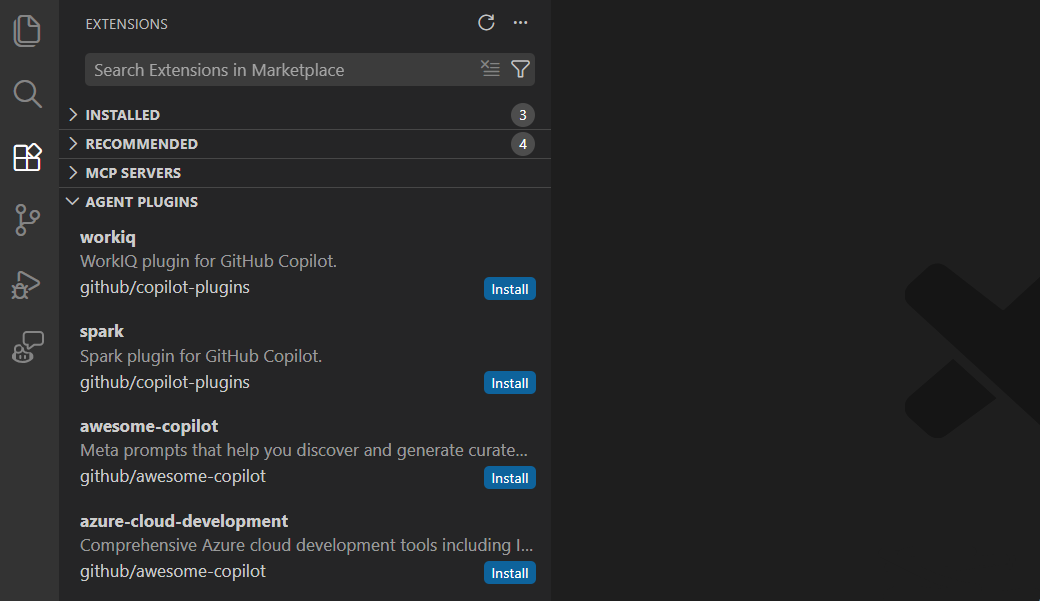
Open the Extensions view (⇧⌘X (Windows, Linux Ctrl+Shift+X)) and enter
@agentPluginsin the search field.Alternatively, select the More Actions (three dots) icon in the Extensions sidebar and choose Views > Agent Plugins.
-
Browse the list of available plugins from your configured marketplaces.
-
Select Install to install a plugin.
The first time you install a plugin from a new marketplace, VS Code shows a trust prompt. Review the marketplace source before confirming.
-
Open the Agent Customizations editor by running Chat: Open Customizations from the Command Palette, selecting the gear icon in the Chat view, or selecting Plugins in the Agents window.
-
Browse available plugins from your configured marketplaces:
- To use the unified Discover experience (Experimental), enable chat.customizations.marketplace.enabled and select Discover.
- Otherwise, select the Plugins tab and then select Browse Marketplace.
-
Select Install to install a plugin.
The first time you install a plugin from a new marketplace, VS Code shows a trust prompt. Review the marketplace source before confirming.
Install a plugin from source
You can install a plugin directly from a Git repository URL without adding a full marketplace first.
-
Run Chat: Install Plugin From Source from the Command Palette.
-
Alternatively, select Install Plugin from Source on the Plugins page of the Agent Customizations editor.
Enter a Git repository URL (for example, https://github.com/rwoll/markdown-review) and VS Code clones and installs the plugin.
Plugins installed by GitHub Copilot CLI
VS Code automatically discovers plugins that you install with the GitHub Copilot CLI to enable you to use them also in VS Code. Plugins from ~/.copilot/installed-plugins/ appear in the Agent Plugins - Installed view alongside plugins you installed from a marketplace or from source.
The CLI stores plugins under ~/.copilot/installed-plugins/<marketplace>/<plugin>/. Plugins installed directly from a Git URL (rather than from a marketplace) live under the _direct bucket, for example ~/.copilot/installed-plugins/_direct/github--moda-linter--copilot-plugin/.
View installed plugins
The Agent Plugins - Installed view in the Extensions view shows the plugins you have installed. From this view, you can enable, disable, or uninstall plugins.
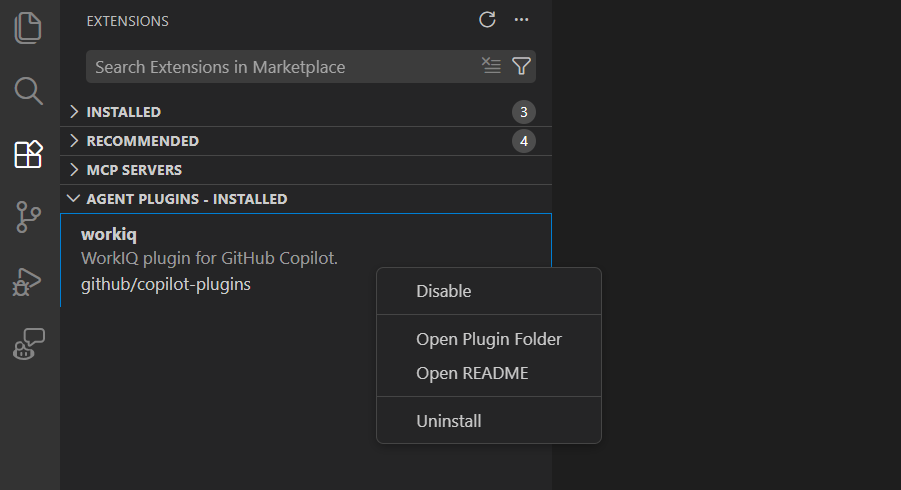
You can also manage installed plugins from the Chat view by selecting the gear icon > Plugins.
Enable or disable plugins
You can enable or disable a plugin globally or for a specific workspace:
-
Use the context menu on a plugin in the Agent Plugins - Installed section of the Extensions view.
-
Use the Agent Customizations editor to toggle a plugin's enabled state.
The enable/disable state is stored separately from the plugin configuration, so it does not affect shared workspace settings.
When a plugin is disabled, its skills, agents, hooks, MCP servers, slash commands, and automation templates are no longer available. For example, skills from a disabled plugin do not appear in Chat: Configure Skills, and automation templates do not appear in Templates from Plugins. Disabled plugins appear with a dimmed style in the Agent Customizations editor and Extensions view.
Uninstall plugins
To remove a plugin, right-click it in the Agent Plugins - Installed view and select Uninstall. Plugins installed from an external source (such as npm, PyPI, or an external Git repository) are removed from disk. Plugins that are inlined in a marketplace repository remain on disk but are no longer active.
Configure plugin marketplaces
By default, VS Code discovers plugins from the copilot-plugins and awesome-copilot. You can add additional marketplaces with the chat.plugins.marketplaces setting.
Marketplaces are Git repositories that contain plugin definitions. You can reference them in several formats:
- Shorthand:
owner/repofor public GitHub repositories. For example,anthropics/claude-code. Append#<ref>to select a branch, tag, or full 40-character commit SHA. - HTTPS git remote: a full URL ending in
.git. For example,https://github.com/anthropics/claude-code.git. - SCP-style git remote: SSH-style references. For example,
git@github.com:anthropics/claude-code.git. - file URI: a
file:///path to a marketplace repository already cloned on disk.
For reproducible installations, use a full 40-character commit SHA, such as owner/repo#<commit-sha>. VS Code installs plugins from that exact revision. Branch and tag references use the revision they resolve to when the marketplace is fetched.
Private repositories are also supported. If a public lookup fails, VS Code falls back to cloning the repository directly.
When a marketplace index declares a plugin at a relative path, VS Code verifies the repository, resolved revision, and path before installation. Sources with a missing revision, an invalid path, or an ambiguous path match are rejected.
Marketplace plugins can also reference external package sources such as npm or PyPI packages. For the full marketplace plugin schema, see the Claude Code plugin marketplace documentation.
// settings.json
"chat.plugins.marketplaces": [
    "anthropics/claude-code"
]
Enterprise admins can centrally control which plugins and marketplaces are available to developers. For more information, see Manage agent plugins and marketplaces.
Use local plugins
If you manually clone or download a plugin, you can register it with the
chat.pluginLocations
setting. This setting maps local plugin directory paths to an enabled or disabled state. Set the value to true to enable the plugin, or false to keep it registered but disabled.
// settings.json
"chat.pluginLocations": {
    "/path/to/my-plugin": true,
    "/path/to/another-plugin": false
}
Update plugins
VS Code checks for plugin updates when you run Extensions: Check for Extension Updates from the Command Palette, or automatically every 24 hours when extensions.autoUpdate is enabled.
Updating pulls down changes from cloned marketplace repositories and checks for new versions of externally sourced plugins.
Plugins sourced from npm or PyPI never update automatically. Instead, they show an Update button in the Extensions view. Selecting the button prompts you to confirm before running the install command. If an update is found during a background check, no action is taken until you explicitly select Update.
Workspace plugin recommendations
Projects can recommend plugins for team members by configuring plugin settings in the workspace settings (.claude/settings.json or .github/copilot/settings.json).
VS Code shows a notification the first time a chat message is sent. You can view the recommended plugins by opening the Extensions view and filtering by @agentPlugins @recommended.
Specify the following fields in the settings file to configure workspace plugin recommendations:
-
extraKnownMarketplaces: registers additional marketplaces for the project. These marketplaces appear when you search@agentPluginsin the Extensions view. -
enabledPlugins: lists plugins that should be enabled by default.
{
  "extraKnownMarketplaces": {
    "company-tools": {
      "source": {
        "source": "github",
        "repo": "your-org/plugin-marketplace"
      }
    }
  },
  "enabledPlugins": {
    "code-formatter@company-tools": true
  }
}
Cross-tool compatibility
Agent Plugins 1.0 is an open standard designed for cross-tool compatibility. A conformant plugin uses a root plugin.json, puts skills in skills/, and puts MCP server configuration in mcp.json. Compatible clients can discover the portable component types they support from the same package.
Agent Plugins can also include client-specific manifest data and files under a stable reverse-domain namespace. Clients ignore namespaces they don't implement, so client-specific capabilities don't prevent other clients from loading the portable components. VS Code reads custom agents, slash commands, rules, hooks, and automation path configuration from the com.github.copilot namespace. Other clients only use the capabilities in that namespace that they support.
For example:
my-plugin/
  plugin.json
  skills/
  mcp.json
  com.github.copilot/      # Read by VS Code and other Copilot clients
  com.example.client/      # Ignored by VS Code
VS Code continues to support existing Copilot, Claude, and legacy OpenPlugin formats. Plugins that don't declare the Agent Plugins schema continue to use their existing format-specific discovery rules.
For details about the portable format, see the Agent Plugins specification. For other formats, see the GitHub Copilot CLI plugin reference and the Claude Code plugin marketplace documentation.
Troubleshooting
Plugin does not appear after installation
- Confirm that agent plugins are enabled: check that
chat.plugins.enabled
is set to
true. - Verify the plugin's
namefield follows the naming rules for its format. Agent Plugins 1.0 names use lowercase letters, numbers, hyphens, and periods. Legacy Copilot plugin names use lowercase letters, numbers, and hyphens. Slashes and colons aren't supported. - Check that
plugin.jsonis in a recognized location (see Cross-tool compatibility).
Skills from a plugin do not load
- Open the
SKILL.mdfile and check thenamefield in the YAML frontmatter. The name must be plain kebab-case without namespace prefixes (for example,test-runner, notmyorg/test-runner). Invalid names cause the skill to be silently skipped. - Make sure the skill directory name matches the
namefield in theSKILL.mdfrontmatter.
Plugin version does not update
- Bump the
versionfield inplugin.json(and in themarketplace.jsonplugin entry, if applicable) before pushing changes. - Run Extensions: Check for Extension Updates from the Command Palette to trigger an update check.
Plugin installation fails after retry
Retry the installation. VS Code validates marketplace repository caches and replaces incomplete or invalid caches automatically.
If installation still fails, review the error for an invalid repository, revision, or plugin path. If the source is valid and retry continues to fail, run Help: Report Issue. Don't delete or modify the internal plugin cache manually.