Create agents with the Foundry Toolkit
Microsoft Foundry Agent Service helps you build, test, and run AI agents that use models and tools to answer questions, retrieve information, and take actions. Foundry supports the agent lifecycle, from experimenting with behavior to evaluation and application integration.
Before you create an agent, choose how much control you need over its logic and runtime. This affects what you configure, what code you maintain, and how you deploy. Use this guide to compare prompt and hosted agents, then choose a creation path in Foundry Toolkit for Visual Studio Code.
Choose an agent type
Microsoft Foundry supports two agent types: prompt agents and hosted agents. The main difference is how you define their behavior: prompt agents use instructions and tool configuration, while hosted agents use custom code.
Both can use tools to retrieve information and perform actions, and both require testing and evaluation before production use. You can integrate either type into an application, so prompt agents are not limited to prototypes. The following table compares their uses, strengths, and trade-offs.
| Compare | Prompt agent | Hosted agent |
|---|---|---|
| Example uses | A support assistant that answers from product documents, or a summarizer that retrieves information through tools. | A multi-agent research workflow, a webhook processor, or an assistant with custom runtime logic. |
| How you define behavior | Configure a model, instructions, and supported tools through Agent Builder, an SDK, or an API. | Implement the agent with a supported framework or custom code and deploy it to Foundry Agent Service. |
| Strengths | Iterate on instructions and tools without maintaining a hosted-agent code project. Save configurations as versions. | Control orchestration, dependencies, and runtime behavior while Foundry manages hosting and scaling. |
| Trade-offs | Work within the service's agent configuration and supported tools. A prompt-agent definition does not host your own agent runtime. | Maintain, test, package, and deploy your agent code and dependencies, even though Foundry manages the hosting infrastructure. |
These examples are starting points, not exclusive capabilities. Start with a prompt agent when instructions and supported tools meet your needs. Choose a hosted agent when you need custom agent logic or orchestration. See when to use hosted agents for more guidance.
Choose a creation route
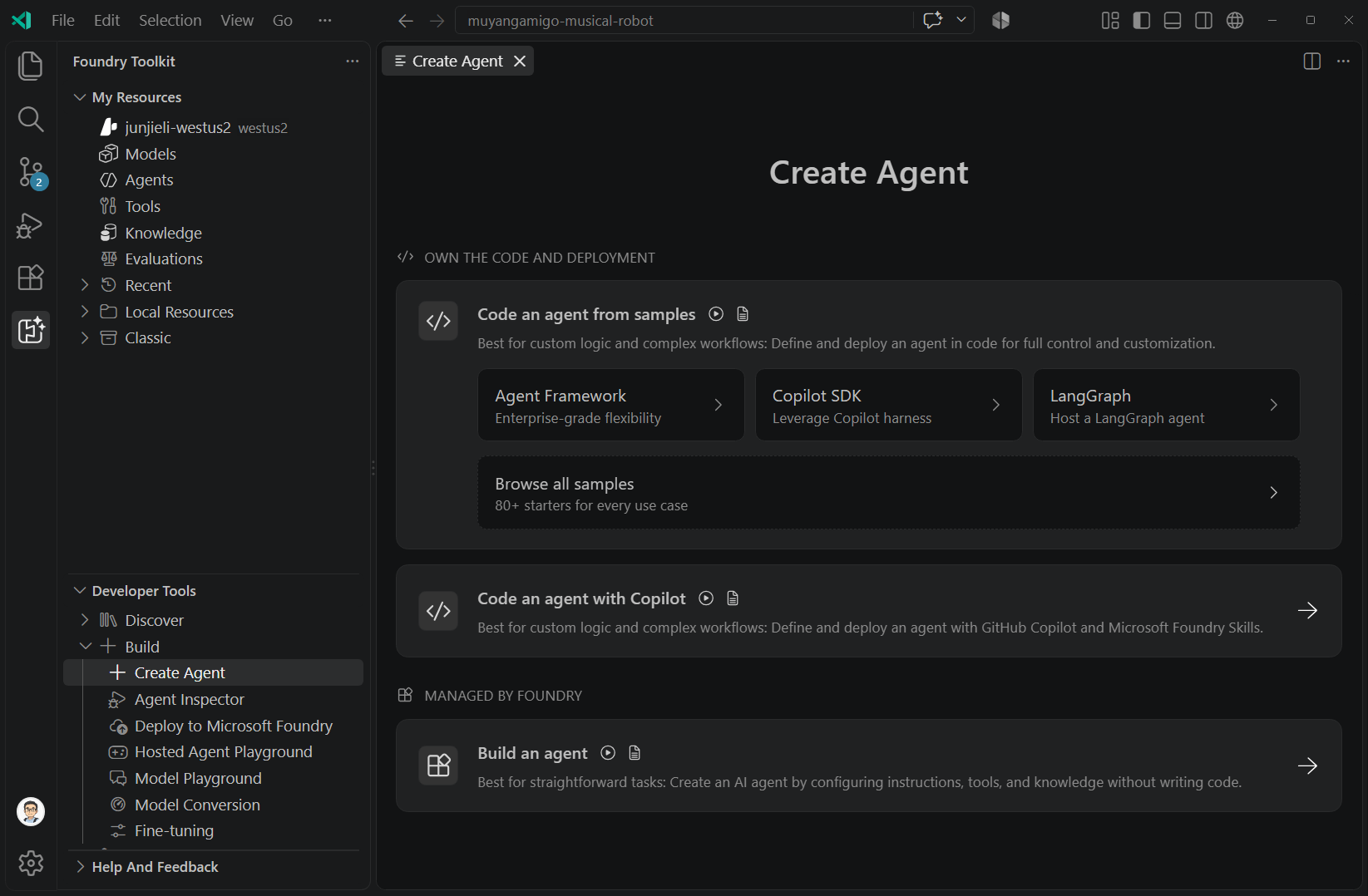
After choosing an agent type, select a creation method. Use Agent Builder to configure a prompt agent, or use samples or Copilot to develop hosted-agent code. The following table helps you choose a method and find its setup guide.
| Approach | Use it when | Get started |
|---|---|---|
| Agent Builder | You want to configure and test a prompt agent without a code project. | Build a prompt agent |
| Hosted-agent samples | You need custom logic or code-based orchestration, starting from an Agent Framework, Copilot SDK, or LangGraph sample. | Create and deploy a hosted agent |
| Copilot-assisted coding | You want help writing and modifying agent code for your scenario. | Use Foundry Toolkit Copilot tools and skills |
Each guide includes its prerequisites and creation steps. For extension installation and project setup, see the Foundry Toolkit overview.
Workflows and routines
- Workflows: Coordinate multiple steps, decisions, or agents. For new code-based orchestration, use Microsoft Agent Framework through the sample or Copilot route.
- Routines (Preview): Invoke an existing agent when a trigger fires, for example, for a daily summary. See Routines in Foundry Agent Service.
Declarative workflows in Microsoft Foundry are in preview and retire on December 1, 2026. This does not affect code-based orchestration in hosted agents. See the Foundry workflow migration guidance.