Use subagents in Visual Studio Code
Use subagents to research a topic, compare approaches, or review code without filling your main conversation with intermediate work. A subagent works in its own context and returns a focused result to the main agent. Learn more about subagent concepts.
This article shows how to delegate a task and follow its progress in VS Code. Use the guidance for your harness, then learn how to follow subagent progress with the shared chat controls.
When to use subagents
Delegate work that has a clear scope and produces a result the main agent can use:
- Research before implementation: find relevant files, existing patterns, or library options, then return a recommendation.
- Compare approaches: investigate independent solutions, or use different models to examine the same problem.
- Review changes: check separate concerns, such as correctness and performance, then combine the findings.
For a quick lookup or a small edit, a direct request is usually enough. Delegation adds model usage and coordination, so consider the cost as well as the benefit of keeping intermediate work out of the main context.
Subagents by harness
Your agent harness determines how subagents run and which configuration options they support. Select a harness before you submit the first prompt.
Claude and Codex harnesses are disabled when Copilot enterprise-managed settings apply. Contact the IT team that deployed the settings to discuss access.
Provider documentation also covers CLI workflows. Commands and configuration options can differ in VS Code. Use the harness guide for integration-specific setup and limitations.
The Copilot harness manages delegation to built-in or custom subagents. Request a subagent in your prompt, or let the main agent decide when to delegate. For native agent behavior and configuration, see built-in and custom agents in Copilot.
Copilot uses the native task tool for delegation, rather than Local's runSubagent. When migrating a coordinator agent, review both instructions that name the tool and the agent's tool list. Do not assume the tools accept identical arguments. See the subagent migration FAQ.
The Claude harness manages its own subagents, with separate context and configurable instructions and tools. Request delegation in your prompt, or let the agent choose an appropriate subagent. See Claude subagents for native configuration and behavior.
The Codex harness uses provider-native subagents to run independent tasks and collect their results. Ask Codex to delegate in your prompt, and see Codex subagents for native configuration and behavior. For availability and integration-specific setup, see Use the Codex harness.
Subagents in Local harness sessions
The Local harness uses the VS Code runSubagent tool. The following instructions cover tool selection, custom-agent configuration, model selection, and nested subagents for this harness.
Invoke a subagent
Try a read-only research task in a Local harness session:
-
Open your project, then select the Local harness and Agent role for a new session in the Chat view.
-
Select Configure Tools and make sure Run Subagent (
agent/runSubagent) is selected. Learn more about selecting tools. -
Enter a prompt that explicitly requests a subagent:
Use a subagent to find how authentication works in this codebase. Do not change files. Return the relevant files, the authentication flow, and any unanswered questions. -
Follow the subagent's progress, then review the main agent's summary of its findings.
How subagents are invoked
You request delegation in natural language, and the main agent invokes the subagent tool. The main agent can also decide to delegate without an explicit request. It passes a task to the subagent, receives the result, and uses that result to continue your work.
A Local subagent doesn't inherit the main conversation history. Make the delegated task self-contained by specifying:
- Goal: the question to answer or work to complete.
- Context: relevant files, constraints, and decisions already made.
- Allowed actions: whether to research only or make changes.
- Expected result: the findings, recommendation, or changes to return.
Each Local invocation is stateless: the main agent can't send follow-up messages to the same subagent. Further work requires a new invocation with the relevant context. The built-in tools for asking clarifying questions and managing todo items are unavailable to Local subagents.
Invoke a subagent in a prompt file
For a reusable Local workflow, add the agent tool set to a prompt file's tools frontmatter. Describe the delegated task and expected result in the prompt body, using the same approach as an interactive request.
Run a custom agent as a subagent
In Local harness sessions, a subagent inherits the main agent's instructions and selected tools unless you specify a custom agent. A custom agent provides task-specific instructions and can override the tools and model.
For example, create .github/agents/codebase-researcher.agent.md in your workspace with this content. See Create a custom agent for other ways to create the file.
---
name: Codebase Researcher
description: Find relevant code and explain existing patterns
user-invocable: false
tools: ['read', 'search']
---
Research the requested topic without changing files.
Return relevant file paths, existing patterns, and unanswered questions.
Save the file, then request it from your main chat:
Use the Codebase Researcher subagent to explain how authentication works
in this project.
Agent names are case-sensitive. Use the exact name from the custom agent definition.
Control how a custom agent is invoked
Two frontmatter properties control how an agent is available:
user-invocablecontrols visibility in the agents dropdown. Set it tofalseto hide a subagent-only helper such as Codebase Researcher. The default istrue.disable-model-invocationcontrols whether other agents can invoke it as a subagent. The default isfalse.
The deprecated infer property is replaced by these two properties.
Restrict which subagents an agent can use
By default, custom agents without disable-model-invocation: true are available as subagents. To keep a coordinator focused on specific workers, set its agents frontmatter:
agents: ['Codebase Researcher', 'Reviewer']permits only the named agents.agents: ['*'], or omitting the property, permits all available agents.agents: []prevents subagent use.
Explicitly listing an agent in agents overrides that agent's disable-model-invocation: true. Picker visibility and subagent availability are separate controls.
Include the agent tool set in the coordinator's tools property. The coordinator and worker example shows a complete workflow.
Select the model for a subagent
Local subagents select a model in this order:
- An explicit model parameter supplied by the main agent to the
runSubagenttool. - The selected custom agent's
modelproperty, which accepts a model name or a prioritized list of models. - Auto, when chat.subagents.defaultToAuto is enabled and the conditions for using Auto apply.
- The model running the main conversation.
To request a model, include it in your prompt. Replace <model name> with a model available in your session:
Use a subagent with <model name> to review the error handling in this module.
Explicit and agent-configured model selections are checked against the main model's cost tier. If a selection exceeds that tier, the subagent doesn't run and reports which models are available.
Use Auto for subagents
Enable
chat.subagents.defaultToAuto
to use Auto instead of the main model when neither the tool call nor the agent specifies a model. The setting defaults to false and doesn't override an inherited custom agent's model configuration.
If Auto is unavailable, the subagent uses the main conversation's model.
Subagents of a bring your own key model continue to use that model unless you specify a different one. Auto routing through this setting is not constrained by the main model's fixed cost tier.
Nested subagents
Local subagents cannot invoke further subagents by default. For a workflow that delegates work recursively, enable
chat.subagents.allowInvocationsFromSubagents
(false by default). Nesting is limited to a maximum depth of five.
Keep recursive tasks bounded, and include a stopping condition so agents don't repeatedly delegate the same work.
Example: recursive agent
A recursive agent lists itself in its agents property. With nested subagents enabled, save this example as .github/agents/recursive-processor.agent.md to split a list of files into smaller research tasks:
---
name: Recursive Processor
description: Research independent files in small groups
tools: ['agent', 'read', 'search']
agents: ['Recursive Processor']
argument-hint: A list of files to summarize
---
Summarize the purpose of each file without changing it.
* For more than four files, split the list in half and delegate each half
  to a Recursive Processor subagent.
* For four or fewer files, or if further delegation is unavailable,
  summarize the files directly.
* Combine the results into a single summary.
Orchestration patterns
For repeatable multi-step work in a Local harness session, use a coordinator agent to assign focused tasks to workers and combine their results.
Coordinator and worker pattern
A feature-building coordinator can delegate research and review while making the code changes itself. This example uses three agent files: the Codebase Researcher defined earlier, a reviewer, and a coordinator.
Create .github/agents/reviewer.agent.md:
---
name: Reviewer
description: Review changes for correctness and missing tests
user-invocable: false
tools: ['read', 'search']
---
Review the supplied files and change summary without editing files.
Report correctness issues and missing test coverage with file references.
Create .github/agents/feature-builder.agent.md:
---
name: Feature Builder
description: Implement features with delegated research and review
tools: ['agent', 'edit', 'read', 'search']
agents: ['Codebase Researcher', 'Reviewer']
---
For each feature request:
1. Ask Codebase Researcher to find relevant files and existing patterns.
2. Use its findings to implement the requested change.
3. Ask Reviewer to check the changed files, passing the requirements
   and a summary of your changes.
4. Address the findings, then summarize the changes and remaining risks.
Save all three files. In a Local harness session, select Feature Builder from the agents dropdown and describe the feature to implement. The workers have read-only tools, while the coordinator has edit tools.
If another review is needed, the coordinator starts a new invocation and supplies the updated context. The earlier reviewer invocation doesn't retain a conversation for follow-up messages.
Delegate implementation to a worker
To keep the coordinator focused on delegation, give it only the agent tool set and move editing to an implementation worker. This Local example reuses Codebase Researcher.
Create .github/agents/implementer.agent.md:
---
name: Implementer
description: Implement code changes based on research findings
user-invocable: false
tools: ['edit', 'read', 'search']
---
Implement the supplied requirements using the research findings.
Follow existing code patterns and make focused changes.
Return a summary of changes and any validation still needed.
Create .github/agents/research-and-implement.agent.md:
---
name: Research and Implement
description: Coordinate research before delegating implementation
tools: ['agent']
agents: ['Codebase Researcher', 'Implementer']
---
For each feature request:
1. Ask Codebase Researcher to find relevant files and existing patterns.
2. Pass the requirements and research findings to Implementer.
3. Summarize the implementation results and any validation still needed.
Save the three files, select Research and Implement in a Local harness session, and describe a change. The coordinator can invoke only the named workers. Codebase Researcher has read-only tools, while Implementer can edit files.
For the syntax and defaults of agents, tools, and invocation controls, see the custom agent file reference.
Multi-perspective code review
For a one-off review, assign perspectives in your prompt instead of creating more agent files:
Use two subagents to review the current changes without editing files.
Ask one to check correctness and the other to check test coverage.
Combine their findings, remove duplicates, and prioritize actionable issues.
Separate contexts can surface different issues, but don't guarantee unbiased or correct conclusions. Review the combined findings before acting on them.
Troubleshooting
For Local harness sessions, check these common causes:
| Symptom | What to check |
|---|---|
| The main agent doesn't delegate. | Confirm Run Subagent is selected in Configure Tools, then explicitly request a subagent with a focused task. |
| A custom agent isn't available. | Check its exact, case-sensitive name, disable-model-invocation, and the coordinator's agents list. user-invocable: false only hides it from the picker. |
| A requested model doesn't run. | Use one of the models listed in the error, or remove the explicit preference. See model selection. |
| A subagent can't delegate further. | Check the nested subagent setting, the depth limit, and whether its tools include agent. |
What you see in chat
The presentation depends on both the harness and the interface. Interactive peer chats are conversations you prompt independently. Subagent chats show work that an agent delegates.
Chat view
The editor's Sessions view shows interactive peer chats, but doesn't include subagent chats in that hierarchy. To inspect read-only subagent chats, use the Agents window.
For Local harness sessions: A running subagent appears as a collapsed tool call with its agent name and current activity, such as reading files or searching the codebase. Select the tool call to inspect the prompt, tool calls, and returned result.
Agents window
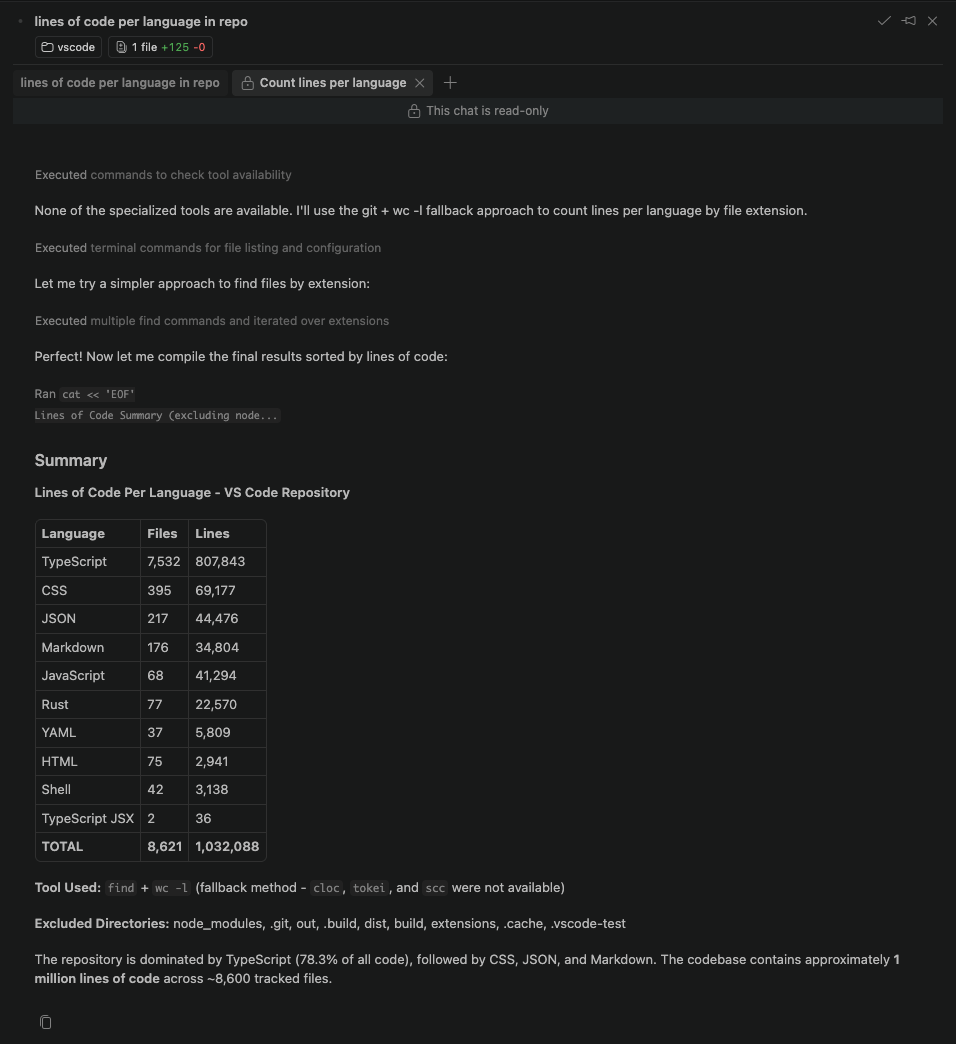
In the Agents window, subagents appear as read-only chats within the session. Select the indicator in the parent chat to open the subagent. The indicator shows its model, elapsed time, and active tool call.
Subagent chats are hidden from the tab strip by default. You can also open one from the Chats dropdown, the running-subagents indicator, or Open Subagent in the chat where the delegation occurred.
To keep the parent chat and subagent visible side by side:
- Hold Alt and select the in-transcript subagent pill or the subagent in the Chats dropdown.
- Focus the in-transcript subagent pill and press Alt+Enter.
- Drag the in-transcript subagent pill to the center of an existing chat group or to an edge to create a group in that direction.
The in-transcript subagent pill is part of the chat response. It differs from the background-activities pill above the chat input, which opens a picker for running activities and isn't draggable.
Read-only subagent chats show a lock icon and don't accept input. They persist across window reloads with your other chats.
Display settings
By default, chat editors use a rich presentation that opens each subagent in its own editor instead of showing its full activity inline in the parent chat. Disable the chat.subagents.useRichRendering setting to show subagent activity inline.
AI credit usage for subagents is hidden by default. To show AI credit usage in the subagent response pill, hover details, and screen reader label, enable the chat.subagents.showCreditUsage setting.
Related resources
- Custom agents: extend the examples with your own instructions and tools.
- Optimize AI credit usage: balance model choice, context, and cost.
- Agent sessions: organize your conversations and manage context.