is now available! Read about the new features and fixes from November.

Using agents in Visual Studio Code

Agents are what makes AI-powered autonomous coding possible and enable multi-step tasks that go beyond simple code suggestions and chat interactions. Visual Studio Code lets you create agent sessions that run locally or in the cloud, interactively or in the background. At any time, you can hand off tasks between different agent types to leverage their unique strengths. With the unified Chat view in VS Code, you have a central place to manage and monitor all your agent sessions, regardless of where they run.

This article provides an overview of the various agent types, how to create and manage agent sessions, delegate tasks between agents, and track their progress.

Screenshot of an agent session in VS Code showing code changes and chat interaction.

What are agents?

Agents handle complete coding tasks end-to-end, saving you time by doing more than just suggesting code or answering questions. They understand your project, make changes across multiple files, run commands, and adapt based on the results they get.

For example, imagine you have a failing test. Instead of just suggesting a fix, an agent can read the error message, identify the root cause across multiple files, update the relevant code, run the tests again to verify the fix works, and even commit the changes.

Give an agent a high-level task, and they break it down into steps, execute those steps using various tools, and self-correct when they hit errors or failed tests.

In VS Code, agents can run in different environments to match your workflow: locally in VS Code for interactive tasks, in the background on your machine for autonomous work, or remotely in the cloud for team collaboration. They perform coding tasks, run terminal commands, and use tools together to achieve your objectives. Some agents respond to your prompts in real-time to help you plan features or make targeted edits, while others work independently to implement multi-step changes.

How are agents different from custom agents?

Custom agents enable you to let an agent assume a specific role or persona for a task, such as a code reviewer, tester, or security expert. A custom agent is a configuration that defines how an agent should behave, what tools it can use, and which model it should use.

For example, a "Code Reviewer" custom agent might be configured to focus on identifying potential bugs and suggesting improvements based on team coding standards and industry best practices. The custom agent would only have read-only access to the codebase and would use specific repositories or documentation as context for its reviews. The outcome of the custom agent would be a detailed code review report based off a template.

You can reuse custom agents across different agent types (local, background, cloud) to have them assume the same role or persona in different environments.

Custom agents also allow you to specify hand offs in your custom agent definition to implement structured workflows that let the user perform follow-up actions with another agent. For example, the "Code Reviewer" custom agent could be configured to hand off to the built-in agent and ask it to implement the suggested changes.

Learn more about creating custom agents.

How are agents different from subagents?

Subagents enable agents to break down complex tasks and perform them in isolated contexts. A subagent is an autonomous agent that is started as part of an agent session but operates independently and has its own context window. Subagents are useful to optimize context management for complex multi-step tasks like research or analysis. An agent can create multiple subagents to handle different parts of single user request.

For example, if you ask an agent to research a topic and summarize the findings, it can create a subagent to handle the research part. The subagent gathers information, processes it, and returns only the final summary to the main agent, keeping the main context focused on the primary conversation.

Similar to agents themselves, subagents can also take advantage of custom agents to assume specific roles or personas for their tasks. If a subagent needs to be perform research, you can have it use a "Researcher" custom agent that is optimized for gathering, analyzing, and summarizing information.

Subagents are currently only supported in local agent sessions in VS Code.

Types of agents

VS Code supports four main categories of agents, each designed for different use cases and levels of interaction:

Diagram showing agent types by environment and interaction.

Local agents

Local agents run directly within VS Code on your machine. You engage with local agents interactively via chat to get immediate results to your prompts. Local agents operate on your workspace and have access to the full range of tools and models available in VS Code. You can let the agent assume a specific role or persona for a task, such as a code reviewer, tester, or documentation writer by creating custom agents.

Local agents operate in the chat interface in VS Code. When you close a chat session, the local agent remains active and can be tracked in the sessions view.

Best for:

  • Interactive conversations that require immediate feedback, such as brainstorming, planning, or tasks that are not yet fully defined
  • Tasks that don't require collaboration from other team members
  • Tasks that require context from your developer environment, such as linting errors, stack traces, unit test results
  • Tasks that require access to specific tools from VS Code extensions or MCP servers or need to use specific models like BYOK models

Key characteristics:

  • Runs within VS Code on your local machine and works on your current workspace
  • Interactive chat-based interface for real-time feedback and iteration
  • Full access to your workspace, files, and context
  • Can access all agent tools configured in VS Code, such as built-in tools, MCP tools, and extension-provided tools
  • Can use all models available to you in VS Code, including BYOK models and models from other providers

Learn more about using chat in VS Code.

Background agents

Background agents like Copilot CLI are CLI-based agents that run non-interactively in the background on your local machine. Background agents can work in isolated mode by using Git worktrees to prevent that code changes interfere with your current workspace. You can opt to run background agents in your current workspace, but this might result in conflicts if you are actively working on the same files. Background agents can't use MCP or extension-provided tools and are limited to the models provided by the CLI. To customize the behavior of the background agent, you can reuse workspace custom agents to have it assume a specific role or persona.

Best for:

  • Non-interactive tasks that have a well-defined scope and have all necessary context, such as implementing a plan
  • Tasks that don't require collaboration with other team members
  • Tasks that don't require access to VS Code built-in tools, MCP tools, or run-time context, such as failed tests or text selections

Key characteristics:

  • Runs non-interactively and autonomously in the background on your local machine
  • Can work isolated from your main workspace with Git worktrees
  • Can't directly access VS Code built-in tools and run-time context, unless it's added explicitly
  • Don't have access to MCP servers
  • Limited to models available via the CLI tool

Learn more about using background agents in VS Code.

Cloud agents

Cloud agents run on remote infrastructure to perform AI-powered coding tasks. Cloud agents like Copilot coding agent integrate with GitHub repositories and pull requests to enable team collaboration and code reviews. Cloud agents operate isolated from your local workspace via branches and pull requests to prevent interference. Cloud agents can't access VS Code built-in tools and run-time context, but can access MCP servers configured in the remote environment. You can reuse your workspace custom agents to have the cloud agent assume a specific role or persona for a task.

Best for:

  • Non-interactive tasks that have a well-defined scope and have all necessary context, such as implementing a plan
  • Tasks that require collaboration with other team members
  • Tasks that don't require access to VS Code built-in tools, MCP tools, or run-time context, such as failed tests or text selections

Key characteristics:

  • Runs non-interactively on remote infrastructure
  • Work isolated from your main workspace via branches and pull requests
  • Can support team collaboration via pull requests
  • Don't have access to VS Code built-in tools and run-time context
  • Have access to MCP servers configured in the remote environment
  • Limited to models available in the cloud agent service

Learn more about using cloud agents in VS Code.

Third party agents

Third party agents are background agents developed by other providers, such as OpenAI Codex, and that are integrated into the VS Code agent experience. You can manage agent sessions from these providers in the same way as local, background, and cloud agents.

Best for: When you already use third party AI agents and want to integrate them into your VS Code workflow

Manage agent sessions

The Chat view in VS Code provides a unified interface for managing your agent sessions, regardless of where they run. You can see the list of all your agent sessions, their status, and key details like file changes, and their type (local, background, cloud, or Codex). The status indicators help you quickly identify active, completed, failed sessions, or sessions that require your input.

The list of sessions is scoped to your workspace. If you don't have a workspace open, the list shows all sessions across your workspaces.

The Chat view operates in two modes:

  • Compact:

    In compact view, when you open a new chat session, you can see your three most recent sessions in a compact list. You can select Show All Sessions to open the full history of agent sessions. When viewing all sessions, use the search and filter options to find specific sessions.

    Screenshot of the Chat view in compact mode showing recent agent sessions.

    When you select a session from the list, the Chat view switches to that session. A link enables you to return to the previous view.

  • Side-by-side

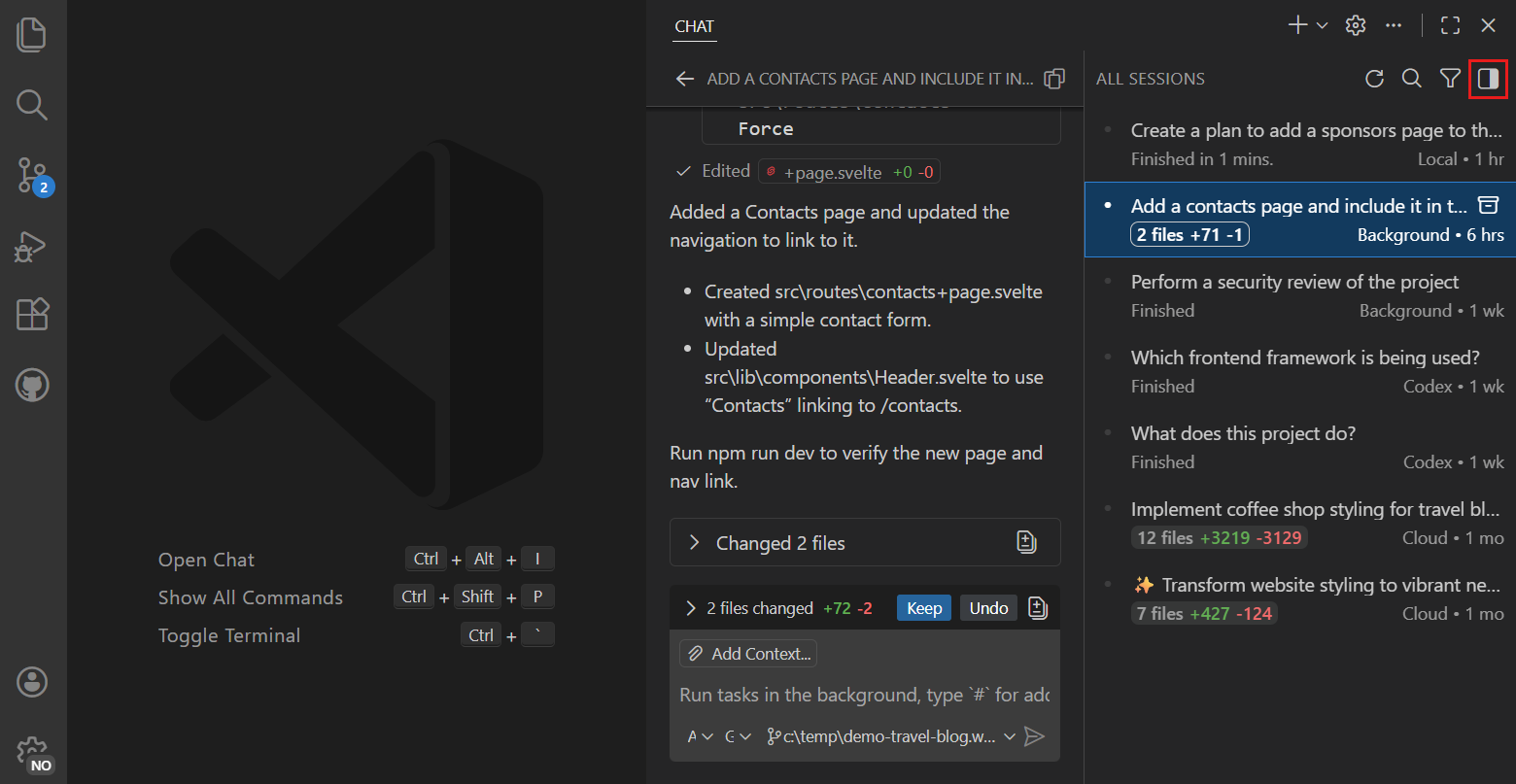
    In side-by-side view, the Chat view shows the full list of agent sessions directly side-by-side with the Chat view. Use the search and filter options to find specific sessions. To switch between compact and side-by-side mode, use the toggle control in the top-right corner of the Chat view.

    Screenshot of the Chat view in expanded mode showing full agent session history.

    When you select a session from the list, the Chat view shows the details of that session, while the session list remains visible.

    Tip

    Make the Chat view wider to automatically switch to side-by-side mode. Right-click on the sessions list and select Sessions Orientation to change the default behavior (chat.viewSessions.orientation).

Right-click a session in the list to see additional actions, such as different options to open the session details, archive the session, or agent-type specific actions like checking out a pull request (for cloud agent sessions).

To hide the session list from the Chat view, right-click in an empty chat and unselect Show Sessions.

If you prefer the dedicated Agents view (preview), set the chat.agentSessionsViewLocation setting to view or single-view.

Note

Extension developers can learn how to integrate with the Agents view with the proposed API chatSessionsProvider. The API is currently in a proposed state and subject to change.

Filter agent sessions

When all sessions are shown in the sessions list, you can use search and filtering to find specific agent sessions. By default, all sessions are shown, except for archived sessions. You filter sessions by agent type, status, read state, and archived state.

Screenshot of the agent sessions view filter dropdown.

Select Reset to reset the filters to the default value.

Archive agent sessions

To keep the list of sessions organized, you can archive completed or inactive sessions. Archived sessions are hidden by default, but you can still access them by applying the Archived filter.

To archive a session, hover over the session in the session list and select Archive. After you archive a session, it disappears from the list. Inversely, you can also unarchive a session in the same way.

Screenshot of archiving an agent session in the sessions view.

Create an agent session

There are different ways to create a new agent session in VS Code:

  • Create a new, empty agent session of a specific type

  • Hand off an existing session to another agent type via delegation

  • Assign a task directly to an agent, such as a TODO comment or GitHub issue

Create a new agent session

You can create a new agent session from the Chat view or by using the corresponding commands in the Command Palette.

  1. Open the Chat view

  2. Select the New Session dropdown and then select which type of agent session to create

    Screenshot of creating a new agent session from the Chat view.

    • New Chat: start a new local agent session in the Chat view
    • New Chat Editor: start a new local agent session as an editor tab
    • New Chat Window: start a new local agent session in a separate VS Code window
    • New Background/Cloud/Codex Agent: start a new background, cloud, or Codex agent session in the Chat view

At any time, you can move an agent session from the Chat view to a chat editor or new window via the actions in the overflow menu (...).

Alternatively, use the following commands from the Command Palette (⇧⌘P (Windows, Linux Ctrl+Shift+P)):

  • Chat: New Chat Editor/Window: start a new local agent session in a chat editor
  • Chat: New Background Agent: start a new background agent session using Copilot CLI in a chat editor
  • Chat: New Cloud Agent: start a new Copilot coding agent session in a chat editor
  • Codex: New Codex Agent: start a new OpenAI Codex agent session in a chat editor

Hand off a session to another agent

Each agent type has unique strengths and capabilities. Local agents let you interact with the AI in real-time, whereas background agents are great for handling well-defined tasks autonomously, and Cloud agents are great for team collaboration via pull requests.

VS Code enables you to hand off (or delegate) an existing task from one agent to another agent, depending on the specifics of the task at hand. For example, you start with creating a plan with a local agent, then hand off to a background agent to create different variants as proof of concepts, and finally continue with a cloud agent to implement the final version in a pull request for team review.

When you delegate a session, VS Code creates a new agent session of the selected type, carrying over the full conversation history and context. You can then continue interacting with the new agent to complete the task. The original session is archived after handoff.

You can hand off a local agent session from chat in VS Code by using the Continue In control, or by typing @cli, @cloud, or @codex in your prompt to pass the task to another agent type.

Screenshot of the chat input box showing the Continue In button.

In a background agent session, you can delegate to a cloud agent by entering the /delegate command in the chat input box. Optionally, you can provide additional instructions to the cloud agent after the /delegate command.

Assign a coding task to an agent

If you have the GitHub Pull Requests extension installed, you can assign an agent to implement TODO comments in your code.

Screenshot of assigning a TODO comment to Copilot coding agent.

In GitHub.com, or by using the GitHub Pull Requests extension, you can assign GitHub issues to Copilot coding agent by assigning the issue to copilot or by mentioning it in an issue comment or pull request to ask for a code review.

Review and apply file changes

When an agent session completes and has made code changes to your project, the session list shows the file change statistics for that session. To review the changes made by the agent, select the session from the list to open the session details.

The session details view shows the full conversation history with the agent, along with any file changes made during the session. Right-click a changed file to see a diff editor for that file, or select the View All Changes action to see a multi-file diff editor with all changes made during the session.

Screenshot of the file changes diff editor in an agent session.

Depending on the agent type, you have additional options to apply the changes made by the agent onto your local workspace, or to check out the branch from the agent session (for cloud agents).