Use Agent Skills in VS Code
Agent Skills are folders of instructions, scripts, and resources that AI agents can load when relevant to perform specialized tasks. Agent Skills is an open standard that works across multiple AI agents, including GitHub Copilot in VS Code, GitHub Copilot CLI, the GitHub Copilot app, Copilot cloud agent, and the experimental OpenAI Codex integration.
Unlike custom instructions that primarily define coding guidelines, skills enable specialized capabilities and workflows that can include scripts, examples, and other resources. Skills you create are portable across skills-compatible agents, but supported locations and optional features vary by agent. Unless otherwise noted, the configuration options and controls on this page apply to Copilot.
For how skills compare with the other customization options, see Customization concepts.
Key benefits of Agent Skills:
- Specialize Copilot: Tailor capabilities for domain-specific tasks without repeating context
- Reduce repetition: Create once, use automatically across all conversations
- Compose capabilities: Combine multiple skills to build complex workflows
- Efficient loading: Only relevant content loads into context when needed
Use the Agent Customizations editor (Preview) to discover, create, and manage all your agent customizations in one place. Run Chat: Open Customizations from the Command Palette.
Agent Skills vs custom instructions
While both Agent Skills and custom instructions help customize Copilot's behavior, they serve different purposes:
| Feature | Agent Skills | Custom Instructions |
|---|---|---|
| Purpose | Teach specialized capabilities and workflows | Define coding standards and guidelines |
| Portability | Reusable across skills-compatible coding agents, subject to each agent's supported locations and features | Reusable across experiences that support the selected instruction format |
| Content | Instructions, scripts, examples, and resources | Instructions only |
| Scope | Task-specific, loaded on-demand | Always applied (or via glob patterns) |
| Standard | Open standard (agentskills.io) | Multiple formats, such as AGENTS.md and .github/copilot-instructions.md |
For example, you can share a repository's .github/copilot-instructions.md between VS Code and GitHub Copilot CLI. Check the supported file locations and activation rules for each experience.
Use Agent Skills when you want to:
- Create reusable capabilities that work across different AI tools
- Include scripts, examples, or other resources alongside instructions
- Share capabilities with the wider AI community
- Define specialized workflows like testing, debugging, or deployment processes
Use custom instructions when you want to:
- Define project-specific coding standards
- Set language or framework conventions
- Specify code review or commit message guidelines
- Apply rules based on file types using glob patterns
Create a skill
With Local selected in the Chat view, type /skills in the chat input to quickly open the Configure Skills menu. For other harnesses, such as Copilot, use Open Customizations instead.
Skills are stored in directories with a SKILL.md file that defines the skill's behavior. VS Code supports two types of skills:
| Skill type | Location |
|---|---|
| Project skills, stored in your repository | .github/skills/, .claude/skills/, .agents/skills/ |
| Personal skills, stored in your home directory | ~/.copilot/skills/, ~/.claude/skills/, ~/.agents/skills/ |
To reuse repository skills with OpenAI Codex, configure the experimental Codex integration. This integration discovers workspace skills in .github/skills/ before your first prompt, without additional skill-location configuration. Codex also discovers .agents/skills/ natively.
If skills in .github/skills/ have duplicate names across workspace roots, the primary root takes precedence. Discovery makes skills available to the model but does not guarantee that it invokes a skill for every relevant prompt.
The Codex harness is disabled when Copilot enterprise-managed settings apply. Contact the IT team that deployed the settings to discuss access.
Prefer native harness folders over custom search locations. The chat.agentSkillsLocations setting remains supported and is not deprecated, and the editor forwards skills from additional configured locations to Agent Host harnesses. Custom locations are not recommended for Copilot workflows because GitHub Copilot CLI and the GitHub Copilot app do not inherit editor settings. Move existing skills to native harness locations to use them across Copilot clients.
In a monorepo, enable chat.useCustomizationsInParentRepositories to discover skills from the parent repository root. Learn more about parent repository discovery.
To create a skill:
-
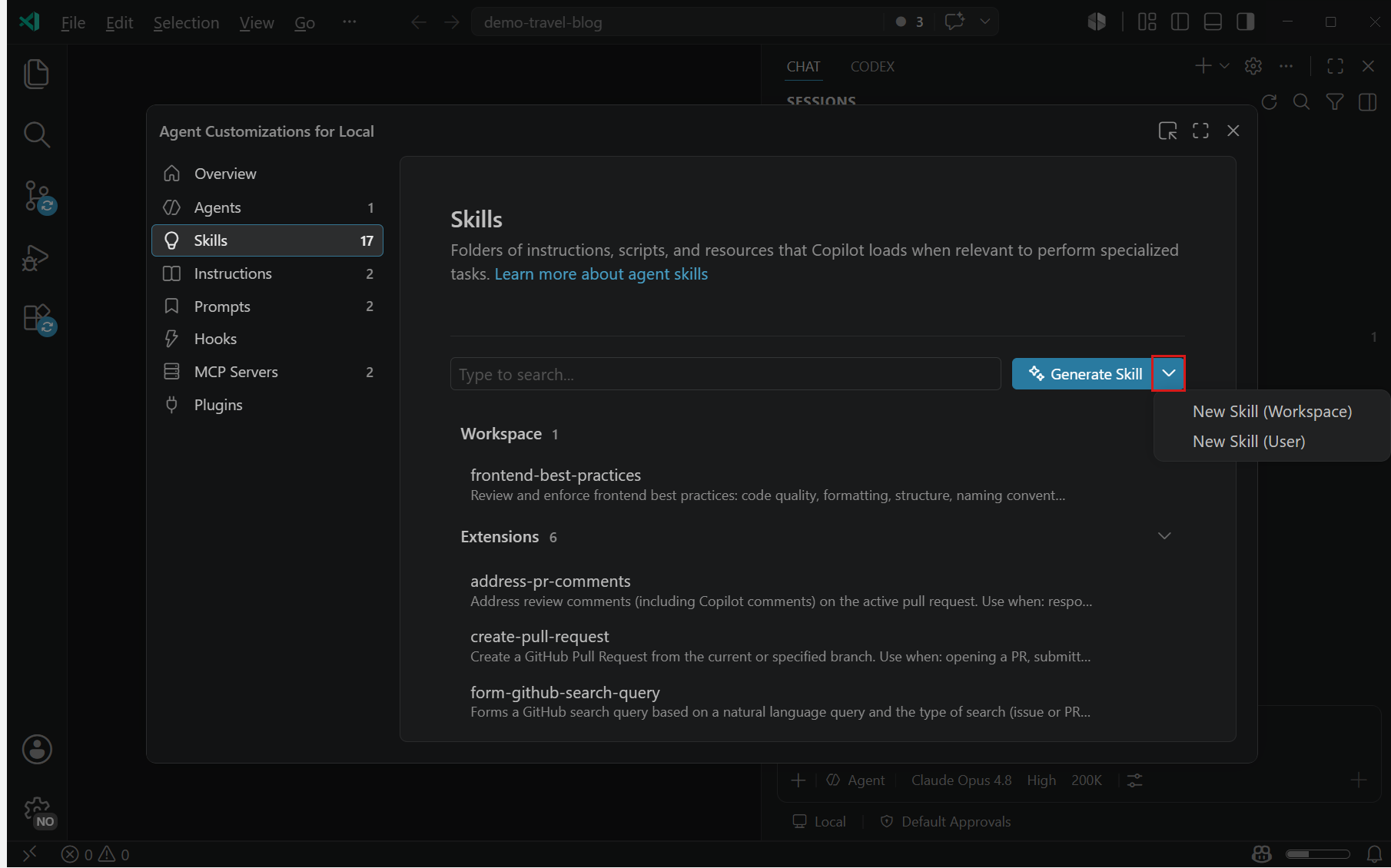
In the Chat view, select Open Customizations in the title bar to open the Agent Customizations editor, and then select Skills.
-
Select New Skill (plus icon) next to the Workspace or User group, depending on where you want to store the skill.
-
Select the location and enter a name for the skill.
-
Complete the
SKILL.mdfile by filling in the YAML frontmatter and adding instructions in the body of the file.--- name: skill-name description: Description of what the skill does and when to use it --- # Skill Instructions Your detailed instructions, guidelines, and examples go here... -
Optionally, add scripts, examples, or other resources to your skill's directory.
For example, a skill for testing web applications might include:
SKILL.md- Instructions for running teststest-template.js- A template test fileexamples/- Example test scenarios
NoteMake sure to reference any additional files in your
SKILL.mdfor them to be picked up by the agent. Use Markdown links or#file:references with paths relative to theSKILL.mdfile, such as[test template](./test-template.js)or#file:./test-template.js.
Generate a skill with AI
You can use AI to generate a skill based on a description of the capability. In chat, ask the agent to create a skill and describe the capability you want (for example, "create a skill for running and debugging integration tests"). This works for every harness, including Copilot. The agent asks clarifying questions and generates a SKILL.md file with the directory structure, instructions, and frontmatter.
With Local selected, you can also type /create-skill in chat followed by the description. The /create-skill command isn't available for other harnesses.
You can also extract a reusable skill from an ongoing conversation. For example, after a multi-turn session where you debugged a complex issue, ask "create a skill from how we just debugged that" to capture the multi-step procedure as a reusable skill.
With Local selected in the Chat view, you can also generate a skill from the Agent Customizations editor by selecting Generate with AI next to the Workspace group in the Skills section.
Install a skill from the Customization Marketplace (Experimental)
Use the Customization Marketplace to find and install complete skill packages from configured sources:
- Turn on the chat.customizations.marketplace.enabled setting.
- Open the Agent Customizations editor and select Discover.
- From the source menu, select GitHub Feed, and then search for a skill by name or add
@type:skillto your search. - Select a skill and review its publisher, source, and included files.
- Select Install, and then choose the user or workspace skills directory where you want to store the skill.
VS Code doesn't overwrite an existing skill at the selected destination. If another supported location contains a skill with the same name, both skills appear on the Skills page. The source or publisher image identifies the Marketplace installation, and Copy Relative Path shows its exact location.
Marketplace ownership applies to the exact installed skill directory. Deleting a Marketplace-installed skill from the Skills page uninstalls only that skill and doesn't remove a same-name local skill in another location.
If files from a Marketplace-installed skill are missing, Discover shows Missing files. Select Repair to restore only the missing packaged files. Files that you changed or added remain unchanged.
For more information about browsing sources and installation states, see Discover marketplace customizations.
SKILL.md file format
The SKILL.md file is a Markdown file with YAML frontmatter that defines the skill's metadata and behavior.
Header (required)
The header is formatted as YAML frontmatter with the following fields:
| Field | Required | Description |
|---|---|---|
name |
Yes | A unique identifier for the skill. Only lowercase letters, numbers, and hyphens are allowed (for example, webapp-testing). Do not use slashes, colons, dots, or namespace prefixes. Must match the parent directory name. Maximum 64 characters. Names with invalid characters cause the skill to silently fail to load. |
description |
Yes | A description of what the skill does and when to use it. Be specific about both capabilities and use cases to help Copilot decide when to load the skill. Maximum 1024 characters. |
argument-hint |
No | Hint text shown in the chat input field when the skill is invoked as a slash command. Helps users understand what additional information to provide (for example, [test file] [options]). |
user-invocable |
No | Controls whether the skill appears as a slash command in the chat menu. Defaults to true. Set to false to hide the skill from the / menu while still allowing the agent to load it automatically. |
disable-model-invocation |
No | Controls whether the agent can automatically load the skill based on relevance. Defaults to false. Set to true to require manual invocation through the / slash command only. |
context
Forked skill context is experimental and might change or be removed.
|
No | Controls how the skill is loaded. Defaults to inline (the skill's instructions are added to the parent agent's context). Set to fork to run the skill in a dedicated subagent context. See Run a skill in a forked context. |
When a skill is distributed through a plugin, the plugin name is automatically used as a command prefix (for example, /my-plugin:test-runner). Do not manually add namespace prefixes to the skill name field. Using prefixes like myorg/skillname or myorg:skillname causes the skill to silently fail to load.
Body
The skill body contains the instructions, guidelines, and examples that Copilot should follow when using this skill. Write clear, specific instructions that describe:
- What the skill helps accomplish
- When to use the skill
- Step-by-step procedures to follow
- Examples of the expected input and output
- References to any included scripts or resources
You can reference files by using Markdown links or the #file: syntax. For files within the skill directory, use paths relative to the SKILL.md file, such as [test script](./test-template.js). To reference your environment user home folder, use ~, or start a path with ~/, such as #file:~/skill-resources/test-template.js. Use Unix-style / path separators to keep skills portable across operating systems.
Run a skill in a forked context
By default, when VS Code loads a skill, the skill's instructions are added to the parent agent's context window. For large skills, or skills whose intermediate reasoning isn't relevant to the rest of your conversation, you can instead run the skill in a forked context. In a forked context, the skill executes in a dedicated subagent and only its final result is returned to the parent agent. This keeps your main conversation's context clean.
To run a skill in a forked context, set the context field in the SKILL.md frontmatter to fork:
---
name: review-pr
description: Review a pull request for code quality, style, and correctness. Use when asked to review a PR.
context: fork
---

# PR review

Follow these steps to review the pull request...
Use context: fork for skills that:
- Read many files or run lengthy investigations whose details don't need to stay in the main conversation
- Produce a focused result (such as a summary, a report, or a small set of edits) that the parent agent can act on directly
- Should not influence the parent agent's behavior beyond their final output
To run a skill in a forked context, enable the github.copilot.chat.skillTool.enabled setting in VS Code.
Example skills
The following examples demonstrate different types of skills you can create.
Example: Web application testing skill
---
name: webapp-testing
description: Guide for testing web applications using Playwright. Use this when asked to create or run browser-based tests.
---

# Web Application Testing with Playwright

This skill helps you create and run browser-based tests for web applications using Playwright.

## When to use this skill

Use this skill when you need to:
- Create new Playwright tests for web applications
- Debug failing browser tests
- Set up test infrastructure for a new project

## Creating tests

1. Review the [test template](./test-template.js) for the standard test structure
2. Identify the user flow to test
3. Create a new test file in the `tests/` directory
4. Use Playwright's locators to find elements (prefer role-based selectors)
5. Add assertions to verify expected behavior

## Running tests

To run tests locally:
```bash
npx playwright test
```

To debug tests:
```bash
npx playwright test --debug
```

## Best practices

- Use data-testid attributes for dynamic content
- Keep tests independent and atomic
- Use Page Object Model for complex pages
- Take screenshots on failure
Example: GitHub Actions debugging skill
---
name: github-actions-debugging
description: Guide for debugging failing GitHub Actions workflows. Use this when asked to debug failing GitHub Actions workflows.
---

# GitHub Actions Debugging

This skill helps you debug failing GitHub Actions workflows in pull requests.

## Process

1. Use the `list_workflow_runs` tool to look up recent workflow runs for the pull request and their status
2. Use the `summarize_job_log_failures` tool to get an AI summary of the logs for failed jobs
3. If you need more information, use the `get_job_logs` or `get_workflow_run_logs` tool to get the full failure logs
4. Try to reproduce the failure locally in your environment
5. Fix the failing build and verify the fix before committing changes

## Common issues

- **Missing environment variables**: Check that all required secrets are configured
- **Version mismatches**: Verify action versions and dependencies are compatible
- **Permission issues**: Ensure the workflow has the necessary permissions
- **Timeout issues**: Consider splitting long-running jobs or increasing timeout values
Use skills as slash commands
Skills are available as slash commands in chat, alongside prompt files. Type / in the chat input field to see a list of available skills and prompts, and select a skill to invoke it.
You can add extra context after the slash command. For example, /webapp-testing for the login page or /github-actions-debugging PR #42.
By default, all skills appear in the / menu. Use the user-invocable and disable-model-invocation frontmatter properties to control how each skill is accessed:
| Configuration | Slash command | Auto-loaded by Copilot | Use case |
|---|---|---|---|
| Default (both properties omitted) | Yes | Yes | General-purpose skills |
user-invocable: false |
No | Yes | Background knowledge skills that the model loads when relevant |
disable-model-invocation: true |
Yes | No | Skills you only want to run on demand |
| Both set | No | No | Disabled skills |
How Copilot uses skills
Skills load content progressively to keep your context efficient. Here is an example of how Copilot uses the webapp-testing skill:
-
Discovery: Copilot reads the skill's
nameanddescriptionfrom the YAML frontmatter. When you ask "help me test the login page", Copilot matches this to thewebapp-testingskill based on its description. -
Instructions loading: Copilot loads the
SKILL.mdbody into its context, giving it access to the detailed testing procedures and guidelines. You can also trigger this step directly by typing/webapp-testingin chat. -
Resource access: As Copilot works through the instructions, it accesses additional files in the skill directory, such as
test-template.jsor example scenarios, only when it references them. If a file isn't referenced in the instructions, it won't be loaded.
This three-level loading system means you can install many skills without consuming context. Copilot loads only what is relevant for each task.
Skills that opt in to a forked context follow the same discovery step, but their instructions and any files they read are loaded into a separate subagent. Only the skill's final result is returned to the parent agent.
Use shared skills
You can use skills created by others to enhance Copilot's capabilities. The github/awesome-copilot repository contains a growing community collection of skills, custom agents, instructions, and prompts. The anthropics/skills repository contains additional reference skills.
You can also discover and install skills that are bundled in agent plugins. Skills from installed plugins appear alongside your locally defined skills in the Configure Skills menu.
To use a shared skill:
- Browse the available skills in the repository
- Copy the skill directory to your
.github/skills/folder - Review and customize the
SKILL.mdfile for your needs - Optionally, modify or add resources as needed
Always review shared skills before using them to ensure they meet your requirements and security standards. VS Code's terminal tool provides controls for script execution, including auto-approve options with configurable allow-lists and tight controls over which code runs. Learn more about security considerations for auto-approval features.
Contribute skills from extensions
Extensions can contribute skills using the chatSkills contribution point in their package.json. The path must point to a directory that contains a SKILL.md file, following the Agent Skills specification.
Required folder structure
The skill directory must follow this structure:
extension-root/
└── skills/
    └── my-skill/           # Directory name must match the `name` field in SKILL.md
        └── SKILL.md         # Required
Register the skill in package.json
Add the chatSkills contribution point in your extension's package.json. The path property must point to the corresponding SKILL.md file:
{
  "contributes": {
    "chatSkills": [
      {
        "path": "./skills/my-skill/SKILL.md"
      }
    ]
  }
}
The name field in the SKILL.md frontmatter must match the parent directory name. For example, if the directory is skills/my-skill/, the name field must be my-skill. If the name does not match, the skill is not loaded.
The SKILL.md file follows the same format as project and personal skills. For example:
---
name: my-skill
description: Description of what the skill does and when to use it.
---

# My Skill

Detailed instructions for the skill...
Agent Skills standard
Agent Skills is an open standard that enables portability across different AI agents. Skills you create in VS Code work with multiple agents, including:
- GitHub Copilot in VS Code: Available in chat and agent mode
- GitHub Copilot CLI: Accessible when working in the terminal
- GitHub Copilot app: Available in the dedicated desktop experience.
- Copilot cloud agent: Used during automated coding tasks
- OpenAI Codex integration (Experimental): Discovers workspace skills in
.github/skills/after you set up the integration.
Learn more about the Agent Skills standard at agentskills.io.