Manage tools and Toolboxes in Foundry Toolkit
Tools give an agent access to information and actions outside its model. For example, an issue-triage agent might read a repository, search project documentation, and query a business service. Foundry Toolkit for Visual Studio Code helps you configure these capabilities, manage their connections, and share them through Toolboxes.
This guide covers the resource lifecycle: create a connection, assemble tools and skills, manage versions, attach the capabilities to a prompt or hosted agent, and verify an actual tool call. Tool Catalog is the discovery and configuration surface, not the resource that runs your tools.
Understand tools, connections, and Toolboxes
A tool definition describes what an agent can call. A connection supplies the endpoint or authentication configuration that a tool needs. They are not interchangeable: creating a connection does not attach a tool to an agent, and not every tool requires a connection.
Model Context Protocol (MCP) exposes a server's tools to agent clients. Agent2Agent (A2A) connects one agent to another. An OpenAPI specification describes the operations of an HTTP API.
Use the following distinctions to choose what to create and where to manage it.
| Resource | Purpose and example | Storage and use |
|---|---|---|
| Standalone Foundry tool | Add a supported capability, such as web search or code interpreter, directly to a prompt agent without a Toolbox. | The agent configuration contains the tool definition. Some built-in tools need no project connection. |
| Foundry project connection | Configure an MCP or A2A endpoint, or store credentials used by an OpenAPI tool. | Foundry stores the connection. An agent or Toolbox tool references it. The downstream service still controls access and data handling. |
| Toolbox | Share a curated collection of tools and skills through one managed MCP endpoint. | Foundry stores versioned Toolbox definitions. Prompt agents and compatible hosted runtimes consume a specific version or the current default. |
| Local MCP connection | Run a development server with stdio, or call a remote HTTP endpoint from your computer. |
The Toolkit reads local configuration and manages the client process. This does not make the connection available to a cloud agent. |
| Skill (Preview) | Package reusable task instructions in SKILL.md, such as an issue-triage workflow. |
Foundry stores skill versions. Add a skill reference to a Toolbox, then use a runtime that supports loading and applying those skills. |
A Toolbox is not an agent or a deployment. Its owner manages shared contents, versions, and policies. A local connection can point to a remote server, and a hosted agent can call cloud tools during a local test. Saving either configuration does not deploy the external server.
Prerequisites
For all paths, install Visual Studio Code and the Foundry Toolkit extension. See the Foundry Toolkit overview for extension and project setup.
For Foundry tools, connections, Toolboxes, and skills, select a Foundry project in the Toolkit and make sure you have permission to manage its resources. For agent use, prepare a compatible model deployment. The agent identity and, for per-user authentication, the end user also need the appropriate access.
Follow the Toolbox prerequisites and region and model compatibility guidance. A catalog entry is not proof that a tool works with every model or in every region. OpenAPI and A2A connections also require a working API or agent endpoint and the authentication information supplied by its owner.
For local MCP connections, install the runtime required by the server and obtain access to its endpoint. You do not need a Foundry project unless you use Foundry resources.
Local tests can call cloud services and live tools, incur charges, and send data outside Foundry. Review the provider's permissions and data handling terms before using sensitive inputs.
Create and manage Foundry connections
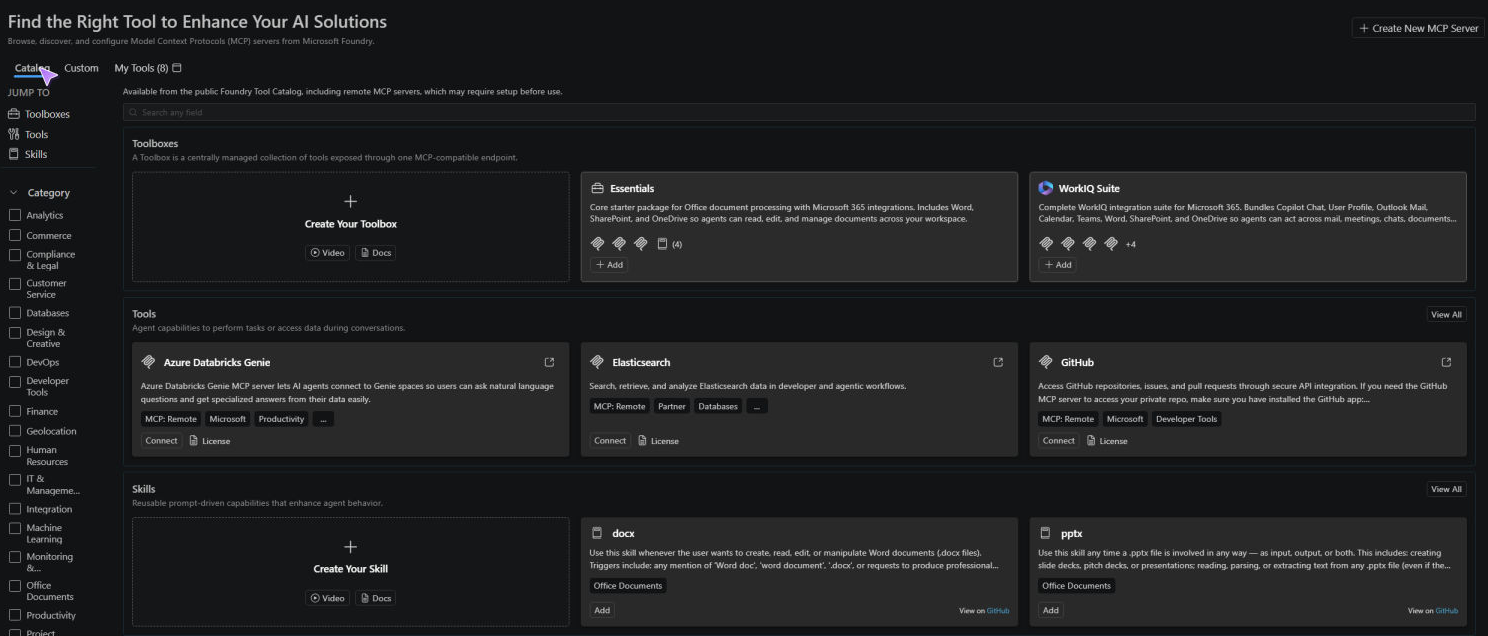
Open Foundry Toolkit > Developer Tools > Discover > Tool Catalog to discover tools or configure a custom endpoint. My Tools opens the resource view with Tools, Toolboxes, and Skills tabs. You can also open Tools under My Resources.
Connect an MCP server
Use this path when an existing MCP server exposes the capabilities your agent needs.
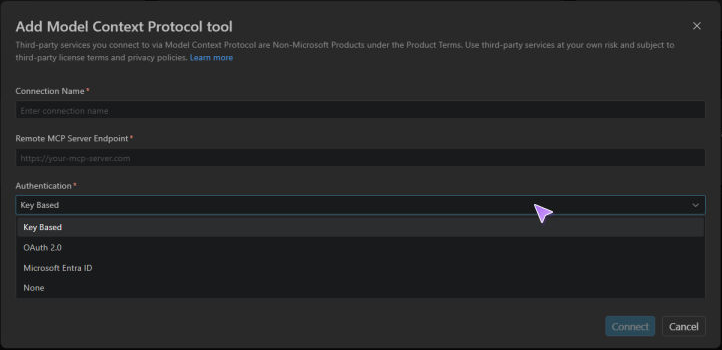
The custom connection dialog lets you enter the endpoint and choose its authentication method.
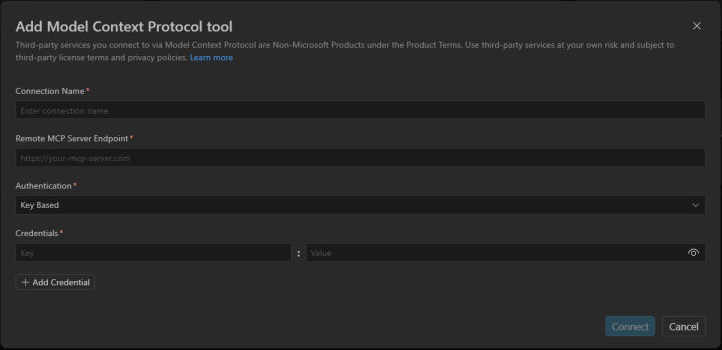
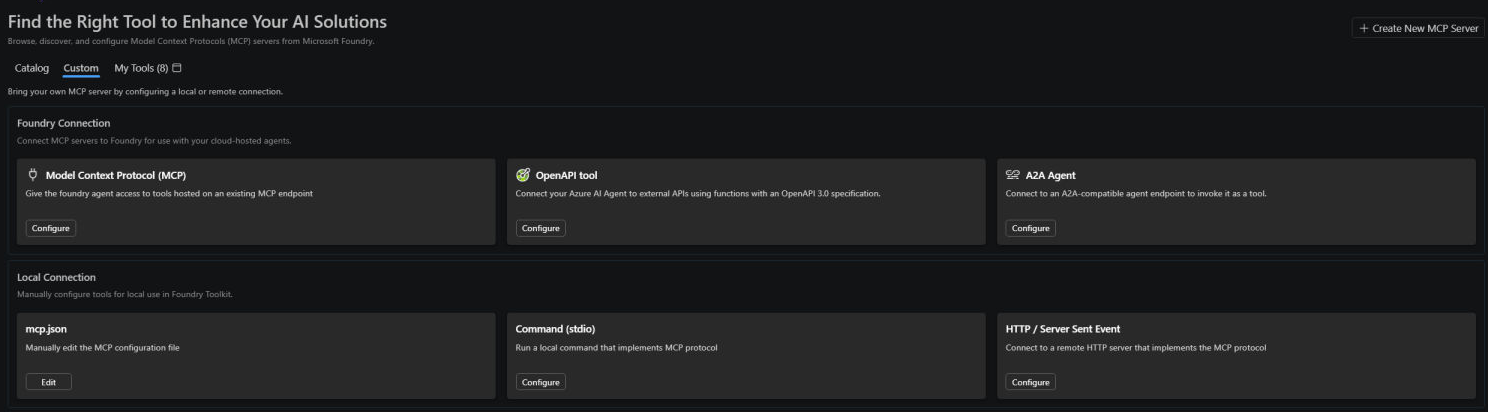
- On Catalog, find the tool and select Connect. For an endpoint that is not listed, select Custom > Foundry Connection > Model Context Protocol (MCP) > Configure.
- Choose Foundry when Choose where to save MCP Configuration is available. The custom Foundry path already uses that destination.
- Review the connection name and endpoint. Fill in required endpoint parameters and choose an authentication method supported by the tool.
- Select Connect.
- Open My Tools > Tools, select Refresh if needed, and check the connection and its Saved to location.
This creates a project connection. Attach it to an agent or add it to a Toolbox before testing execution. It does not start or deploy the MCP server.
Configure an OpenAPI tool
An OpenAPI tool needs both an API specification and authentication configuration. The specification belongs to the agent or Toolbox tool definition. A project connection stores credentials, not the complete OpenAPI specification.
Use the Toolbox editor for a complete Toolkit path that saves the specification with the tool:
- Open My Tools > Toolboxes. Select Create Toolbox to start a new form, or open an existing Toolbox.
- Under Included, select Add > Add tools.
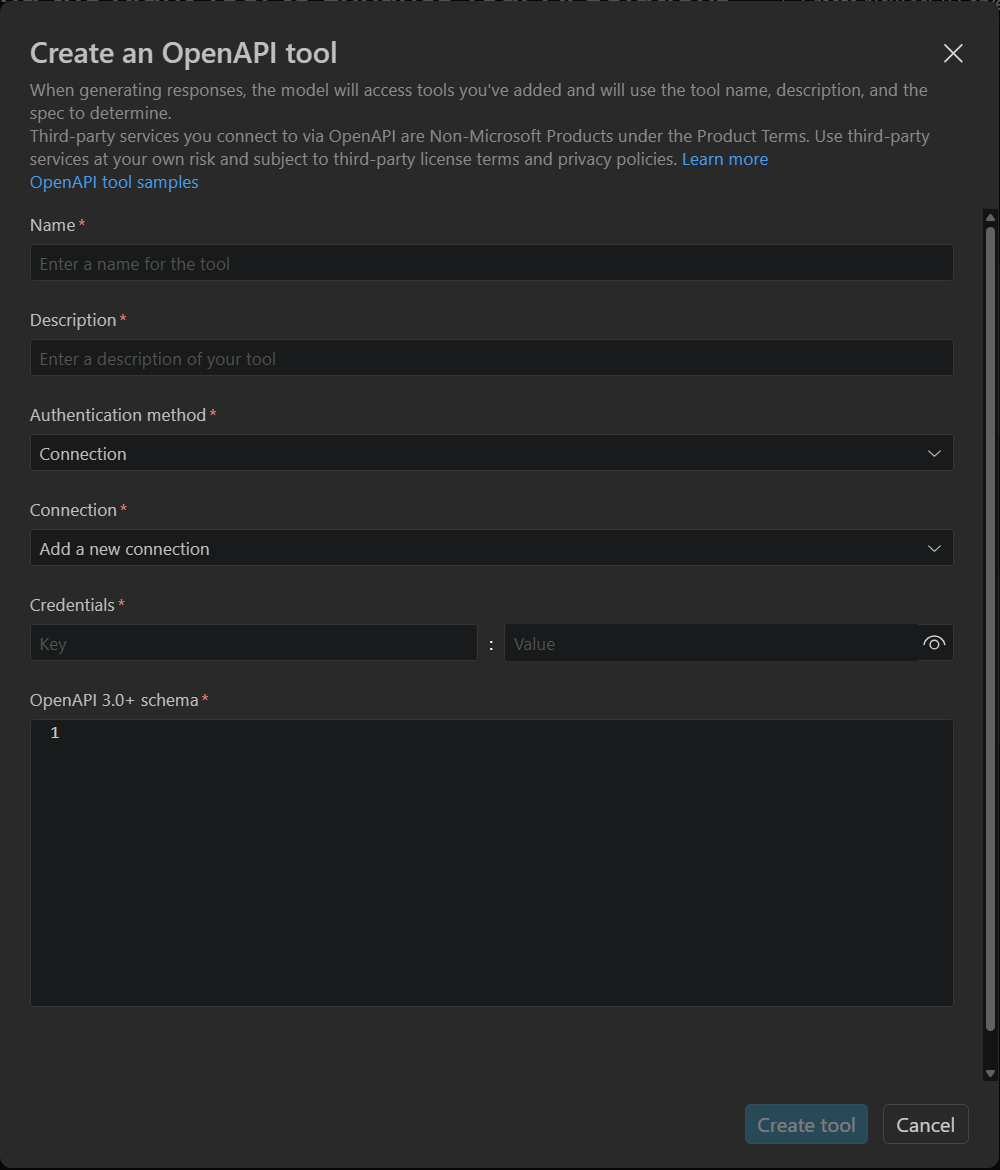
- In Select a tool, open Custom and select OpenAPI tool.
- Enter Name and Description. Use a short name without spaces or hyphens, such as
issue_lookup. - Paste your API's OpenAPI 3.0 or 3.1 specification as JSON into OpenAPI 3.0+ schema. Use the API's real server URL and operation definitions.
- Choose Authentication method:
- Anonymous: Use an API that requires no authentication.
- Connection: Select an existing connection, or Add a new connection and enter the required credential key and value.
- Managed Identity: Enter the required Audience and ensure the calling identity has service access.
- Select Create tool, then finish the tool selection with Add Tools.
- Review the tool under Included and select Publish for a new Toolbox or Save changes for an existing one.
The tool definition is now part of a Toolbox version. Keep the API specification in source control so you can update the definition later. Creating a credential connection can occur before that final save. Canceling the Toolbox form does not undo a connection already created.
Tool Catalog > Custom > OpenAPI tool also opens a configuration dialog, but its standalone creation path offers a new credential connection. Do not treat that connection as a saved, reusable OpenAPI schema.
For a direct OpenAPI integration in a prompt agent outside a Toolbox:
- Prepare the API specification and choose anonymous, project-connection, or managed-identity authentication.
- Create or reuse the required project connection when using stored credentials.
- Use the maintained SDK or REST request in Connect agents to OpenAPI tools to create a prompt-agent version containing the
openapitool definition, specification, and authentication reference. - Invoke that version with a request that requires an API operation and inspect the actual result.
The standalone OpenAPI definition is managed through that agent configuration, not through a general OpenAPI attachment control in Agent Builder.
Connect an A2A agent
Use A2A when the capability is provided by another agent rather than by an MCP server or an HTTP API described by OpenAPI.
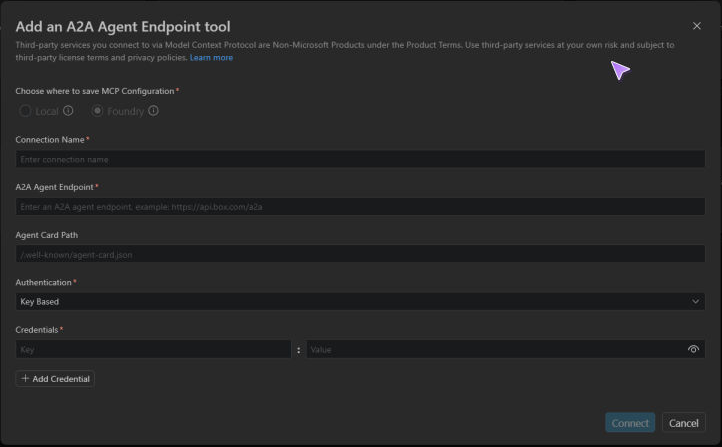
- In Tool Catalog, select Custom > Foundry Connection > A2A Agent > Configure.
- Enter the connection name and A2A Agent Endpoint supplied by the remote agent's owner.
- Review Agent Card Path with the owner and change it if the agent uses a different discovery path.
- Select the required authentication method and complete its fields. For identity-based access, arrange the necessary permissions on the remote agent.
- Select Connect, then check the project connection under My Tools > Tools.
- For prompt-agent use, follow Attach an A2A agent. For shared use, select Use in a toolbox, review the included definition, and save the Toolbox.
This configures access to an existing remote agent. It does not create, deploy, or publish that agent. Use an A2A endpoint, not an arbitrary chat or Responses endpoint. See Connect to an A2A agent endpoint for supported protocol formats, prerequisites, and SDK or REST attachment.
Choose authentication
The available authentication choices depend on the tool and save destination. Foundry connections can use anonymous access, stored keys, project or agent identities, and supported OAuth or user identity flows. Do not assume that a local connection supports the same identity flow as a Foundry connection.
A Toolbox has two separate authorization boundaries: the agent authenticates to the Toolbox, and each tool's connection determines the credential or user identity sent to the downstream service. Selecting an identity in the Toolkit does not grant that identity permissions. For role assignments, tenant requirements, consent, and credential management, follow Toolbox authentication.
Edit or delete a project connection
Manage the connection separately from the tool definitions that reference it. The Tools list provides a delete action for configured connections, but it does not provide a general connection Edit action. Built-in tools are not deletable project connections.
To update an endpoint or authentication configuration:
- Identify the connection name, project, and consuming agents or Toolboxes.
- Use the project-connection operations in Foundry MCP Server (Preview), or a coding agent with the Microsoft Foundry Skill, to read the current connection and propose the update.
- Review the exact fields to change. Preserve the connection name and unrelated settings unless a replacement is intentional.
- Apply the update, read the connection back, and select Refresh in the Toolkit.
- Review any endpoint copied into an agent or Toolbox definition. Save a new version where needed, then test an actual tool call.
The Microsoft Foundry coding skill is guidance for your coding agent. It is different from a versioned skill that you attach to a Toolbox.
To delete a configured connection shown in the Tools list, find its row, select the delete icon, and review the confirmation. Check consuming agents and Toolbox versions, including pinned versions, first. If the Toolkit blocks deletion because a Toolbox still references the connection, remove that reference and save the Toolbox before trying again. For connections not represented in the list, use the Foundry project-connection operations described above. Deleting a connection does not delete the external server, API, or agent.
Connect a local MCP server tool
Use a local connection to develop an MCP server or call a custom endpoint from the Toolkit on your computer.
- In Tool Catalog, select Custom.
- Under Local Connection, choose the card that matches your server:
- mcp.json > Edit opens the Toolkit configuration file.
- Command (stdio) > Configure prompts for a local command and server name.
- HTTP / Server Sent Event > Configure prompts for an endpoint URL and server name.
- Save the file or finish the prompts, then review the resulting configuration.
The quick configuration flows write to ~/.aitk/mcp.json, where ~ is your home directory. The Toolkit also reads workspace configuration from .aitk/mcp.json. These are Toolkit configuration files, not the .vscode/mcp.json configuration for GitHub Copilot Chat.
For stdio, the Toolkit starts the configured command on your computer. For HTTP, it uses MCP Streamable HTTP. An explicit sse configuration uses Server-Sent Events. The HTTP quick configuration writes type: "http", so review or edit the file when the server requires a different configuration.
Local connection secrets entered through the Toolkit's connection dialog use VS Code secret storage and references in the configuration file. Do not paste keys or tokens into a file that you commit.
A local configuration is not uploaded to Foundry. To use the server from a cloud agent, provide a reachable endpoint and configure its Foundry connection and service permissions. See MCP tools in Foundry and Toolbox network isolation.
Edit or remove a local connection
- Open Tool Catalog > Custom > Local Connection > mcp.json > Edit, or open the workspace's
.aitk/mcp.json. - Update the relevant entry under
servers, such as its command, arguments, URL, or headers. To remove a registration, remove that server entry. - Save the file and refresh or reconnect the server in the Toolkit before testing it.
You can also use the server's removal action under Local Resources. Remove the server's tools from any locally stored prompt that still uses them. Removing configuration is not the same as shutting down an independently hosted remote server.
Create and manage a Toolbox
Create a Toolbox when several agents need the same curated capabilities. The Toolbox owner controls the shared configuration. Consumers still need access to the Toolbox and the services behind its tools.
- In Tool Catalog, select My Tools > Toolboxes, then select Create Toolbox.
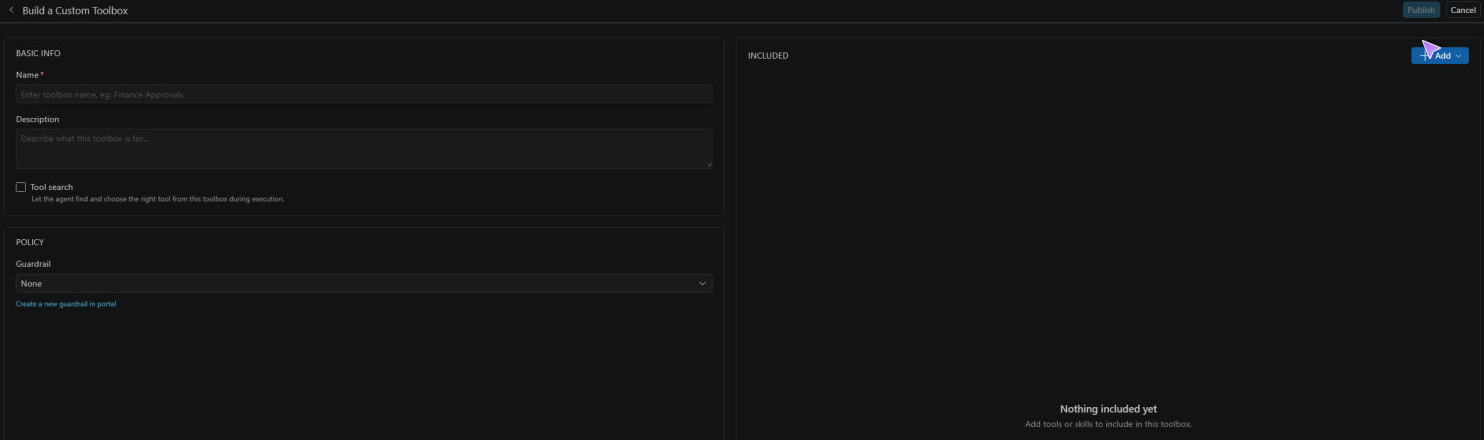
- In Build a Custom Toolbox, enter a name and description.
- Under Included, select Add > Add tools for callable capabilities, Add skills for task instructions, or both. Complete any required tool configuration.
- Review Tool search and Guardrail, then select Publish.
- Return to Toolboxes and open the Toolbox to inspect its contents and endpoint.
Publish creates the Toolbox's first version in the selected Foundry project and makes it the default. It does not create or deploy an agent.
You can create a skill-only Toolbox. Only skills already configured in the project appear in the selection dialog, so create the skills first when needed.
Start from a Toolbox template
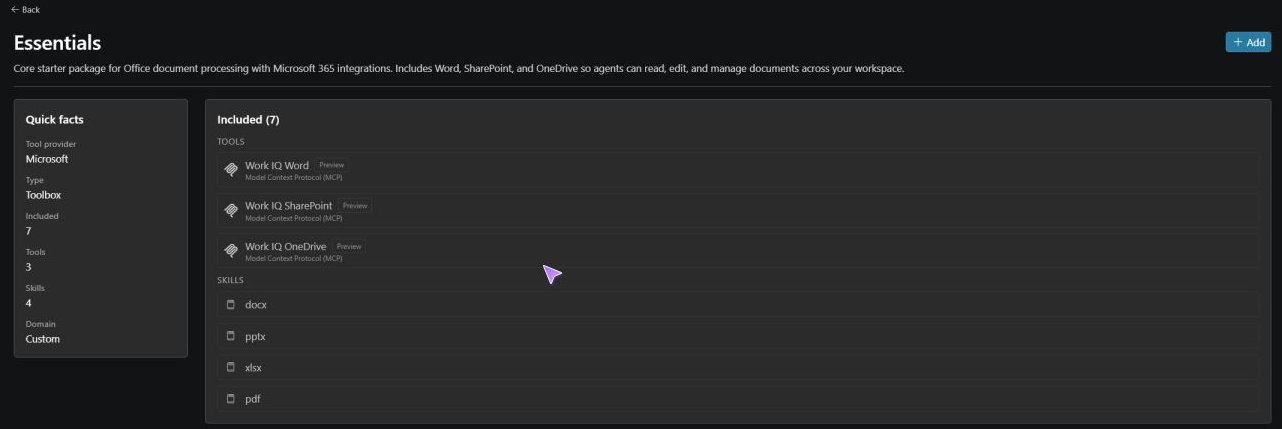
Templates provide a starting collection rather than a completed agent. The catalog includes Essentials and WorkIQ Suite, which combine skills with Microsoft 365 tool integrations. Review the actual included items because the template and service requirements can change.
- In Tool Catalog > Catalog, find the Toolboxes section.
- Select Add on the template card to open its read-only details. Review its description, included tools, and skills.
- On the details page, select Add when you are ready to create the required project connections and skills.
- In the populated Build a Custom Toolbox form, review the generated name, description, included items, and any setup failures. Complete required permissions or consent for the chosen services.
- Adjust the contents and policy choices, then select Publish.
The details page's Add operation provisions connections and skills before the Toolbox is published. A partially successful setup can leave only some items in the form. Canceling the form does not undo resources already created, and publishing does not prove that the tools can run.
Add, configure, or remove Toolbox contents
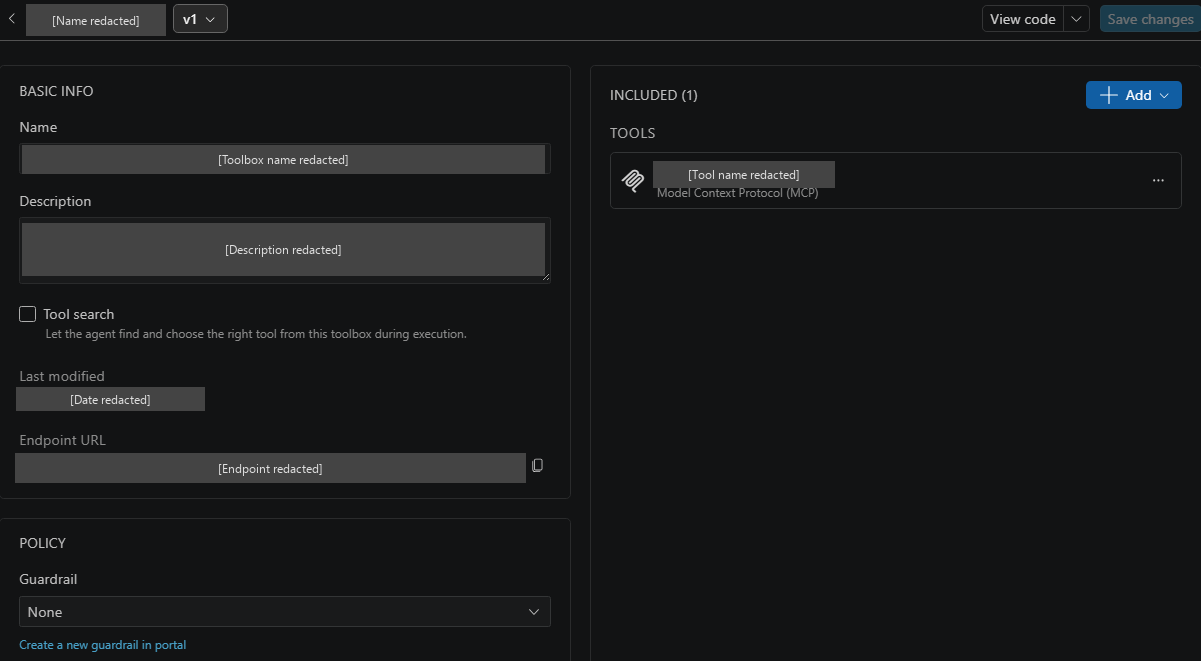
Open a Toolbox under My Tools > Toolboxes to work with its current configuration.
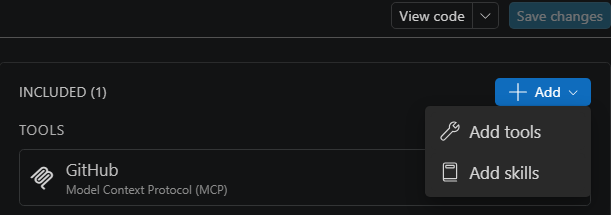
- To add tools, use Included > Add > Add tools. To add existing skills, use Add skills instead.
- To change a tool's supported options, open its more-actions menu and select Configure when available. These options belong to the tool definition and do not replace project-connection credential management.
- To remove a tool or skill from the collection, use its Delete action under Included.
- To start from a resource you already configured, open Tools or Skills, select Use in a toolbox, and choose the Toolbox. This opens its editor with the item staged.
Select Save changes to create and activate a new Toolbox version. Until that save, changes to the collection are staged in the editor. Removing an item from the collection does not itself delete the underlying connection or skill resource.
Choose tools and policies
The Toolkit supports several tool types and reusable capabilities. Use the following examples to choose what to include. Consult the linked service documentation for setup, model and region constraints, licenses, and permissions.
| Capability | Example use and setup |
|---|---|
| MCP, OpenAPI, and A2A | Call an MCP server, expose an HTTP API through an OpenAPI tool, or invoke another agent through A2A. |
| Web search, file search, Azure AI Search, and code interpreter | Retrieve public information, search indexed project data, or execute code. See the supported Toolbox tools. |
| Work IQ (Preview) | Use Microsoft 365 context through the native Work IQ integration. This is distinct from adding individual Microsoft 365 MCP catalog tools. |
| Fabric IQ (Preview) | Ground an agent in Microsoft Fabric data. Follow the service setup rather than treating this as an arbitrary local MCP endpoint. |
| Browser automation | Connect a Playwright workspace for browser tasks. The service is generally available, but the Toolkit's shipped integration uses the preview tool format. See the browser automation prerequisites. |
| Skills (Preview) | Include versioned, reusable task instructions. A Toolbox can contain skills without a separate tool. |
| Tool search (Preview) | Select Tool search to let an agent discover relevant tools at runtime instead of exposing the entire collection up front. |
The Guardrail selector applies an existing Foundry policy to the Toolbox version. Use Create a new guardrail in portal to manage policies outside the Toolkit. For what the policy checks and how to configure it, see Toolbox guardrails.
Approval, consent, and guardrails serve different purposes. A tool approval asks whether a particular call should proceed. OAuth consent authorizes a user's access to a service. A guardrail applies a content policy. None of them replaces the underlying service permissions.
For prompt agents, review approvals in Agent Builder. For a custom hosted runtime, verify that it honors the Toolbox's approval metadata before invoking tools. The MCP endpoint does not enforce that approval on the runtime's behalf. See Enforce tool approval in a hosted agent.
Manage Toolbox versions and deletion
A Toolbox version is a snapshot of its contents and policies. Open a Toolbox, edit it, and select Save changes to create a new version and make it the default. This changes a shared cloud resource, not only the current agent. The Default Version selector lets you choose another existing version as the default. Selecting a version there is not a read-only preview.
The version menu also offers a delete icon for non-default versions. Before deleting a version, check that no consumer depends on its version-specific endpoint. To remove the current default version, first select a different version as the default.
To delete the entire Toolbox, use its delete action in the Toolboxes list and review the confirmation. This removes the shared Toolbox resource, not only its attachment to one agent. Check dependent agents and clients first, and manage any connections or skills you no longer need separately.
For scripted management, use the versioning and REST procedures in Create and manage a Toolbox. For an existing Toolbox, generic API creation of a new version and promotion to default are separate operations. The Toolkit's Save changes performs both.
Copy the Toolbox endpoint
Copy Endpoint URL from the Toolbox list or details.
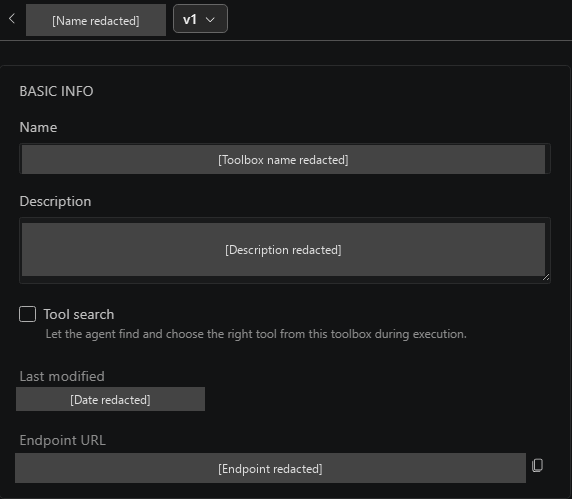
Check the URL before giving it to an agent:
| Endpoint path | Consumer behavior |
|---|---|
/toolboxes/<name>/versions/<version>/mcp?api-version=v1 |
Uses a specific version. The Toolkit displays this form when a version is known. Later default-version changes do not update this endpoint. |
/toolboxes/<name>/mcp?api-version=v1 |
Uses the current default version. Use this consumer endpoint when the agent should follow changes promoted by the Toolbox owner. |
Both paths are relative to your Foundry project endpoint. For a full example and guidance on testing a version before promotion, see Choose the Toolbox endpoint. Do not assume that all agents adopt a Toolbox update automatically.
Create and manage skills (Preview)
Tools define actions. Skills provide reusable instructions for how to complete a task. For example, a triage skill can tell an agent which issue fields to collect, when to ask for missing information, and how to format its answer. The skill does not grant permission to read or update a repository.
Create the skill in your Foundry project first, then attach a reference to a Toolbox. This workflow is different from installing the Microsoft Foundry coding skill in your editor.
Add a catalog skill or create your own
For a prebuilt skill, open Tool Catalog > Catalog, find the Skills section, and select Add on a skill card. The Toolkit registers it in the selected Foundry project.
The Create skill editor starts with a template for the frontmatter and instructions.
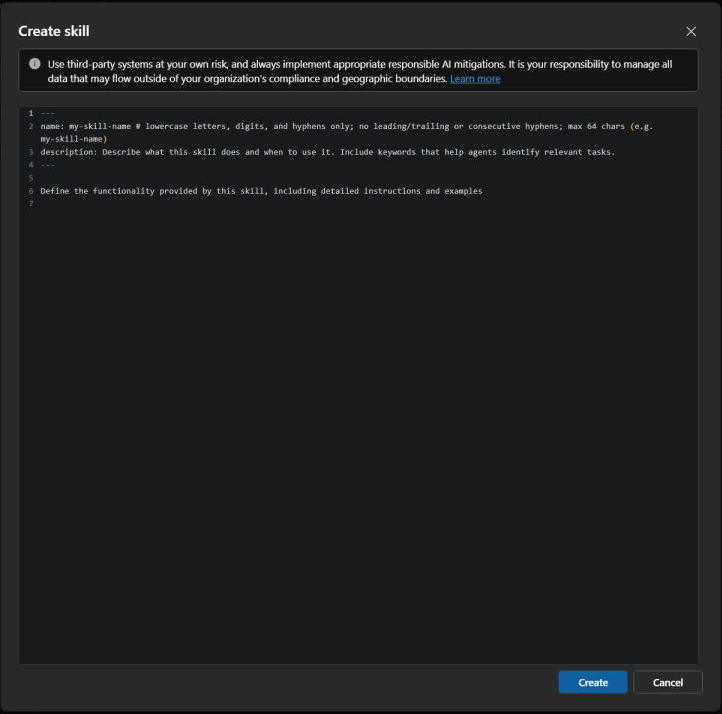
To author a skill:
- Open My Tools > Skills.
- Select Add skill > Create skill.
- Enter the full
SKILL.mdcontent in the editor, including YAML frontmatter withnameanddescription, followed by the instructions. - Select Create, then check the skill and its Default Version in the list.
For example:
---
name: issue-triage
description: Collect the information needed to triage a software issue.
---

Collect the reported problem, reproduction steps, and expected behavior.
Ask for missing information instead of inventing details.
Summarize the findings before proposing an action.
Create saves a skill version in Foundry and makes it the default. Use a new name when creating a new skill. It does not attach the skill to a Toolbox or agent.
Upload a skill
Use an existing file when the skill is already maintained in source control.
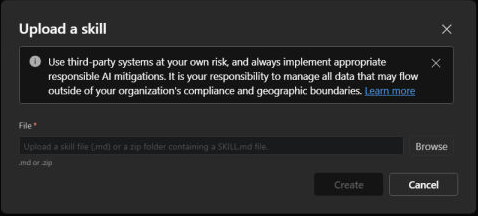
- Open My Tools > Skills and select Add skill > Upload skill.
- Select Browse and choose a
.mdfile or a.zippackage containingSKILL.md. - Review Name and Description. The Toolkit can fill these fields from the file metadata, but you must check them before creating the resource.
- Select Create, then verify the stored skill and its default version in the list.
The Toolkit accepts files up to 1 MiB. See Use skills in Foundry (Preview) for naming, packaging, service limits, and the corresponding REST operations. For a deliberate update of an existing skill, use Replace as described below.
Attach a skill to a Toolbox
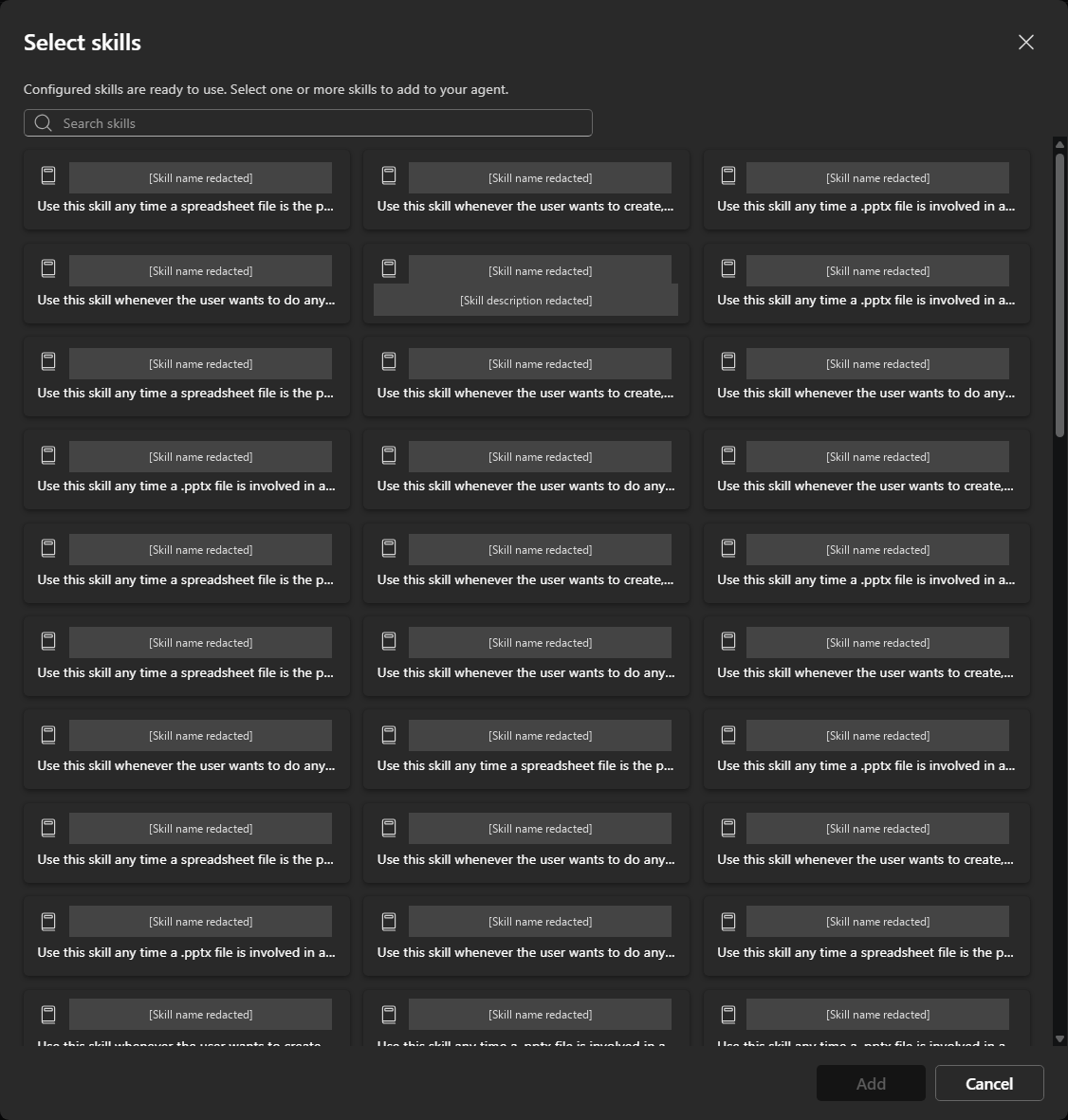
- Create or open the Toolbox.
- Under Included, select Add > Add skills.
- In Select skills, choose the skills already configured in your project, then select Add.
- Review the included skill references and select Publish or Save changes.
Alternatively, open My Tools > Skills, use the skill row's Use in a toolbox action, and choose an existing Toolbox or create a new one. Review the staged reference and save the Toolbox.
The Toolbox now contains the skill reference. The consuming agent runtime must support discovering, loading, and applying Toolbox skills. Basic MCP tool-call support alone is not proof that it does so. Follow the Toolbox skills integration example for a compatible runtime.
Replace, version, or delete a skill
The Skills list provides version selection, inspection, and more-actions controls.

Use My Tools > Skills to manage the stored resource:
| Action | Result |
|---|---|
| View skill | Open the stored content for inspection. This is not an in-place edit. |
| More actions > Replace | Upload updated content as a new version. The Toolkit makes the new version the skill's default. |
| Default Version selector | Change which existing skill version is the default. This changes the shared resource. |
| Delete icon in the version menu | Delete a non-default version after confirmation. |
| More actions > Delete | Delete the skill and its versions after confirmation. |
Review Toolbox references before replacing or deleting content. A reference pinned to a specific skill version does not become a reference to a different version when you change the default. Remove dependencies before deleting a version or the entire skill. Skill content changes, Toolbox version changes, and agent deployment changes are separate operations.
Use tools and Toolboxes in prompt agents
Connect only the capabilities needed for the agent's task. Foundry tools require a compatible Foundry model. Local tools use the local execution path and lead to a different save destination.
The attachment route depends on the resource, not only on whether it appears in the catalog.
| Capability | Prompt-agent attachment route |
|---|---|
| Supported built-in or configured MCP tool | Add to Agent in the Tools list, or Add tools in Agent Builder. |
| A2A agent connection | Agent Builder's Add agent (A2A) flow. |
| OpenAPI definition without a Toolbox | The documented SDK or REST agent configuration. |
| Toolbox with shared tools or skills | Add to Agent in the Toolboxes list, or Browse toolboxes in Agent Builder. |
| Local MCP connection | A locally stored prompt with MCP Server tools, saved locally. |
Attach an individual tool
Agent Builder provides an Add tools entry point. You can also start from a configured tool in the Tools list.

- Create or select a prompt agent in your Foundry project. See Create a prompt agent for model and instruction setup.
- Open My Tools > Tools and find the configured tool.
- In its Add to Prompt Agent column, open Add to Agent and select the agent.
- In Agent Builder, review the added tool, its configuration, and any approval settings.
- Select Save to Foundry, then send a request that requires the tool.
The list offers attachment only for supported tools. For a built-in tool that needs extra setup, use Agent Builder's Tool > + > Add tools menu and complete its configuration there. See Add tools to a Foundry agent for that route. When individual attachment is not offered for a tool type, use its supported Toolbox, SDK, or REST integration rather than treating a connection as an attached tool.
For local MCP servers, use Tool > + > MCP Server in a locally stored prompt, select the server and tools, and save locally. Follow Work with local prompts for model, storage, and runtime differences.
Attach an A2A agent
A2A connections use a dedicated Agent Builder flow rather than the generic Add to Agent action in the Tools list.
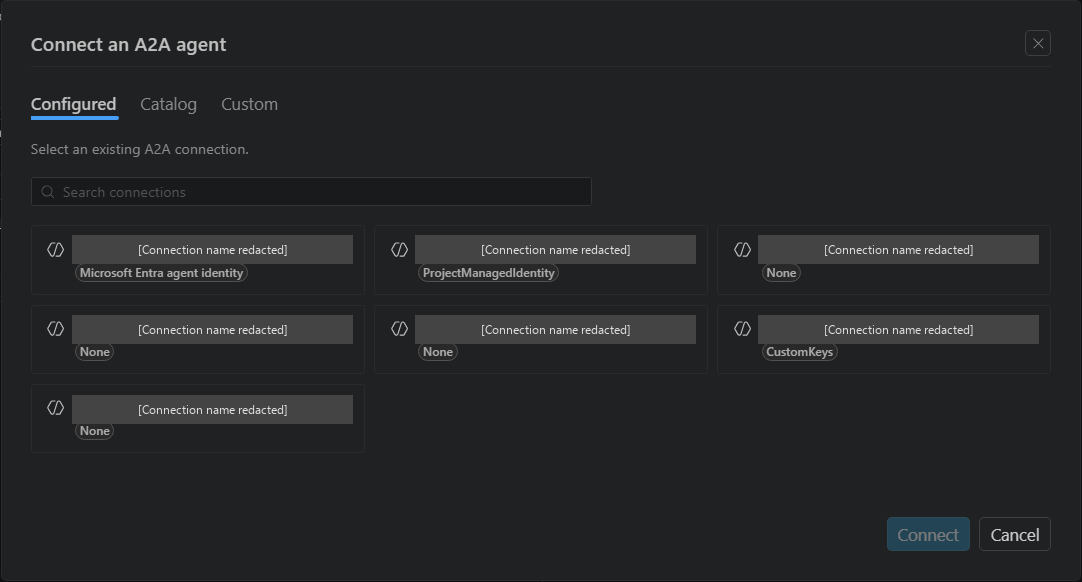
- Open the prompt agent's Playground tab in Agent Builder.
- In Tool, select + > Add agent (A2A).
- On Configured, select the saved A2A connection, then select Connect. This tab appears when configured A2A connections are available.
- Review the added agent tool and select Save to Foundry.
- Send a request that requires delegation to the remote agent and inspect the resulting call.
If you do not have a connection yet, configure the A2A endpoint first. The same remote agent can also be included in a Toolbox, with the Toolbox's version and approval configuration.
Attach a Toolbox
Toolbox integration in prompt agents is off by default.
The Toolbox list's Add to Agent menu shows your prompt agents.
- Turn on windowsaistudio.enableToolboxInPromptAgent in VS Code settings.
- Open My Tools > Toolboxes, find the Toolbox, and use Add to Agent in its Add to Prompt Agent column to select the prompt agent.
- In Agent Builder, review the Toolbox version, included tools and skills, and approval settings. Attaching a Toolbox replaces the agent's individual Foundry tools.
- Select Save to Foundry, then test a request that requires a Toolbox capability.
Agent Builder also offers Tool > + > Browse toolboxes. Follow Use a Toolbox in Agent Builder to switch versions or manage its attachment.
Saving records an agent version. It is not publication of an agent application or deployment of a hosted agent. After a test, inspect the actual tool name, arguments, and result. A model-only answer or mock result does not prove that the live tool ran.
Use tools and Toolboxes in hosted agents
A hosted agent runs your code. Its runtime must connect to the Toolbox, authenticate, and expose the capabilities to the agent. Creating a project connection or saving a Toolbox does not add that code automatically.
For a single configured Foundry tool, you can use Tools > Use in a toolbox to build a small Toolbox, then consume it through the managed endpoint. If your code connects directly to an external MCP server instead, your runtime owns that connection and its authentication. It does not automatically inherit the Toolkit's local configuration or a Foundry connection's credentials.
Choose the path that matches your project.
Generate a hosted agent sample that uses a Toolbox
Use a hosted-agent sample when you need custom code to consume the Toolbox. This is a new agent project, not client code for an existing prompt agent.
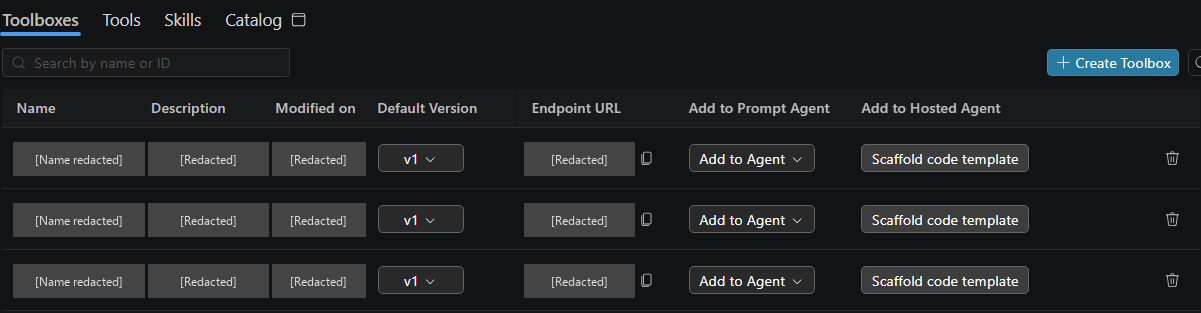
- In My Tools > Toolboxes, find the Toolbox and select Scaffold code template. From its details page, this action is in the View code menu.
- Select an existing compatible model deployment when prompted.
- Select Default folder to use the open workspace, or Browse to choose a parent folder. Without an open workspace, use Browse. The Toolkit creates a named agent subfolder and opens it in a new window.
- Review the generated
README.mdand configuration before running the agent.
The generated Agent Framework Python project exposes the Responses protocol. It includes a root azure.yaml for hosted-agent deployment, .vscode task and debug configurations, and application code under src/agent-framework-agent-with-foundry-toolbox-responses. That source directory contains main.py, dependencies, and a generated .env with the project endpoint, model deployment name, and TOOLBOX_ENDPOINT.
Scaffolding writes local files. It does not deploy the agent, grant tool permissions, or verify the model and Toolbox connection. If model selection was unavailable, complete that configuration before running the sample.
Follow the generated README for dependencies and authentication, then use the shared local run and test procedure. The sample's Debug Local Agent HTTP Server configuration starts main.py from the nested source directory and opens Agent Inspector. The hosting integration handles Toolbox authentication and hosted request context. Do not copy downstream secrets into agent code.
Connect a Toolbox to an existing hosted-agent project
Use this path when you already have agent code and do not want to scaffold a replacement project.
- Copy the Toolbox endpoint and choose whether to pin a version or follow its default.
- Open the existing agent project and add the supported Toolbox integration for its framework. The hosted-agent Toolbox guide provides maintained Python and .NET integration paths and the MCP contract for other runtimes.
- Configure the project endpoint, model deployment, Toolbox name or
TOOLBOX_ENDPOINT, and runtime identity. Keep downstream credentials on their project connections. - Add the discovered tools to the agent. If the Toolbox contains skills, configure the runtime's skill-loading support as well. Review tool approval and per-user consent handling.
- Run locally with a request that needs a real tool result, and inspect the call with Agent Inspector.
- Declare the required runtime configuration for deployment, then follow Deploy your hosted agent. Repeat the tool test against the deployed agent.
For per-user tools, use a hosting integration that forwards the current request's caller context. Test through the intended client with users who have different permissions. A successful service call alone does not prove that the correct user's identity was used.
You can ask a coding agent to implement this integration with the Microsoft Foundry Skill. Verify the skill and MCP setup first, then provide the existing project and endpoint. For example:
Use the Microsoft Foundry Skill to connect the Toolbox at <toolbox-endpoint>
to this existing hosted-agent project.
Preserve the current agent behavior.
Configure the runtime's tool, skill, authentication, and approval handling.
Show the planned code and environment changes before deploying.
Do not create a new Foundry project or change permissions.
Review the generated changes rather than assuming that the request completed every integration step. Confirm tool discovery, an actual tool call, required skill loading, and the deployed runtime configuration.