Review and revert agent changes
Use this guide to review agent changes, request revisions, and undo unwanted edits in a folder, worktree, or cloud session.
Choose your review approach
You can review agent changes in diffs. Depending on your harness and window, a working set also lets you keep or undo individual changes, files, or all pending edits. Use the table to find the review controls available for your setup.
| Setup | Primary review approach |
|---|---|
| Copilot harness in the editor window | Review pending edits in the working set. You can also compare diffs. |
| Claude or Codex harness in the editor window | Compare saved changes in diffs. |
| Agents window | Compare diffs in the Changes view. |
| Cloud session | Review pull request diffs. |
| Local harness | Review pending edits. See also Local-specific behavior. |
To check which harness your session uses, see Identify your current agent harness.
Agents can change files through editing tools, terminal commands, scripts, and MCP tools. Review the resulting files before you commit or integrate them, including changes that might not appear in a tool-specific list.
For keyboard and screen reader access to a diff, use the Accessible Diff Viewer, which presents changes in a unified patch format.
Review pending edits with the working set
When you use Copilot and Local harness sessions in the editor window, supported file edits are tracked as pending review (working set). Keep retains the changes and clears their pending-review state. Undo reverts them without rewinding the agent conversation.
Pending edits are already saved to disk, so running your application or tests uses the changed files. You don't need Git to review them, and Keep doesn't stage or commit them.
To review pending edits:
-
Open a file from the changed-files list in the Chat view.
-
Review the highlighted changes in the editor. Use the Up and Down controls in the editor overlay to navigate between edits.
-
Select Keep or Undo beside an individual change, or use the file-level or all-files review controls to resolve multiple pending edits at once.
Staging changes in the Source Control view automatically keeps the corresponding pending edits.
The working set only tracks changes from supported agent edit tools. Changes made through terminal commands, scripts, or other untracked tools don't appear. Review these changes separately, and use Source Control to inspect changed and untracked files when the folder uses Git.
Configure review controls
-
chat.editor.workingSet.enabled Editor working set is experimental and might change or be removed. (Copilot only): Show the working set. Defaults to
true. -
chat.editing.revealNextChangeOnResolve : Set to
falseto stay at the current change after keeping or undoing an edit, instead of navigating to the next pending change.
Review changes by comparing diffs
For Claude or Codex harness sessions in the editor window, the Agents window, and cloud sessions, compare diffs instead of keeping or undoing pending edits.
In the editor window, a pill above the chat input shows the number of affected files and diff statistics. Copilot harness sessions can use this presentation by selecting Show Pill from the working set context menu.
Use any of these review options:
-
Select the changed-files pill to open a multi-diff editor with all changes.
-
Select a changed file in the agent's response to open its diff.
-
In the editor, use the Source Control view to review changed and untracked files when the folder uses Git.
Review changes in the Agents window
-
Open the Changes view in the side panel by using the layout controls in the title bar, or use the ⌥⌘B (Windows, Linux Ctrl+Alt+B) keyboard shortcut.
-
Select a file in the Changes view to open a diff of the agent's edits.
Other Files groups edits outside the workspace, such as session plans, which aren't committed with workspace changes. Also check Source Control for untracked files and changes made outside tracked edit tools.
TipUse the Branch Changes dropdown to choose which changeset to review.
-
Select Mark as Reviewed in a file's toolbar to track files you've reviewed in the Branch Changes changeset.
The reviewed state clears if you or the agent changes the file again.
Review cloud changes
Review the session's pull request on GitHub, or check out its branch locally to inspect and revise the changes.
Customize change review in the Agents window
By default, selecting a file in the Changes view opens a multi-file diff editor with all the session changes. To open a focused single-file diff, enable sessions.changes.openSingleFileDiff .
Use the diff toolbar to show the editor beside chat or in a modal window. Select More Actions (...) > Diff View to choose Inline, Side by Side, or Automatic. Automatic switches to inline when the editor is too narrow for side-by-side diffs.
Configure word wrap in diff editors
Control how diff editors in the Changes view wrap long lines with sessions.diffEditor.wordWrap . This setting has the following values:
inherit(default): Follow the editor.wordWrap setting.on: Wrap lines at the editor viewport width.off: Never wrap lines.
This setting is independent of word wrap in code editors.
To change it from a diff editor, select More Actions (...) > Word Wrap.
Review changes in the single-pane layout (Experimental)
When you enable the experimental single-pane editor panel, the Changes view and diff editor share one docked pane.
Use Expand All Diffs or Collapse All Diffs to control all files at once. The keybinding toggles the preferred diff view in the Agents window.
The Changes editor restores each file's expanded or collapsed state when you switch sessions or reload the window. The editor tab title shows the next integration action, such as Create Pull Request, and switches to an icon when space is limited.
Provide feedback and request revisions
You can ask the agent to revise its work from any review workflow. Send a follow-up prompt, edit the files directly, or provide inline feedback in the Agents window.
Provide inline feedback to the agent
-
In the Agents window, open a file from the Changes view.
-
Select a range of code in the diff, and enter feedback in the inline comment box.
-
Add feedback to other changes as needed, and then select Submit Feedback to send all comments to the agent.
The agent reads your comments, makes the requested edits, and resolves each comment. Resolved comments disappear from the diff view.
Add pull request review comments
In the Agents window, publish review comments to a session's open GitHub pull request when it uses the Copilot or Claude harness, or the experimental Codex integration.
-
Enable the chat.experimental.agentsWindowPRComments setting.
-
Open a changed file from the Changes view and select a range of code.
-
Select Add Feedback and enter your comment.
-
Select Add PR Comment to publish the review comment. If the session is associated with multiple pull requests, the action identifies the target as
owner/repository#number.
The selected range must contain only lines that are part of the pull request diff. If the range isn't eligible, VS Code reports that a pull request comment can't be added to the line.
Add PR Comment publishes the comment to GitHub and doesn't send it to the agent. To request a code change, add the comment as feedback and select Submit Feedback.
Get a second opinion with Rubber Duck
In a Copilot harness session, Rubber Duck uses a complementary model to review plans, code, and tests for substantive issues. It is read-only and doesn't edit files or run commands that change your environment.
The harness might consult Rubber Duck automatically during non-trivial work. To request a review yourself, ask:
Get a second opinion on the changes made so far.
You can also enter /rubber-duck <question>, such as /rubber-duck What edge cases are missing?. The harness summarizes the critique and decides how to act on it.
Rubber Duck requires a Claude or GPT model in the main session and an available complementary model. The additional model pass adds latency and model usage.
Learn more about the Rubber Duck agent.
Undo changes at the right scope
Choose a recovery action based on how much work you want to undo:
| Action | Applies to | Effect |
|---|---|---|
| Undo pending edits | Copilot editor working sets | Reverts an individual change, a file, or all pending edits without rewinding the conversation. |
| Edit a previous request | Sessions that support request editing | Reverts file changes from that request and later requests, then resends the revised request. |
| Restore a checkpoint | Sessions with Restore Checkpoint | Restores affected workspace files to the checkpoint and removes subsequent conversation turns. |
| Discard with Source Control | Folders that use Git | Reverts selected repository changes without changing the conversation. |
| Use an external service's recovery controls | Deployments, issues, databases, and other external state | Reverses effects that checkpoints and Git don't control. |
| Undo pending edits | Local harness sessions | Reverts an individual change, a file, or all pending edits without rewinding the conversation. |
For help choosing an action, see Get an agent back on track.
Edit a previous chat request
In sessions that support request editing, you can edit a previous request in your conversation history. VS Code reverts file changes made by that request and subsequent requests, and then sends the updated request to the language model.
Before you resend the request, review the affected changes so you understand which work will be removed. Select the request in the conversation, modify it, and resend it. Configure or turn off request editing with chat.editRequests .
Restore a checkpoint
Checkpoints are enabled by default for supported chat sessions. Before processing each request, VS Code creates a snapshot of affected workspace files. Set chat.checkpoints.enabled to control checkpoints.
To restore your workspace to an earlier checkpoint:
-
Navigate to a previous request in the conversation.
-
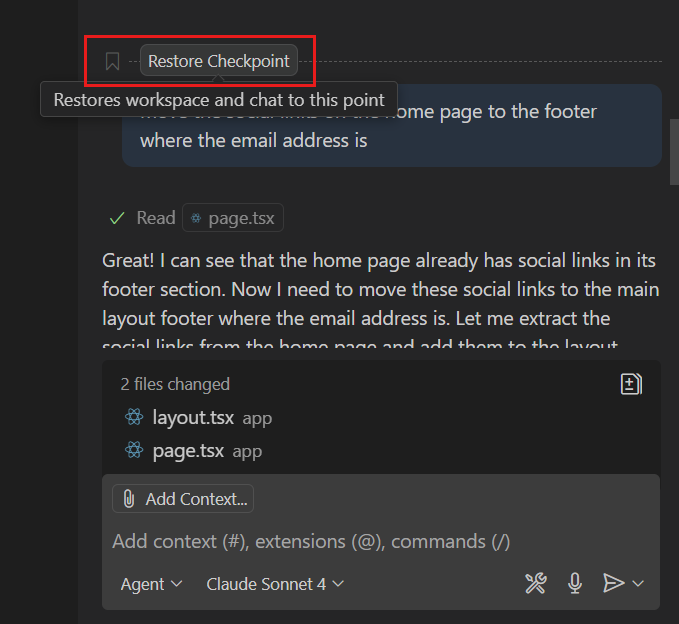
Hover over the request and select Restore Checkpoint.
-
Confirm that you want to restore the checkpoint.
VS Code removes subsequent requests from the conversation history and restores the workspace files to their state at the checkpoint.
A checkpoint restores affected workspace files and chat history. It doesn't reverse completed terminal commands, network requests, deployments, or changes that tools made to external services. Use Git and the external service's recovery controls for those effects.
Require approval before sensitive edits
Sensitive-file approval happens before the agent saves an edit, rather than during review. Use chat.tools.edits.autoApprove with glob patterns to require a diff and approval for edits to sensitive files.
This example automatically approves edits except to JSON files in the .vscode folder and files named .env:
"chat.tools.edits.autoApprove": {
  "**/*": true,
  "**/.vscode/*.json": false,
  "**/.env": false
}
Local harness-specific behavior
Local harness sessions and existing extension-host sessions use the shared review process. In these sessions, discarding changes in Source Control also discards their pending edits.
Auto-accept edits
For Local harness sessions, use chat.editing.autoAcceptDelay to automatically keep pending edits after a configurable delay. Hover over the editor overlay controls to stop the countdown.
If you automatically keep all edits, review the changes before you commit them in Source Control. Learn more about the security considerations of using AI in VS Code.