Quickstart: use source control in VS Code
Create a small practice repository, save a file in Git history, and verify your first commit in Visual Studio Code. You don't need a hosting account or an existing project. Publishing your work online is an optional final step.
If you want to work on an existing project instead, clone a repository, then follow staging and committing changes. Choose a repository you can push to, or fork it first if you plan to contribute changes.
Prerequisites
-
Install Visual Studio Code and Git.
-
In VS Code, select Terminal > New Terminal, then check that Git is available:
git --versionYou should see a Git version number. If the command isn't found, restart VS Code after installing Git. If it still fails, see source control troubleshooting.
-
Configure the author name and email for your commits. Replace the placeholders with your details:
git config --global user.name "<your-name>"
git config --global user.email "<your-email>"
Skip this step if your identity is already configured. These values identify the author in Git history, not your sign-in credentials. The
--globaloption sets the default for your repositories. If you publish commits, their author information is also shared.
Step 1: Open a project
-
Create an empty folder named
git-practiceoutside any existing Git repository. -
Open the folder in VS Code with File > Open Folder....
If prompted, confirm that you trust this folder you created. Only trust other projects when you know their source. Learn about Workspace Trust.
-
Open the Source Control view (⌃⇧G (Windows, Linux Ctrl+Shift+G)) and select Initialize Repository.
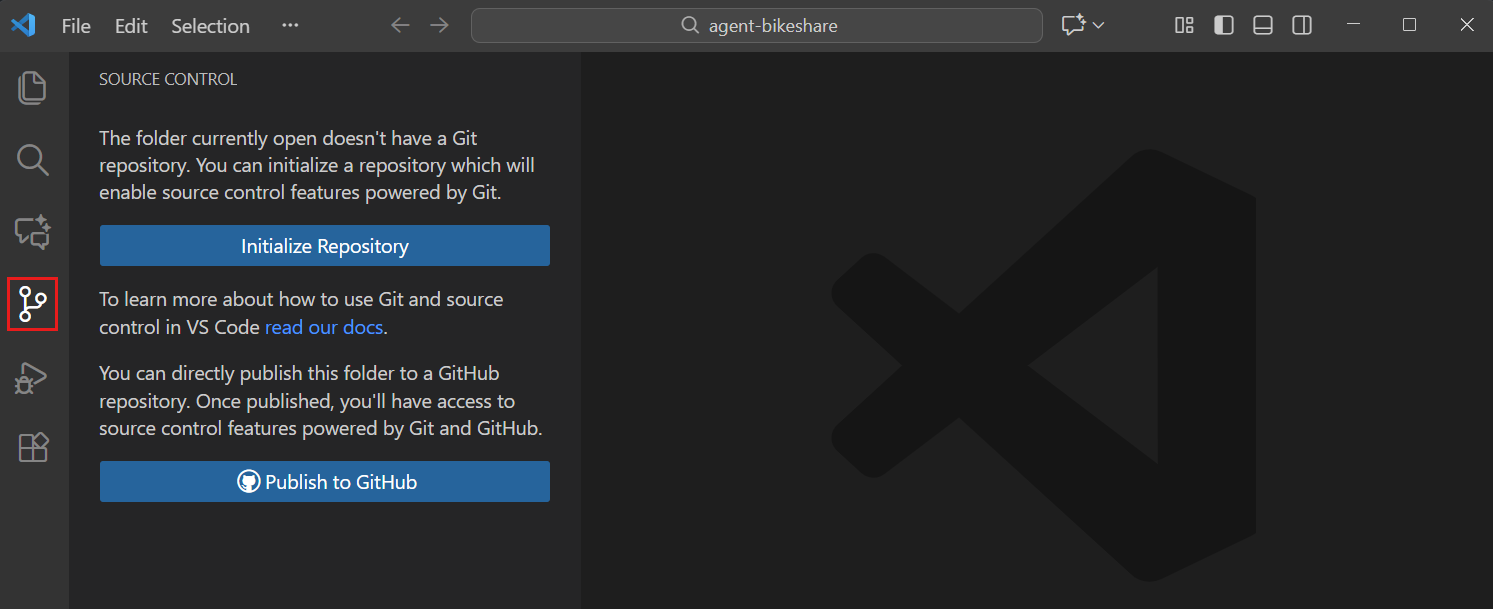
If the button isn't visible, open the Command Palette (⇧⌘P (Windows, Linux Ctrl+Shift+P)) and run Git: Initialize Repository.
Your folder is now a local Git repository. It has no commits yet, and nothing has been uploaded.
Step 2: Make changes and review
-
In the Explorer view (⇧⌘E (Windows, Linux Ctrl+Shift+E)), create a file named
README.md. -
Add the following content and save the file (⌘S (Windows, Linux Ctrl+S)):
# Git practice My first Git repository. -
Open the Source Control view.
README.mdappears under Changes, marked U for untracked. Git can see the new file, but it isn't part of a commit. -
Select
README.mdunder Changes to review its contents.For a new file, all its contents are new. For files already tracked by Git, this view shows the edits that aren't staged yet.
Saving writes the file to disk. It does not create a Git commit.
Step 3: Stage and commit
Staging selects the version of a file to include in the next commit. Committing records those staged changes in local Git history.
-
Hover over
README.mdin Changes and select + (Stage Changes).The file moves to Staged Changes. Select it there to review the content that will be committed.
-
Enter
Add practice READMEin the commit message input box at the top of the Source Control view. -
Select Commit.
README.mdis no longer listed as changed. Its contents are still in your folder and are now recorded in Git history. -
Expand Source Control Graph in the Source Control view and find the
Add practice READMEcommit.Select the commit to inspect the file it contains. This confirms that your first commit succeeded.
To remove a file from staging without losing edits, select - (Unstage Changes) beside it in Staged Changes. This is different from Discard Changes, which removes edits. See undo and discard options before removing work.
You can stop here and continue using Git locally. To practice again, add a line to README.md, save it, review the M (modified) entry, then stage and commit the change.
Step 4: Sync with the server
This step is optional and requires a GitHub account. Publishing creates a repository in your account and uploads your local commits.
-
Open the Command Palette (⇧⌘P (Windows, Linux Ctrl+Shift+P)) and run Publish to GitHub.
-
Sign in when prompted and return to VS Code.
-
Enter an available repository name, such as
git-practice, and choose a private repository for this exercise. -
When publishing finishes, open the repository on GitHub. Verify that it contains
README.mdand your commit.
After publishing, future commits are still local until you push them. In the Source Control view, select More Actions (...) > Push to upload commits. Sync Changes does more: it pulls remote changes before pushing your commits.
If a push fails, don't repeatedly sync or force-push. Use source control troubleshooting to identify the cause.
Next steps
- Stage selected changes to make focused commits.
- Create a branch to work on a separate feature.
- Fetch, pull, and push when collaborating with others.