Resolve merge conflicts in VS Code
When Git stops because it cannot combine changes automatically, use VS Code to resolve the conflicting files, review the result, and finish the operation.
Use inline actions for a small conflict or the 3-way merge editor to compare both sides. If you already resolved the files, go to complete the operation. To stop instead, see cancel an operation.
Understanding merge conflicts
A merge conflict happens when Git encounters competing changes that it cannot automatically resolve. Common scenarios include:
- Two branches modify the same lines in a file
- One branch deletes a file that another branch modifies
- Two branches add different content at the same location
Conflicts can occur during a merge, pull, rebase, cherry-pick, or stash restore. The file resolution tools are similar, but the meaning of each side and the steps to finish depend on the operation.
Learn more about creating and managing branches to organize your development work and minimize merge conflicts.
Recognize conflicts in VS Code
When merge conflicts occur, VS Code provides multiple visual indicators to help you identify and resolve them. Files with conflicts appear in the Source Control view under a Merge Changes section.
Editor conflict markers
When you open a file with conflicts, VS Code highlights the conflicting sections with the following markers:
<<<<<<< HEAD(or another label): marks the start of the current side.=======: separates the two conflicting versions.>>>>>>> branch-name(or a commit identifier): marks the end of the incoming side.
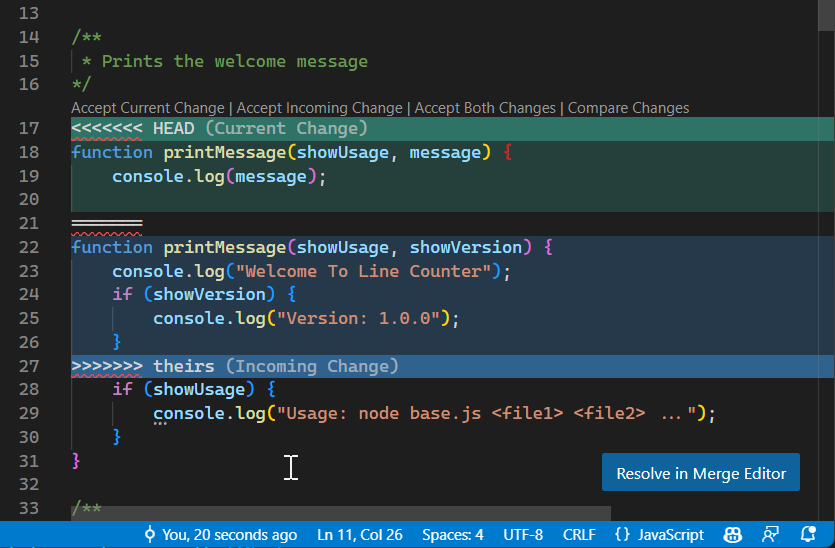
Understand current and incoming changes
Read the labels and compare the content before accepting either side. 'Current' does not always mean your original feature branch.
| Operation | Current | Incoming |
|---|---|---|
| Merge, including a pull that merges | The checked-out target branch. | The branch being merged into it. |
| Rebase, including Pull (Rebase) | The new base plus commits already replayed. | The commit from your branch that Git is currently replaying. |
| Cherry-pick | The checked-out branch. | The commit being applied. |
| Restore a stash | The working state you are restoring into. | The stashed changes. |
During a rebase, Git's 'ours' and 'theirs' roles are reversed from what you might expect: 'ours' is the new base and 'theirs' is your replayed work. Inspect the changes rather than choosing a side by name.
CodeLens actions
Above each conflict, VS Code displays CodeLens actions that let you quickly resolve the conflict:
- Accept Current Change: keep only the current side of this conflict.
- Accept Incoming Change: keep only the incoming side.
- Accept Both Changes: keep both versions, one after the other.
- Compare Changes: open a diff view to compare the versions.
Accepting both does not guarantee valid code. You might still need to remove duplicates or combine the logic manually.
Resolve conflicts with inline actions
For simple conflicts, you can resolve them directly in the editor using the CodeLens actions:
-
Open a file under Merge Changes in the Source Control view (⌃⇧G (Windows, Linux Ctrl+Shift+G)).
-
Review the conflicting sections and identify what each side represents.
-
Select one of the CodeLens actions above the conflict:
- Accept Current Change to keep the current side.
- Accept Incoming Change to keep the incoming side.
- Accept Both Changes to keep both versions.
-
Repeat for each conflict, then review the whole file for missing or duplicated code.
-
Save the file and stage it with + (Stage Changes) in the Source Control view.
The file moves from Merge Changes to Staged Changes. After resolving all files, complete the operation.
For more complex conflicts where you need to combine parts of both changes, you can manually edit the file. Delete the conflict markers (<<<<<<<, =======, >>>>>>>) and edit the content to create the desired result.
Use the 3-way merge editor
For more complex conflicts or when you want a side-by-side view of all changes, use the 3-way merge editor. This editor provides a comprehensive view with three panels:
- Incoming (left): the incoming side of the conflict.
- Current (right): the current side.
- Result (bottom): the resolved file that will be saved.
The side labels depend on the operation in progress.
Open the merge editor
To open the 3-way merge editor:
-
Right-click a file under Merge Changes in the Source Control view.
-
Select Open in Merge Editor. Alternatively, open the file and select Resolve in Merge Editor when the button is shown.
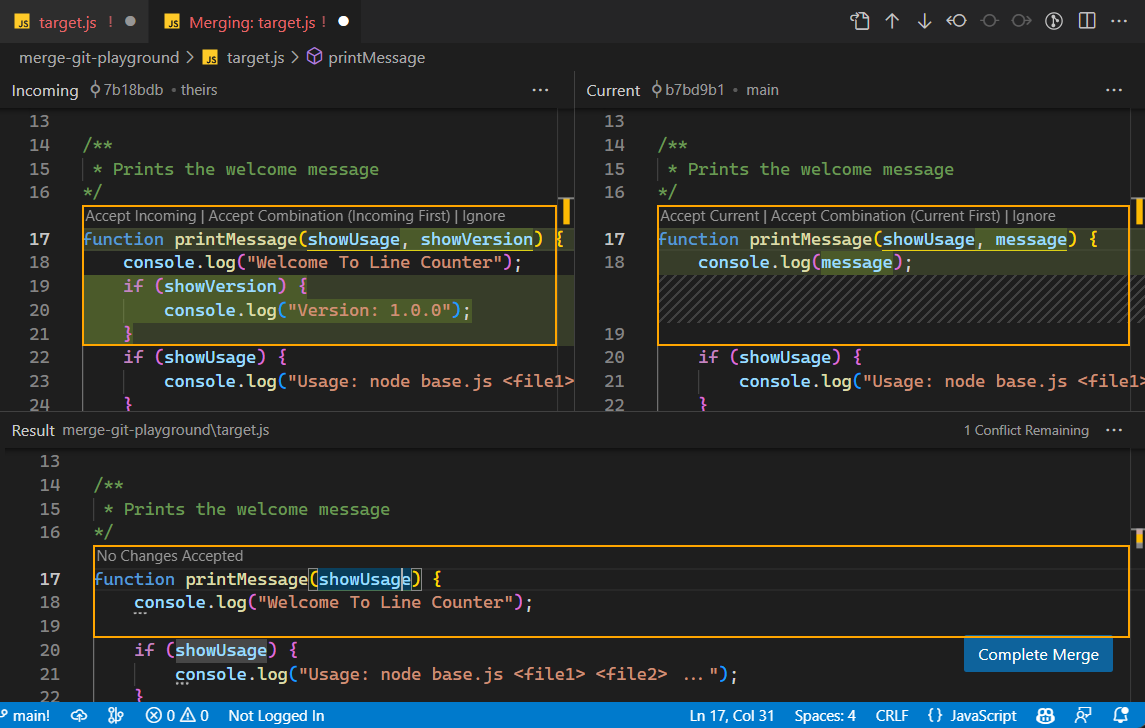
Accept changes in the merge editor
Use the controls next to each conflict to choose which changes to include in Result:
-
Review the changes in the Incoming and Current panels.
-
Accept changes from either side or combine both. If neither choice gives the intended code, edit the result manually.
-
Check the Result panel after each choice. Use the unresolved conflict count to find conflicts that still need attention.
-
When all conflicts are resolved, review the resulting file, then select Complete Merge.
Complete Merge stages that file and closes the merge editor. It does not finish the entire repository operation. Resolve any remaining files, then complete the operation.
Manual edits in the merge editor
Sometimes you need to combine parts of both changes or create a completely new resolution. You can edit the Result panel directly:
-
Select anywhere in the Result panel to place your cursor.
-
Edit the content as needed, combining elements from both changes or writing new code.
Review the final code even when the unresolved conflict count is zero. Resolving a textual conflict does not establish that the code works.
Alternative layouts
Select More Actions (...) in the merge editor to switch layouts or display the base view. The base is the common version against which Git compares the two sides.
The menus next to Incoming, Current, and Result offer options for each view, such as comparing against the base or resetting the result.
Complete the merge operation
First, resolve and save every conflicting file, then stage the resolutions. Inspect the staged diff and run the relevant tests before continuing.
Use the finish action for the operation that stopped:
| Operation | How to finish |
|---|---|
| Merge, including a pull that merges | Enter a merge commit message in the Source Control view and select Commit. |
| Rebase, including Pull (Rebase) | Run git rebase --continue in the repository's integrated terminal. Git might stop at another conflicting commit. Resolve it and continue again until the rebase finishes. |
| Cherry-pick | Run git cherry-pick --continue in the repository's integrated terminal. Repeat if a sequence of commits encounters more conflicts. |
| Restore a stash | Review the restored files and commit them when ready. A stash conflict does not require a merge commit. |
The VS Code commit action also continues an in-progress rebase after you stage the resolutions. If you are unsure which operation is active, run git status in the repository's terminal for Git's current state and next action.
After a merge, rebase, or cherry-pick finishes, check that git status no longer reports that operation in progress. Review the resulting history in the Source Control Graph.
Cancel an operation
To abandon the operation rather than resolve its conflicts, open the Command Palette (⇧⌘P (Windows, Linux Ctrl+Shift+P)) and choose the matching command:
- Git: Abort Merge for a merge.
- Git: Abort Rebase for a rebase.
- Git: Abort Cherry Pick for a cherry-pick.
Aborting removes the conflict-resolution work for that operation. Copy any edits you want to keep first. Git attempts to restore the pre-operation state, but might not be able to reconstruct uncommitted changes that existed before the operation.
These abort commands do not undo a stash restore. For stashed changes, inspect the working files and stash list before using undo or discard actions.
Resolve conflicts with AI (experimental)
AI-assisted conflict resolution is an experimental feature and requires GitHub Copilot access. Set up Copilot before using it.
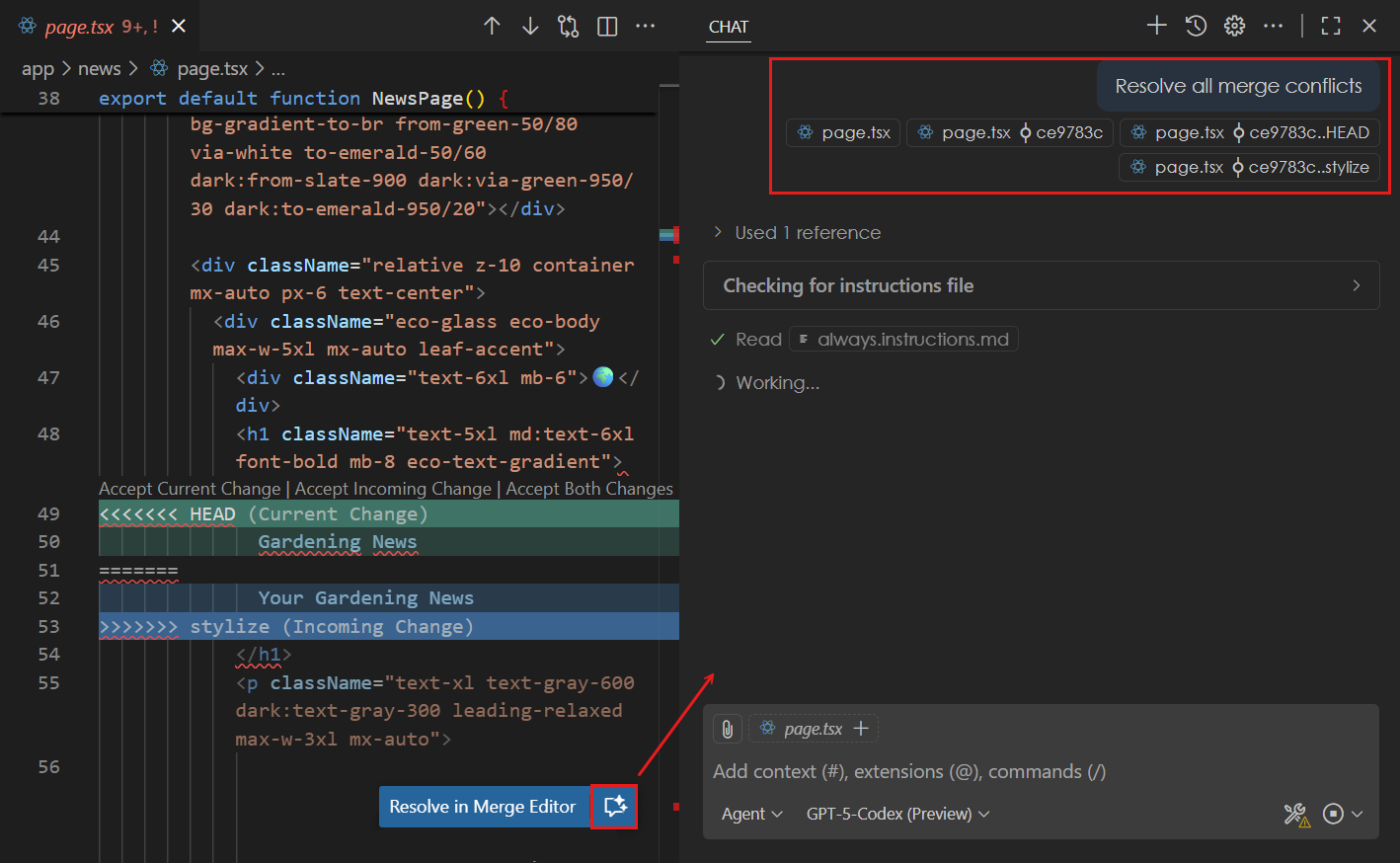
VS Code can use AI to help resolve merge conflicts automatically. This feature analyzes both versions of the conflicting changes and proposes a resolution:
-
Open a file with conflicts in the editor.
-
Select the Resolve Merge Conflict with AI button at the top of the editor.
-
Review the agent's analysis and proposed edits in the Chat view and editor.
-
Accept the resolution or adjust it manually, then test the result.
-
Stage the resolved files and complete the operation.
The AI considers the merge base (the common ancestor of both branches) and the changes from each branch to generate a resolution that attempts to preserve the intent of both changes.
Configure VS Code as default merge tool
To resolve conflicts from a terminal workflow, configure Git to use the VS Code 3-way merge editor. First, make sure the code command is available.
Run these commands in a Bash-compatible terminal:
git config --global merge.tool vscode
git config --global mergetool.vscode.cmd 'code --wait --merge "$REMOTE" "$LOCAL" "$BASE" "$MERGED"'
After a Git operation reports conflicts, run git mergetool to launch the editor. Git does not launch it automatically when the conflict occurs.
To configure the diff tool in the same terminal, run:
git config --global diff.tool vscode
git config --global difftool.vscode.cmd 'code --wait --diff "$LOCAL" "$REMOTE"'
Run git difftool to compare changes with this tool.
Next steps
- Inspect the resulting history before sharing your changes.
- Push your commits after reviewing and testing the result.
- Troubleshoot Git errors if the operation still cannot finish.