Git branches and worktrees in VS Code
Create and switch branches, set aside unfinished changes, and work on multiple branches in separate folders with the Git tools in VS Code.
Choose the workflow for your task:
- Use branches to keep separate lines of development and switch between them in one folder.
- Use a stash to set aside uncommitted changes without creating a commit.
- Use worktrees to keep multiple branches checked out in separate folders at the same time.
Working with branches
Branches are lightweight, movable pointers to specific commits in your Git history. Create a branch to develop a feature independently, then merge it into a target branch when the work is ready.
View current branch
The current branch appears in several places in VS Code:
- Status Bar: shows the current branch name and provides quick branch switching
- Repositories view: displays the current branch in the repository header
- Source Control Graph: visually represents branch relationships and history
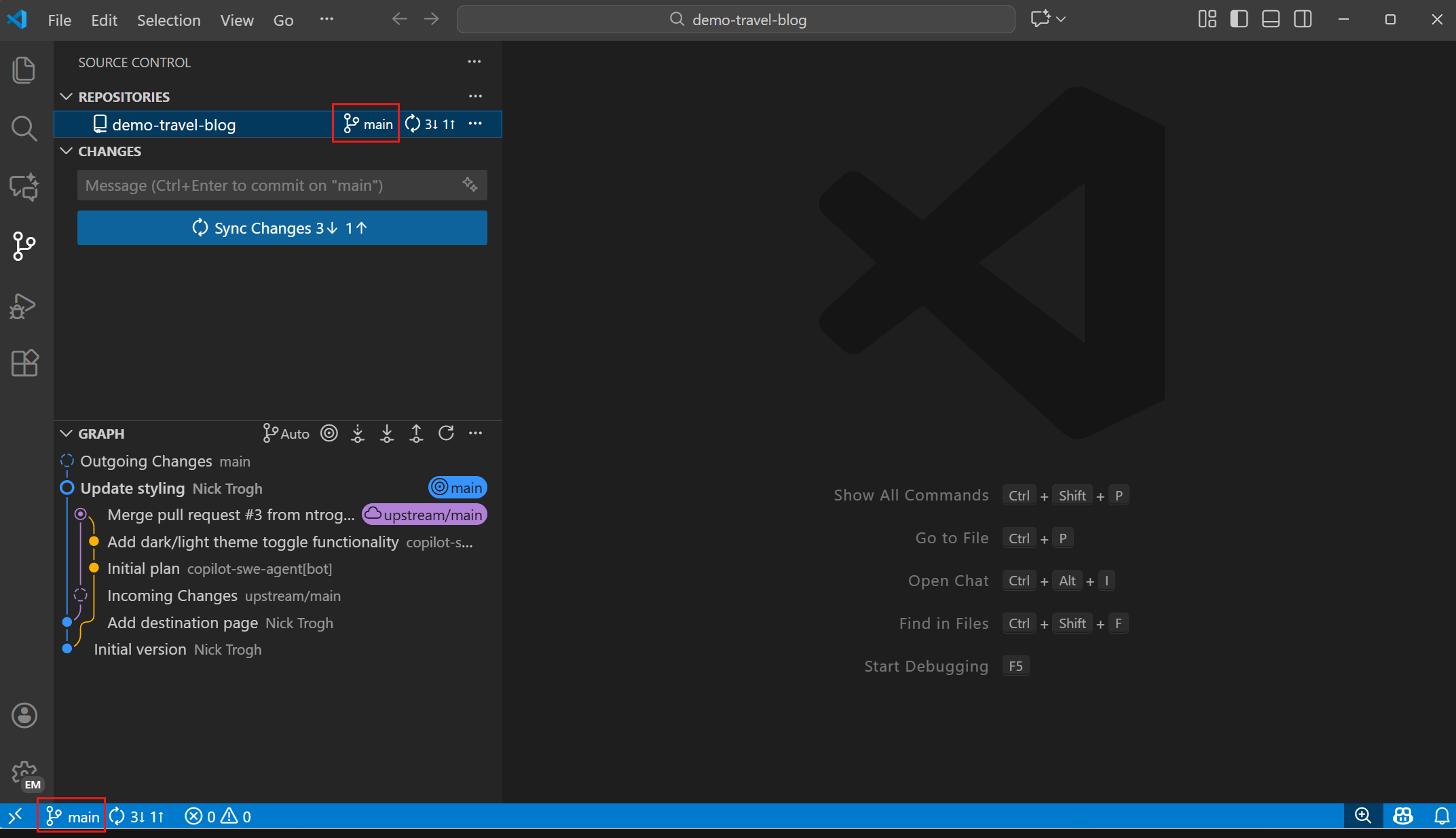
Switch between branches
Switching to a different branch is called "checking out" a branch in Git terminology. When you check out a branch, Git updates your working directory to match that branch's state.
To switch to a different branch:
-
Select the branch name in the Status Bar, or run the Git: Checkout to command from the Command Palette (⇧⌘P (Windows, Linux Ctrl+Shift+P)).
-
Choose from the list of available branches:
- Local branches: Branches that exist on your local machine
- Remote branches: Branches from the remote repository that you can check out locally
- Recent branches: Recently used branches
If you have uncommitted changes when switching branches, Git might prevent the switch to avoid losing work. Consider committing your changes or using a stash before switching.
Create new branches
To create a branch from your current commit (HEAD):
-
Run Git: Create Branch... from the Command Palette (⇧⌘P (Windows, Linux Ctrl+Shift+P)).
-
Enter a name for your new branch. Use descriptive names like
feature/user-authenticationorbugfix/login-error.
To start from a different branch or tag:
-
Run Git: Create Branch From... from the Command Palette.
-
Select the source branch or tag, such as
mainororigin/main. -
Enter the new branch name.
Both commands switch to the new branch after creation. You can also select the branch name in the Status Bar and choose Create new branch... or Create new branch from....
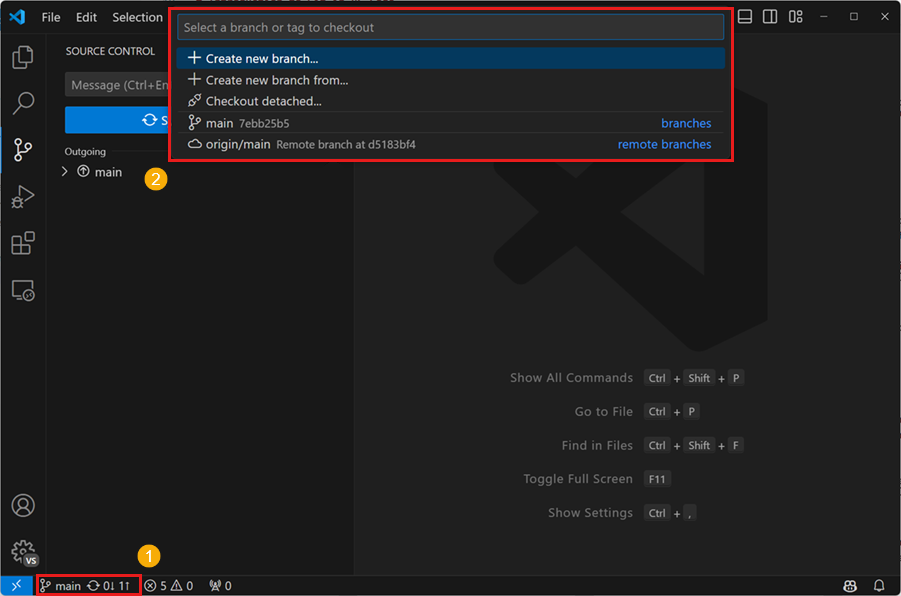
VS Code can generate random branch names. Configure this with the git.branchRandomName.enable and git.branchRandomName.dictionary settings.
If you use the GitHub Pull Requests and Issues extension, you can create branches directly from GitHub issues, which gets you started working in a new local branch and automatically prefills the pull request for you.
Rename and delete branches
To rename the current branch:
- Run Git: Rename Branch from the Command Palette or select it from the More Actions (...) menu.
- Enter the new branch name.
To delete a branch:
- Switch to a different branch (you can't delete the currently active branch).
- Run Git: Delete Branch from the Command Palette or select it from the More Actions (...) menu.
- Select the branch to delete from the list.
You can also delete a remote branch by using the matching Delete Remote Branch action.
Deleting a branch permanently removes it from your local repository. Make sure the branch has been merged or you no longer need the changes.
Merge and publish branches
When your feature is complete, merge it back into the main branch:
- Switch to the target branch (usually
mainordevelop). - Run Git: Merge... from the Command Palette.
- Select the branch to merge.
To publish a branch to your remote repository, use the Publish Branch action.
VS Code shows the merge result in the Source Control view. If there are conflicts, VS Code highlights them and provides tools to resolve them. Learn more about resolving merge conflicts.
Manage stashes
A Git stash temporarily stores selected uncommitted changes. Use a stash when you need to switch branches or handle another task without creating a commit for unfinished work.
You can invoke stash commands from the Command Palette or from the More Actions (...) menu in the Source Control view.
Create a stash
To stash your current changes:
-
Open the Command Palette (⇧⌘P (Windows, Linux Ctrl+Shift+P)).
-
Run one of the following commands:
- Git: Stash to store tracked changes.
- Git: Stash (Include Untracked) to also store new, untracked files.
- Git: Stash Staged to store only the changes in the Staged Changes section. This command requires Git 2.35 or later.
-
Enter an optional message that describes the stashed work.
Git stores the selected changes and removes them from the working directory. Changes outside the chosen scope remain: for example, Git: Stash leaves untracked files in place, and Git: Stash Staged leaves unstaged changes.
View and restore stashed changes
Run Git: View Stash from the Command Palette to inspect the files in a stash before restoring it.
To restore stashed changes, choose one of these commands from the Command Palette or the More Actions (...) menu:
- Git: Apply Stash... restores a selected stash and keeps it in the stash list.
- Git: Pop Stash... restores a selected stash and removes it from the stash list.
- Git: Apply Latest Stash or Git: Pop Latest Stash performs the corresponding action on the most recent stash.
If the stashed changes conflict with changes in your working directory, resolve the conflicts before continuing. Learn more about resolving merge conflicts.
Delete stashes
Run Git: Drop Stash... to permanently delete a selected stash, or run Git: Drop All Stashes... to delete every stash in the repository.
Dropping a stash is difficult to undo. Verify that you no longer need the changes before you delete it.
Working with Git worktrees
Use Git worktrees to work on another branch without changing the files or unfinished work in your current folder.
Understanding worktrees
A Git repository normally has one working directory, called the primary worktree. A linked worktree is another working directory for the same repository. Each worktree checks out a branch in its own folder, so you can work on multiple branches at the same time without switching the files in your primary worktree.
The following table shows how the Git concepts relate:
| Concept | What it represents |
|---|---|
| Repository | The shared Git history, branches, tags, and remotes. |
| Branch | A movable pointer to a commit in the repository history. |
| Worktree | A working directory with its own checked-out files, staging area, and uncommitted changes. |
Worktrees share the repository history, but they don't share working files or uncommitted changes. Git also prevents the same local branch from being checked out in more than one worktree at a time.
For example, your primary worktree might have main checked out while a linked worktree contains the feature/theme-toggle branch. To bring work back to main, merge the feature branch's commits or migrate its uncommitted changes.
Worktrees are especially useful to:
- Develop multiple features in separate folders.
- Run different versions of an application side by side.
- Compare implementations across branches.
- Keep changes from parallel agent sessions separate.
Create a worktree
To create a new worktree in VS Code:
-
Open the Source Control Repositories view from the Source Control view.
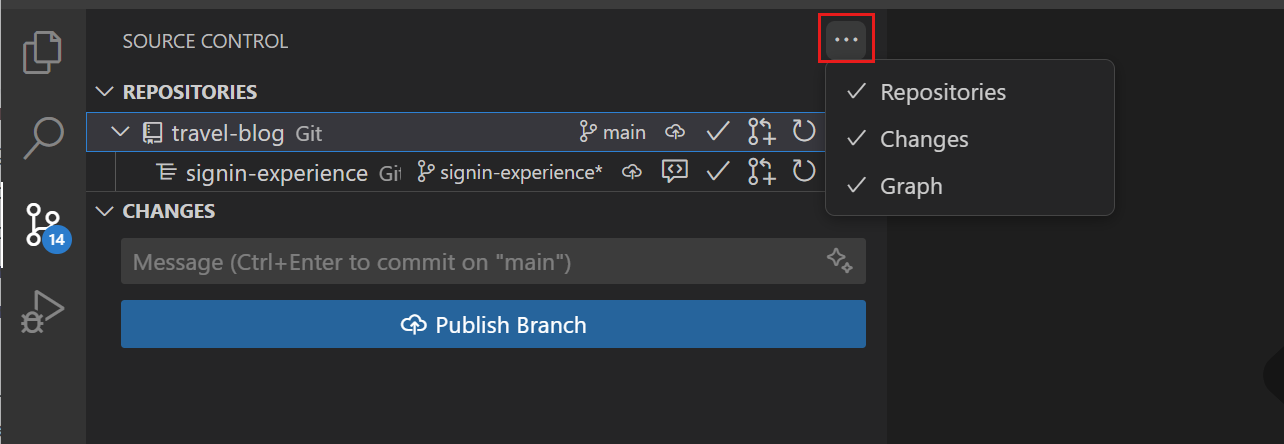
-
Select your repository, open the More Actions (...) menu, and choose Worktrees > Create Worktree.
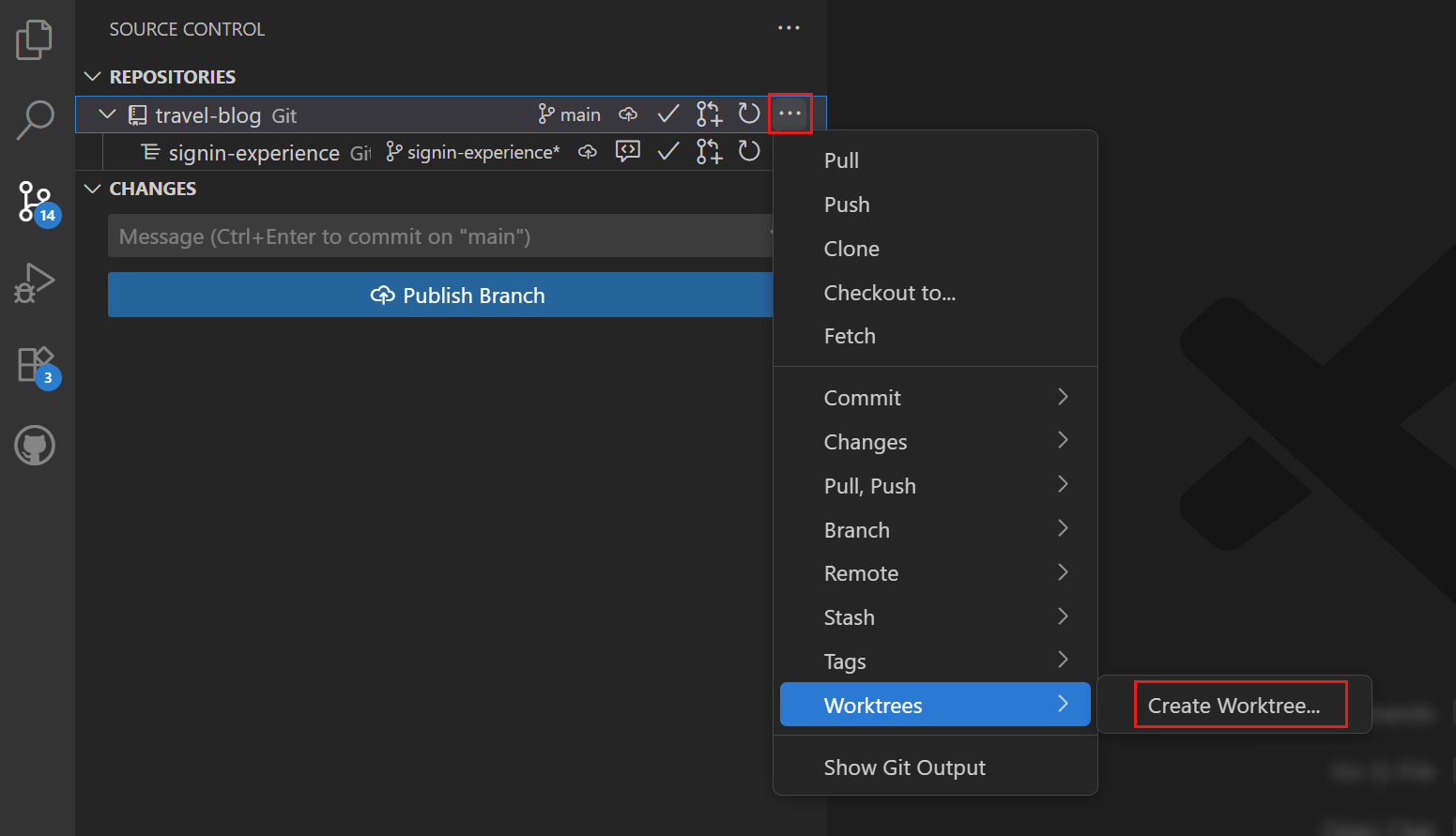
-
Follow the prompts to choose a branch and location for the new worktree.
VS Code creates a new folder for the worktree at the specified location and checks out the selected branch into that folder.
The new worktree appears as a separate entry in the Source Control Repositories view.
Switch between worktrees
VS Code can display multiple repositories (including worktrees) simultaneously:
- Each worktree appears as a separate repository in the Source Control Repositories view
- You can open multiple VS Code windows, each pointing to a different worktree
- Use File > Open Recent to quickly switch between worktree directories
Open a worktree
There are multiple ways to open a worktree:
-
Directly open the folder associated with the worktree in VS Code. VS Code automatically detects that it's a worktree of an existing repository.
-
Right-click the worktree in the Source Control Repositories view and select Open Worktree in New Window or Open Worktree in Current Window.
Compare and migrate changes from a worktree
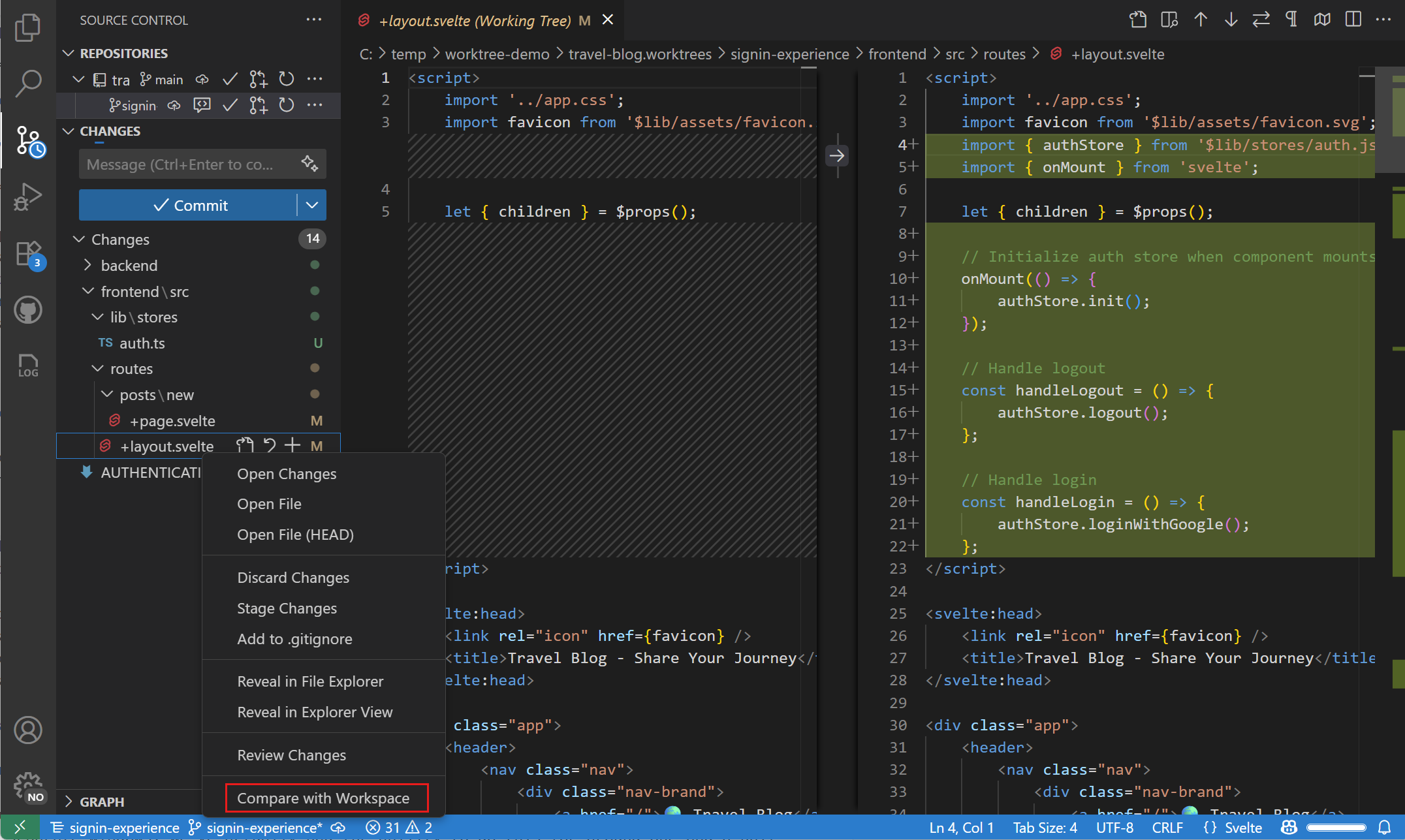
Use Compare with Workspace to review a changed worktree file against the primary worktree. Use Git: Migrate Worktree Changes... to move uncommitted changes, including untracked files, into the primary worktree. Migration doesn't merge commits. To bring in committed changes, merge the worktree's branch instead.
-
In a window with the primary repository open, make sure both it and the worktree appear in the Source Control Repositories view. If needed, turn on worktree detection.
-
Select the worktree, then right-click a changed file in the Source Control view and select Compare with Workspace.
-
Run Git: Migrate Worktree Changes... from the Command Palette. If prompted, select the primary repository as the destination and the worktree to migrate from.
-
Review the confirmation and select Proceed. After a successful migration, the changes are in the primary worktree and are removed from the source worktree.
If migration reports overlapping local changes, commit or stash those changes in the destination before retrying. If there are merge conflicts, resolve them before committing.
Remove a worktree
Remove a linked worktree when you no longer need its working directory:
-
Review the worktree's changes in the Source Control view. Commit, stash, or copy out any changes and local files you want to keep.
-
Open the primary repository's folder in VS Code, rather than the worktree you want to remove.
-
Run Git: Delete Worktree... from the Command Palette. Select the repository if prompted, then select the worktree to delete. Check the displayed folder path before selecting it.
Deleting a worktree removes its working directory, not its branch. Commits on that branch remain in the shared repository history. Deleting the branch is a separate action.
Removing a worktree also removes ignored files in its folder, even when Git reports no changes. If the worktree contains modified or untracked files, VS Code offers Force Delete. Cancel and preserve those files unless you intend to discard them. Force Delete removes the worktree and its uncommitted changes.
Include files when creating a worktree
When you create a worktree, Git doesn't copy files that are excluded by .gitignore, such as local configuration files, environment files, or installed dependencies. This behavior also applies when VS Code creates a worktree for an agent session.
Use the
git.worktreeIncludeFiles
setting (Experimental) to configure glob patterns for files and folders to copy into a new worktree. A file is copied only when it matches one of the patterns and is also listed in .gitignore.
A common use is to copy the node_modules folder into each new worktree. This way, you can start working right away without having to reinstall dependencies. For example, configure the setting as follows to also copy a local .env file:
"git.worktreeIncludeFiles": [
    ".env",
    "node_modules/**"
]
For agent worktrees, only include files that the agent can safely access.
Symlink ignored folders when creating a worktree
To reuse a large ignored folder without copying it into every worktree, use the
git.worktreeSymlinkFolders
setting (Experimental). Configure .gitignore-style patterns for folders that Git ignores in the current checkout. When VS Code creates a new worktree, including for an agent session, it symlinks matching folders that contain no tracked files. For example, to share installed dependencies:
"git.worktreeSymlinkFolders": [
    "node_modules/"
]
Unlike git.worktreeIncludeFiles , which copies files into each worktree, a symlink shares the original folder. Changes made through the symlink, including installing or removing dependencies, affect the folder in the current checkout and any other worktrees linked to it. Copy the folder instead if each worktree needs its own contents. For agent worktrees, only symlink folders that the agent can safely access and change.
Automatically detect worktrees
By default, VS Code lists the worktrees that you create from the Source Control Repositories view. To also automatically detect worktrees that already exist in your repository, enable the git.detectWorktrees setting. When this setting is enabled, VS Code scans the repository for worktrees and shows them in the Source Control Repositories view.
To avoid scanning a large number of worktrees, VS Code limits the number of detected worktrees. Use the git.detectWorktreesLimit setting to change this limit. The default value is 50.