Integrated browser
The integrated browser enables you to open and interact with web pages directly inside VS Code. Use it to preview web applications, test authentication flows, and comment on page elements to give agents precise feedback.
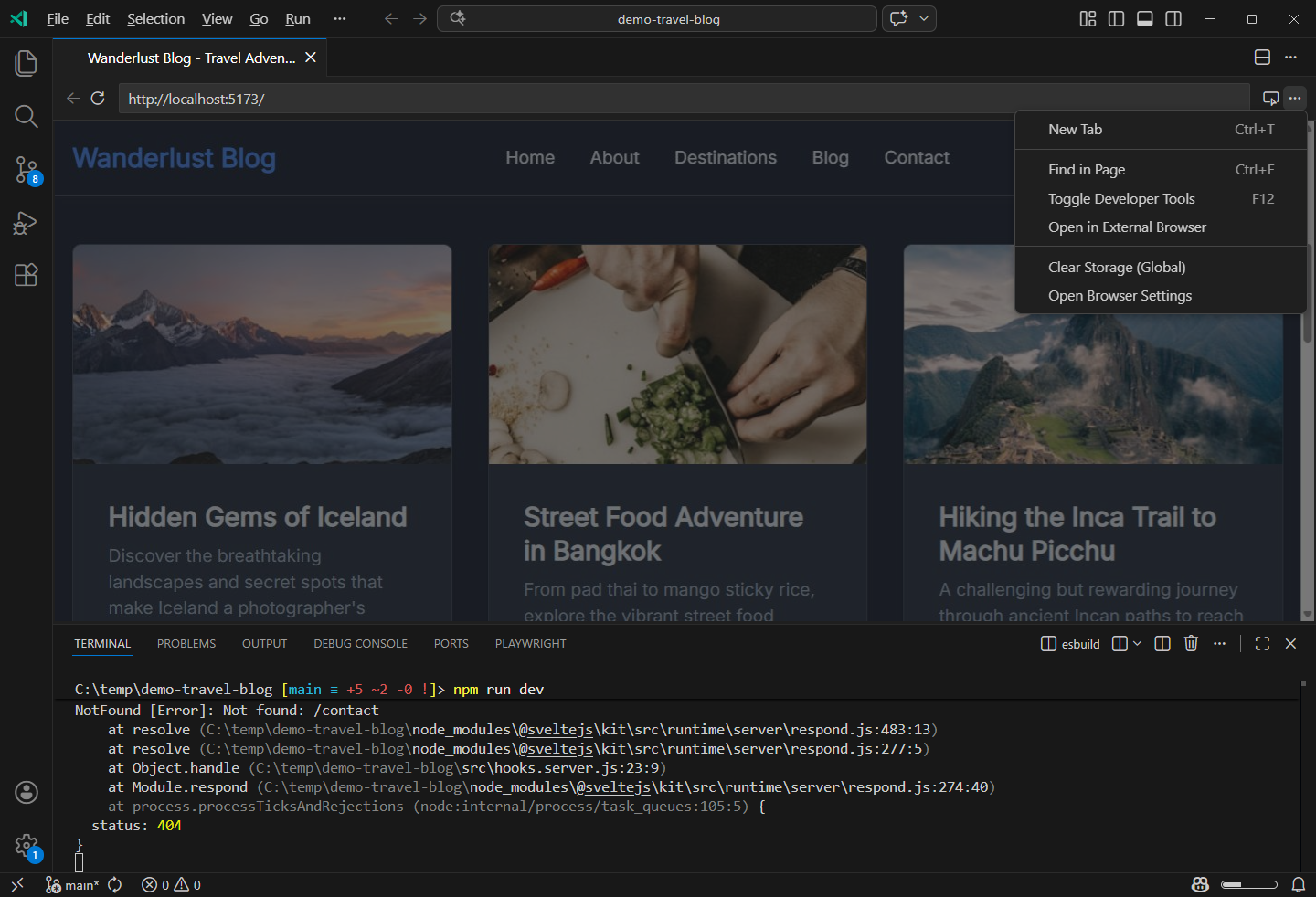
Open the browser
There are several ways to open the integrated browser:
- Run the Browser: Open Integrated Browser command from the Command Palette (⇧⌘P (Windows, Linux Ctrl+Shift+P)).
- Select View > Browser from the menu bar, or use the ⌥⌘/ (Windows, Linux Ctrl+Alt+/) keyboard shortcut.
- Select the globe button in the VS Code title bar. Use the workbench.browser.showInTitleBar setting to control whether the globe button appears.
- Select a
localhostlink anywhere in VS Code, like the terminal or chat. This behavior is enabled by default. To change it, see Use an external browser. - Ask an agent to open or interact with a web page. See Browser tools for agents.
- Start a debug session with the
editor-browserdebug type. See Debugging.
You can open multiple browser instances simultaneously, each in its own editor tab. When a browser tab is already open, the View > Browser menu item and the title bar globe button open the tab management Quick Pick instead of creating a new browser tab.
Open local files
In VS Code, open local HTML pages (.html and .htm) and saved web archives (.mhtml and .mht) directly in the integrated browser. File extension matching is case-insensitive.
Open a supported file in one of these ways:
- In the Explorer, right-click the file and select Open in Integrated Browser.
- Right-click the file's editor tab and select Open in Integrated Browser.
- With the file open in the editor, select the Open in Integrated Browser (globe) button in the editor toolbar.
These actions require a local file:// URL and aren't available for remote or virtual workspace resources.
Use an external browser
By default, localhost links, such as localhost, 127.0.0.1, and [::1], and all-interfaces links, such as 0.0.0.0 and [::], open in the integrated browser when you select them in the terminal, chat, or other parts of VS Code.
To open these links in an external browser instead, disable the
workbench.browser.openLocalhostLinks
setting. By default, VS Code uses your operating system's default browser. To use a different browser, set
workbench.externalBrowser
to edge, chrome, firefox, or the absolute path to a browser executable.
You can still open the integrated browser explicitly with the commands and UI actions described in Open the browser.
If you don't plan to use the integrated browser, you can also:
- Set
workbench.browser.showInTitleBar
to
falseto hide the integrated browser button from the title bar. - Disable workbench.browser.enableChatTools to prevent chat agents from using browser tools to open and interact with pages in the integrated browser.
Navigation
The browser supports http://, https://, and file:// URLs. Use the address bar to navigate to any URL, or use in-page links to navigate within a site.
- Normal navigation and anchor links work as expected
- Ctrl+click (Cmd+click on macOS) opens links in a new browser tab
- Popups are blocked, but new tabs are allowed
Correct misspelled words
When you type in an editable field, the integrated browser underlines misspelled words. Right-click a misspelled word and select a suggested correction.
To save a word to the browser dictionary, select Add to Dictionary. This action is only available when the browser uses persistent global or workspace session storage. Spelling suggestions remain available in ephemeral storage, but dictionary changes can't be saved.
Address bar and suggestions
When you select the address bar, a suggestions picker opens to help you navigate. On a new browser tab, the picker opens automatically. Type a URL and press Enter to navigate. As you type, the picker filters your favorites and other suggestions.
To focus the address bar and open the picker at any time, run the Browser: Focus URL Input command or press .
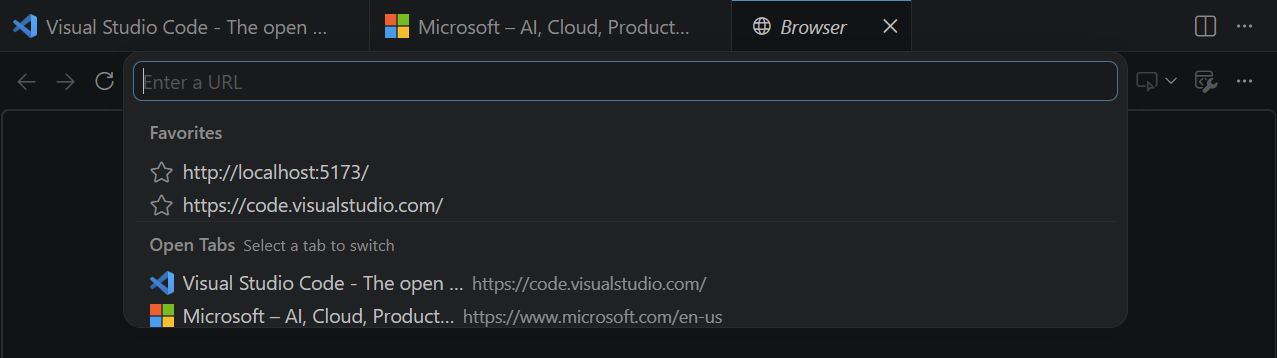
You can control the picker with the keyboard:
- Press Esc to close the picker and switch to a plain input. Type to reopen the picker, press Enter to navigate, or press Esc again to focus the loaded page.
- Press Tab to move focus along the browser toolbar.
Search the web
You can search the web from the address bar, just like in a regular browser. Use the
workbench.browser.searchEngine
setting to choose a search engine: Bing, Google, Yahoo, or DuckDuckGo. The default value none disables web search and treats your input as a URL only.
When web search is enabled, the picker offers a search option based on what you type. Text that is clearly not a URL, such as a phrase with spaces, shows only a search option. A clear URL offers navigation first, then search. Ambiguous input that could be either offers search first, then navigation.
Favorites
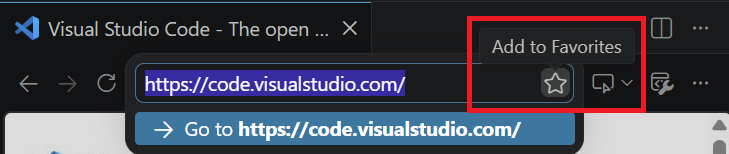
To favorite the current page, open the address bar and select the star icon. The star icon stays visible in the address bar to indicate that the page is favorited. Favorited pages appear in the suggestions picker and filter as you type. Select a favorite to navigate to it.
Open tabs
On a new browser tab that hasn't navigated to a page, the suggestions picker also lists your other open browser tabs. Select a tab to switch to it. VS Code closes the new tab and activates the one you selected.
Recents and history
When you open a new browser tab, the suggestions picker shows a Recents group with the three most recent pages that you navigated to explicitly, such as by typing a URL. Pages that you reached by following a link don't appear in Recents.
As you type in the address bar, a History group shows up to six matching pages from your browser history. Select the remove icon on a suggestion to delete that page from your history.
To browse or search your full history, see Browser history.
Browser history
The integrated browser keeps a history of the pages you visit so you can revisit them later. History is available in all session storage modes except ephemeral.
To open the history view, press ⌘Y (Windows, Linux Ctrl+H) or run the Browser: History command from the Command Palette. You can also add a History button to the browser toolbar from the toolbar overflow menu.
The history view lists visited pages grouped by day, with the most recent pages first. Type in the input to filter the list by page title or URL, then select a page to navigate to it.
To remove pages from your history:
- Select the Remove from History button on an individual entry.
- Select the Clear Entries for This Day button on a day heading to remove all pages from that day.
- Select the Clear All History button at the top of the view to remove your entire history.
Clearing browser storage also clears the history for that storage scope.
History is tracked separately for each storage scope. Global sessions share history across workspaces, while each workspace session keeps its own history.
By default, the browser keeps up to 200 history items per storage scope and removes the oldest entries when the limit is reached. Use the
workbench.browser.maxHistoryEntries
setting to change the limit. Set it to 0 to disable history.
Tab management
Use the Browser: Quick Open Browser Tab... command (⇧⌘A (Windows, Linux Ctrl+Shift+A)) to quickly switch between open browser tabs. The Quick Pick lists all open tabs grouped by editor group, and you can type to filter by tab name or URL.
From the Quick Pick, you can:
- Select a tab to switch to it
- Select New Integrated Browser Tab to open a new browser tab
- Select the close button on a tab to close it
- Select the Close All button to close all browser tabs
You can also close browser tabs with the following commands:
| Command | Description |
|---|---|
| Browser: Close All Browser Tabs | Close all browser tabs across all editor groups. |
| Browser: Close All Browser Tabs in Group | Close all browser tabs in the current editor group. |
The Close All Browser Tabs option is also available in the right-click context menu on browser editor tabs.
Tab placement
Use the workbench.browser.newTabPlacement setting to control where new browser tabs open, so you can keep browser tabs separate from your code editors. The setting supports the following values:
| Value | Description |
|---|---|
activeGroup |
Browser tabs open in the active editor group. This is the default. |
sideGroup |
Browser tabs open in a dedicated group to the side. This group is locked so that only browser tabs open there. |
window |
Browser tabs open in a dedicated auxiliary window. This window group is also locked to only browser tabs. |
You can still reorganize tabs as needed. Pages opened from an existing tab, for example by selecting a link with Ctrl+click, open in the same group as the parent tab.
Developer Tools
Toggle the browser's Developer Tools from the browser toolbar to inspect elements, view console output, and debug page issues.
Debugging
You can debug web applications directly in the integrated browser by using the editor-browser debug type in your launch.json configuration. Launch a new browser tab with the debugger attached, or attach to a tab that is already open. This works anywhere Visual Studio Code Desktop is supported, even without an external browser installed.
The editor-browser debug type is not yet available in the Run and Debug auto-detection flows. You need to manually add it to your launch.json file.
Launch a debug session
To launch a new integrated browser tab and start debugging, add a launch configuration to your .vscode/launch.json file:
{
  "version": "0.2.0",
  "configurations": [
    {
      "type": "editor-browser",
      "request": "launch",
      "name": "Launch in integrated browser",
      "url": "http://localhost:8000"
    }
  ]
}
Press F5 to open the URL in the integrated browser with the debugger attached. Standard debugging features like breakpoints, stepping, and variable inspection work as expected. The browser tab closes automatically when you stop the debug session.
Attach to an existing tab
To attach the debugger to an integrated browser tab that is already open, use an attach configuration:
{
  "version": "0.2.0",
  "configurations": [
    {
      "type": "editor-browser",
      "request": "attach",
      "name": "Attach to integrated browser"
    }
  ]
}
When you start this configuration:
- If no integrated browser tabs are open, VS Code creates a new tab and attaches to it.
- If one tab is open, VS Code attaches to it automatically.
- If multiple tabs are open, a picker lets you choose which tab to attach to.
The browser tab stays open when you stop the debug session.
To automatically attach to a tab with a specific URL, add a urlFilter property to the configuration:
{
  "type": "editor-browser",
  "request": "attach",
  "name": "Attach to localhost",
  "urlFilter": "http://localhost:3000/*"
}
If one tab matches the filter, VS Code attaches to it directly. If multiple tabs match, the picker shows only the filtered results.
For a full reference of launch configuration attributes, see Browser debugging in VS Code.
Standalone window
Move the browser to its own floating window by right-clicking the editor tab and selecting Move into New Window. Use Set Always on Top from the floating window's title bar to keep it visible.
Add context to AI chat
The browser toolbar has an Add to Chat split button with actions that let you capture different types of context from the current page and attach them to your chat prompt. These actions are also available from the Command Palette.
Add elements
Select elements from a web page to add them as context to your chat prompt. This is useful for getting help with specific HTML elements, CSS styles, or debugging UI issues.
- Open the integrated browser and navigate to your web app.
- Select the Add Element to Chat button in the browser toolbar to enter selection mode.
- Hover over elements and select to add them to your chat prompt.
Configure what information is included:
| Setting | Description |
|---|---|
| chat.sendElementsToChat.attachCSS | Include CSS styles for selected elements |
| chat.sendElementsToChat.attachImages | Include screenshots of selected elements |
Comment on elements
Add comments to specific page elements to give an agent precise, element-level feedback. Unlike adding an element as context, a comment associates your instructions with the selected element. You can comment on multiple elements before you send the prompt.
- Open the integrated browser and navigate to your web app.
- Open the Add to Chat dropdown in the browser toolbar and select Comment on Elements, or press ⌥⌘C (Windows, Linux Ctrl+Alt+C).
- Select an element on the page.
- Enter your feedback and press Enter, or select Add Comment.
- Repeat the previous two steps to comment on more elements.
- In the chat input, add any overall instructions and send the prompt.
Add a screenshot
Capture a screenshot of the page and attach it as an image to your chat prompt. Use this to ask about layout issues, get feedback on a design, or show the current state of your web app. The screenshot is captured before the chat panel opens, so it reflects the page as you see it.
The Add to Chat dropdown in the browser toolbar offers three capture modes:
| Mode | Description |
|---|---|
| Add Screenshot to Chat | Capture the current browser viewport. |
| Add Area Screenshot to Chat | Drag to select a rectangular area of the page, then capture only that region. |
| Add Full Page Screenshot to Chat Integrated browser full page screenshots is experimental and might change or be removed. | Capture the entire scrollable page, including content beyond the current viewport. |
Each mode is also available as a Browser: command in the Command Palette.
To enable the full page screenshot mode, set
workbench.browser.experimentalUserTools.enabled
to true.
Add console logs
Capture the console output from the current page and attach it as context to your chat prompt. This is useful for debugging runtime errors or unexpected behavior in your web app.
Select Add Console Logs to Chat from the browser toolbar or run the Browser: Add Console Logs to Chat command.
Learn more about adding context to chat.
Permissions
The integrated browser supports per-site permissions, similar to a traditional browser. When a page requests a permission, VS Code prompts you to allow or deny the request for the current site.
Pages can request access to web APIs such as:
- Geolocation.
- Camera and microphone.
- Sensors, such as the accelerometer.
- Clipboard.
- Devices, such as Bluetooth, USB, Serial, and HID devices.
To manage permissions for the current site, select the browser toolbar menu, and then select Site Permissions.
Session storage
Control how the integrated browser stores session data such as cookies, logins, localStorage, and cache with the workbench.browser.dataStorage setting.
| Mode | Description |
|---|---|
global |
Data persists and is shared across all browser tabs and workspaces. |
workspace |
Data persists within a workspace but is isolated between workspaces. |
ephemeral |
Data is not shared between tabs or persisted. Similar to incognito mode. |
To clear stored data, select the menu in the browser toolbar and choose Clear Storage (Global) or Clear Storage (Workspace) depending on your current storage mode. Reload the browser tab after clearing storage to apply the changes.
In untrusted workspaces, the browser always uses ephemeral mode regardless of the setting, to protect your data.
Browse over remote connections
When you work in a remote workspace, such as a Dev Container, SSH host, WSL, or GitHub Codespace, the integrated browser can proxy its http and https traffic over the remote connection. This lets you securely reach ports and services that are only accessible from the remote machine, without forwarding a port to your local machine first.
To enable remote proxying, enable the
workbench.browser.enableRemoteProxy
setting. The
workbench.browser.dataStorage
setting must not be set to global, because globally scoped sessions are shared across workspaces and are never proxied.
When proxying is active, a remote indicator appears in the browser address bar.
Remote proxying affects the browser in the following ways:
-
Localhost links: With remote proxying enabled, selecting a
localhostlink opens the original remote URL. With the setting disabled, the link opens the forwarded local URL instead. -
file://URLs: File URLs are not proxied. When you open afile://URL in a proxied tab, the indicator changes to a warning. -
Agent-opened tabs: Browser tabs that an agent opens are also proxied and open at the correct remote URL.
Use with the Live Preview extension
The Live Preview extension can use the integrated browser for previewing web pages. Enable the livePreview.useIntegratedBrowser setting to use it as the default preview browser.
Browser tools for agents
Browser tools give agents an interactive feedback loop for web development. An agent can open a page, exercise a user flow, inspect page content and console errors, take screenshots, fix problems, and verify its changes without an external MCP server.
Browser tools are different from adding context to AI chat. The Add to Chat actions let you manually pick page elements, capture screenshots, or attach console logs as context for a chat prompt. Browser tools let agents autonomously interact with web pages to complete tasks.
Learn how to use browser tools with agents, including how the feedback loop works, which tools are available, and how to write effective browser prompts.
Share a browser page with agents
To let an agent read and interact with a page you opened, select the Share with Agent button in the browser toolbar. A confirmation dialog asks you to approve sharing before the agent gets access.
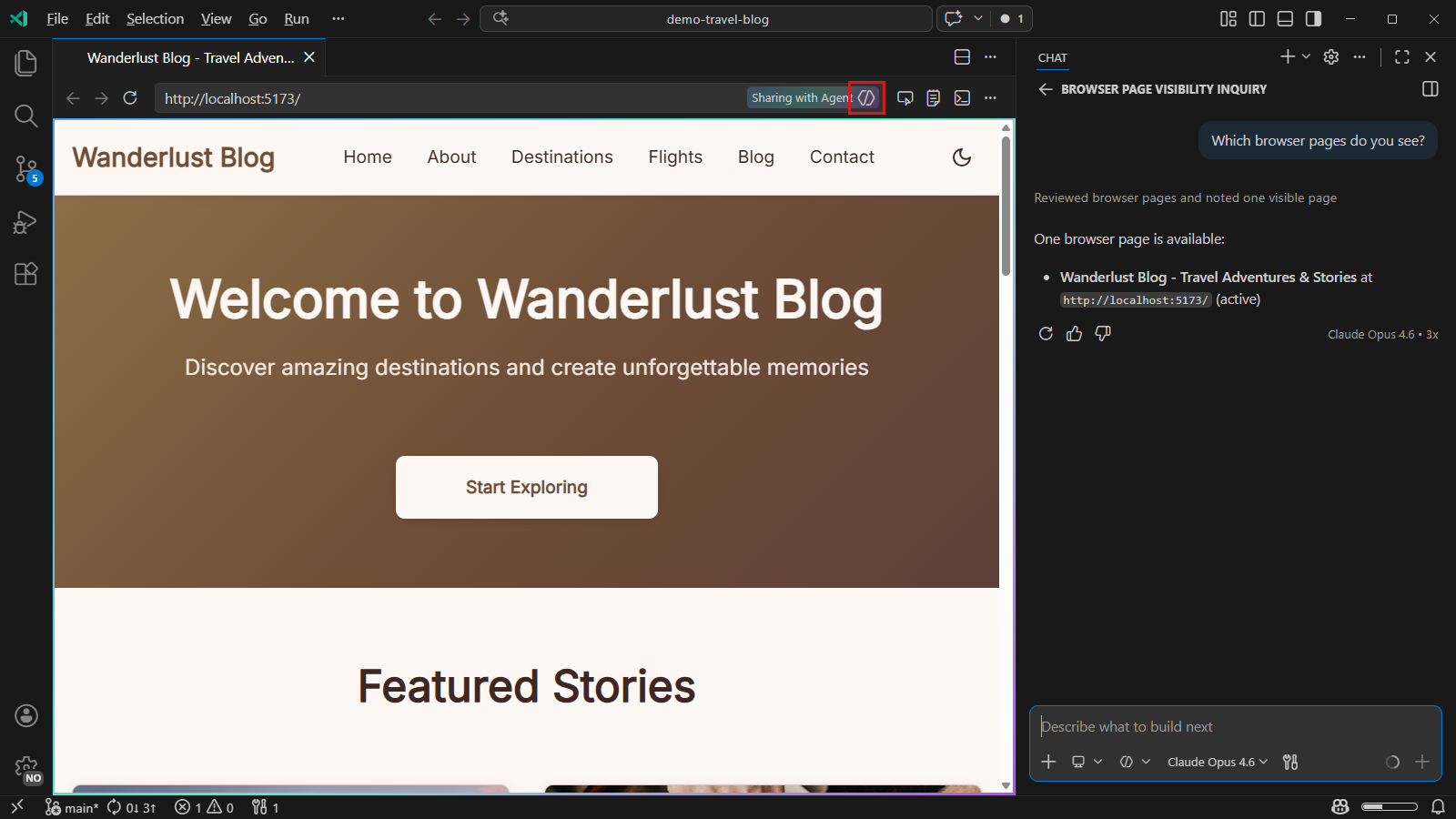
A visual indicator on the browser tab shows that a page is currently being shared. To stop sharing, select the Share with Agent button again. This immediately revokes the agent's access to that page.
You can now ask the agent to read content from the page or interact with it. For example, you could ask "What is the title of the page?" or "Select the login button and tell me if it works."
Shared pages use your existing browser session, including cookies and login state. Pages opened by the agent use isolated ephemeral sessions, so they don't share cookies or storage with your other browser tabs.
Agent-initiated share requests
When you have open browser tabs that are not shared, the agent can detect that unshared tabs exist and prompt you to share one. For example, if you ask "what's on this browser page?" and no tabs are shared, the agent shows a question carousel that lets you choose whether to share a tab.
When the agent tries to open a new page and you already have open tabs on the same domain, you are prompted to share an existing tab instead of opening a new one. Only tabs with a matching domain and port are listed. If you select No, the agent opens a new tab and only the new tab is shared.
In autopilot mode, share requests are automatically declined to preserve your privacy.
Enterprise policies for browser tools
Organizations can centrally turn off browser tools or restrict which domains agent tools can reach. Learn about enterprise controls for AI and agent network filtering.
Configure the integrated browser
Use the following settings to configure integrated browser behavior:
| Setting | Description |
|---|---|
| workbench.browser.openLocalhostLinks | Controls whether localhost and all-interfaces links open in the integrated browser or an external browser. |
| workbench.externalBrowser | Sets the browser that VS Code uses to open external HTTP and HTTPS links. |
| workbench.browser.showInTitleBar | Controls when the integrated browser button appears in the title bar. |
| workbench.browser.enableChatTools | Controls whether chat agents can use browser tools. |
| workbench.browser.newTabPlacement | Controls whether new browser tabs open in the active editor group, a side group, or a separate window. See Tab placement. |
| workbench.browser.searchEngine | Sets the search engine for address bar searches. See Search the web. |
| workbench.browser.pageZoom | Sets the default page zoom level for all sites. |
| workbench.browser.maxHistoryEntries | Sets the maximum number of entries in browser history. Set it to 0 to turn off history. |
| workbench.browser.autoReloadOnFileChange | Controls whether the browser automatically reloads local file:// resources when they change on disk. |
| workbench.browser.dataStorage | Controls how the browser stores cookies, logins, local storage, and cache. See Session storage. |
| workbench.browser.enableRemoteProxy | Controls whether browser traffic is proxied over a remote connection. See Browse over remote connections. |