How Copilot understands your workspace
Copilot agents search your entire codebase to understand how components connect and provide answers grounded in your actual code. You can use broad prompts like "where is authentication handled?" or "add tests for the list endpoint" and get accurate answers and edits based on your codebase.
This article explains how Copilot understands your codebase, including the different tools it uses for searching through your code and the indexes it creates to enable quick searches. These same general approaches are used on all codebases, from those with five files to those with 500,000 files.
Search and read tools
When you send a prompt, Copilot analyzes what information it needs and automatically selects the right combination of search tools to either answer your question or start generating code edits. Copilot runs multiple tools for this, reviews the results, and automatically performs follow-up searches until it has a good understanding of the problem.
For example, when asked to "add error handling to the payment service", the agent might:
- Use semantic search to find payment-related code across the project.
- Use grep to find existing error handling patterns in the codebase.
- Use usages to trace how the payment functions are called.
- Use file search to locate related configuration and test files.
- Read the relevant files and make coordinated changes.
This iterative approach means the agent gathers context the same way a developer would: by exploring the codebase from multiple angles until it has a complete picture.
Agents have access to the following built-in search tools. You can also explicitly reference these tools in your prompts by typing # followed by the tool name.
| Tool | Description |
|---|---|
Semantic search (#codebase) |
Finds code that matches the meaning of your question, not just exact keywords. Requires a workspace index. |
| Text search | Searches file content for text matches, such as specific keywords. |
| Grep | Searches for exact text or regex patterns across files. Works without an index. |
| File search | Finds files by name or glob pattern. |
| Usages | Combines Find All References, Find Implementation, and Go to Definition to trace how symbols are used across files. |
| List directory | Lists the contents of a directory to explore the project structure. |
| Read file | Reads the content of a specific file to examine its code in detail. |
These tools work for any workspace size. For small projects, the entire workspace can be read directly into the agent's context. For larger projects, the agent selects the most efficient search strategy based on your project size and available resources.
Search GitHub repositories beyond your workspace
In addition to searching the current workspace, agents can search code in other GitHub repositories. This is useful when the agent needs to learn about a codebase that is not open locally, for example to look up an API in an upstream library or compare an implementation across repositories.
| Tool | Description |
|---|---|
Semantic Search GitHub Repository (#githubRepo) |
Semantic search a GitHub repository for relevant source code snippets. Specify a repository using owner/repo. |
GitHub Text Search (#githubTextSearch) |
Text search a GitHub repository or organization for files containing specific keywords or code patterns. |
For more advanced GitHub workflows, such as searching and managing issues or pull requests, use the GitHub MCP server.
What the agent has access to
Agents search through the same sources a developer would use when navigating a codebase:
- All indexable files in the workspace, except those ignored by a
.gitignorefile - Directory structure with nested folders and file names
- Code symbols and definitions (classes, functions, variables)
- Currently selected text or visible text in the active editor
- Conversation history and previous tool results
.gitignore is bypassed if you have a file open or have text selected within an ignored file.
Improve agent search with exclusion settings
When an agent searches your workspace with text search or grep, every match returned becomes part of the conversation context, even if the agent never opens the file. Generated files, build artifacts, logs, and large datasets can produce many irrelevant matches that fill the context window with noise.
Configure exclusion settings to keep agent searches focused on source code you care about:
.gitignore: excludes files from text search, grep, and the semantic index.- files.exclude : hides files from the Explorer and excludes them from text search, grep, and the semantic index.
- search.exclude : excludes files from text search and grep while keeping them visible in the Explorer.
Strict exclusions improve search relevance, speed up searches over large workspaces, and reduce the tokens consumed by search results. This also helps manage AI credit usage.
Add exclusion patterns to your workspace settings. Patterns use glob syntax.
When a text search returns no results, the agent receives a hint that the pattern may be excluded, for example when investigating a dependency in node_modules.
Semantic search
The semantic search tool (#codebase) finds code by meaning rather than exact keywords.
Semantic search requires building and maintaining an index so that it can run quickly, even on very large codebases. Copilot maintains this index for you automatically. Behind the scenes, parts of the index might be stored on your machine and parts might come from remote sources, but you don't need to manage this distinction.
You can view the indexing status in the Copilot status dashboard in the VS Code Status Bar.
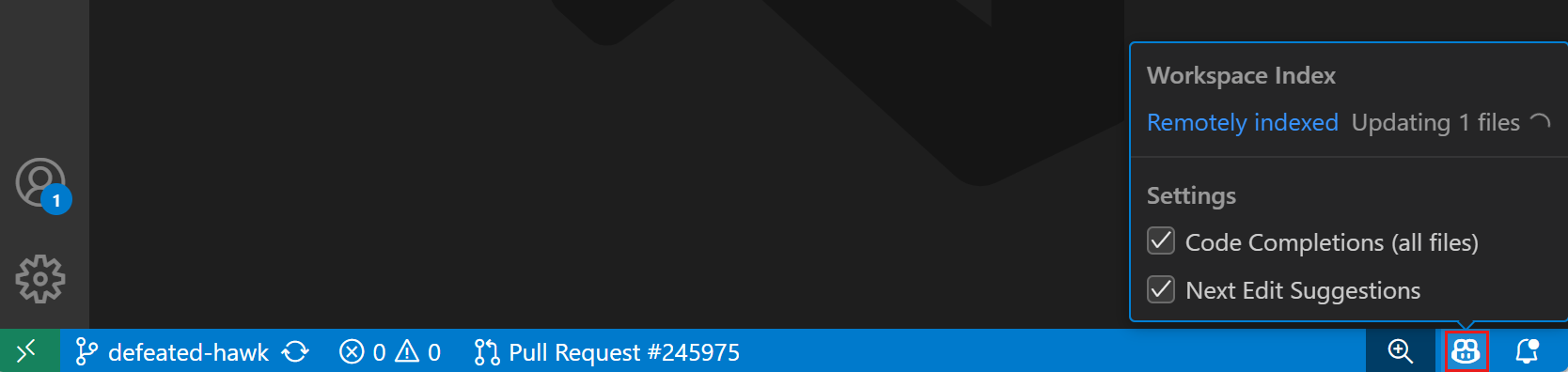
Semantic index sources
Copilot builds and maintains a semantic index for any workspace automatically. The index source determines how quickly the index becomes available for the first time:
-
GitHub repositories: GitHub indexes the GitHub repositories in your workspace. Sign in with your GitHub account to use them. This index only needs to be built once per repository, which means it is often instantly available. GitHub builds and updates this index when needed. This is fast for small and medium sized projects, but might take some time if your repository contains hundreds of thousands of files. Remote indexing works for repositories hosted on GitHub.com or GitHub Enterprise Cloud. It is not supported for GitHub Enterprise Server.
-
Azure DevOps repositories: Indexes are automatically built and maintained. Sign in with your Microsoft account in VS Code for Copilot to start using the index. Check the Copilot Status Bar item for the current index status.
-
Other workspaces: For any other workspace, including local folders not backed by a GitHub or Azure DevOps repository, Copilot builds the semantic index for you. The initial build can take a few minutes, after which the index is kept up to date in the background. This feature is currently enabled for personal accounts but off by default for organization and enterprise users. See the GitHub docs for more details about how to enable this feature using a policy.
To build or rebuild the index for the current workspace on demand, run the Build Codebase semantic index command from the Command Palette.
What content is included in the semantic index
VS Code indexes relevant text files that are part of your current project. This is not limited to specific file types or programming languages. VS Code automatically skips some common file types that are typically not relevant, such as .tmp or .out files.
The workspace index also excludes files that are excluded from VS Code by the
files.exclude
setting or by a .gitignore file.
Binary files, such as images or PDFs, are not indexed.
Tips for better results
The way you phrase your prompt influences which tools the agent uses and the quality of the results.
- Be specific: avoid vague terms like "what does this do", where "this" could mean the last answer, current file, or whole project.
- Use code terms: use function names, class names, and concepts that appear in your code so the agent can find exact matches.
- Add context manually: select code, reference files, or #-mention context items such as debug context, terminal output, and more.
- Scope your request: responses can draw from multiple references, such as "find exceptions without a catch block". But don't expect a full codebase analysis, such as "how many times is this function invoked?".
- Use external tools for non-code questions: for information like "who contributed to this file?", configure the relevant tools or MCP servers.
Private repositories
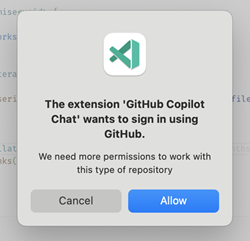
To use semantic search for private repositories, Copilot may need additional permission. If these permissions are not already granted, VS Code asks for them at startup. Once granted, the session is securely stored for the future.
Learn more about security, privacy, and transparency in the GitHub Copilot Trust Center.
Frequently asked questions
Do I need to use #codebase in my prompts?
No. Agents automatically use semantic search when it makes sense. You don't need to add #codebase to your prompt.
The #codebase tool is always semantic and provides consistent results. If you want to force a semantic search for a specific prompt, you can still add #codebase as a context item.
What happens if my workspace is not semantically indexed?
Most workspaces are indexed automatically, but if the index isn't available yet (for example, while a new local workspace is still building its initial index), agents still search your code effectively by using text search, grep, file search, and language intelligence. The workspace index enables semantic search, which finds code by meaning rather than keywords. Without it, agents rely on the other search tools and can still provide accurate results for most prompts. We've found that these other tools still provide great results.