Troubleshoot source control
Use this article to resolve common Git problems in Visual Studio Code. Start with the symptom that matches your problem, then use the Git Output window to collect more information if the suggested fix doesn't resolve it.
Git not found
If VS Code reports 'Git not found', it can't locate a Git executable in the environment where your repository is open.
-
Run
git --versionin a terminal in that environment. For a remote workspace, check the remote environment, not only your local machine. -
If the command isn't found, follow the Git installation prerequisites, then restart VS Code.
-
If Git works in the terminal but not in VS Code, check the Git Output window for the executable paths it tried. If needed, set git.path to the full path of the Git executable, then restart VS Code.
When detection succeeds, the Git Output window shows the Git executable and version, and the Source Control view can open your repository.
A commit fails because user.name or user.email is missing
The error 'Make sure you configure your "user.name" and "user.email" in git' means Git doesn't have the author identity needed to create a commit. Signing in to your Git hosting service doesn't configure this identity.
-
In a terminal opened in the repository folder, check the effective values:
git config --get user.name git config --get user.email -
Set any missing or incorrect values for this repository:
git config user.name "<your-name>"
git config user.email "<your-email>"
These commands affect only the current repository. To use the same identity across repositories, follow the global configuration steps.
-
Retry the commit. The new commit uses the configured name and email. This doesn't change existing commits.
Ignored files still appear in Source Control
Git ignore rules apply to untracked files. Adding a file to .gitignore doesn't stop Git from tracking a file that is already committed or staged.
-
In a terminal opened in the repository folder, check whether the file is in Git's index:
git ls-files -- "<file>" -
If the command lists the file, Git is tracking it. If you only staged a new file, unstage it and add an ignore rule. If the file is already committed, keep it tracked or use the procedure below to stop tracking it.
-
If the command doesn't list the file, inspect the ignore rule that applies:
git check-ignore -v -- "<file>"Correct missing or negated patterns in
.gitignore. A pattern beginning with!makes a matching file eligible for inclusion again. See the Git ignore pattern reference for pattern syntax. After a matching ignore rule applies, the untracked file no longer appears as a change.
The files.exclude setting hides files in the Explorer. It doesn't change Git tracking or ignore rules.
Stop tracking a file without deleting the local copy
Use this procedure only when an already committed file should no longer be part of the repository:
Removing a tracked file from Git's index stages a deletion from the repository, not from your working folder. Committing and pushing it changes tracking for everyone. When collaborators pull the commit, Git can remove their tracked copies. Coordinate this change before sharing it. The file remains in earlier commits.
-
Add an ignore rule for the file to
.gitignore. -
Remove the file from Git's index while keeping your working copy:
git rm --cached -- "<file>" -
Review and commit
.gitignoreand the staged deletion when you're ready to share the tracking change.
After the commit, your local file remains on disk and is ignored. To hide a file from the Explorer without changing repository tracking, use files.exclude instead.
Push is rejected because the remote has new commits
A rejection containing non-fast-forward or fetch first means the remote branch has commits that your local branch doesn't contain. Git rejects the push to avoid overwriting remote history.
-
Fetch the remote commits and review incoming and outgoing history. Confirm that you're working on the intended branch and remote.
-
Commit your local changes or stash unfinished work before integrating the incoming commits.
-
Pull the remote commits, using your team's merge or rebase workflow. If conflicts occur, resolve them and complete the operation.
-
Push again. The push can succeed once your branch includes the remote history and you have permission to update it.
Don't force push to bypass this rejection. A force push can overwrite commits that others depend on. If you intentionally rewrote shared history, agree on a recovery plan with your collaborators first.
If the error instead mentions permissions or branch protection, use the next section rather than pulling repeatedly.
Permission denied, read-only repository, or protected branch
These errors have different causes. Check the Git Output window for the failing command and the full error. Run git remote -v in the repository folder to confirm that the fetch and push URLs point to the intended repository.
| Symptom | Diagnosis and action |
|---|---|
Authentication failed or Permission denied (publickey) |
Git couldn't authenticate. For HTTPS, check the account and credentials stored by your credential helper. For SSH, check your key and agent using the SSH authentication guidance. Retry after correcting the credentials. |
| The remote reports that you don't have permission to push | Your account might have read access but not write access, or Git might be using credentials for the wrong account. Update the stored credentials, request write access from a maintainer, or push a branch to a fork you own. |
| The remote rejects an update to a protected branch or reports a repository rule violation | Authentication succeeded, but the host's policy blocks the update. Push your work to an allowed feature branch and open a pull request, or follow the checks required by your repository. Changing credentials or force pushing doesn't bypass these rules. |
A local path reports Permission denied or Read-only file system |
Git can't write to the working folder or .git directory. Check filesystem permissions, ownership, and whether the drive is mounted read-only. Restore write access for your account before retrying. |
Retry the failed operation after correcting its cause. Successful authentication doesn't grant repository write access or override branch protection.
Push, pull, or sync doesn't finish
A Git operation that doesn't finish often indicates that Git is waiting for authentication but the credential prompt isn't visible.
-
Open the Git Output window and check the most recent command for an authentication error.
-
Configure a Git credential helper for your operating system.
-
Run the operation again and complete any sign-in prompt.
Git Credential Manager is the recommended credential helper for Windows, macOS, and Linux. Git for Windows includes Git Credential Manager.
Git authentication prompts appear repeatedly
If git.autofetch is on, background fetches can trigger repeated authentication prompts even when you haven't selected a Git action. Automatic fetching is off by default in the editor window and on by default in the Agents window.
Check the Git Output window to see which command triggered the prompt. Configure a Git credential helper to store valid credentials for the remote. If you don't want background fetches, turn off git.autofetch . This stops those fetches but doesn't fix credentials needed for manual fetch, pull, or push operations.
Git actions are unavailable after initializing a repository
Push, pull, and sync require a remote repository. Initializing a local repository doesn't create a remote. To connect to an existing hosted repository, add a remote. To create a new GitHub repository, use Publish to GitHub.
After adding a remote, push your committed branch and accept the prompt to publish it if it has no upstream. The branch then has an upstream for synchronization. Local actions, such as staging and committing, don't require a remote.
VS Code reports that a repository is potentially unsafe
Git blocks operations in a repository owned by a different operating-system user. This protects you from running Git configuration or hooks from an untrusted repository.
Select Manage Unsafe Repositories in the Source Control view or notification. Review the repository location before you mark it as safe. Marking a repository as safe adds its location to Git's safe.directory configuration.
On Windows, this can happen when you clone a repository from an application running as administrator and later open it from an application that isn't running as administrator.
VS Code doesn't detect a repository in a parent folder
VS Code doesn't automatically open Git repositories in parent folders because doing so can expose changes outside the folder you intended to work with.
When VS Code detects a repository in a parent folder, use the notification or Source Control welcome view to open it. To always open repositories in parent folders, set the
git.openRepositoryInParentFolders
setting to always.
Open the Git Output window
VS Code uses your machine's Git installation for source control operations. The Git Output window records the Git executable, commands, errors, timestamps, and command duration.
Open the Git Output window in one of these ways:
- In the Source Control view, select More Actions (...) > Show Git Output.
- Run Git: Show Git Output from the Command Palette (⇧⌘P (Windows, Linux Ctrl+Shift+P)).
- Open the Output panel (⇧⌘U (Windows Ctrl+Shift+U, Linux Ctrl+K Ctrl+H)) and select Git from the channel list.
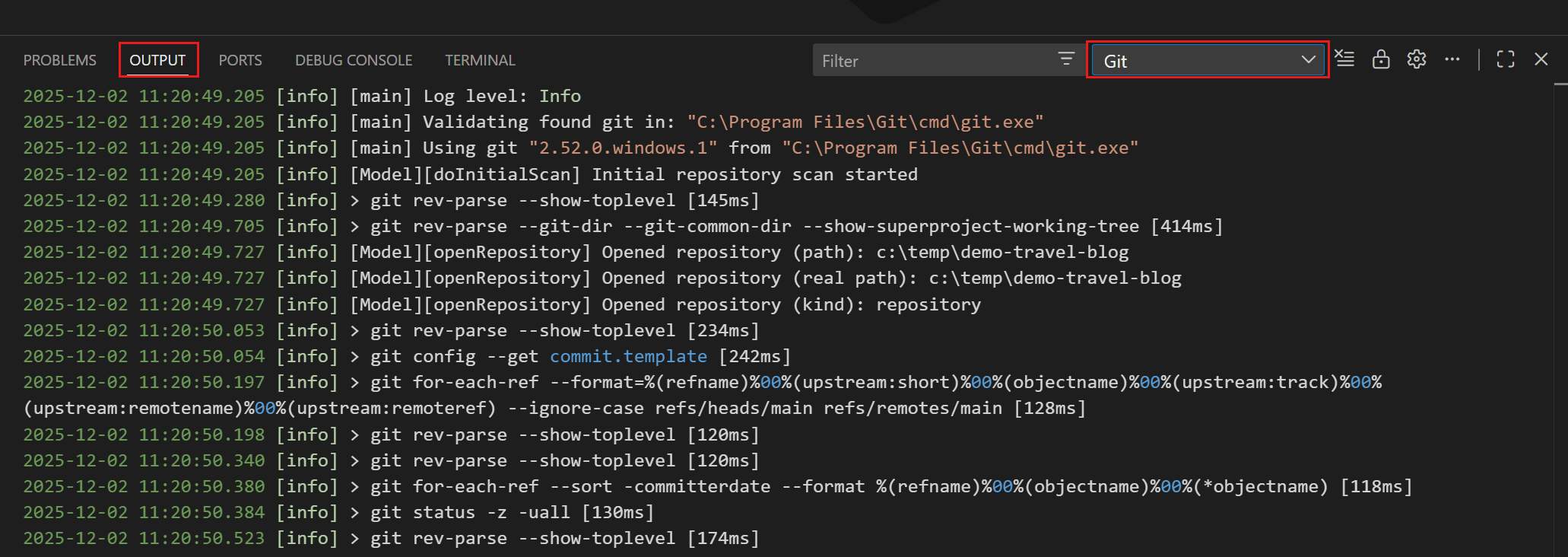
Review the most recent command and error message. The first error after the command is usually more useful than later errors that result from it.
By default, the Git Output window shows standard output only when a command fails. Use the git.commandsToLog setting to choose commands that should always log their standard output.
Filter and search Git logs
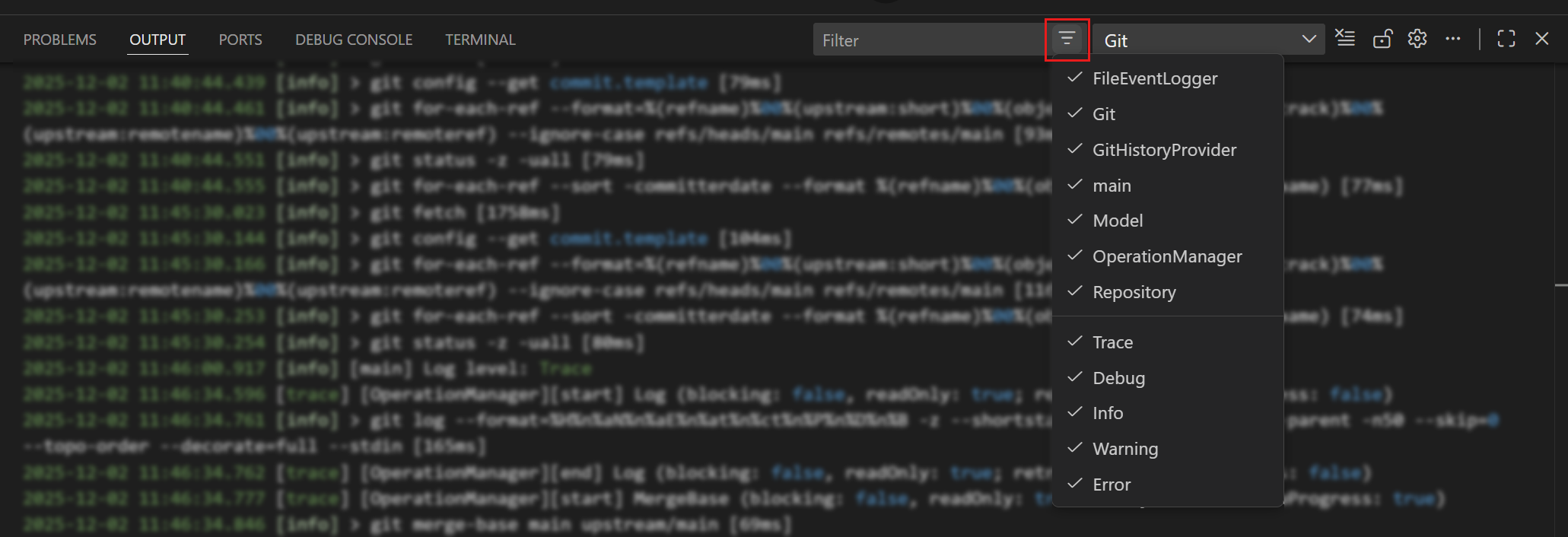
Use the Output panel filters to reduce the amount of log information:
- Select a log level such as
trace,debug,info,warning, orerror. The default level isinfo. - Select a category such as
gitorrepository. Selectgitto focus on commands executed by Git.
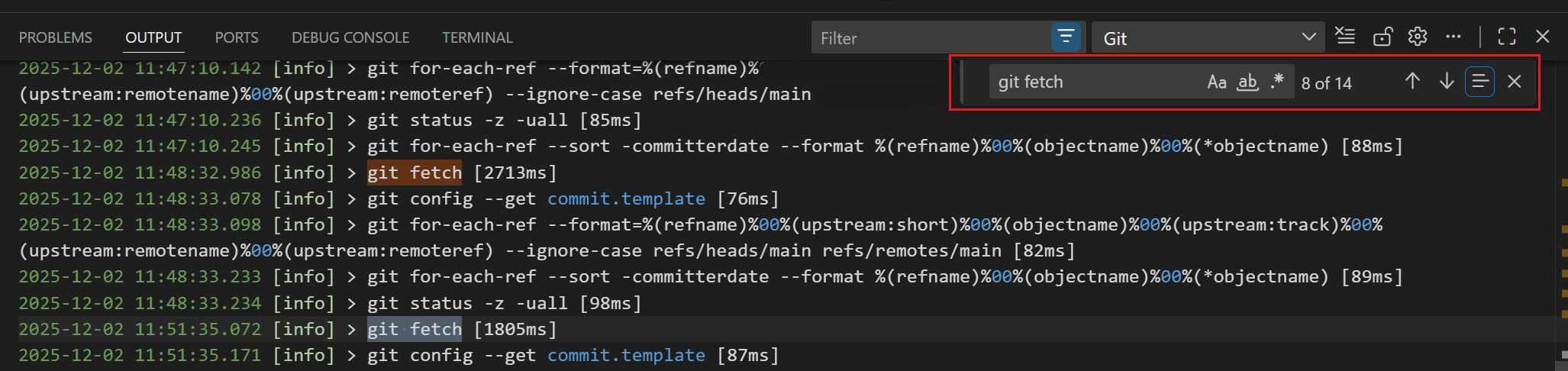
Use the search box (⌘F (Windows, Linux Ctrl+F)) to find a command, repository path, or error. The search box supports regular expressions.
Collect trace logs
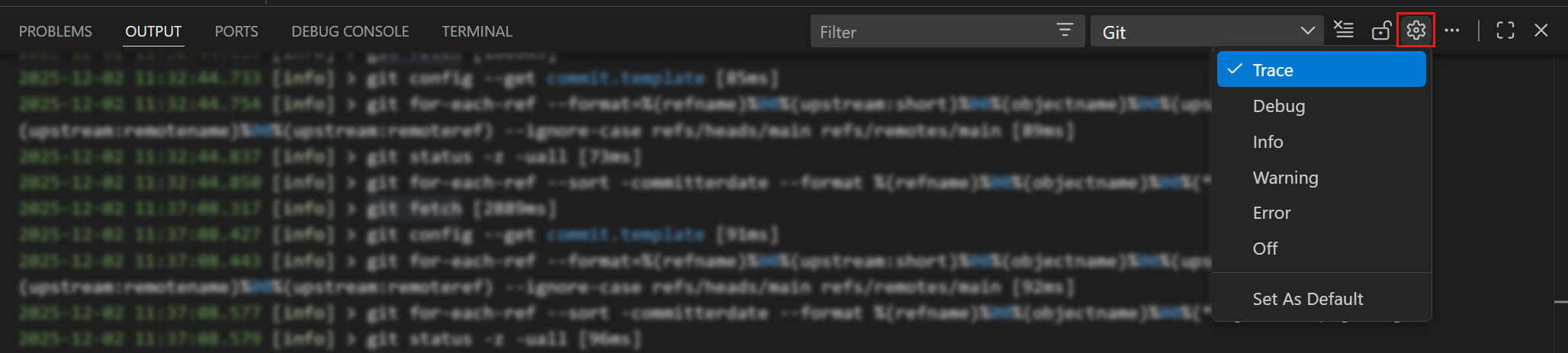
Enable trace logging when the regular Git output doesn't contain enough information:
-
Open the Git Output window.
-
Select the gear icon in the Output panel header.
-
Select Trace.
-
Reproduce the problem and review the new log entries.
Trace logs can contain repository paths, remote URLs, branch names, and other development information. Review the output and remove sensitive information before you share it.
Next steps
- Choose a remote operation to fetch, pull, or push without unintended synchronization.
- Source control FAQ answers product support and compatibility questions.
- Git documentation provides reference details for Git commands and configuration.