Staging and committing changes
Use the Source Control view in VS Code to choose exactly which changes go into a commit. This guide covers reviewing files, staging individual changes, committing, and choosing an undo action.
New to Git? Follow the first-commit quickstart to set up a practice repository and configure your commit identity.
For a specific task, jump to partial staging, committing, or undo and discard options.
Git workflow
Saving a file, staging it, committing it, and pushing it are separate operations:
| Action | Result |
|---|---|
| Save | Writes your edits to the working file on disk. |
| Stage | Copies selected changes into the staging area, also called the index. |
| Commit | Records the staged snapshot in local Git history. |
| Push | Uploads local commits to a remote repository. |
Staging captures the selected content at that moment. If you edit the file again, those later edits are not included in the staged snapshot until you stage them too.
View changes
The Source Control view (⌃⇧G (Windows, Linux Ctrl+Shift+G)) is your central hub for managing changes in your Git repository. Changes are organized into two sections based on their staging status:
- Changes: lists all modified, added, or deleted files that are not yet staged for commit
- Staged Changes: lists files that have been staged and are ready to be committed
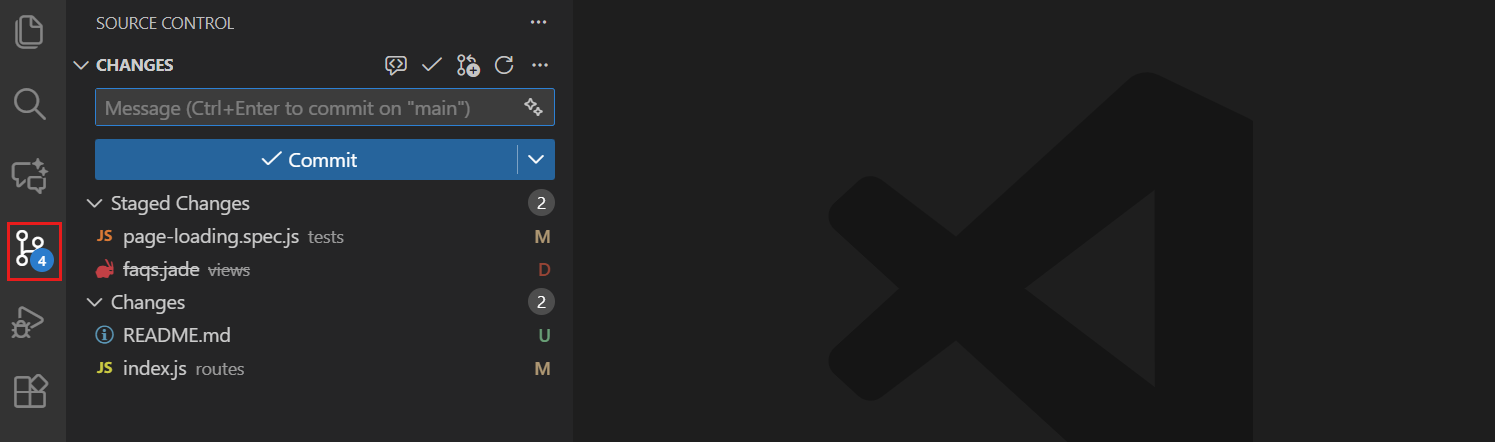
Notice that changed files are listed with a "U" (untracked), "M" (modified), or "D" (deleted) icon next to them to indicate the type of change. This change indicator is also shown in the Explorer view and in the editor tab title for modified files.
The source control icon in the Activity Bar also shows a badge with the number of affected files to give you a quick overview of your uncommitted changes.
You can view the list of changes in either a flat or tree structure. Toggle this with the More Actions (...) > View & Sort > View as Tree/List option in the Source Control view toolbar.
Why a file appears in both lists
A file can have both staged and unstaged changes. For example:
- Edit a tracked file and stage it.
- Edit the same file again and save it without staging.
The file now appears in both lists. Select it in Staged Changes to see the first edit, which is ready to commit. Select it in Changes to see the later edit, which is not included in that commit.
Stage the file again to include both edits, or commit the staged version and leave the later edit for another commit. Unstaging preserves both edits in your working file.
Staging changes
Staging changes prepares them for adding to your next commit. You can stage entire files or specific lines and code blocks for more granular control.
To stage individual files, hover over them in the Changes list and select the + (plus) icon, or right-click the file and select Stage Changes. You can also drag files from the Changes section and drop them into the Staged Changes section to stage them.
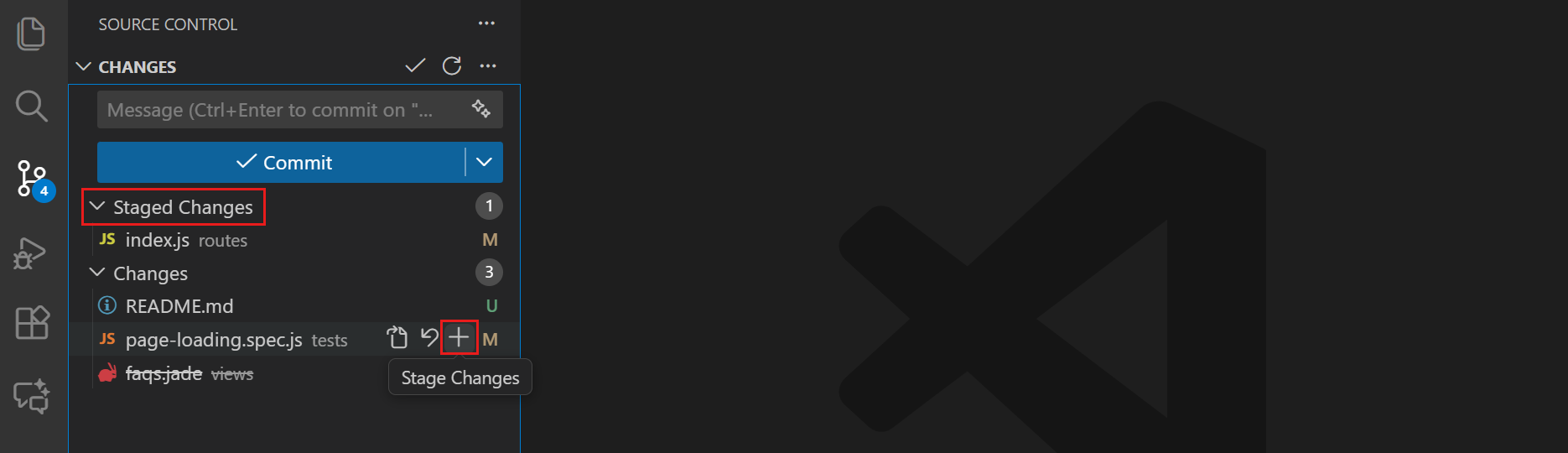
When you're using the tree view, you can stage entire folders by staging the folder itself. To stage all modified files at once, hover over the Changes header and select the + (plus) icon.
There are more specialized staging actions available in the Command Palette (⇧⌘P (Windows, Linux Ctrl+Shift+P)). Type "Git: Stage" to see options for staging files.
Stage specific lines or code blocks
Instead of staging entire files, you can also stage specific parts of a file. Partial staging enables you to create focused commits. For example, if you've made formatting changes and bug fixes in the same file, you can commit them separately with appropriate commit messages.
You can perform partial staging from the diff editor:
-
Select a file in the Changes list to open the diff editor.
-
Select the lines you want to stage.
-
Use the Stage button in the gutter of the diff editor next to your selection to stage only those lines.
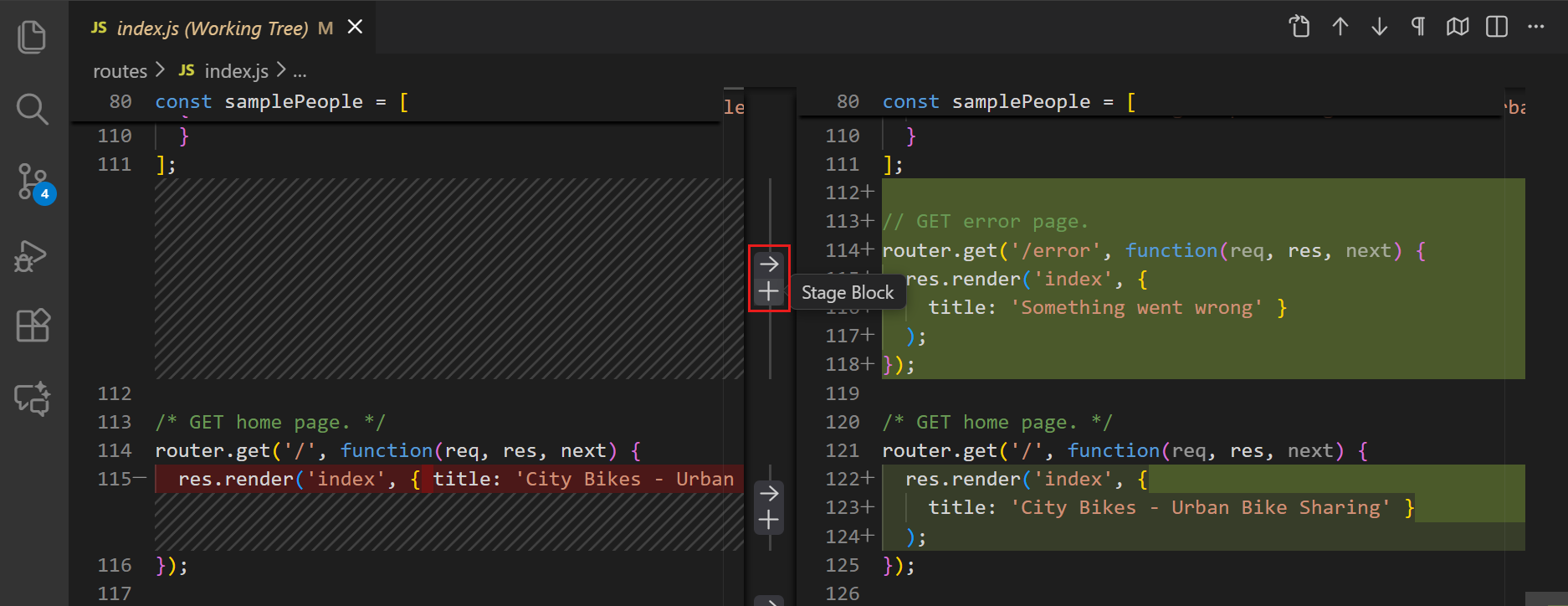
You can also right-click the selection and choose Stage Selected Ranges or run Git: Stage Selected Ranges from the Command Palette.
Unstage changes
To remove files from staging, hover over them in the Staged Changes list and select the - (minus) icon, or right-click and choose Unstage Changes. The files move back to the Changes section without losing your modifications.
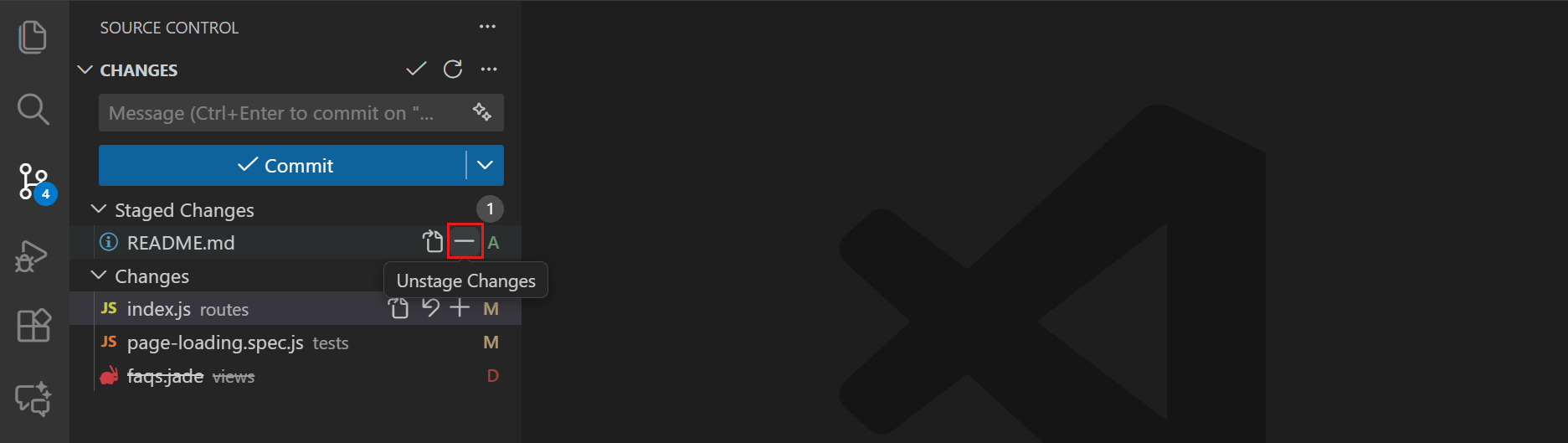
Similarly, you can also unstage specific lines or code blocks from the diff editor using the Unstage button in the gutter next to your selection.
Commit your changes
-
Select each file in Staged Changes to review the content that will be committed.
-
Enter a message in the commit message input box that describes the change, such as
Fix validation for empty names. -
Select Commit.
The committed changes disappear from Staged Changes and appear in the Source Control Graph. Unstaged edits remain in Changes. The commit is local until you push it.
If Git asks you to configure your name or email, follow the quickstart prerequisites.
Write commit messages
A commit message helps others understand what changed and why. Use a short summary for the first line. For a longer explanation, use the editor for commit messages.
To cycle through your previous commit messages, press ↑ (Windows, Linux Up) and ↓ (Windows, Linux Down) while focused in the commit message input box.
Commit changes
The Commit button uses your staged changes. If nothing is staged, the behavior depends on your Git settings and VS Code can prompt you to stage changes. Stage explicitly when you want to control the commit's contents.
To commit all changes at once, select More Actions (...) > Commit > Commit All. Review all pending files before using this action.
Undo or discard changes
Choose the action that matches the state of your work. Unstaging, undoing a commit, and discarding edits have different effects.
| Goal | Action | Effect |
|---|---|---|
| Keep edits but remove them from the next commit | Unstage | Preserves working files. |
| Correct the most recent unpushed commit | Amend | Replaces that commit with a new one. |
| Remove the most recent unpushed commit but keep its changes | Undo Last Commit | Changes local history and preserves edits. |
| Reverse a commit already shared with others | Revert the commit | Adds a new commit without rewriting shared history. |
| Remove uncommitted edits | Discard | Removes work. Recovery is not guaranteed. |
Amend the previous commit
If you need to modify your most recent commit, you can amend it instead of creating a new commit. This is useful for adding forgotten changes or correcting the commit message.
To amend a commit, select the Commit button dropdown and select Commit (Amend), or use the Commit Staged (Amend) option from the More Actions (...) menu.
Only amend commits that haven't been pushed to a shared repository. Amending pushed commits rewrites history and can cause issues for other collaborators.
Undo the last commit
For a commit you haven't pushed, select More Actions (...) > Commit > Undo Last Commit in the Source Control view.
The commit is removed from local branch history and its changes remain staged so you can edit or commit them again. If you undo the repository's first commit, its files become untracked instead.
Don't use this action to undo shared history. Revert a pushed commit instead.
Undo a pushed commit
Reverting creates a new commit that reverses an earlier commit. It preserves the shared history and does not require a force push.
For a regular, non-merge commit:
-
Open the branch containing the commit. Commit or stash any pending changes before continuing.
-
Find the commit's hash in the Source Control Graph, or run
git log --onelinein the integrated terminal. -
Run the following command in the repository's terminal, replacing
<commit-hash>with that hash:git revert --no-edit <commit-hash>If successful, Git creates a new commit with a generated revert message. If there are conflicts, resolve and stage the files, then run
git revert --continue. To cancel an in-progress revert, rungit revert --abort. -
Review the new commit in the graph, test the result, and push the commit.
Reverting a merge commit requires choosing which parent to keep. Consult your team and the Git revert documentation before reverting a merge.
Discard changes
Discard removes uncommitted work. Commit, stash, or copy changes you might need before discarding them. Unstage instead if you only want to remove changes from the next commit.
Right-click a file in Changes and select Discard Changes. Review the confirmation before continuing.
- For a tracked file, discard restores the staged version. If there are no staged edits, this is the version in the current commit. Staged changes are preserved.
- For an untracked file, discard removes the file.
Discarded edits to tracked files are not moved to the Recycle Bin or Trash. Untracked files can be moved there when git.discardUntrackedChangesToTrash is on and the environment supports it. Remote environments and other limitations can result in permanent deletion.
If you already discarded work, check the Timeline view for local history entries and, for deleted untracked files, the Recycle Bin or Trash. Neither is a guaranteed backup.
Review changes with the diff editor
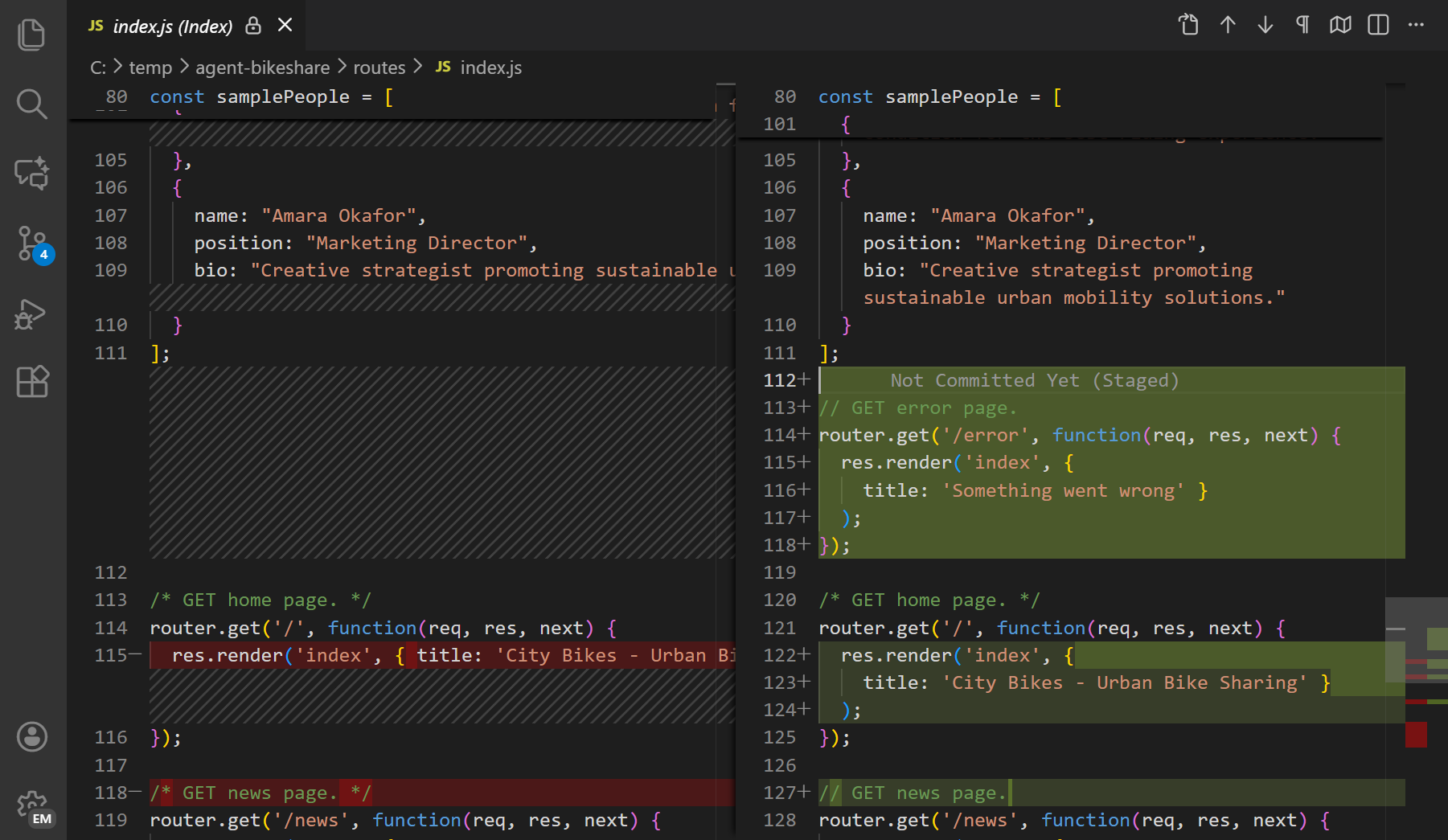
The diff editor shows what changed in your files by comparing the original and modified versions. It can show changes in a side-by-side or inline layout.
Select a file in the Source Control view to open its diff. For a tracked file, the comparison depends on the list:
| List | Comparison | Question it answers |
|---|---|---|
| Changes | Staged version (index) against the working file | What edits have I not staged yet? |
| Staged Changes | Current commit (HEAD) against the staged version |
What will my next commit contain? |
If a file has no staged edits, its staged version matches the current commit. A new, untracked file has no earlier tracked version. See why a file can appear in both lists.
For large files, collapse the unchanged sections by selecting the Collapse Unchanged Regions button in the diff editor toolbar. This helps you focus on the actual changes. You can also quickly navigate between changes using the Next Change and Previous Change buttons.
Choose a diff layout
By default, the diff editor uses the Automatic layout. It shows a side-by-side comparison when there is enough space and switches to inline when the editor is narrow.
To choose a layout, select More Actions (...) > Diff View, and then select one of these options:
- Inline: shows changes within one editor.
- Side by Side: shows the original file on the left and your changes on the right.
- Automatic: switches between side-by-side and inline based on the editor width.
The following example shows a side-by-side comparison:
The inline layout shows the changes within one editor:
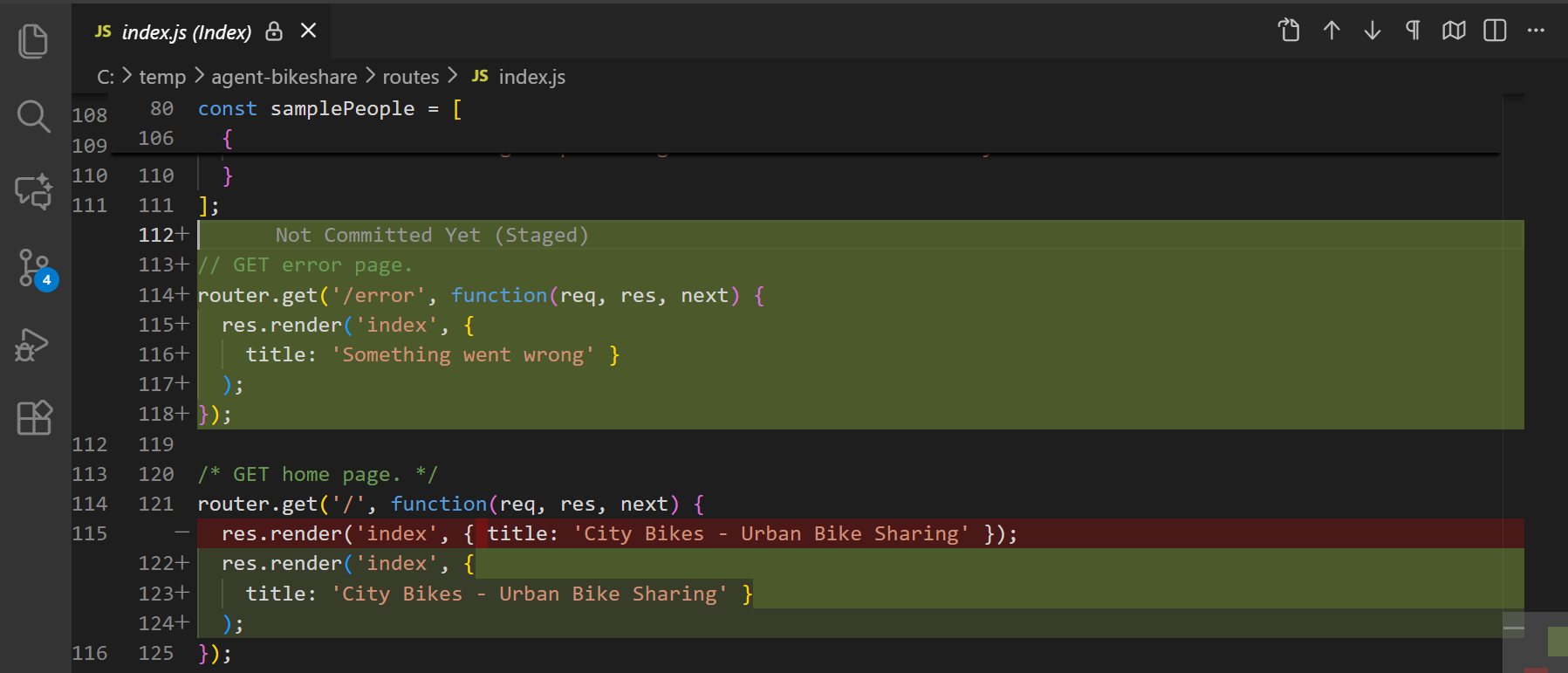
The default width threshold for the Automatic layout is 900 pixels. Configure it with diffEditor.renderSideBySideInlineBreakpoint . You can also configure the underlying layout behavior directly with diffEditor.renderSideBySide and diffEditor.useInlineViewWhenSpaceIsLimited .
Stage and revert from the diff editor
The diff editor includes a gutter with Stage and Revert buttons next to each change. These buttons let you:
- Stage individual code blocks or lines directly from the diff view
- Revert specific changes without affecting other modifications
If you select specific lines in the diff editor, the buttons operate only on your selection.
You can hide the diff editor gutter with the diffEditor.renderGutterMenu setting.
Revert removes the selected working changes. It is not the same as unstaging them. See discard changes.
Editor gutter indicators
The editor shows gutter indicators next to line numbers to identify changes. Green marks added lines, blue marks modified lines, and a red triangle marks deleted lines. Select an indicator to open an inline diff preview.
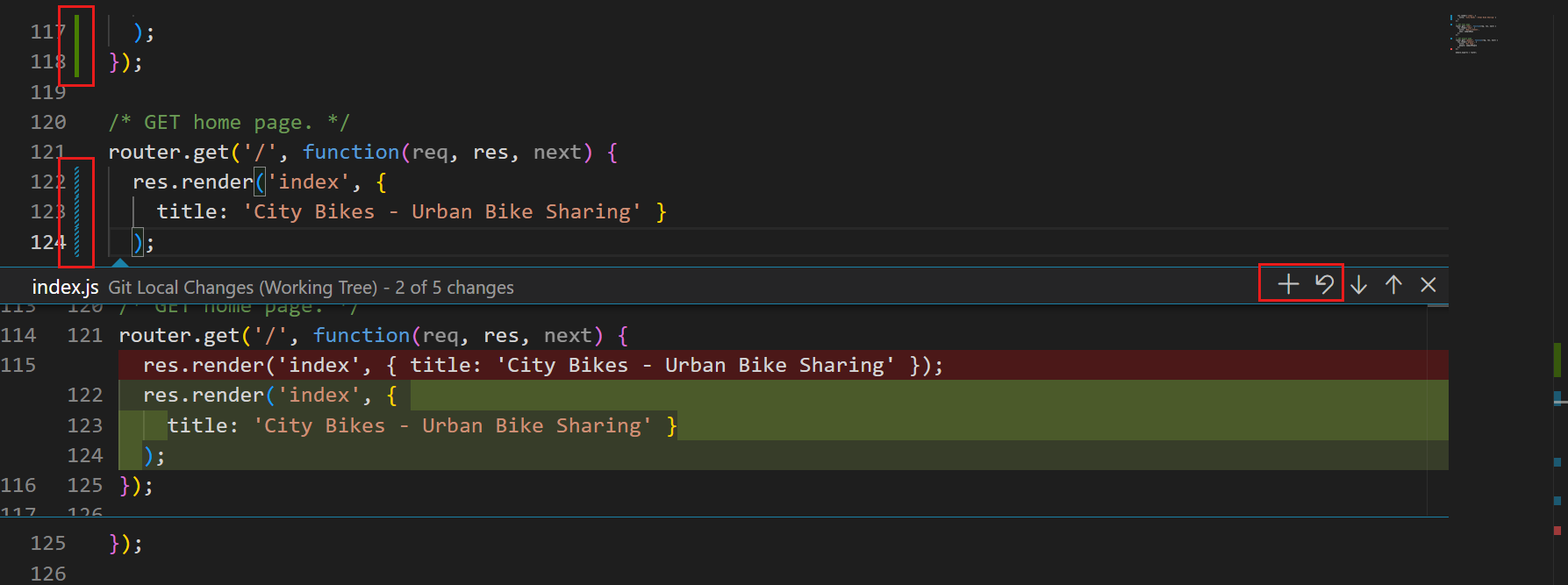
You can customize the indicators with these settings:
- scm.diffDecorations : choose where diff decorations appear.
- scm.diffDecorationsGutterAction : control what selecting a gutter indicator does.
- scm.diffDecorationsGutterPattern : customize the decoration pattern.
- scm.diffDecorationsGutterVisibility : show decorations always or on hover.
- scm.diffDecorationsGutterWidth : set the indicator width.
- scm.diffDecorationsIgnoreTrimWhitespace : ignore whitespace-only differences in decorations.
Accessible diff viewer
For screen reader users, VS Code provides the Accessible Diff Viewer, which presents changes in a unified patch format. To open the Accessible Diff Viewer, use the More Actions (...) menu in the diff editor toolbar and select Open Accessible Diff Viewer or use the F7 keyboard shortcut.
Navigate through changes with Go to Next Difference (F7) and Go to Previous Difference () commands.
Use the editor for commit messages
For longer commit messages, use a full editor tab instead of the input box. Make sure git.useEditorAsCommitInput is on.
-
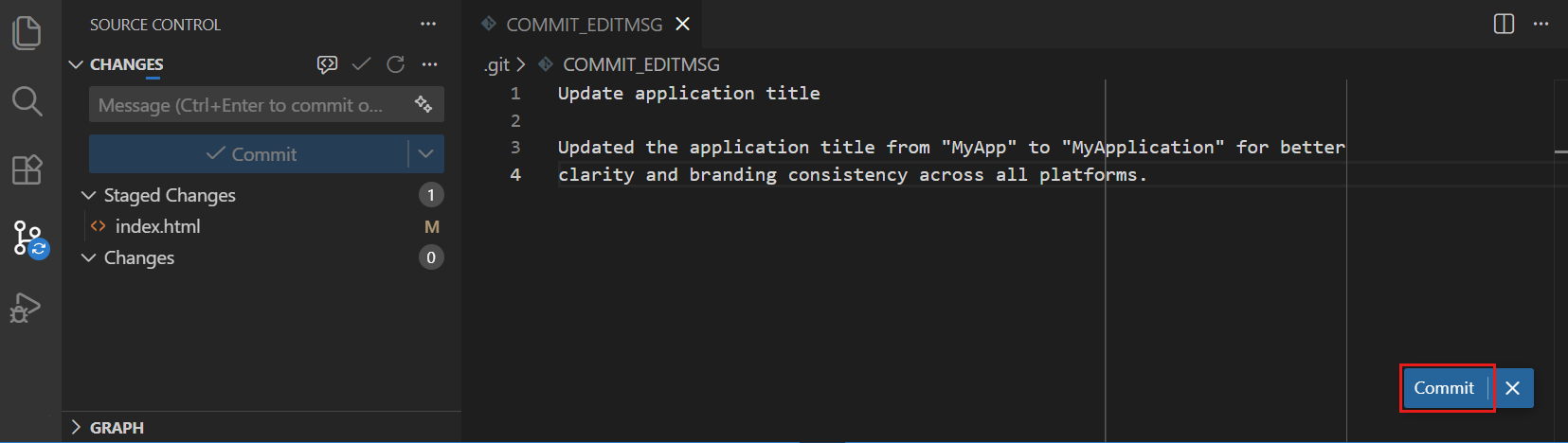
In the Source Control view, select Commit without entering a message in the commit input box. This opens an editor tab named
COMMIT_EDITMSG.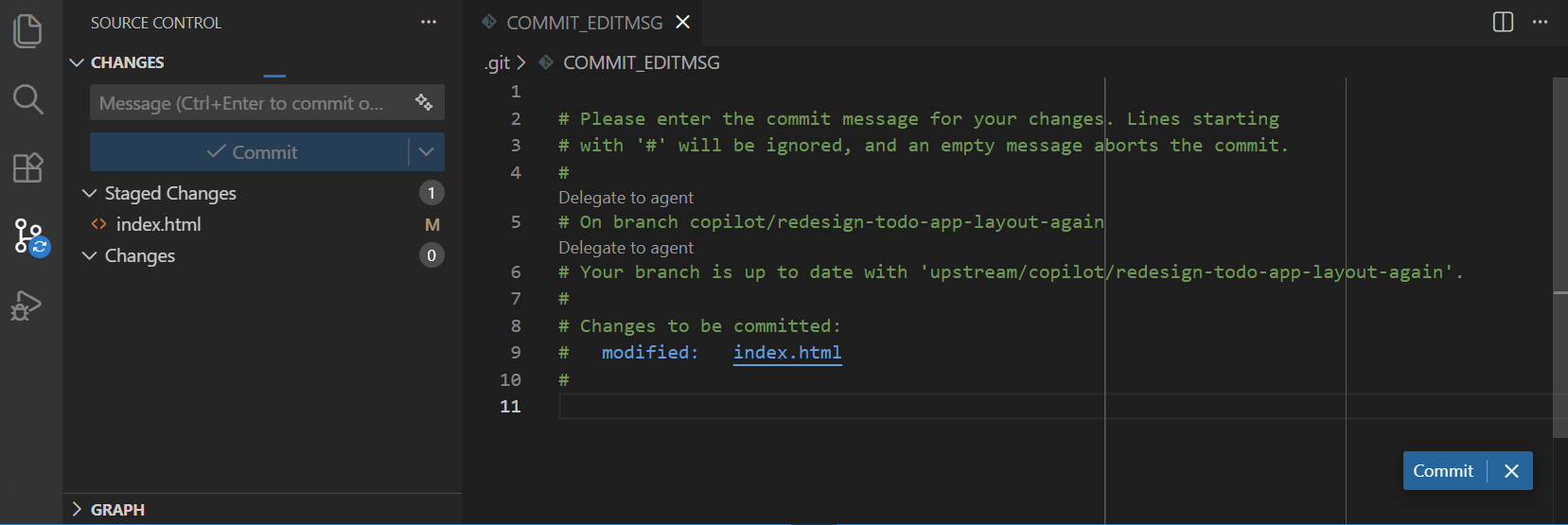
-
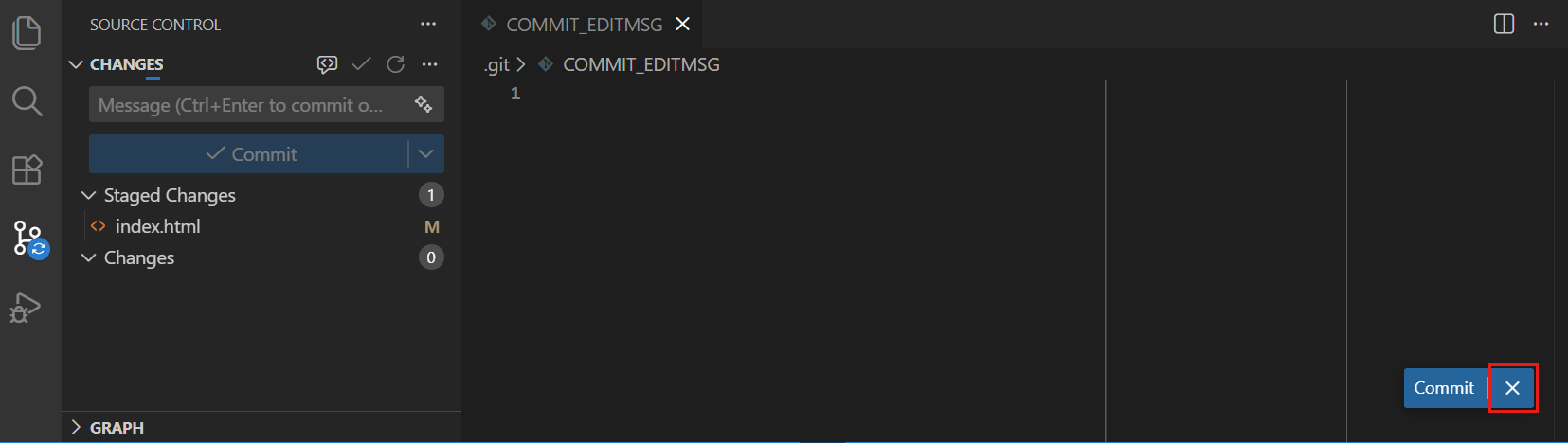
Write the message. To complete the commit, close the editor tab or select Commit in the editor.
To cancel, select Cancel in the editor, or clear the message and close the tab.
To use an input prompt instead, turn off
git.useEditorAsCommitInput
and restart VS Code. To use the editor for terminal git commit commands too, turn on
git.terminalGitEditor
and restart the terminal.
Review code changes with AI
After you set up GitHub Copilot, you can use AI to review uncommitted changes. This optional review complements inspecting the diff yourself.
To perform an AI-powered code review of your uncommitted changes:
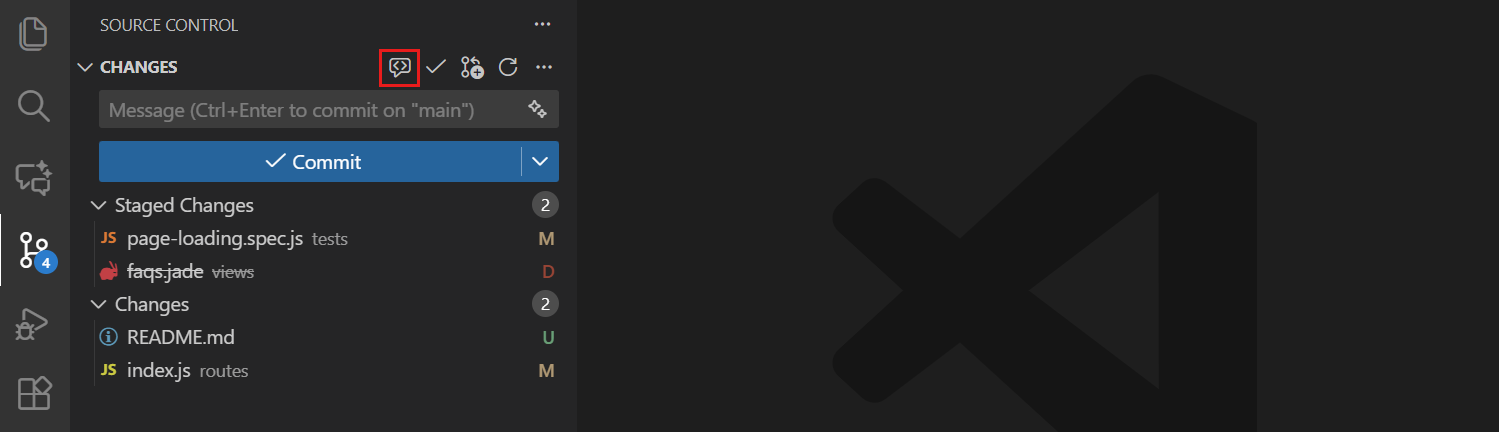
-
Select the Code Review button in the Source Control view.
-
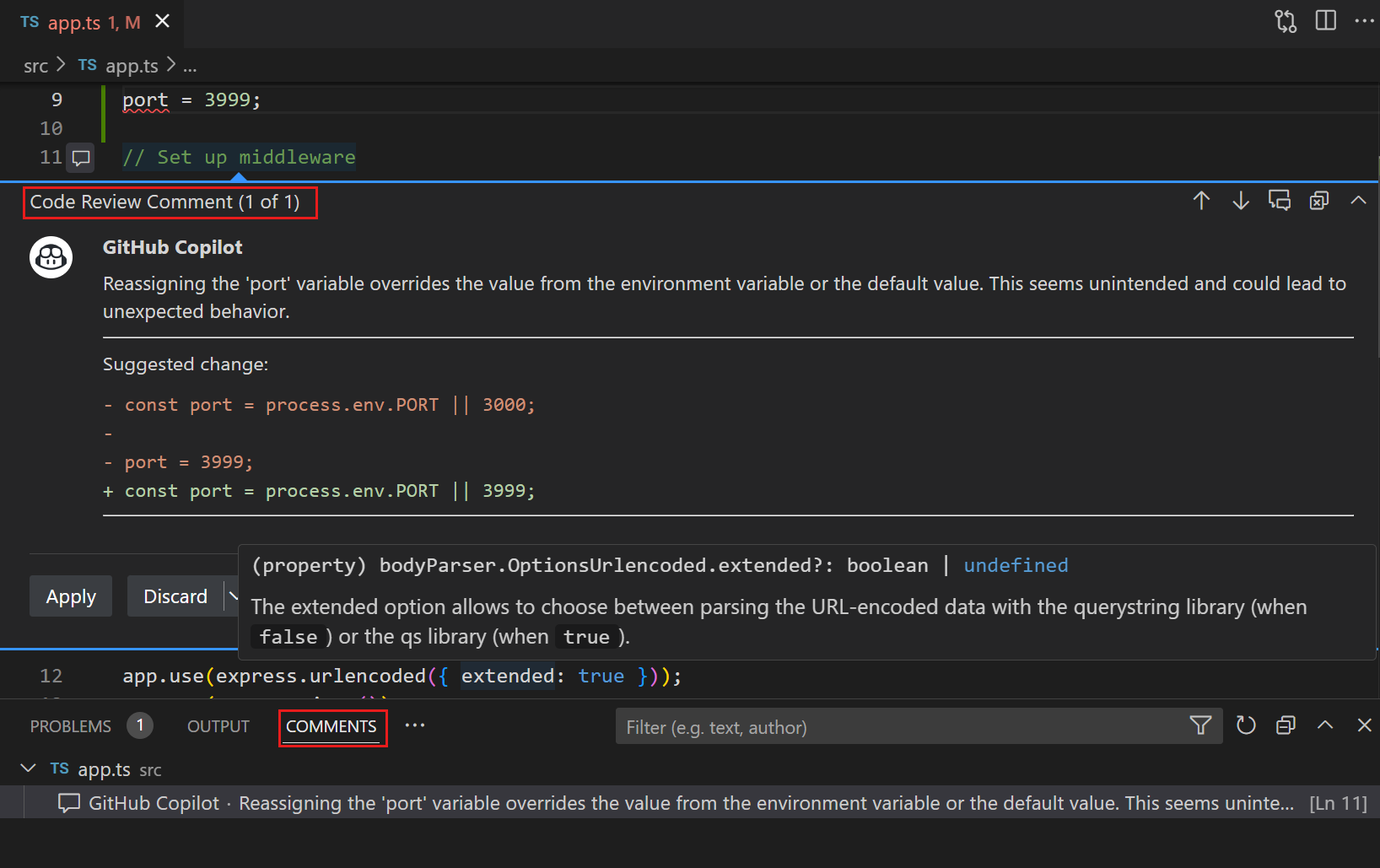
Review the generated comments and suggestions, which appear as overlay comments in the editor.
Generate commit messages with AI
Select the sparkle icon in the commit message input box to generate a message. Review and edit it before committing.
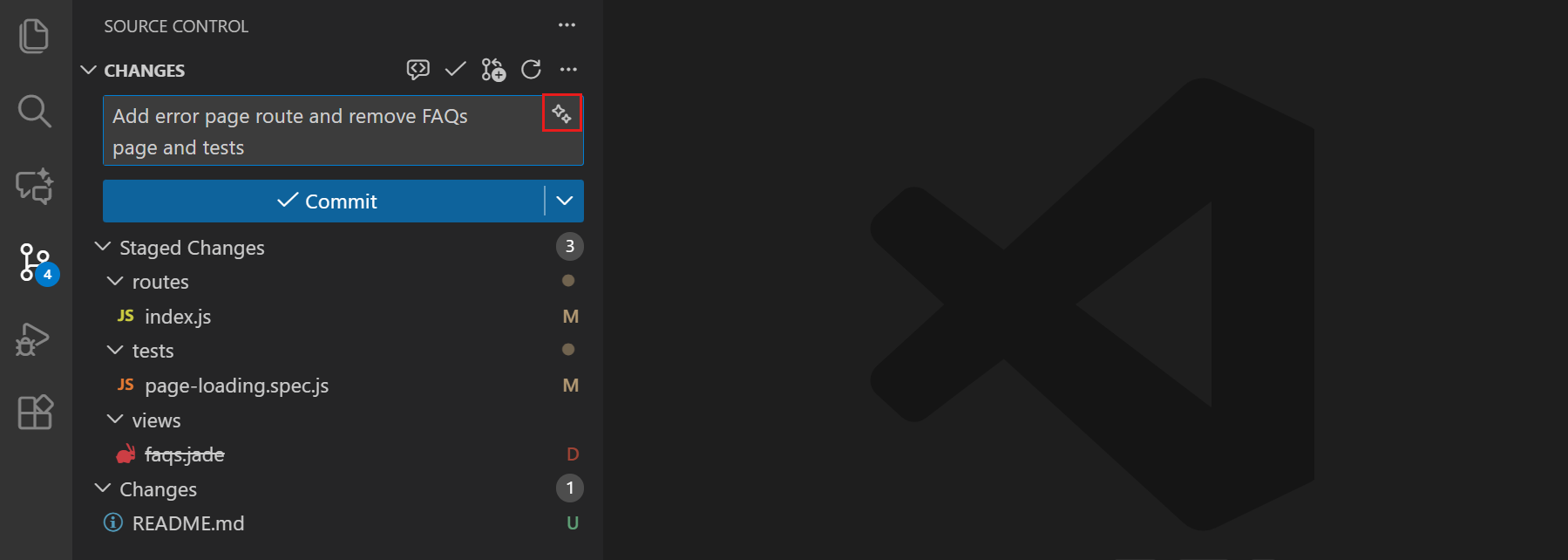
Commit message generation uses the utility model configured by chat.utilitySmallModel , not the model selected for a chat or agent session. See utility model configuration and requirements, including setup without a GitHub Copilot account. You can also configure instructions for generated commit messages.
AI co-author attribution
VS Code can append a Co-authored-by: Git trailer to commits that include AI-generated code. Configure
git.addAICoAuthor
:
off(default): don't add an AI co-author trailer.chatAndAgent: add the trailer for code generated through chat or agent mode.all: add the trailer for AI-generated code, including inline completions.
This setting applies to commits made through the VS Code Git integration, not external Git clients or terminal commands. Co-author trailers also appear in the Git blame hover.
Inspect source control history
After you create commits, use the Source Control Graph, Git blame information, and Timeline view to understand when and why code changed.
Learn more about viewing source control history.
Next steps
- Push your commits to share them with others.
- Set unfinished work aside with a stash before switching tasks.
- Troubleshoot Git problems when an operation fails.