Source control in VS Code
Visual Studio Code has built-in Git support for reviewing changes, creating commits, and collaborating on code without leaving your editor. Use this page to choose a starting point or find the guide for a specific task.
Git tracks versions of files in a repository. GitHub is a service that hosts Git repositories and adds collaboration tools such as pull requests. You don't need a hosting account to use Git locally.
| What do you want to do? | Start here |
|---|---|
| Learn Git in the editor and make a first commit | Source control quickstart |
| Work on an existing project | Clone a repository |
| Choose changes to save in Git history | Stage and commit changes |
| Share local commits with a team | Push, pull, and sync |
| Undo or recover work | Choose an undo action |
| Resolve an error or unexpected behavior | Troubleshoot source control |
The editor and command-line Git use the same repository. You can work in either interface without importing or synchronizing changes between them.
Prerequisites
To use Git features in VS Code, you need:
-
Install Git on your machine. VS Code uses this installation for Git operations.
-
Configure the name and email recorded in your commits. These values identify the author, not your sign-in credentials:
git config --global user.name "<your-name>"
git config --global user.email "<your-email>"
Replace the placeholders with your name and email. The quickstart walks through this setup. For background on Git concepts, see the Git documentation.
Get started with a repository
Open a repository folder with File > Open Folder... to use its Git history in VS Code. If you don't have a local repository yet, choose one of these paths:
-
Start locally: Initialize a repository and make a first commit in a practice folder.
-
Work on an existing project: Clone a repository from a Git host.
-
Browse without cloning: Use the GitHub Repositories extension for a virtual workspace. This workflow has different capabilities from a local checkout.
To share an existing local repository, publish it or add a remote.
Source control interface
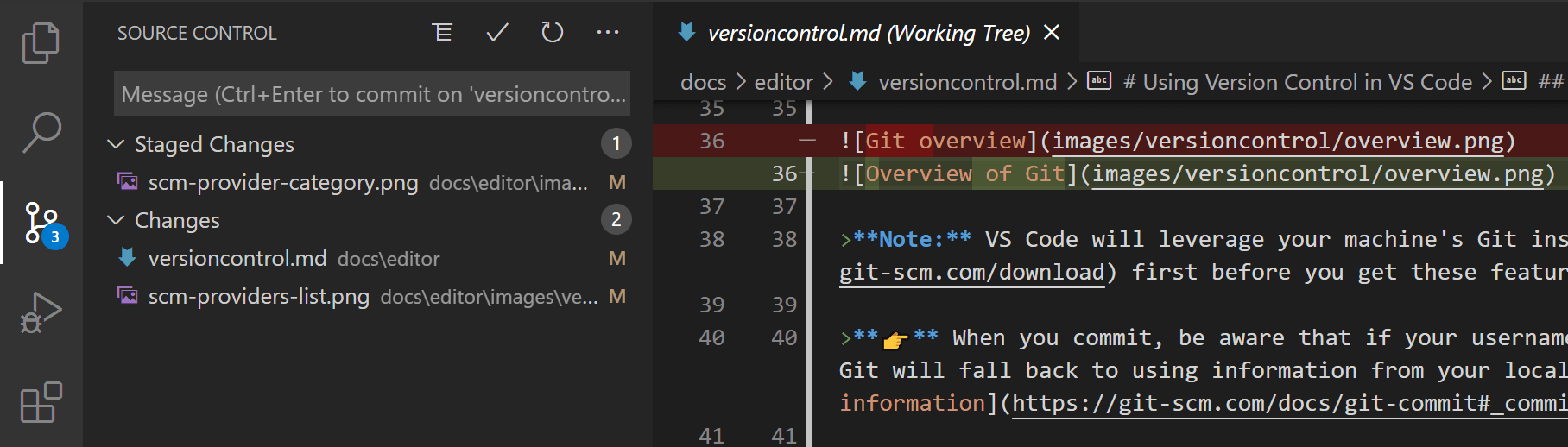
Open the Source Control view (⌃⇧G (Windows, Linux Ctrl+Shift+G)) to review and commit changes.
| Interface | Use it to |
|---|---|
| Source Control view | Review changed files, choose changes to stage, and commit them. |
| Diff editor | Compare versions of a file and stage individual changes. |
| Source Control Graph | Inspect commits, branches, and incoming or outgoing work. |
| Timeline view in Explorer | Inspect Git commits and local saves for one file. |
| Status Bar | Check the active branch and access synchronization actions. |
Common workflows
Review changes before committing
Select a file in Changes to review unstaged edits, or in Staged Changes to review what the next commit will contain. Learn how to review diffs, including partially staged files.
Stage and commit changes
Staging selects the changes for your next commit. Committing records that snapshot in local Git history, but does not upload it to a server. Learn how to stage files or individual lines and create a commit.
Sync with remotes
Push uploads your commits, pull integrates remote commits, and sync pulls before pushing. Learn how to choose a remote operation and inspect incoming work before integrating it.
Resolve merge conflicts
When Git cannot combine changes automatically, use inline actions or the 3-way merge editor to resolve them. Follow the conflict resolution guide to review the result and complete or cancel the operation.
Work with branches, worktrees, and stashes
Use a branch to develop a separate line of work, a stash to set aside uncommitted changes, or a worktree to check out another branch in a separate folder. Learn how to manage branches, stashes, and worktrees.
View commit history
Use the graph for repository history, Timeline for a file's history, and Git blame to identify who last changed a line. Learn how to inspect commits, compare changes, and find line authorship.
Working with GitHub pull requests and issues
Cloning and pushing to GitHub use built-in Git support. To create or review pull requests and manage issues, install the GitHub Pull Requests and Issues extension. See which integration to use.
Other source control providers
While Git support is built-in, you can install extensions for other version control systems, such as Subversion or Mercurial. Git repositories hosted on Azure DevOps use the built-in Git integration.
Browse available SCM provider extensions in the Extensions view (⇧⌘X (Windows, Linux Ctrl+Shift+X)) by searching for @category:"scm providers".
Next steps
- Make your first commit in a guided practice project.
- Watch the Git introduction for a visual walkthrough.
- Check source control compatibility for Git clients, authentication, and other providers.