Understand AI agents
An agent is an AI system that uses a language model and tools to complete a goal on your behalf. A language model generates responses based on the information in a prompt. An agent goes further by gathering context, taking actions in your development environment, evaluating the results, and repeating these steps as needed.
You choose the goal, control which actions require approval, and review the resulting changes. This article explains how the agent loop works and introduces the sessions, planning, subagents, memory, and customizations that support agentic work.
For an overview of AI workflows in VS Code and where to work with agents, see Build with AI in VS Code.
How the concepts fit together
The core concepts work together each time you send a request:
- Request: You describe a goal and provide any requirements or constraints.
- Context and reasoning: VS Code assembles relevant context, such as files and conversation history. A language model reasons over that information and determines the next action.
- Tool action: The agent uses tools to gather more information or act on your environment, such as reading a file, editing code, or running a command.
- Validation: The result of the tool call returns to the model as context. The agent evaluates its progress and decides whether to take another action.
- Review: When the task is complete, you review the response, code changes, and validation results.
The repeated reasoning, action, and validation steps form the agent loop. A session keeps the conversation and task state together. An agent harness coordinates the loop, while the execution environment determines where tools run and code changes are made.
Agent loop
The agent loop enables an agent to work through a task instead of producing a single response. At each step, the agent evaluates its progress and chooses the next action. The output of that action informs the next decision.
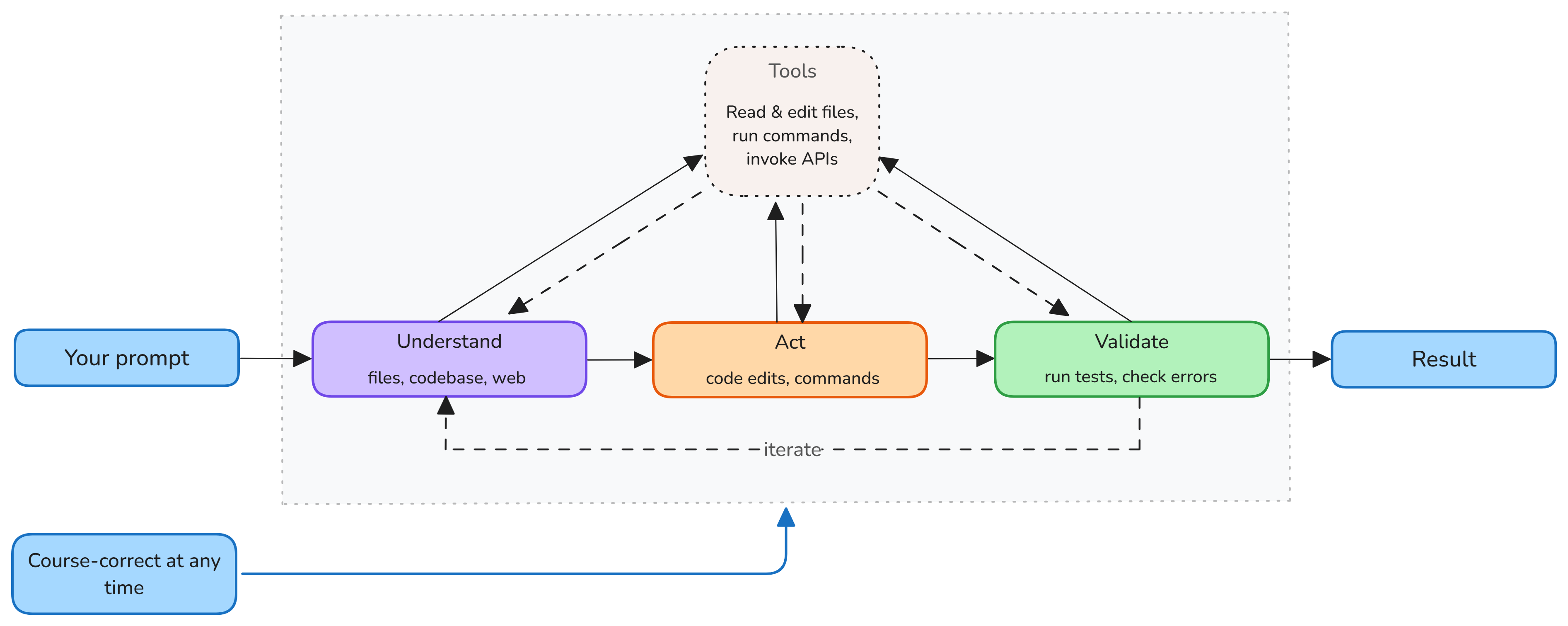
For example, when you ask an agent to add validation to a form, the loop typically includes these stages:
- Understand: The agent finds the form, reads related code and tests, and identifies the project's existing validation patterns.
- Act: The agent updates the form and adds or modifies tests.
- Validate: The agent runs the relevant tests and checks for errors. If validation fails, it diagnoses the result, makes another change, and validates again.
Simple questions might require only a few file reads. Larger implementation tasks might repeat the loop many times as the agent edits code, runs tests, and fixes problems.
Stay in control
An agent can take actions, but you remain responsible for directing the task and deciding which changes to keep. During a session, you can:
- Choose which tools are available and which tool calls require approval.
- Review an approval request before an action runs.
- Send another message to add context or redirect the work.
- Stop the agent if it is taking the wrong approach.
- Review changed files and validation results before you keep the changes.
Learn more about trust and safety controls.
Sessions
A session is the unit of work with an agent. It brings together the workspace, code changes, and execution state for a task. Depending on the harness, a session can contain multiple chats, each with its own conversation history.
Sessions can run in parallel. Both the Chat view and the Agents window support agents, but the harness determines whether you can continue the same session in both interfaces. For example, Local harness sessions are editor-only. Sessions can use the same folder or separate worktrees, so separate conversations don't necessarily isolate code changes. Learn about session compatibility, execution environments, and handoff.
Agent harnesses and execution environments
An agent harness is the runtime that coordinates the agent loop. It manages the session, connects the language model to tools, and provides provider-specific capabilities. VS Code supports harnesses such as Copilot, Claude, and Codex.
The execution environment is where the harness runs workspace tools and changes code. Depending on the available harness, this can be your machine, a connected host, a Dev Container on either host, or cloud infrastructure. A Dev Container provides the project's configured tools and dependencies without changing the harness. Learn more about agent harnesses and execution environments.
Capabilities that extend agent work
Agents can use additional capabilities for complex tasks and recurring workflows. These capabilities are not required for every request.
Planning
Every agent decides which action to take next as part of the agent loop. For a complex task, use the built-in Plan agent to research the codebase, clarify requirements, and propose an implementation plan before code changes begin.
The Plan agent uses read-only tools while preparing the plan. After you review and approve the approach, you can hand off the plan to an implementation agent. Learn more about planning with agents.
Subagents
For complex tasks, the main agent can delegate focused work to subagents. A subagent performs a specific task, such as researching a topic or analyzing part of a codebase, and reports the result to the main agent.
Subagents are useful when independent research would add large amounts of intermediate information to the main agent's context window.
Key characteristics of subagents:
- Context isolation: each subagent works in its own context. The harness determines which instructions and conversation history it receives. In the Local harness, subagents receive the delegated task and applicable instructions, not the main conversation history.
- Parallel execution: independent subtasks can run in parallel when the harness supports concurrent subagents, such as separate correctness and performance reviews.
- Focused results: the main agent uses the subagent's result without adding all of its intermediate work to the main context.
Subagents make their own model requests, so a smaller main context doesn't necessarily mean lower total token usage or cost.
You don't need to create a custom agent to use subagents. A custom agent defines reusable instructions, tools, and model preferences that a subagent can use.
For example, the Plan agent can use subagents to research independent parts of a task before creating a plan.
Learn more about using subagents.
Memory
When the memory tool is available, an agent can store notes for use later in the same session or in future sessions. These notes can record preferences, lessons from previous tasks, or information about your codebase. Memory is separate from the conversation context that a session accumulates automatically.
The memory tool stores notes locally on your machine in three scopes:
- User memory (
/memories/): persists across all workspaces and conversations. The first 200 lines are automatically loaded into every session. - Repository memory (
/memories/repo/): scoped to the current workspace and persists across conversations. - Session memory (
/memories/session/): scoped to the current conversation and cleared when it ends.
Learn more about memory in VS Code agents.
Customization
You can customize the agent loop for a project or workflow:
- A custom agent defines instructions, available tools, a language model, and optional handoffs for a specific workflow.
- Agent skills give an agent instructions and resources for a specialized task.
- Hooks run commands at specific points in the agent lifecycle.
Learn more about customization concepts.