Choose and use an agent harness
Start with the Copilot harness for day-to-day coding and agent tasks. It runs in your local environment and can continue independently of an editor window. Choose another harness when you need its specific tools or workflows, or delegate an independent change to a cloud agent that returns a pull request.
An agent harness coordinates tool calls, context, and code changes. Visual Studio Code supports the GitHub Copilot, Anthropic Claude, and OpenAI Codex harnesses, plus a Cloud target for available cloud agents.
Use the Session Target control to choose an available harness or the Cloud target. Each harness remains distinct, so tools, models, permissions, customizations, and change-review workflows can differ.
For the relationship between harnesses, language models, agent roles, and execution environments, see Agent harnesses.
Understand the session controls
The controls in the chat input configure separate parts of the session. For your first coding task in a workspace, use these starting choices:
| Control | What it determines | Start with |
|---|---|---|
| Session Target | Which harness runs the session and where its tools operate | Copilot for a general coding task |
| Agent | Which instructions, tools, and behavior apply | Agent for implementation or Plan to review an approach first. Use Ask for questions when the selected target provides it. |
| Language model | How the agent reasons, how quickly it responds, and how it consumes AI credits | Auto when it is available |
| Permissions | Which actions require your confirmation | Manual permissions |
| Code isolation | Whether changes go into the current folder or a separate Git worktree | Folder for the guided quickstart or current uncommitted files |
Use New Worktree when you want changes separate from your active workspace and the task can start from committed Git state. Worktree sessions use Allow all, so choose Folder when you want manual approval prompts. A worktree isolates code changes but isn't a security boundary.
The models you can select depend on the harness and how you access models, such as through a GitHub Copilot subscription, another supported account, or your own API key. Changing the model or access source doesn't switch harnesses.
Choose a session target
To change reasoning, speed, or model cost, you may first want to choose a different model within the current harness when one is available. Changing the model does not switch harnesses or convert your project customizations to another format.
To decide whether another harness better fits your workflow, use these guidelines:
- Choose Copilot for day-to-day coding and agent tasks, whether you stay in your editor or continue elsewhere. The agents quickstart uses this option.
- Choose Claude or Codex when you already use that provider's agent workflow and want its supported project configuration and permission options while working in VS Code. Check Claude setup and capabilities or Codex setup and capabilities before switching.
- Choose Cloud for a well-scoped task that can run independently against a GitHub repository and return a pull request.
- Choose Local to use the VS Code extension-host workflow in your current workspace.
VS Code provides common chat and session-management surfaces across targets. Available controls and workflows depend on the selected target. Your choice primarily affects where the agent runs, which tools and models it can use, and how it applies code changes.
| Session target | Where tools run | Code access | Choose it for |
|---|---|---|---|
| Copilot | In the Agent Host on your machine, on a remote host, or in a Dev Container | Current folder, an isolated Git worktree, or a Dev Container workspace | Day-to-day coding, with the option to continue work across supported interfaces |
| Claude | On your machine | Current folder or an isolated Git worktree | Use a familiar Claude agent workflow and its permission modes while reviewing changes in VS Code |
| Codex | On your machine | Current folder or an isolated Git worktree | Use a familiar Codex workflow for interactive or background coding tasks in VS Code |
| Cloud | On a provider's remote infrastructure | A GitHub repository and pull request | Independent tasks that don't need local editor context and benefit from team review |
| Local | In the VS Code extension host for the current workspace | Current workspace | The VS Code extension-host workflow in the current workspace |
Local is the name of one of the harnesses and doesn't mean it is the only way to run agents locally. Copilot, Claude, and Codex also run on your machine. Cloud is an execution target that runs on provider-managed infrastructure, not a background mode for a harness running on your machine or a connected host.
Harness-specific customizations, including hooks, follow the selected harness. Running multiple harnesses in Agent Host does not give them a shared hook schema.
Dev Container execution is available only in the desktop Agents window. Use the workspace picker to start an Agent Host session in a local project's Dev Container or one on an SSH, Tunnel, or WSL host. This selects the execution environment. Use the Session Target control separately to choose the harness. Dev Container sessions work directly in the container workspace and don't support New Worktree. Learn about requirements and how to run an agent session in a Dev Container.
Work with the Copilot harness
Use the Copilot harness to ask questions, plan changes, edit code, and run tests. The harness is built on the GitHub Copilot SDK, which helps provide more consistent harness behavior and core capabilities across VS Code, GitHub Copilot CLI, and the GitHub Copilot app. You don't need to install the SDK separately.
- Keep work going across interfaces: the Agent Host runs the harness in a dedicated process, separate from the extension host and the window that displays the session. Busy extensions don't block the agent process, and a task can continue after you close its project folder. Open the same live session in the Chat view or Agents window. VS Code can also discover and continue supported sessions created in GitHub Copilot CLI and the GitHub Copilot app. To continue a VS Code Copilot session in the terminal, use Resume in Terminal.
- Run where your code lives: run the Agent Host on your machine, on a connected host, or in a Dev Container. File edits and commands run in the environment that contains the host.
- Reuse project guidance: share coding conventions through custom instructions and recurring workflows through Agent Skills. For example, use the same repository skill to run your project's test workflow in VS Code and Copilot CLI.
- Reuse supported hooks (Preview): Copilot sessions use the same SDK hook implementation as Copilot CLI. Check the supported events and tool payloads before reusing a hook.
For local sessions managed by desktop VS Code, keep the application running. Closing a project folder is different from quitting the application. Client-side tools also require the window that provides them to stay connected.
Tools, models, permissions, and customizations can differ between experiences. Using the GitHub Copilot SDK across products does not mean that all sessions or personal settings synchronize between them.
For more information, see tool availability, reviewing changes, and Copilot setup and limitations.
Start a session
You can select a session target when you start a session in the Chat view or the Agents window. When you change the target for an ongoing session, VS Code considers this a handoff and carries the conversation history and context to the new target.
The Session Target control only lists targets that are available in the current window. If your preferred harness is not listed, review its prerequisites in Configure an agent harness.
To start a session:
-
Open the Chat view (⌃⌘I (Windows, Linux Ctrl+Alt+I)) or the Agents window.
-
Select New Chat (
+) in the Chat view, or select New in the Agents window. -
If you're using the Agents window, select the folder or GitHub repository for the session.
-
Open the Session Target control and select an available harness or the Cloud target.
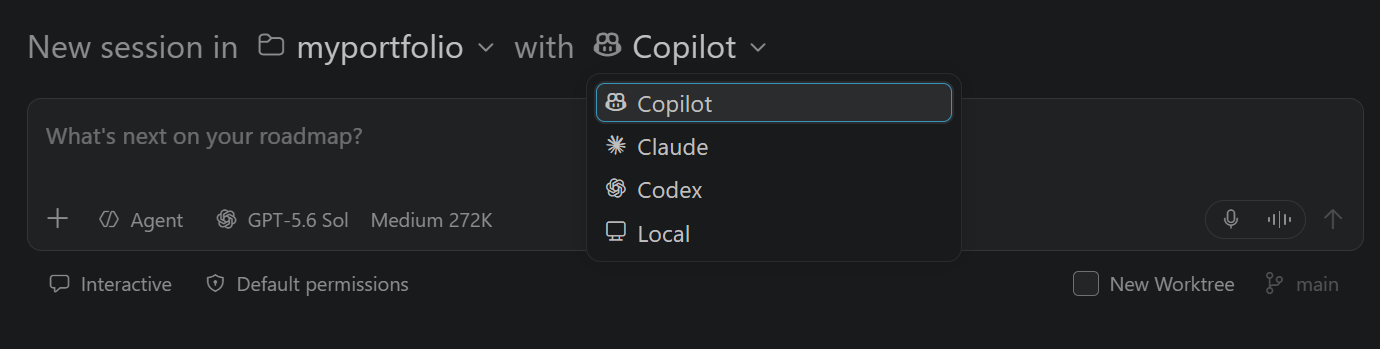
-
Configure any available agent role, language model, permission level, and code-isolation options for the selected target.
-
Enter a prompt and submit it.
-
Review approval requests while the agent works. When the task is complete, review its changes and validation results.
For a guided first task, complete the agents quickstart. Learn more about creating and managing sessions.
Choose code isolation
The code isolation option (worktree or folder) is only available in Agents window.
AI agents can apply code changes to your workspace. To isolate code changes and avoid conflicts with your active workspace, you can choose to run sessions in a new Git worktree. When you choose the Local harness, changes are always applied in the active workspace.
Code isolation controls where the agent applies file changes. The permission level controls which actions require your approval. Worktree isolation keeps changes out of your active workspace, but it does not restrict the commands or network access available to the agent.
| Choice | Choose it for | Considerations |
|---|---|---|
| New Worktree | Parallel tasks that should not modify your active workspace | Starts from committed Git state and requires you to integrate the result |
| Folder | Small, interactive tasks that should use your current files and uncommitted changes | Agent edits appear immediately in your active workspace |
For a walkthrough that uses separate worktrees for two independent coding tasks, follow Delegate two tasks without mixing their changes.
When you start a session in the Agents window, select New Worktree and choose the base branch to isolate the session. The base branch provides the initial contents of the new worktree and does not change the branch in your active workspace.
If you leave New Worktree unselected, the agent works directly on the code in the workspace. For a local Git repository with at least one branch, you can select an existing local branch to check out before the agent starts. Checking out a branch changes the branch in your active workspace and requires a clean working tree. Commit or stash your changes before you select another branch. The branch selection is not remembered for later sessions.
Sessions that you start in the Chat view always use the current workspace.
In VS Code Insiders, sessions.useWorktree controls whether New Worktree is selected when you create your first workspace session. After you start a session, VS Code remembers your isolation choice across workspaces and uses it instead of this setting.
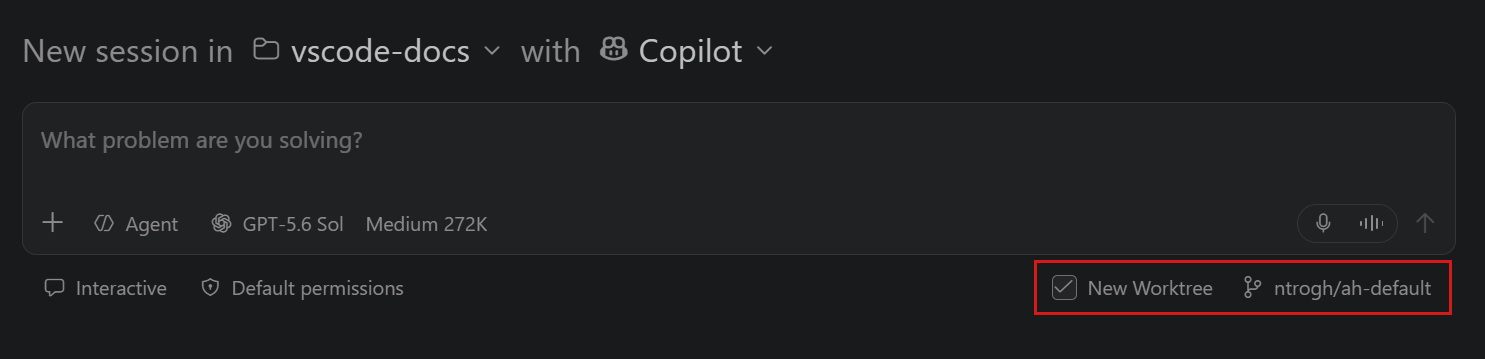
Worktree isolation requires a Git repository with at least one commit. A new worktree contains the committed files from the selected base branch. It does not automatically contain uncommitted tracked changes or untracked files from your primary worktree. Commit changes that the agent needs, or use folder isolation when the task depends on your current uncommitted state.
Git-ignored files, such as .env files and installed dependencies, are also absent by default. Use
git.worktreeIncludeFiles
to copy ignored files into new worktrees. For large ignored folders,
git.worktreeSymlinkFolders
(Experimental) can symlink a folder instead. Changes an agent makes through the symlink affect the folder in the original checkout.
Worktree sessions use Allow all because their code changes are separate from your active workspace. Folder sessions offer the permission levels supported by the selected harness. For operating system-level file system and network restrictions, configure agent sandboxing.
Configure a harness or Cloud target
Expand a target to review its setup and capabilities.
Copilot
For a summary of the GitHub Copilot SDK and supported workflows, see Work with the Copilot harness.
Setup and authentication
Copilot sessions use the same GitHub authentication context as chat in VS Code. If you use a GitHub Enterprise account for Copilot, the session uses that account. For managed user accounts on GHE.com, complete the setup in Using GitHub Copilot with an account on GHE.com.
Prefer Copilot for new editor-chat sessions
Enable chat.editor.preferCopilotHarness (Experimental) to prefer the Copilot SDK harness for new editor-chat sessions. It does not migrate existing sessions or change explicit or remembered Claude and Codex selections.
Enterprise admins can enforce the preference with the ChatEditorPreferCopilotHarness device policy, available from version 1.134. Copilot sessions on Agent Host use the shared SDK hooks implementation and load Copilot Policy Hooks. Local sessions do not load SDK Policy Hooks. See migrate hooks between harnesses and enterprise hook configuration.
Permissions and approvals
The available permission levels depend on the isolation mode:
- Worktree: the permission level is Allow all and can't be changed.
- Folder: select Manual permissions or Allow all from the permissions picker. To also use Assisted permissions Assisted permissions is experimental and might change or be removed. , turn on chat.assistedPermissions.enabled .
Because Copilot sessions run on the Agent Host, Autopilot is an agent mode rather than a permission level.
Provider-specific capabilities
-
Shell initialization Shell initialization for Copilot Agent Host sessions is experimental and might change or be removed. : keep agent shell commands aligned with your development environment. In local Copilot sessions that use the SDK built-in shell tool, enable chat.agentHost.shellTool.initScript.enabled to load
~/.bashrcon macOS and Linux or your PowerShell profiles on Windows before each command. With Python Environments installed and python-envs.terminal.autoActivationType set toshellStartup, the selected workspace environment is also activated. This does not apply to remote sessions or the Agent Host custom terminal tool. -
Slash commands: enter
/in the chat input to view the slash commands available in a Copilot session. For example, use/compactto reduce conversation context,/yoloand/autoApproveto control automatic tool approval, or/pluginto manage plugins and marketplaces.
Get a second opinion with Rubber Duck
Rubber Duck is a built-in, read-only critic that gives Copilot a second opinion on its plans, code, and tests. It uses a complementary model to look for substantive issues, such as logic errors, design flaws, security vulnerabilities, and missing test coverage. Rubber Duck groups its feedback into blocking issues, non-blocking issues, and suggestions. Copilot summarizes the critique and decides how to act on it, but Rubber Duck doesn't edit files or run commands that change your environment.
For non-trivial work, Copilot might consult Rubber Duck automatically at key points, such as:
- After creating a plan, before implementation.
- During a complex implementation.
- After writing tests.
- After repeated failures or unexpected results.
For smaller tasks, Copilot typically skips this review. To request a review at any time, ask Copilot in natural language:
Get a second opinion on the changes you made so far.
You can also enter /rubber-duck <question> in the chat input. For example, enter /rubber-duck What edge cases are missing?.
Rubber Duck is available only when the main session uses a Claude or GPT model and a suitable complementary model is available. The additional model pass adds latency and model usage.
Learn more about the Rubber Duck agent in the GitHub documentation.
- Remote control: enter
"/remote on"to monitor and steer a running Copilot session from GitHub.com or the GitHub Mobile app. Session history, tool activity, status, approvals, and questions stay synchronized. Remote control requires GitHub authentication and a workspace that maps to a GitHub repository. Enter"/remote off"to stop sharing the session.
- Research agent (Preview): in VS Code Insiders, enter
/research <topic>to produce a detailed Markdown report with citations from your codebase, relevant GitHub repositories, and the web. For research that feeds into an implementation plan, use the Plan agent. For focused research that returns results to the current conversation, use subagents.
- Terminal integration: open the GitHub Copilot CLI terminal profile, run Chat: New Copilot CLI Session from the Command Palette (⇧⌘P (Windows, Linux Ctrl+Shift+P)), or enter
copilotin an integrated terminal. VS Code adds the session to the sessions list. To continue an existing Copilot session from the terminal, right-click it and select Resume in Terminal.
Limitations
Copilot sessions don't have access to every VS Code built-in or extension-provided tool. Enabled client-side tools are available to the agent only while VS Code is connected to the session, and you manage which tools are available to Copilot. Check MCP configuration compatibility before reusing an existing server configuration.
Claude
Claude sessions use Anthropic's Claude Agent SDK and can run autonomously on your workspace. VS Code integrates the harness through its SDK while keeping session management, chat, and code review in VS Code.
Setup and authentication
Claude support is enabled by default. Turn it on or off with github.copilot.chat.claudeAgent.enabled .
Claude supports two authentication and billing options:
- GitHub Copilot subscription: sign in to GitHub to use Copilot-routed models. Usage is billed through your Copilot subscription.
- Bring your own key (BYOK): use a Claude API key or another supported Claude BYOK option. Usage is billed by your configured provider.
When both options are available, the model picker groups models by Anthropic and Copilot. The model you select determines the provider and billing method for the next turn. You can switch between BYOK-backed and Copilot-routed models in an existing Claude session.
To use Claude without signing in to GitHub (Experimental), configure a Claude API key or another supported Claude BYOK option. For an Anthropic API key, set ANTHROPIC_API_KEY in your environment or in the env object in ~/.claude/settings.json. Learn more about Claude Code authentication.
Enable chat.agentHost.allowSignedOutWhenUsable to open the Agents window while signed out of GitHub. The model picker only shows models from your Claude BYOK configuration until you sign in. After you sign in to GitHub, Copilot-routed models are also available.
Permissions and approvals
Claude supports these permission modes:
- Edit automatically: apply changes without asking for approval.
- Request approval: ask before applying changes.
- Plan: outline the approach before implementation.
The github.copilot.chat.claudeAgent.allowDangerouslySkipPermissions setting bypasses all permission checks. Use it only in an isolated sandbox environment without internet access.
Provider-specific capabilities
Enter / in the chat input to view commands for managing Claude-native agents, hooks, memory files, and code review. Learn more about Claude subagents and Claude hooks.
Codex
The Codex harness uses OpenAI Codex for interactive and background coding tasks. It runs through the OpenAI Codex extension or, experimentally, on the Agent Host. VS Code provides session management, chat, and code review for both integrations.
Setup and authentication
Codex is not listed by default. Complete one of these options before you select it. You don't need both:
- Use the OpenAI Codex extension in the Chat view: install and enable the OpenAI Codex extension.
- Use Codex on Agent Host (Experimental): enable chat.agentHost.codexAgent.enabled . This makes Codex available in the Agents window. To use Agent Host Codex in the Chat view, also enable chat.editor.codex.preferAgentHost and restart VS Code when prompted.
Only one Codex implementation appears in each window. When you prefer Agent Host Codex in the Chat view, it replaces the Codex target from the OpenAI extension in that window.
On the Agent Host, Codex supports two authentication and subscription options:
- GitHub Copilot subscription: sign in to GitHub to use Copilot-backed models. This option requires Copilot Pro+.
- ChatGPT subscription: open the account menu and select Sign in to ChatGPT. A free ChatGPT account is sufficient.
When both accounts are signed in, the model picker groups models by Copilot and ChatGPT. Your selection determines which subscription is used, and VS Code saves that provider with the session.
To use Codex without signing in to GitHub (Experimental), sign in to ChatGPT and enable chat.agentHost.allowSignedOutWhenUsable . The desktop Agents window then shows ChatGPT-backed models while signed out. Copilot-backed models prompt you to sign in to GitHub, and the browser-based Agents window still requires GitHub sign-in.
Permissions and approvals
On the Agent Host, Codex provides these approval presets:
- Default Permissions: read and edit workspace files and run routine local commands. Codex asks before using the internet or accessing resources outside the workspace.
- Auto-Review: use the same workspace access as Default Permissions, but send approval requests to an automatic reviewer instead of prompting you.
- Full Access: edit files outside the workspace and use the internet without asking.
Full Access gives Codex unrestricted disk and network access. Use it only when you intend to give the agent full access to your machine.
Cloud target
The Cloud target runs an available provider harness on remote infrastructure and works with a GitHub repository. The agent implements the task on a branch and opens a pull request for review. Choose Cloud for well-scoped tasks that can run without access to your local editor context, terminal output, or extension-provided tools.
VS Code supports:
- Copilot cloud agent for implementing features, addressing review feedback, and creating pull requests.
- Claude and Codex cloud agents for provider-specific capabilities. Third-party cloud agents are currently in preview.
To use Claude or Codex in the cloud, turn on support in your Copilot account settings. See Managing policies for third-party cloud agents. You don't need the provider's VS Code extension for a cloud session.
Start a cloud session
-
Open the Chat view and select New Chat.
-
Select Cloud from the Session Target control.
-
Choose the cloud provider and, when available, a custom agent and model.
-
Enter a prompt and submit it.
The session runs remotely and appears in the sessions list. Sessions that you create by assigning an issue or pull request to a cloud agent on GitHub.com also appear in VS Code.
You can also select a GitHub repository when you start a session in the Agents window, or hand off an existing session to the Cloud target. In a Copilot session, enter /delegate to continue the task in the cloud.
Cloud sessions use the tools, MCP servers, and models configured by the cloud service. They can't access VS Code built-in tools or local development context.
Local
The Local harness runs interactively in the VS Code extension host and works directly in your active workspace. It can use VS Code built-in tools, extension-provided tools, MCP servers, and the models configured in VS Code, including bring your own key models.
Choose a built-in agent role
Local sessions provide these built-in agent roles:
- Ask: asks questions and provides guidance without making changes to the code.
- Agent: autonomously plans and performs complex coding tasks, edits files, runs commands, and iterates on results.
- Plan: researches a task and creates a structured implementation plan before code changes. Learn more about planning in a Local session.
You can switch roles during a session from the agent picker.
Hand off a session
Handoff continues ongoing work with a different agent configuration and carries the conversation history and context with it. A handoff can change the harness, execution environment, or agent role. Use handoff when another configuration is a better fit for the next part of the task.
For example, continue a Copilot session with Claude or Codex to use provider-specific capabilities, send a well-scoped task to the Cloud target for a pull request workflow, or move from the Plan agent to an implementation agent.
You can initiate a handoff only from a Local session. Local and remote Agent Host sessions don't show the Session Target dropdown, but they remain available as handoff destinations from a Local session.
To hand off a session to another harness or execution environment:
-
Open the session.
-
In the chat input, open the Session Target dropdown.
-
Select the target that should continue the work, such as Copilot, Claude, Codex, or Cloud.
VS Code carries the conversation history and context to the selected target. The tools, permissions, and models might change because each harness, execution environment, or agent role provides different capabilities.
To implement a plan from the built-in Plan agent in a Local session, select Start Implementation. This switches to Agent in the current conversation and submits the implementation request. To continue in another supported session, open the dropdown next to Start Implementation and select an available Continue in destination. For the different controls in Local and Copilot sessions, see planning with agents.
In Copilot CLI, enter /delegate to continue the work with a cloud agent.
Handoff compared to related actions
| Action | What it does |
|---|---|
| Hand off | Continues the work with a different harness, execution environment, or agent role and carries the conversation history and context with it. |
| Fork a session | Creates an independent session from a point in the conversation. Learn more about forking sessions. |
| Switch surfaces | Opens the same session in the Chat view or Agents window without changing its harness or context. |
For background on how handoff works, see Sessions and handoff.