Code editing in Visual Studio Code
In this Visual Studio Code tutorial, we cover how to edit and run a small piece of code, including the features outlined below. After viewing this overview, read on in the Related Resources section to see more features.
Here's the next video we recommend: Productivity Tips
Pick another video from the list: Introductory Videos
Video outline
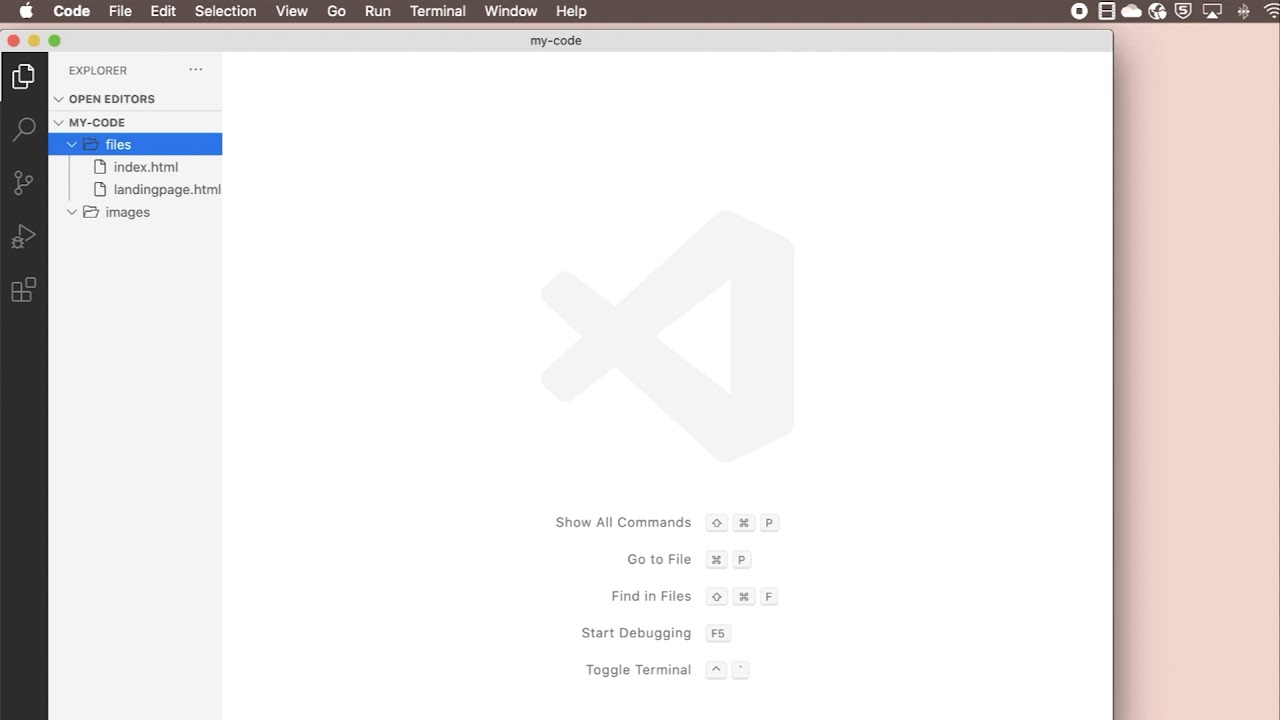
- Open a folder.
- File > Open Folder (Ctrl+K Ctrl+O)
- Use File Explorer to view the folder's files and subfolders.
- View > Explorer (⇧⌘E (Windows, Linux Ctrl+Shift+E))
- Install the Node.js runtime to execute JavaScript code.
- Find Node.js for your platform at https://nodejs.org
- Check your Node.js installation.
- From a terminal or command prompt, type
node --version
- From a terminal or command prompt, type
- Create new file.
- File > New File (⌘N (Windows, Linux Ctrl+N))
- Create a simple "Hello world" console application called
app.js. - IntelliSense provides suggestions as you type.
- Automatically format the source code.
- Format Document command (⇧⌥F (Windows Shift+Alt+F, Linux Ctrl+Shift+I))
- Turn on Auto Save.
- File > Auto Save
- Display the Integrated Terminal.
- View > Terminal (⌃` (Windows, Linux Ctrl+`))
- Split the terminal.
- Split Terminal (⌘\ (Windows, Linux Ctrl+Shift+5))
- Create new terminal.
- Create New Terminal (⌃⇧` (Windows, Linux Ctrl+Shift+`))
- Run the application.
- From the Integrated Terminal, type
node app.js
- From the Integrated Terminal, type
Next video
- Productivity Tips -Become a VS Code power user with these productivity tips.
- Introductory Videos - Review the entire list of videos.
Related resources
- Basic Editing - Learn about the powerful VS Code editor.
- Code Navigation - Move quickly through your source code.
- Emmet Snippets - Use Emmet Snippets.
- Tasks - Create tasks to use external tools inside VS Code.
- JavaScript Linters - Install linters for JavaScript.
- Code Folding - See the details of source code folding.
- Tips and Tricks - Helpful tips and tricks for VS Code.