User interface
At its heart, Visual Studio Code is a code editor. Like many other code editors, VS Code adopts a common user interface and layout of an explorer on the left, showing all of the files and folders you have access to, and an editor on the right, showing the content of the files you have opened.

Basic layout
VS Code comes with a simple and intuitive layout that maximizes the space provided for the editor, while leaving ample room to browse and access the full context of your folder or project. The user interface is divided into six main areas:
- Editor - The main area to edit your files. You can open as many editors as you like side by side vertically and horizontally.
- Primary Side Bar - Contains different views like the Explorer to assist you while working on your project.
- Secondary Side Bar - Opposite the Primary Side Bar. By default, contains the Chat view. Drag and drop views from the Primary Side Bar to the Secondary Side Bar to move them.
- Status Bar - Information about the opened project and the files you edit.
- Activity Bar - Located on the far left-hand side. Lets you switch between views and gives you additional context-specific indicators, like the number of outgoing changes when Git is enabled. You can change the position of the Activity Bar by right-clicking it to open a context menu.
- Panel - An additional space for views below the editor region. By default, it contains output, debug information, errors and warnings, and an integrated terminal. The Panel can also be moved to the left or right for more vertical space.
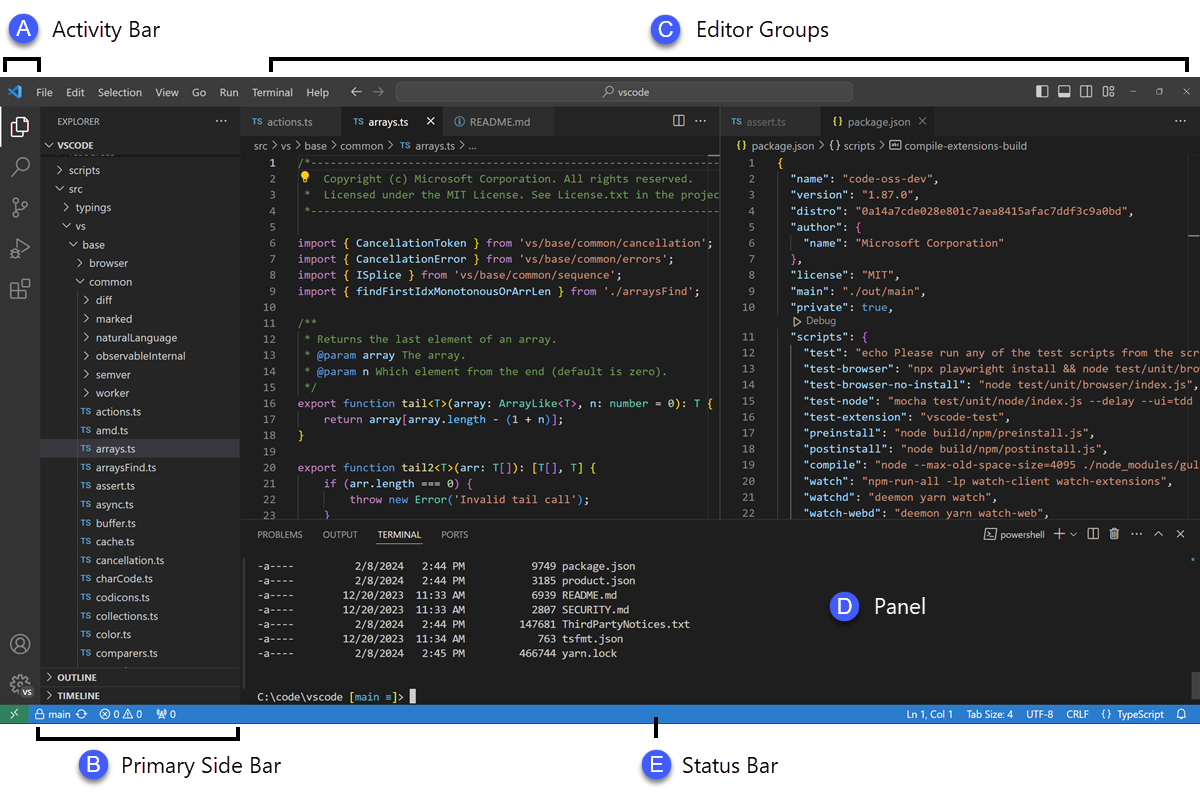
Each time you start VS Code, it opens up in the same state it was in when you last closed it. The folder, layout, and opened files are preserved.
Open files in each editor are displayed with tabbed headers (Tabs) at the top of the editor region. To learn more about tabbed headers, see the Tabs section.
You can move the Primary Side Bar to the right hand side by right-clicking the Activity Bar and selecting Move Primary Side Bar Right or toggle its visibility (⌘B (Windows, Linux Ctrl+B)).
Learn more about using Primary and Secondary Side Bar.
Side by side editing
You can open as many editors as you like side by side vertically and horizontally. If you already have an editor open, there are multiple ways of opening another editor to the side:
- Alt and select a file in the Explorer view.
- ⌘\ (Windows, Linux Ctrl+\) to split the active editor into two.
- Open to the Side (⌃Enter (Windows, Linux Ctrl+Enter)) from the Explorer context menu on a file.
- Select the Split Editor button in the upper right of an editor.
- Drag and drop a file to any side of the editor region. Hold Ctrl (Option on macOS) while dragging to copy the tab instead of moving it.
- Press ⌃Enter (Windows, Linux Ctrl+Enter) in the Quick Open (⌘P (Windows, Linux Ctrl+P)) file list.
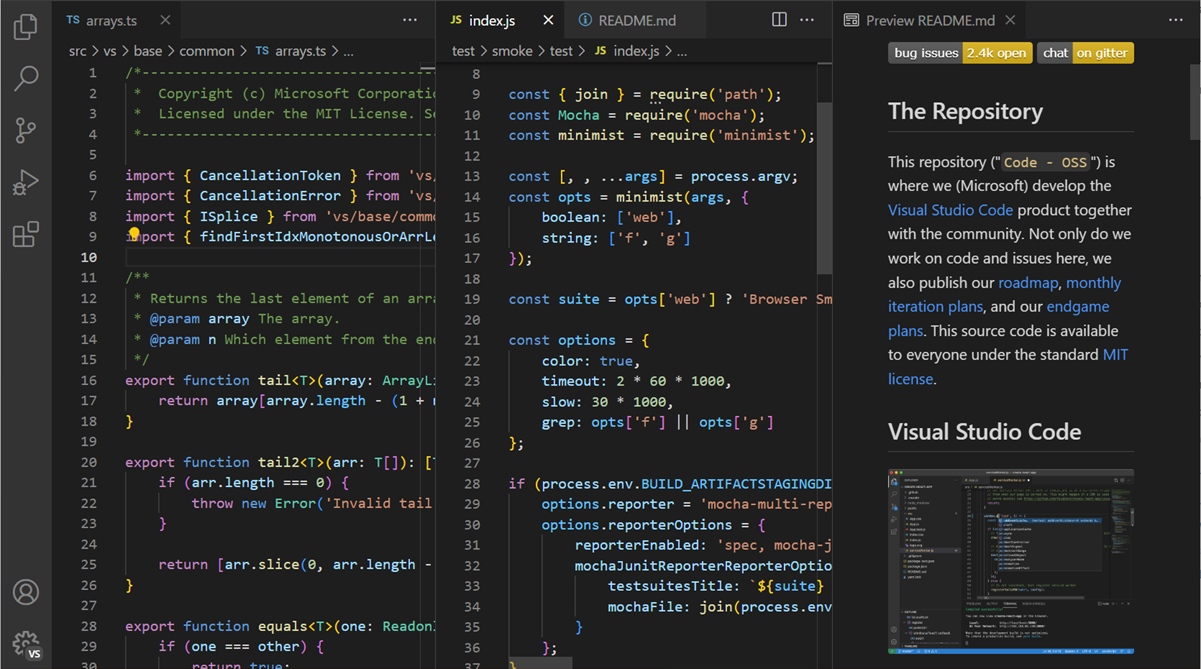
When you open another file, the editor that is active will display the content of that file. If you have two editors side by side and you want to open file 'foo.cs' into the right-hand editor, make sure that this editor is active (by clicking inside it) before opening file 'foo.cs'.
By default, editors open to the right-hand side of the active one. You can change this behavior with the workbench.editor.openSideBySideDirection setting to open new editors to the bottom of the active one instead.
When you have more than one editor open, you can switch between them quickly by holding the Ctrl key (Cmd on macOS) and pressing 1, 2, or 3.
You can resize editors and reorder them. Drag and drop the editor title area to reposition or resize the editor.
Editor groups
When you split an editor (using the Split Editor or Open to the Side commands), a new editor region (edit group) is created which can hold a group of items. You can open as many editor groups as you like side by side vertically and horizontally.
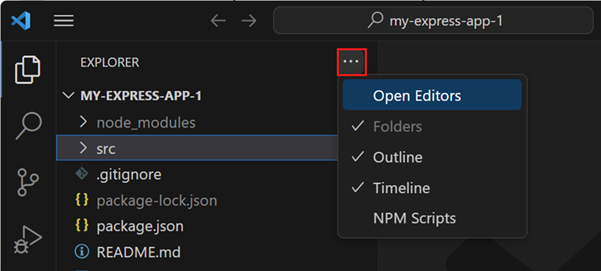
You can see these clearly in the Open Editors section at the top of the Explorer view (toggle ... > Open Editors in the Explorer view).
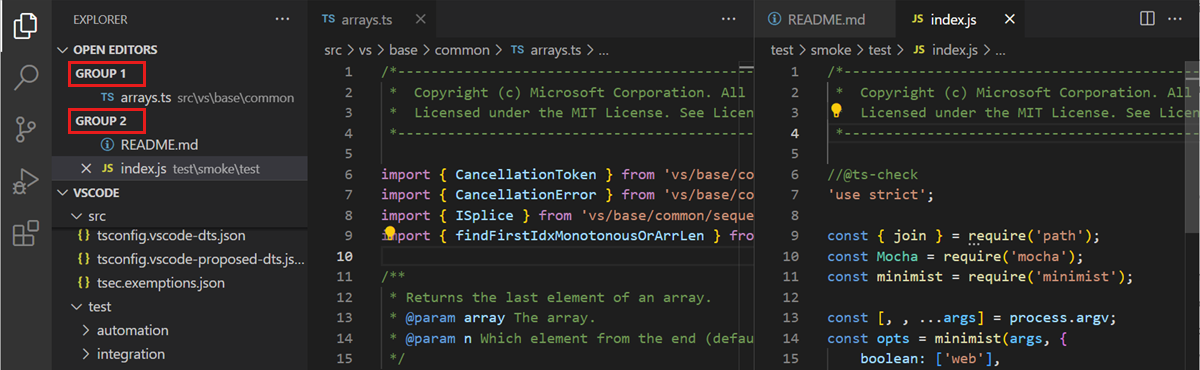
You can drag and drop editor groups on the workbench, move individual tabs between groups, and quickly close entire groups (Close All).
VS Code uses editor groups whether or not you have enabled tabs. Without tabs, editor groups are a stack of your open items with the most recently selected item visible in the editor pane.
Split in group
You can split the current editor without creating a new editor group with the View: Split Editor in Group command (⌘K ⇧⌘\ (Windows, Linux Ctrl+K Ctrl+Shift+\)). To learn more about this editor mode and specific commands for navigating between the two sides, you can read the section in the Custom Layout article.
Floating windows
You can move editors, the terminal, or specific views into their own floating windows. This is useful if you have a multi-monitor setup and want to keep a file open on a different monitor.
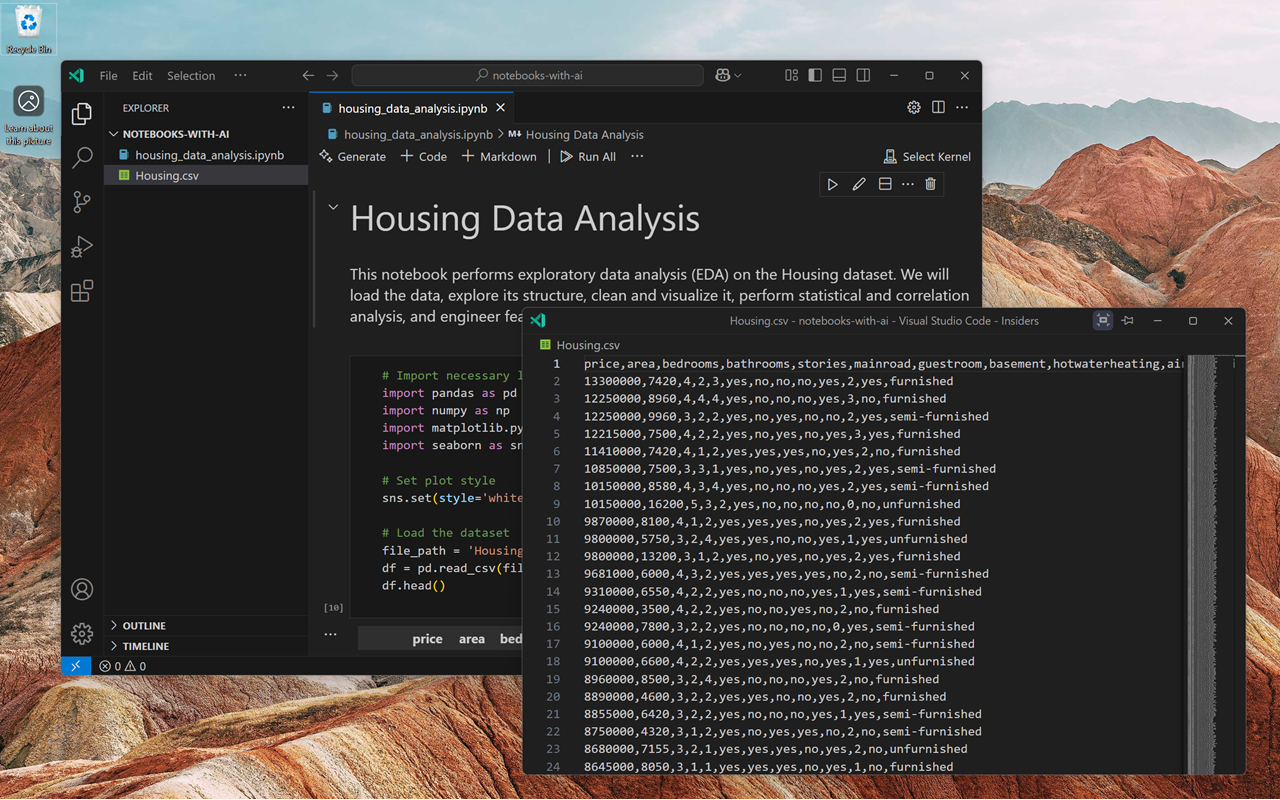
Drag an editor tab out of the current VS Code window to open it in a floating window. Alternatively, use the Move into New Window or Copy into New Window context options from the editor tab.
To pin a floating window to the top of the screen, select the Set Always on Top option (pin icon) from its title bar.
To learn more about floating windows, read the section in the Custom Layout article.
Modal editors
Certain configuration editors in VS Code open in a centered modal overlay on top of the editor area, rather than as a regular editor tab. These modal editors include:
- Settings editor
- Keyboard Shortcuts editor
- Profiles editor
- Workspace Trust editor
- Language Models editor
- Extensions editor
You can dismiss a modal editor by clicking outside of it, pressing Escape, or selecting the close button. You can also maximize it to fill the editor area, or move it back into the main window as a regular editor tab.
You can control this behavior with the
workbench.editor.useModal
setting. Set it to off to always open editors as regular tabs, some to open only configuration editors as modal overlays (default), or all to open all editors in a modal overlay.
Minimap
A Minimap (code outline) gives you a high-level overview of your source code, which is useful for quick navigation and code understanding. A file's minimap is shown on the right side of the editor. You can select or drag the shaded area to quickly jump to different sections in your file.
If you have folding markers in the editor, such as //#region comments, then the minimap shows the folding marker names. Folding markers are language-specific, so check which markers apply to your language.
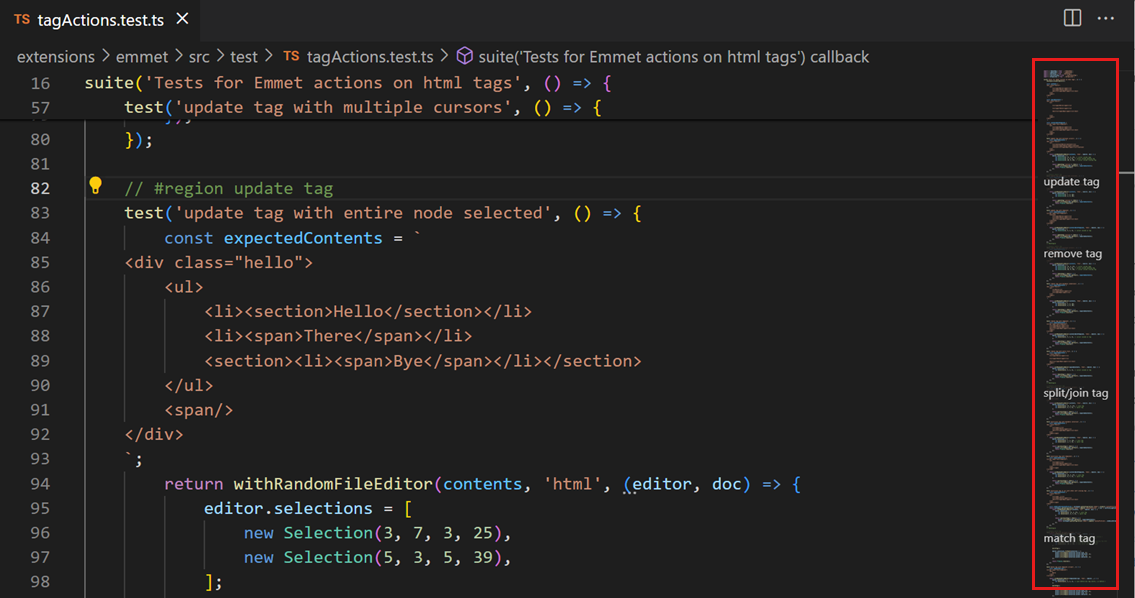
You can move the minimap to the left hand side or disable it completely by respectively setting "editor.minimap.side": "left" or "editor.minimap.enabled": false in the user or workspace settings.
Sticky Scroll
Sticky Scroll shows the starting lines of currently visible nested scopes at the top of the editor. It facilitates navigation by indicating where you are in a file and lets you quickly jump back to the top of the current scope.
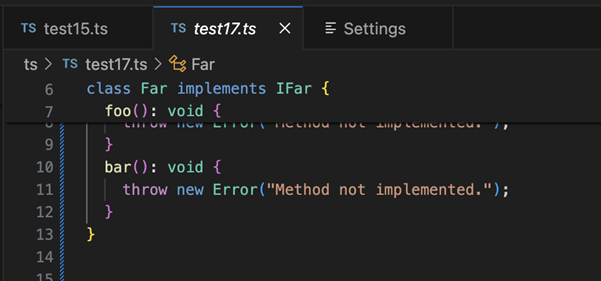
You can enable/disable Sticky Scroll with the editor.stickyScroll.enabled setting.
Sticky Scroll uses several different content models to create its headings. It is possible to choose between the outline provider model, the folding provider model, and the indentation model to determine which lines to display in the Sticky Scroll area. If a model is not available for the current language, VS Code falls back to the next model in the order given above. The default model initially used comes from the editor.stickyScroll.defaultModel setting.
Indent guides
The editor shows indentation guides (vertical lines) which help you quickly see matching indent levels. If you would like to disable indent guides, you can set
editor.guides.indentation
to false in your user or workspace settings.
Breadcrumbs
The editor has a navigation bar at the top, also called breadcrumbs. Breadcrumbs always show the file path and, if the current file type has language support for symbols, the symbol path up to the cursor position. The breadcrumbs enable you to quickly navigate between folders, files, and symbols.
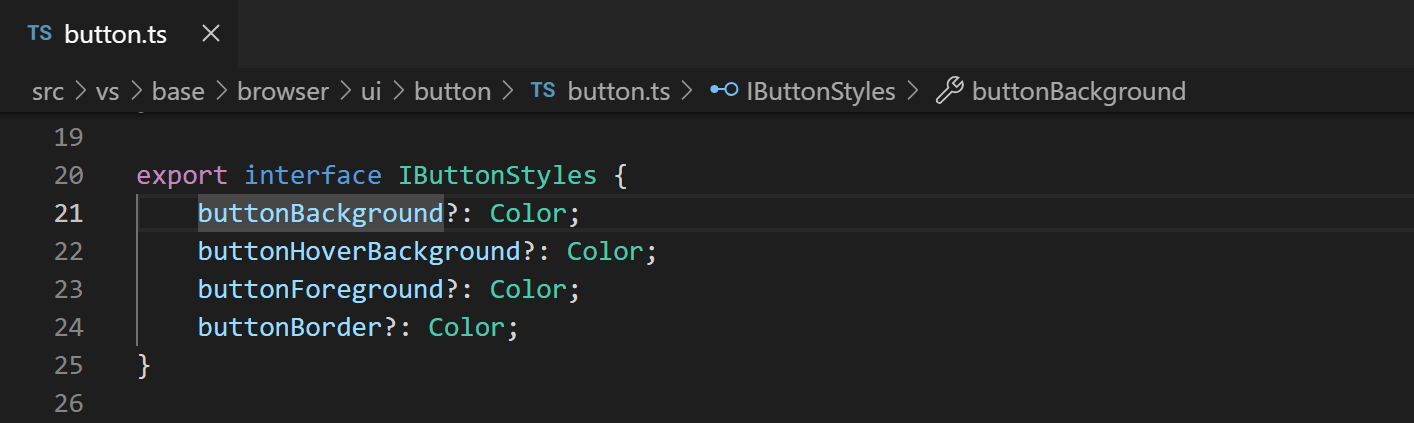
You can disable breadcrumbs with the View > Appearance > Toggle Breadcrumbs menu item or the View: Toggle Breadcrumbs command. For more information about the breadcrumbs feature, such as how to customize their appearance, see the Breadcrumbs section of the Code Navigation article.
Explorer view
The Explorer view is used to browse, open, and manage the files and folders in your project. VS Code is file and folder based and you can get started immediately by opening a file or folder in VS Code.
After you open a folder in VS Code, the contents of the folder are shown in the Explorer view. You can do many things from here:
- Create, delete, and rename files and folders.
- Move files and folders with drag and drop.
- Use the context menu to explore all options.
You can drag and drop files into the Explorer view from outside VS Code to copy them. If the explorer is empty, VS Code opens the files instead. You can also copy-paste files from outside VS Code into the Explorer view. With the explorer.autoOpenDroppedFile setting, you to configure whether to automatically open the file or not.
VS Code works well with other tools that you might use, especially command-line tools. If you want to run a command-line tool in the context of the folder you currently have open in VS Code, right-click the folder and select Open in Integrated Terminal.
You can also navigate to the location of a file or folder in the native operating system file explorer by right-clicking on a file or folder and selecting Reveal in File Explorer on Windows, Reveal in Finder on macOS, or Open Containing Folder on Linux.
Type ⌘P (Windows, Linux Ctrl+P) (Quick Open) to quickly search and open a file by its name.
By default, VS Code excludes some folders from showing in the Explorer view, such as .git. Use the
files.exclude
setting to configure rules for hiding files and folders from the Explorer view. Glob patterns in this setting follow your operating system's case sensitivity rules (case-insensitive on Windows/macOS, case-sensitive on Linux). Learn more about glob patterns.
You can also hide files and folders that are specified in your .gitignore files by enabling the
explorer.excludeGitIgnore
setting. When enabled, .gitignore patterns are applied with case-insensitive matching on Windows and macOS, and case-sensitive matching on Linux. For example, a pattern like node_modules in your .gitignore will match node_modules/, Node_Modules/, NODE_MODULES/, and other case variations on Windows and macOS, but only exact matches on Linux.
When imageCarousel.explorerContextMenu.enabled (Experimental) is enabled, you can right-click image or video files or folders in the Explorer and select Open Images in Carousel to browse media files in a dedicated carousel view. This also works with multi-selection.
You can hide derived resources files, like *.meta in Unity, or *.js in a TypeScript project. For Unity to exclude the *.cs.meta files, the pattern to choose would be: "**/*.cs.meta": true. For TypeScript, you can exclude generated JavaScript for TypeScript files with: "**/*.js": {"when": "$(basename).ts"}.
File nesting
Instead of hiding derived or companion files, you can nest them underneath a parent file in the Explorer view. File nesting visually groups related files based on their names and collapses them into a "root" file, which reduces clutter in the Explorer while keeping files easily accessible.
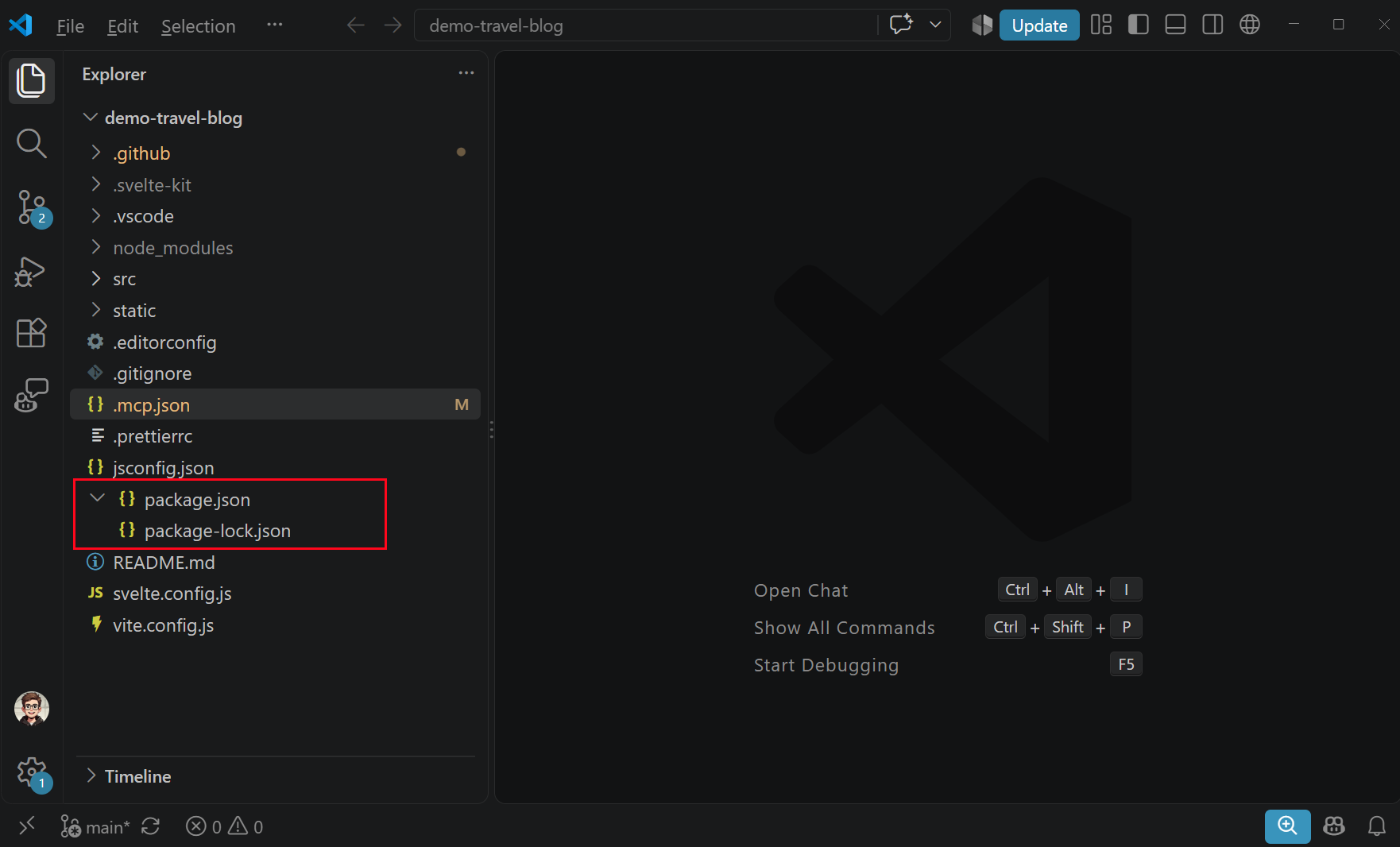
You can configure file nesting with the following settings:
- explorer.fileNesting.enabled : Controls whether file nesting is enabled. It can be set globally or for a specific workspace.
- explorer.fileNesting.expand : Controls whether nested files are expanded by default.
- explorer.fileNesting.patterns : Configures the nesting rules that determine how files are grouped.
The default patterns include rules for TypeScript and JavaScript projects, such as nesting a matching .js file under its .ts source file. You can customize
explorer.fileNesting.patterns
to fit your project's structure:
"explorer.fileNesting.enabled": true,
"explorer.fileNesting.expand": false,
"explorer.fileNesting.patterns": {
  "*.ts": "${capture}.js, ${capture}.d.ts, ${capture}.js.map",
  "*.js": "${capture}.js.map",
  "package.json": "package-lock.json, yarn.lock, pnpm-lock.yaml"
}
Nesting patterns support the following tokens:
${capture}: Matches whatever string was matched by the*wildcard in the pattern key.${basename}: Matches the parent file's basename (the filename without extension).${extname}: Matches the parent file's extension.${dirname}: Matches the parent file's directory name.
When a nest is collapsed, file operations like copy, cut, drag and drop, and delete apply to the entire nested group as a single unit. When the nest is expanded, selections and operations apply to individual files.
Multi-selection
You can select multiple files in the Explorer view and Open Editors section to run actions (delete, drag and drop, or open to the side) on multiple items. Hold Ctrl (Cmd on macOS) and select individual files, or hold Shift to select a range of files. If you select two items, you can now also use the context menu Compare Selected command to quickly diff two files.
In earlier VS Code releases, clicking with the Ctrl (Cmd on macOS) key pressed, would open a file in a new editor group to the side. If you still want this behavior, you can use the workbench.list.multiSelectModifier setting to change multi-selection to use the Alt key.
"workbench.list.multiSelectModifier": "alt"
Advanced tree navigation
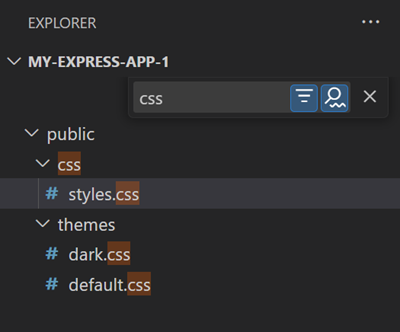
You can filter the files and folders in the Explorer view. With the focus on the Explorer view, press ⌥⌘F (Windows, Linux Ctrl+Alt+F) to open the Find control and type part of the file or folder name you want to match. This navigation feature is available for all tree views in VS Code.
Pressing the Filter button toggles between the two modes: highlighting and filtering. Pressing Down lets you focus on the first matched element and navigate to subsequent matching elements. In highlighting mode, a badge is shown on folders to indicate that they contain matched files.
Pressing the Fuzzy Match button toggles between exact and fuzzy matching, where you can type a sequence of characters to match any part of the file or folder name.
Outline view
The Outline view is a separate section at the bottom of the Explorer view. When expanded, it shows the symbol tree of the currently active editor.
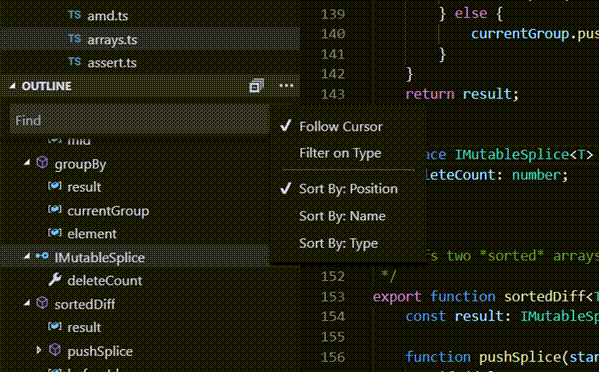
The Outline view has different Sort By modes, optional cursor tracking, and supports the usual open gestures. It also includes an input box to find or filter. Errors and warnings are also shown in the Outline view, letting you see at a glance a problem's location.
For symbols, the view relies on information computed by your installed extensions for different file types. For example, the built-in Markdown support returns the Markdown header hierarchy for a Markdown file's symbols.
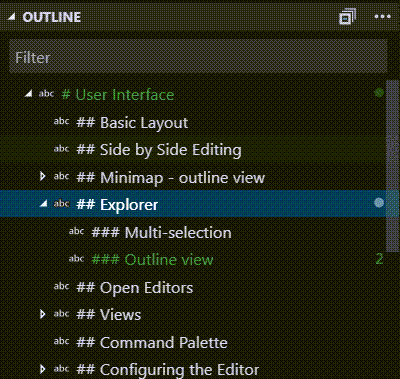
There are several Outline view settings. Search for settings starting with outline. and to configure what information is shown in the Outline view.
Timeline view
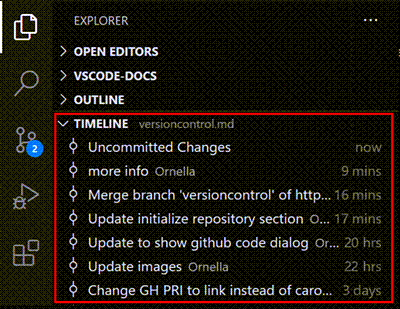
The Timeline view, accessible at the bottom of the File Explorer, is a unified view for visualizing the events history for a file. For example, you can view Git commits or local file saves in a timeline view.
A filter action in the Timeline view toolbar enables you to filter between source control events and local file events:
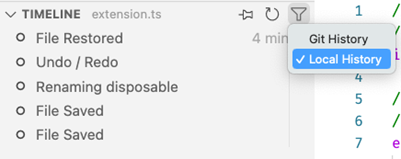
Local file history
Depending on your settings, every time you save an editor, a new entry is added to the list. Each local history entry contains the full contents of the file at the time the entry was created and in certain cases, can provide more semantic information (for example, indicate a refactoring).
From an entry you can:
- Compare the changes to the local file or previous entry.
- Restore the contents.
- Delete or rename the entry.
If you've accidentally deleted a file, you can restore it from the local history by using the ... > Local History: Find Entry to Restore action in the Timeline view, and then select your file from the Quick Pick.
You can configure these settings for working with the local history:
- workbench.localHistory.enabled - Enable or disable local history (default: true)
- workbench.localHistory.maxFileSize - File size limit when creating a local history entry (default: 256 KB)
- workbench.localHistory.maxFileEntries - Local history entries limit per file (default: 50)
- workbench.localHistory.exclude - Glob patterns for excluding certain files from local history
- workbench.localHistory.mergeWindow - Interval in seconds during which further changes are added to the last entry in local file history (default 10s)
Commit history
VS Code's built-in Git support provides the Git commit history of the specified file. Selecting a commit will open a diff view of the changes introduced by that commit. When you right-click on a commit, you'll get options to Copy Commit ID and Copy Commit Message.
When you right-click a commit in the history, you can:
- Open Changes - Open a diff view of the changes in the file.
- View Commit - Open a multi-file diff view to view the changes for all files in the commit.
- Select for Compare - Select an entry to compare with another entry.
- Copy Commit ID - Copy the commit ID to the clipboard.
- Copy Commit Message - Copy the commit message to the clipboard.
You can configure this setting for working with the Git history:
- git.timeline.date - Show the commit date or authored date of a file commit
Views
The Explorer view is only one of the views available in VS Code. There are also views for:
- Search - Provides global search and replace across your open folder.
- Source Control - VS Code includes Git source control by default.
- Run - VS Code's Run and Debug View displays variables, call stacks, and breakpoints.
- Extensions - Install and manage your extensions within VS Code.
- Custom views - Views contributed by extensions.
You can open any view using the View: Open View command.
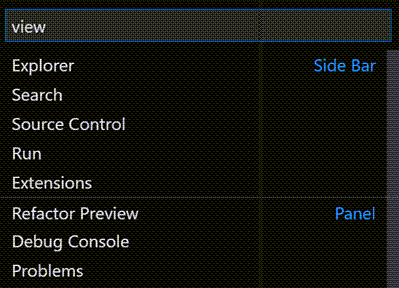
You can show or hide views by right-clicking the Activity Bar, and reorder them by using drag and drop. Within the Explorer view, you can show or hide sections via the '...' menu, or drag and drop sections to reorder them.
Command Palette
VS Code is equally accessible from the keyboard. The most important key combination to know is ⇧⌘P (Windows, Linux Ctrl+Shift+P), which brings up the Command Palette. From here, you have access to all functionality within VS Code, including keyboard shortcuts for the most common operations.
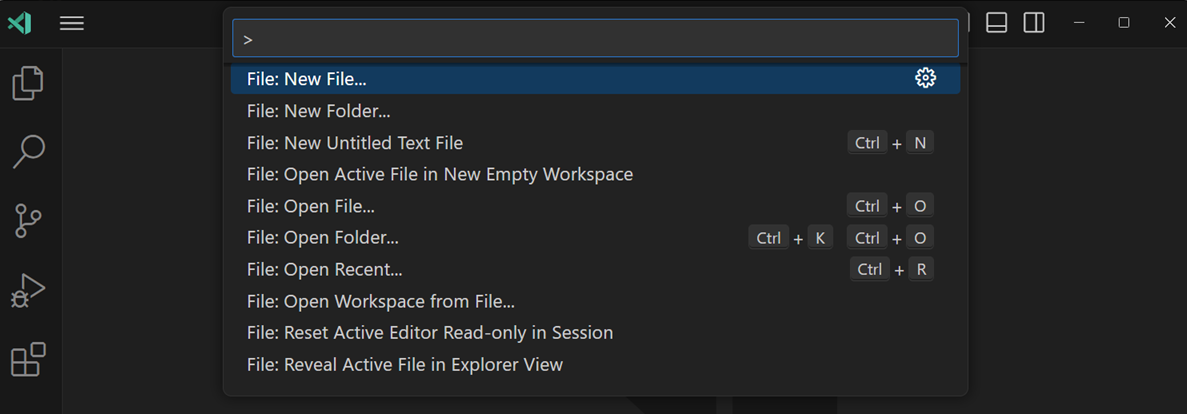
The Command Palette provides access to many commands. You can run editor commands, open files, search for symbols, and see a quick outline of a file, all using the same interactive window. Here are a few tips:
- ⌘P (Windows, Linux Ctrl+P) enables you to navigate to any file or symbol by typing its name
- ⌃Tab (Windows, Linux Ctrl+Tab) cycles you through the last set of files opened
- ⇧⌘P (Windows, Linux Ctrl+Shift+P) brings you directly to the editor commands
- ⇧⌘O (Windows, Linux Ctrl+Shift+O) enables you to navigate to a specific symbol in a file
- ⌃G (Windows, Linux Ctrl+G) enables you to navigate to a specific line in a file
Type ? in the input field to get a list of available commands that you can run from the Command Palette.
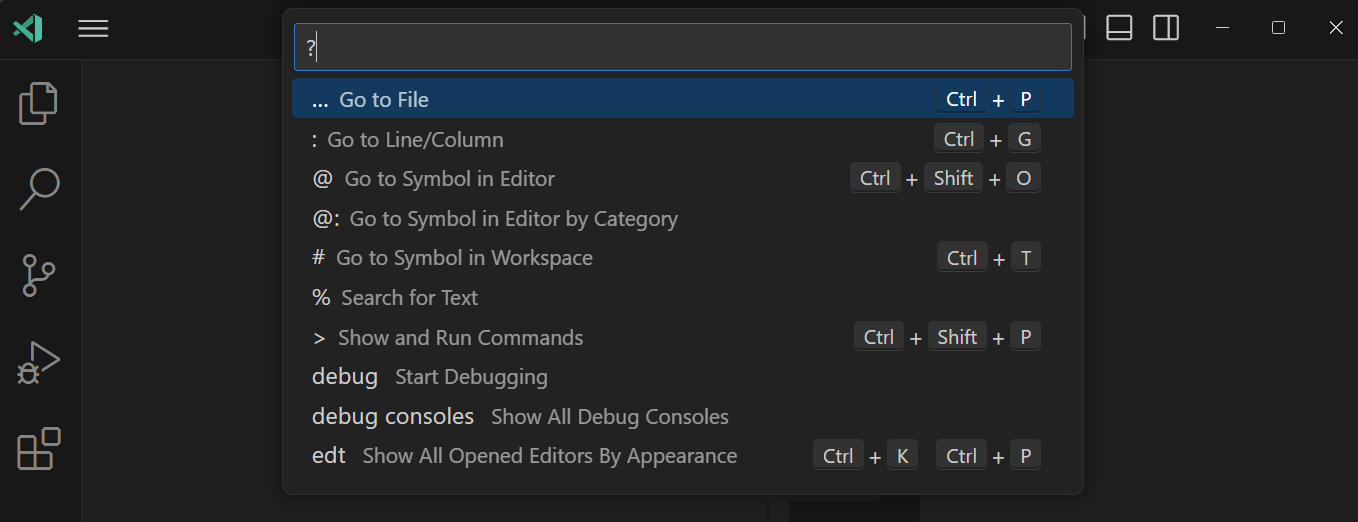
You can move the Command Palette to another location by grabbing the top edge with the mouse cursor and dragging it somewhere else. You can also select the Customize Layout control in the title bar, and then select one of the preconfigured Quick Input Positions.
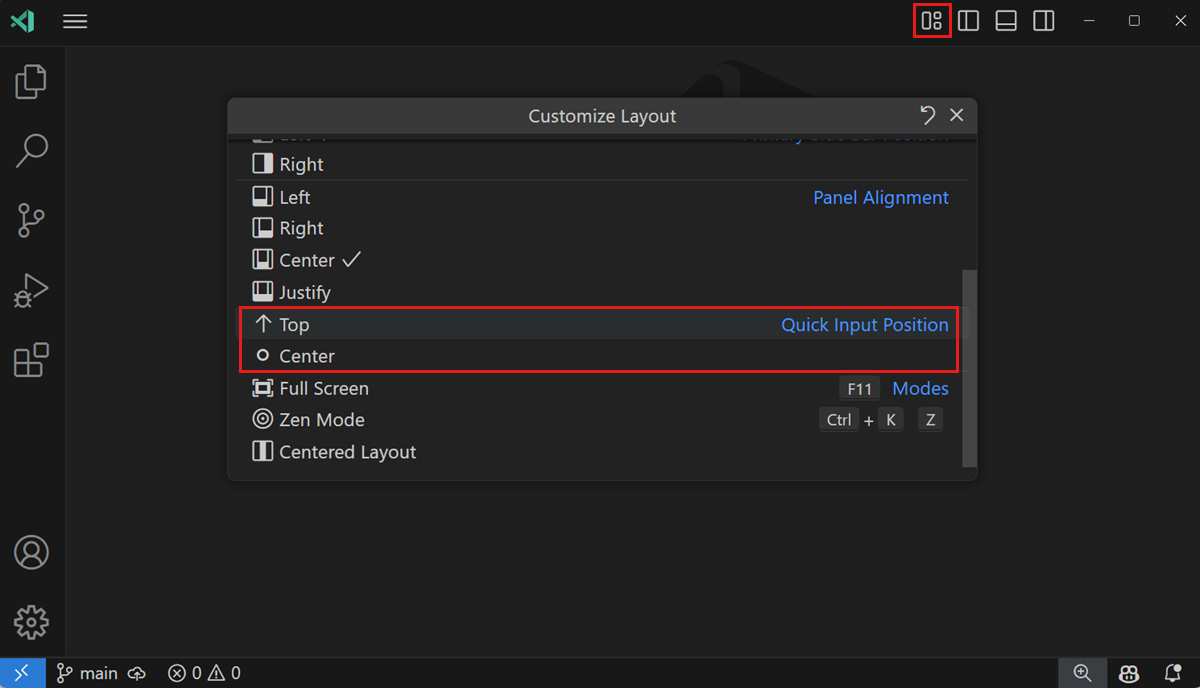
Configure the editor
VS Code gives you many options to configure the editor. From the View > Appearance menu, you can hide or toggle various parts of the user interface, such as the Side Bar, Status Bar, and Activity Bar.
Hide the menu bar (Windows, Linux)
You can hide the menu bar on Windows and Linux by changing the setting
window.menuBarVisibility
from classic to toggle or hidden. A setting of toggle means that a single press of the Alt key shows the menu bar again.
You can also hide the menu bar on Windows and Linux with the View: Toggle Menu Bar command. This command sets
window.menuBarVisibility
from classic to compact, resulting in the menu bar moving into the Activity Bar. To return the menu bar to the classic position, you can run the View: Toggle Menu Bar command again.
Settings
Most editor configurations are managed in settings, which you can modify directly. You can set options either globally through user settings, or per project/folder through workspace settings. Settings values are stored in a settings.json file.
You can view and edit settings in the Settings Editor (select File > Preferences > Settings, or press ⌘, (Windows, Linux Ctrl+,)). Use the User and Workspace tab to switch between user and workspace settings. You can filter settings by using the search box at the top.
Alternately, you can modify the user settings directly in the settings.json file. Use the Preferences: Open User Settings (JSON) command to open the settings.json file. For workspace settings, open the settings.json file in the .vscode folder in your workspace.
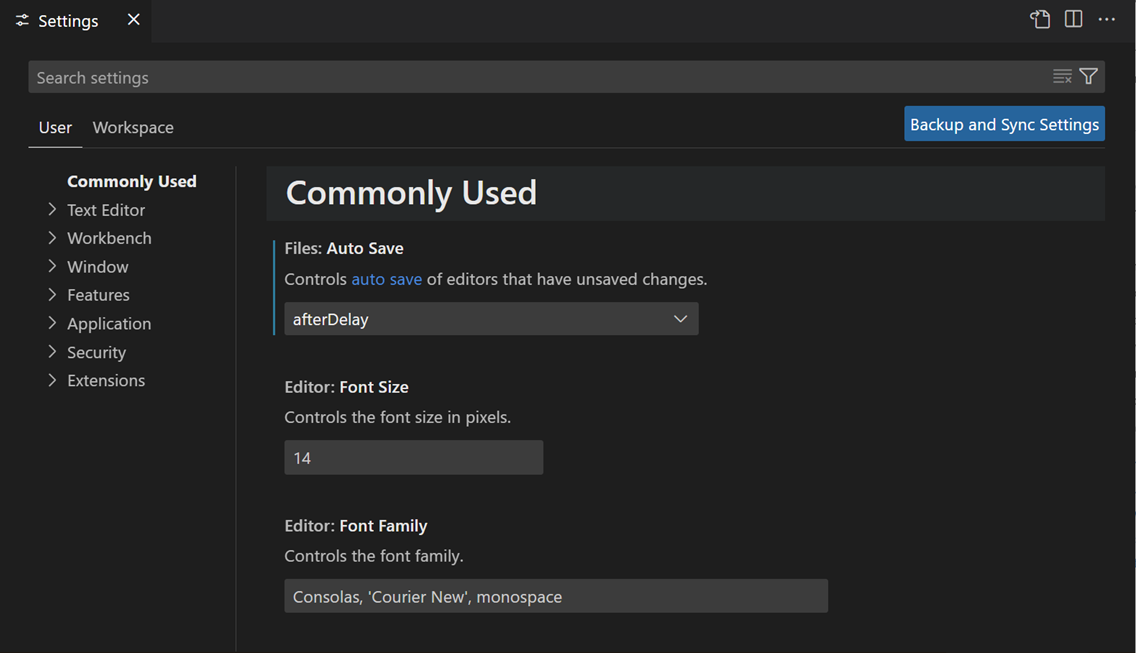
Workspace settings override user settings and are useful for sharing project-specific settings across a team.
Zen Mode
Zen mode lets you focus on your code by hiding all UI elements, except for the editor, switching VS Code to full screen, and centering the editor. Zen mode can be toggled with the View > Appearance > Zen Mode menu, View: Toggle Zen Mode in the Command Palette, or with the shortcut ⌘K Z (Windows, Linux Ctrl+K Z). Double press Esc to exit Zen mode. The transition to full screen can be disabled via zenMode.fullScreen .
Zen Mode can be further tuned with the following settings:
-
zenMode.hideActivityBar
- Hide the Activity bar. Default
true. -
zenMode.hideStatusBar
- Hide the Status bar. Default
true. -
zenMode.hideLineNumbers
- Hide line numbers. Default
true. -
zenMode.showTabs
- Controls whether to show multiple, single, or no editors tabs. Default
multiple. -
zenMode.fullScreen
- Put workbench in full screen display. Default
true. -
zenMode.restore
- Restore Zen Mode on restart. Default
true. -
zenMode.centerLayout
- Use Centered editor layout. Default
true. -
zenMode.silentNotifications
- Do not display notifications. Default
true.
Reduce Notifications with Do Not Disturb Mode
If you are overwhelmed by notifications popping up, there is a way to reduce notifications, either for all notifications, or for notifications from a specific extension.
Select the bell icon in the Status Bar (or in the title bar, if notifications are positioned at top-right) to open the Notifications area. This is a place where you can access all notifications at any time, even if you have enabled Do Not Disturb Mode. You can change the notification position with the workbench.notifications.position setting. Learn more about notification positions.
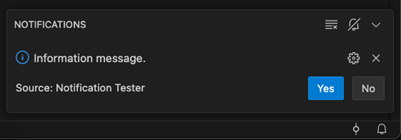
Find the crossed out bell icon to get access to a menu where you can selectively disable notifications from extensions or enable the global Do Not Disturb Mode to disable all notifications.
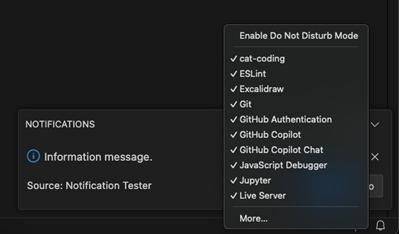
The global Do Not Disturb Mode also hides error notifications, while the extension-specific filter still allows error notifications to show.
Centered editor layout
Centered editor layout allows you to center align the editor area. This is useful when working with a single editor on a large monitor. You can use the side borders to resize the view (hold down the Alt key to independently move the sides).
Tabs
VS Code shows open items with tabs (tabbed headings) in the title area above the editor. When you open a file, a new tab is added for that file. Tabs let you quickly navigate between items.
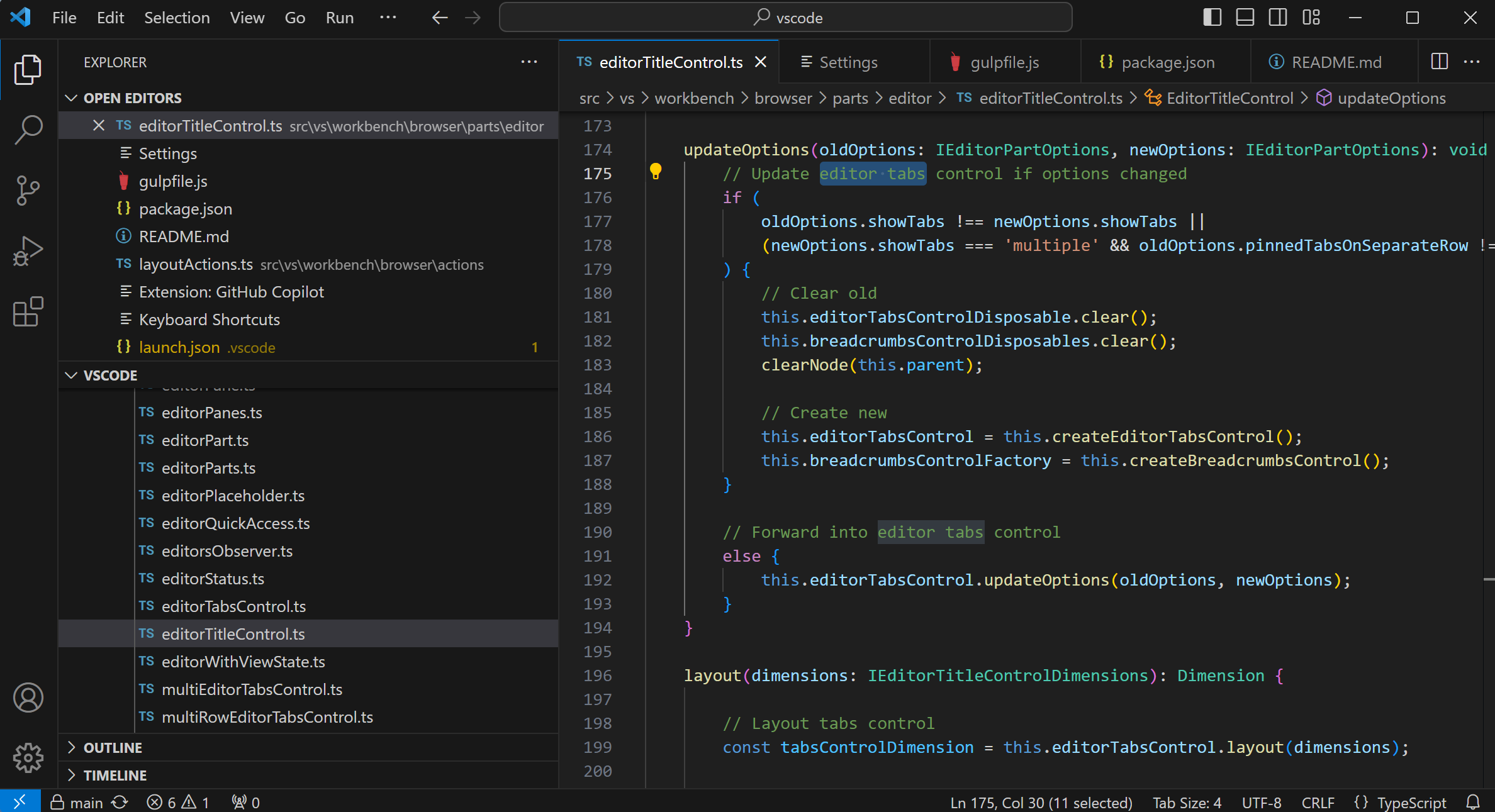
You can drag and drop tabs to reorder them. To perform an action on multiple tabs at once, hold down the Ctrl key (Cmd on macOS) and select the tabs you want to act on. To select a range of tabs, hold down the Shift key and select the first and last tabs in the range.
When you have more open items than can fit in the title area, you can use the Open Editors section in the Explorer view (available through the ... button) to display a dropdown list of tabbed items.
There is also a scroll bar between the tab and editor regions to drag editors into view. You can increase the height of the scroll bar to make it easier to drag by setting Workbench > Editor: Title Scrollbar Sizing (
workbench.editor.titleScrollbarSizing
) to large. Use the
workbench.editor.titleScrollbarVisibility
setting to control the visibility of the scrollbar.
If you don't want to use tabs, you can disable the feature by setting the
workbench.editor.showTabs
setting to single:
"workbench.editor.showTabs": "single"
See the section below to optimize VS Code for working without Tabs.
Double-click in the editor title area to quickly create a new tab.
Tab ordering
By default, new tabs are added to the right of the existing tabs. You can control where you want new tabs to appear with the workbench.editor.openPositioning setting.
For example, you might like new tabbed items to appear on the left:
"workbench.editor.openPositioning": "left"
You can reorder tabs by dragging and dropping them.
If you'd like an editor tab to always be visible, you can pin it to the editor tab bar. Learn more about pinning tabs in the Custom Layout article.
The workbench.editor.showTabIndex setting enables you to show the index of each tab in the tab header. This makes it easy to see which number to use with the Ctrl (Cmd on macOS) + number keyboard shortcut to quickly switch to a specific tab.
Preview mode
When you single-click or select a file in the Explorer view, it is shown in a preview mode and reuses an existing tab (preview tab). This is useful if you are quickly browsing files and don't want every visited file to have its own tab. When you start editing the file or use double-click to open the file from the Explorer, a new tab is dedicated to that file.
Preview mode is indicated by italics in the tab heading:

If you prefer not to use preview mode and always create a new tab, you can control the behavior with these settings:
- workbench.editor.enablePreview - to globally enable or disable preview editors
- workbench.editor.enablePreviewFromQuickOpen - to enable or disable preview editors when opened from Quick Open
Wrapped tabs
To see more editor tabs, you can use the wrapped tab layout, where editor tabs wrap to fill multiple rows above the editor region. Enable wrapped tabs with the Workbench > Editor: Wrap Tabs ( workbench.editor.wrapTabs ) setting.

Customize tab labels
When you have multiple files with the same name open at the same time, it can be difficult to distinguish the different tabs. To help with this, you can apply a custom display label to the tabs. You can choose for which files in your workspace you want to apply a custom label to the tab.
To enable custom display labels for tabs, set the workbench.editor.customLabels.enabled setting:
"workbench.editor.customLabels.enabled": true
You can specify one or more naming patterns for the tab display labels with the workbench.editor.customLabels.patterns setting. A name pattern consists of two components:
- Item - a glob pattern that matches file paths for which to apply a custom label. For example,
**/static/**/*.html. - Value - a template for the custom label. Templates can use variables such as
${filename},${extname},${extname(N)},${dirname}, and${dirname(N)}, which are dynamically replaced with values from the file's path.
The following sample displays the /src/orders/index.html file with a tab label of orders/index.
    "workbench.editor.customLabels.patterns": {
        "**/src/**/index.html": "${dirname}/${filename}"
    }
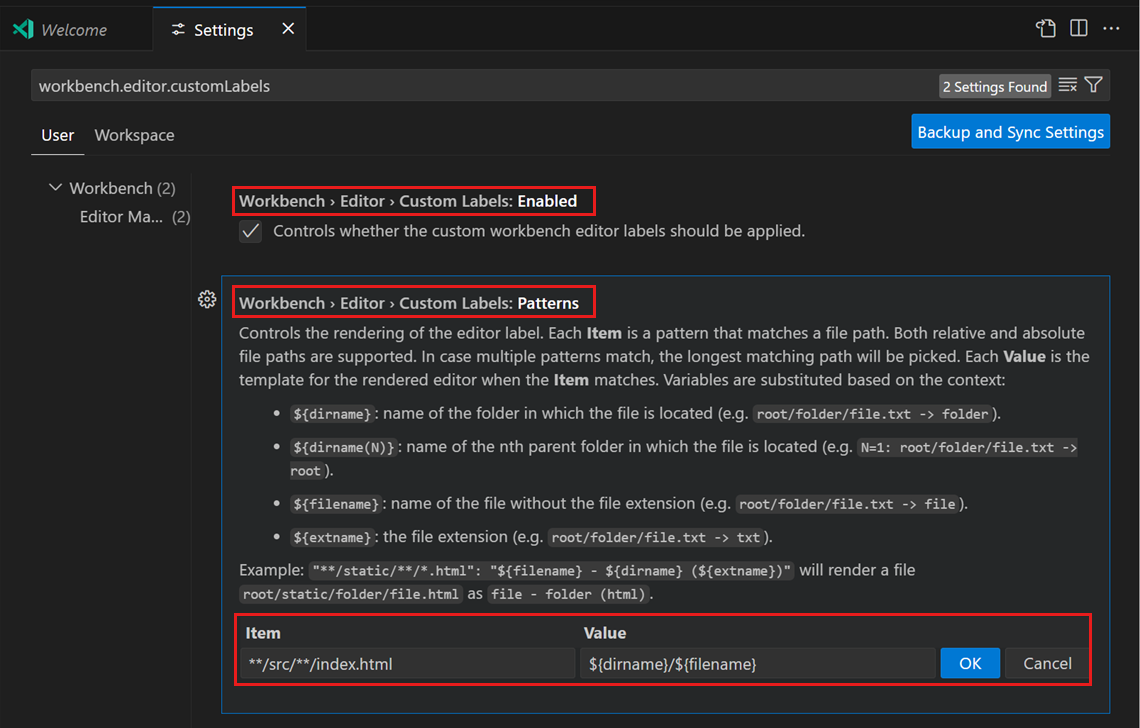
The following examples use the ${extname} variable for the file tests/editor.test.ts:
${filename}=> editor${extname}=> test.ts${extname(0)}=> ts${extname(1)}=> test${extname(-1)}=> test${extname(-2)}=> ts
The custom tab labels also apply in the Open Editors view and in Quick Open (⌘P (Windows, Linux Ctrl+P)).
Grid editor layout
By default, editor groups are laid out in vertical columns. For example, when you split an editor, it opens the editor to the side. You can arrange editor groups in any layout you like, both vertically and horizontally:
To support flexible layouts, you can create empty editor groups. By default, closing the last editor of an editor group also closes the group itself, but you can change this behavior with the new setting workbench.editor.closeEmptyGroups: false:
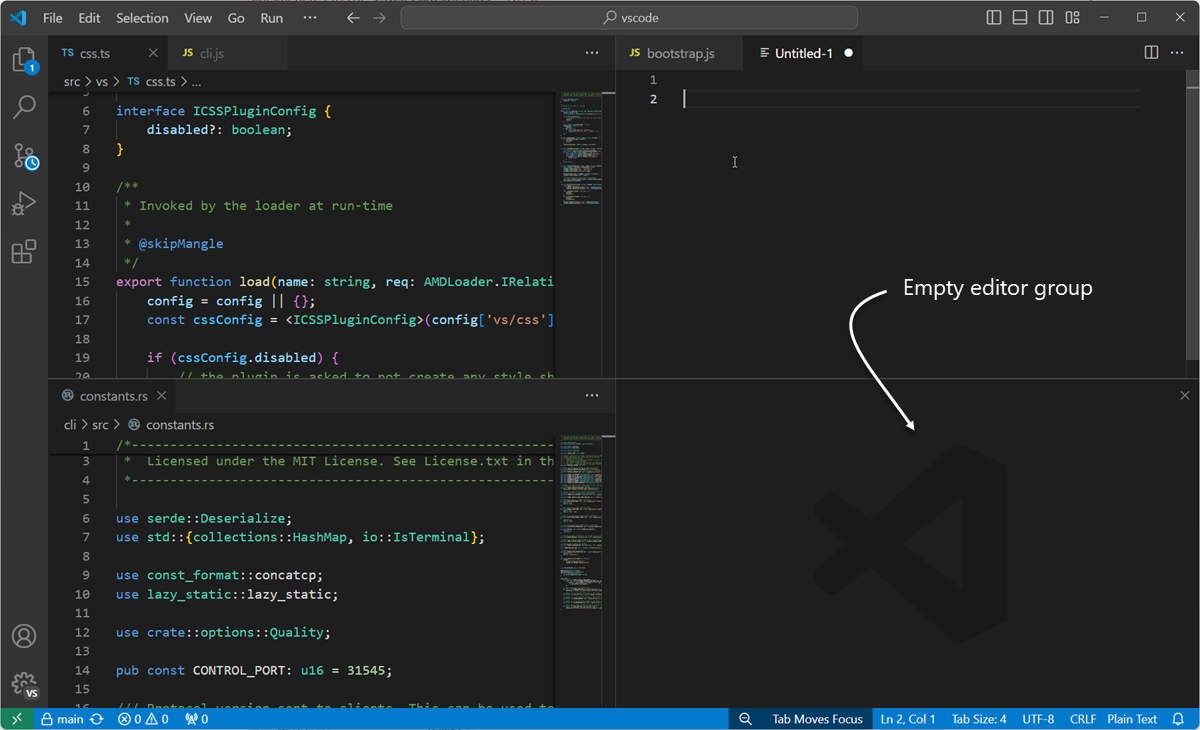
There are a predefined set of editor layouts in the View > Editor Layout menu:
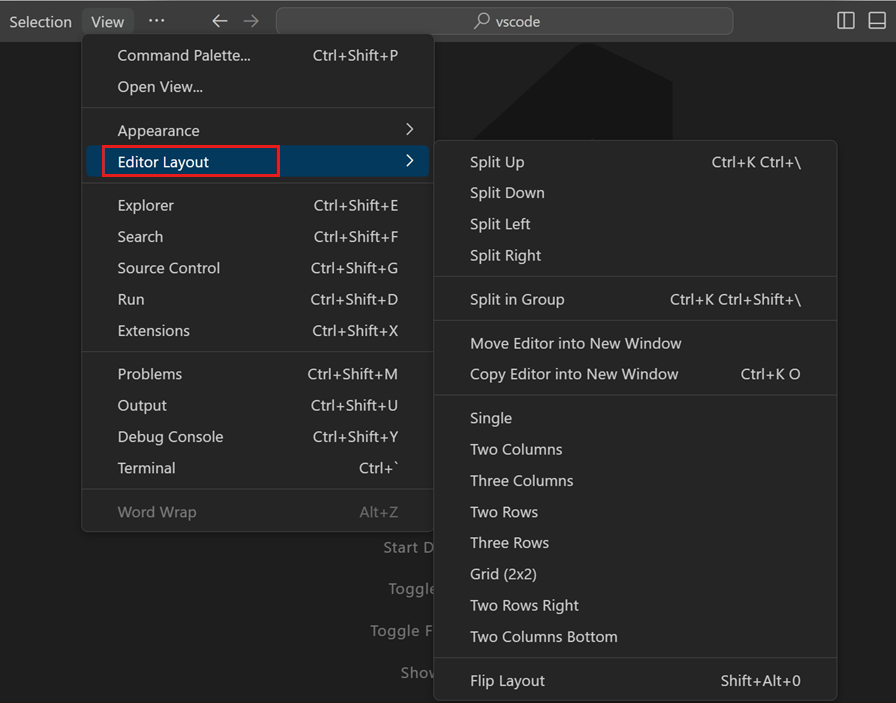
By default, editors that open to the side (for example, by selecting the editor toolbar Split Editor action) open to the right-hand side of the active editor. If you prefer to open editors below the active one, set
workbench.editor.openSideBySideDirection
to down.
There are many keyboard commands for adjusting the editor layout by using the keyboard. If you prefer to use the mouse, you can use drag and drop to split the editor into any direction:
If you press and hold the Alt key while hovering over the toolbar action to split an editor, it offers to split to the other orientation. This is a fast way to split either to the right or to the bottom.
Keyboard shortcuts
Here are some handy keyboard shortcuts to quickly navigate between editors and editor groups.
- ⌥⌘→ (Windows, Linux Ctrl+PageDown) - go to the right editor.
- ⌥⌘← (Windows, Linux Ctrl+PageUp) - go to the left editor.
- ⌃Tab (Windows, Linux Ctrl+Tab) - open the previous editor in the editor group's most recently used list.
- ⌘1 (Windows, Linux Ctrl+1) - go to the leftmost editor group.
- ⌘2 (Windows, Linux Ctrl+2) - go to the center editor group.
- ⌘3 (Windows, Linux Ctrl+3) - go to the rightmost editor group.
- ⌘W (Windows Ctrl+F4, Linux Ctrl+W) - close the active editor.
- ⌘K W (Windows, Linux Ctrl+K W) - close all editors in the editor group.
- ⌘K ⌘W (Windows, Linux Ctrl+K Ctrl+W) - close all editors.
If you want to modify the default keyboard shortcuts, see Key Bindings for details.
Working without tabs
If you prefer not to use tabs (tabbed headings), you can disable tabs entirely by setting
workbench.editor.showTabs
to single or none.
Disable Preview mode
Without tabs, the Open Editors section of the Explorer view is a quick way to do file navigation. However, with preview editor mode enabled, files are not added to the Open Editors section. You can disable this feature through the workbench.editor.enablePreview and workbench.editor.enablePreviewFromQuickOpen settings.
Use keyboard shortcuts to navigate the editor history
You can change vs for Ctrl+Tab to show you a list of all opened editors from the history, independent of the active editor group.
Edit your keyboard shortcuts and add the following:
{ "key": "ctrl+tab", "command": "workbench.action.openPreviousEditorFromHistory" },
{ "key": "ctrl+tab", "command": "workbench.action.quickOpenNavigateNext", "when": "inQuickOpen" },
Close an entire group instead of a single editor
If you liked the behavior of VS Code closing an entire group when closing one editor, you can bind the following in your keybindings.
macOS:
{ "key": "cmd+w", "command": "workbench.action.closeEditorsInGroup" }
Windows/Linux:
{ "key": "ctrl+w", "command": "workbench.action.closeEditorsInGroup" }
Window management
VS Code has various options to control how VS Code windows (instances) should be opened or restored between sessions.
The settings
window.openFoldersInNewWindow
and
window.openFilesInNewWindow
are provided to configure opening new windows or reusing the last active window for files or folders and possible values are default, on and off.
If configured to be default, VS Code decides about reusing or opening a new window, based on the context from where the open request was made. Flip this to on or off to always behave the same. For example, if you feel that picking a file or folder from the File menu should always open in a new window, set this to on.
There are cases where this setting is ignored, such as when you use the -new-window or -reuse-window command-line option.
The
window.restoreWindows
setting informs VS Code about how to restore the opened windows of your previous session. By default, VS Code restores all windows you worked on during your previous session (setting: all). Change this setting to none to never reopen any windows and always start with an empty VS Code instance. Change it to one to reopen the last opened window you worked on, or to folders to only restore windows that had folders opened.
Next steps
Now that you know the overall layout of VS Code, start to customize the editor to how you like to work by looking at the following articles:
- Changing the theme - Set a Color and/or File Icon Theme to your preference.
- Using custom layouts - Learn more about VS Code's workbench and editor layout customizations.
Common questions
How can I change the color of the indent guides?
The indent guide colors are customizable, as are most VS Code user interface elements. To customize the indent guides color for your active Color Theme, use the
workbench.colorCustomizations
setting and modify the editorIndentGuide.background value.
For example, to make the indent guides bright blue, add the following to your settings.json:
"workbench.colorCustomizations": {
    "editorIndentGuide.background": "#0000ff"
}
Can I hide the Open Editors section in the Explorer view?
Yes, you can show or hide the Open Editors section by using the Views menu in the Explorer and toggling the Open Editors menu item.