Manage agent sessions in VS Code
Use the sessions list to return to an agent task, monitor ongoing work, and put completed work away. This article shows how to manage sessions in the Chat view and the Agents window.
A session groups the workspace, code changes, and conversations for a task. Each conversation has its own history and context. If you're starting your first task, follow the agents quickstart.
Find and resume a session
Open an existing session to continue its conversation rather than start the task again.
-
Open the sessions list in the interface you use:
Interface Location and scope Chat view The list is at the top of the view and shows sessions for the current workspace, grouped by time. With no workspace open, it shows sessions across workspaces. Agents window The list is in the left sidebar and shows sessions across workspaces. Sessions are grouped by workspace by default. -
Select the session to open its conversation.
-
If your session is completed, it may not appear in the active sessions list. Change the list filter from active sessions to Archived (Chat view) or Done (Agents window).
-
Review the previous messages and changes before sending a follow-up. For an archived session, restore it first.
If the list isn't visible in the Chat view, right-click in an empty chat and select Show Sessions. For display options, see sessions list layout.
Find a missing session
Check these items before creating a replacement session:
- Workspace and host: Open the original workspace or connect to the host where the session runs. The Agents window lets you browse across workspaces.
- State filters: Include Archived or Done sessions, not only active sessions.
- Other applications: Check the External filter and discovery limits.
- Supported interface: Local harness sessions The Local harness is deprecated and will be removed in February 2027. Move your workflows to the Copilot harness before then. Learn more about Local harness deprecation. and sessions from the OpenAI Codex extension are editor-only. Check which sessions support both interfaces.
To find earlier work by topic, file, or pull request instead of browsing the list, query session history. Synced history doesn't by itself provide access to a running agent.
Continue between the Chat view and Agents window
Supported Copilot and Claude sessions are available in both interfaces. Codex requires the experimental Agent Host integration. Switching interfaces doesn't change the session's harness, workspace, or worktree.
For a supported Copilot session with a project:
- From the Agents window: Select Open in Editor in the title bar. The editor opens the project with the session available in the Chat view.
- From the Chat view: Select Open in Agents Window from the view's ... menu.
From an SSH, WSL, or tunnel editor window, opening the Agents window selects the same remote and folder. For remote Dev Containers, it selects the source folder on that remote.
Supported tunnel connections can also reopen the same session in either window. For SSH, WSL, and Dev Containers, switching windows currently opens the folder without continuing the session.
To change the harness instead, see Continue with a different harness.
Claude and Codex harnesses are disabled when Copilot enterprise-managed settings apply. Existing sessions aren't deleted. Contact the IT team that deployed the settings to discuss access.
View sessions from other applications
You can open supported local sessions from Copilot CLI, the GitHub Copilot app, Claude Code, and Codex in either interface.
Open the sessions list filter and select External to choose which discovered sessions appear:
| Filter | Sessions shown |
|---|---|
| None | No external sessions. |
| Recent | Up to two most recently updated external sessions from the last seven days. At startup, sessions older than the second-most-recently updated local session are hidden. |
| Last 24 Hours | Sessions updated within the last 24 hours. |
| Last 7 Days (default) | Sessions updated within the last seven days. |
| Last 30 Days | Sessions updated within the last 30 days. |
The filter applies to both interfaces and is also configurable with chat.agentSessions.showExternal (Experimental). Discovery has separate limits: Copilot only considers supported local sessions updated within the last seven days, even if you select Last 30 Days.
When you open an external session in the Agents window, a one-time banner identifies its origin and lets you choose which external sessions to show. If that choice hides the open session, you're asked to confirm it. After you send a message from VS Code, the session is no longer external and the External filter no longer controls its visibility.
For an external Codex session, only one application can write to the chat at a time. If This chat is open in another app appears, fully quit the other application and select Retry. The transcript, draft, and attachments remain available while sending, queueing, and resending are blocked. Retry doesn't send the draft. Send it yourself after the banner disappears.
Use Copilot CLI from the terminal
If the session's context menu includes Resume in Terminal, select it to continue in GitHub Copilot CLI. Not every harness or session type provides this action. Otherwise, continue in a supported VS Code interface.
To begin a separate terminal conversation, start a new CLI session. Starting a new CLI session doesn't resume an existing conversation.
Continue a CLI session in VS Code (Experimental)
Move an existing GitHub Copilot CLI conversation from a terminal outside VS Code into the Chat view to continue beside your code without starting over. This workflow requires Copilot CLI 1.0.107 or later and Copilot harness access in VS Code.
-
In your Copilot CLI session, run
/settings experimental onto turn on experimental CLI features. -
Run
/code, or/code-insidersfor VS Code Insiders.
The CLI exits, and VS Code opens the session in the Chat view of the window for the session's folder, starting the application if needed. The session keeps its conversation history, model, reasoning effort, mode, and permissions, except for permissions that apply only to the CLI process.
CLI-process-only permissions, such as --allow-tool options or approvals granted for the CLI session, don't carry over. The CLI lists these permissions before handing off.
If another CLI process still has the session open, VS Code asks before opening it. Exit that process first to avoid both applications writing to the same session.
To return to the CLI, run the copilot --resume command that the CLI displays when it hands off.
Continue on another device or in the cloud
| Where the session runs | How to continue |
|---|---|
| A remote host | Use GitHub environments GitHub environments is in preview and might change before it becomes generally available. or SSH or dev tunnels, then open the existing session. The host must remain running and reachable. |
| A managed cloud environment Cloud sessions is experimental and might change or be removed. | Reconnect to the existing cloud session. Execution stays in the managed environment. |
To move from local work to cloud execution, start a separate cloud session.
For a hands-on walkthrough, start a task in a cloud session and continue it from a regular terminal with Copilot CLI Cloud sessions is experimental and might change or be removed. .
Start a new or related conversation
Choose a conversation based on whether you need the discussion so far:
| Your goal | Action |
|---|---|
| Continue the same task | Resume the existing conversation. |
| Start related work with fresh context | Create a nested session, where supported. |
| Explore another approach using the discussion so far | Fork the conversation. |
| Ask a question without adding it to the main conversation | Start a side chat, where supported. |
| Begin unrelated work | Start a new session. |
Separate conversations don't isolate file changes. Conversations using the same folder or worktree can edit the same files. Choose New Worktree for a nested or top-level session, where supported, when changes must stay separate.
Start an agent session
For an independent task, follow the steps to start a session in the Chat view beside your editor, or in the Agents window across workspaces. Choose the workspace, harness, and code isolation before sending the first prompt.
On Windows, you can also open the Agents window by right-clicking the VS Code taskbar icon and selecting Agents Window.
Run multiple chats in a session
A nested session is a separate, interactive conversation grouped under an existing session. It starts blank, without the other chats' history. By default, it uses the parent's harness and host. The harness must support multiple chats, and the parent session must not be archived.
With a harness that provides session-management tools, ask the agent to start a separate chat within the ongoing session. This works in both the Chat view and the Agents window. For example:
Start a separate chat within this session to review the authentication flow. Reuse the current workspace and do not modify files.
Alternatively, use the controls in the Agents window:
-
Hover over the parent session and select + (New Nested Session), use its context menu, or press ⌘T (Windows, Linux Ctrl+T) while the session has focus.
-
If mixed-harness chats are enabled, select a harness from the picker above the input. Choose the harness before the working folder, because the available workspace options depend on the harness.
-
Choose the working folder above the input:
- Keep the preselected folder to share the parent's folder or worktree.
- Select a recent folder or Open Folder... to use another folder.
- Select No Workspace for a separate temporary folder. This is preselected for quick chats. Temporary files aren't shared between workspace-less chats.
Harnesses supporting only one folder limit the choice to the parent's folder, or No Workspace for a quick chat.
-
For a Git folder, select Branch to work directly in the folder, or New Worktree and a base branch to isolate changes. Plain folders and No Workspace don't offer these controls.
-
Enter a prompt and press Enter. The nested session appears beneath its parent in the list.
Each chat has its own title, history, and agent or model selection. For a hands-on workflow with isolated changes, follow Delegate two tasks without mixing their changes.
Use different harnesses in a session
Enable chat.agentHost.multipleChatProviders.enabled (off by default) to keep related chats together while using different harnesses in the Agents window. For example, implement a change in a Copilot chat and review it in a Claude chat within the same session.
Choose the harness in the new nested session's picker before sending the first prompt. Available harnesses depend on their setup requirements and organization policies.
Each chat uses its own harness's model options and permission controls. Changing one chat's model or permissions doesn't change the other chats. Each chat retains its harness, model, and permission settings after restarting VS Code.
Fork a chat session
A fork retains the source conversation's history so you can explore an alternative without losing the original discussion. Type /fork to copy the full conversation, or hover over an earlier request and select Fork Conversation to include only the requests through that checkpoint.
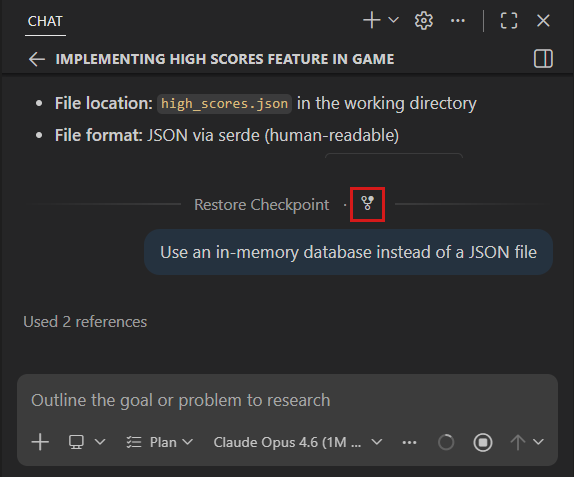
In multi-chat Copilot sessions in the Agents window, the fork opens as a nested session. In single-chat sessions and harnesses without multiple-chat support, it opens as a separate session. A Copilot worktree session's fork uses the original worktree, so forking doesn't isolate code changes.
In a mixed-harness session, a fork keeps the source chat's harness, model, and permission settings, even if the parent session uses another harness.
Supported Agent Host sessions, such as Copilot, also accept these forms in either interface:
| Command | Result |
|---|---|
/fork <title> |
Name the fork without sending a prompt. |
/fork prompt <prompt> |
Fork and immediately send the prompt and attached context. |
For example:
/fork prompt Compare this design with an event-driven approach. Do not change any files.
A prompted fork uses the source conversation's agent and model, not new input-picker selections. An explicit title is retained. Otherwise, the fork can receive an automatically generated title based on the original title and new prompt.
Ask side questions
When asking about a specific part of a response, choose whether to keep the follow-up in the current conversation or start a side chat. Side chats are available in supported Copilot and Claude sessions in both interfaces.
Select text in an agent response to open the selection menu (Experimental), then choose:
- Quote: Append the selected text as a Markdown block quote to the current chat input, preserving any existing draft. Add your question and send it to continue in the same conversation. Selecting Quote doesn't automatically send a message.
- Ask in a Side Chat: Enter your question in Ask Question and press Enter. A new side chat opens beside the source conversation with the selected fragment as context.
If the selection shows Ask Question directly, enter the question there to start a side chat. The chat.agentSessions.responseSelectionMenu.enabled setting controls whether the selection menu appears and is on by default.
Select text in an agent response, right-click it, and select Ask in Side Chat.... Enter your question in Ask Question and press Enter. The side chat opens in an adjacent editor. Unlike the Agents window, selecting text doesn't automatically open a menu.
In either interface, you can also type /btw <question> to start a side chat from the latest turn, including a response in progress, without selecting a fragment.
A side chat inherits the source conversation's agent, model, and context through the source turn. Inherited messages aren't shown in its transcript. The question and answer stay in the side chat rather than the source conversation. Side chats favor explanation unless you ask for changes or actions.
Side chats aren't available for Local harness sessions The Local harness is deprecated and will be removed in February 2027. Move your workflows to the Copilot harness before then. Learn more about Local harness deprecation. or sessions from the OpenAI Codex extension.
Monitor progress and switch conversations
Use the sessions list to check session status, harness, and file changes. Select a session to inspect its response or provide input. Before integrating its work, review the code edits and validate the result.
For sessions with multiple chats, progress and unread indicators belong to each chat. The session remains in progress while any chat is working, and the session header Changes pill combines their edits.
Select a nested session in the list or, in the Multiple presentation, select its chat tab. Use the Chats dropdown to show or hide chats. To reopen the last closed chat, press .
To rename a chat, select Rename from its tab's context menu. Chat titles are independent of the session title.
To keep conversations visible together, arrange chat tabs in split groups. For separate top-level sessions, arrange sessions in a grid.
Show the sessions list in the side-by-side layout, expand the main chat row, and select a nested session. Select the main row to return to the main conversation. Each chat retains its messages and unsent draft when you switch.
Right-click a nested session and select Open as Editor for an editor tab, or Open to the Side for another editor group.
Side chats also appear beneath their parent in the sessions list. Use the Agents window to view read-only subagent chats.
For optional ways to keep track of work, configure application icon badges (Preview), the title-bar status indicator (Experimental), or the sessions welcome page.
To have an agent create sessions, read another conversation's context, or send follow-up messages, see Coordinate work across sessions with tools.
Keep long conversations focused
The context window control in the chat input shows how much context the active chat uses. Hover over it for token counts, a category breakdown, and the session's total AI credits. Available context depends on the model.
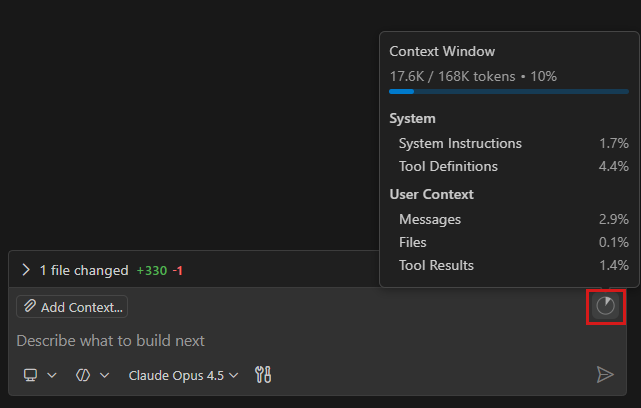
Compact conversation context
Compaction summarizes earlier history to free context space and reduce tokens sent with subsequent requests. Conversations compact automatically when the context window fills. To turn this off, set
github.copilot.chat.summarizeAgentConversationHistory.enabled
to false.
For manual compaction in Local, Copilot, or Claude sessions:
- Type
/compact, optionally adding what to retain, such as/compact focus on the database schema decisions. - Select the context window control, then Compact Conversation.
For a fresh conversation instead of a summary, start a nested session or a new session. Neither clears saved files, custom instructions, or persistent memory. To undo code changes, review and revert them.
Stable context and forks can preserve prompt caching to reduce cost and latency. Learn about AI credit usage and use the Cache Explorer to investigate cache hits.
Organize sessions
Keep related work together or prioritize what needs attention without finishing the session:
- Pin sessions and create custom groups to keep related tasks accessible.
- Triage sessions with Inbox mode to dismiss or defer work without archiving it.
- Move chats between sessions to reorganize conversations without changing their working folders.
Finish and restore sessions
Choose the action that matches what you want to keep:
| Action | Effect |
|---|---|
| Close a chat tab | Hide the conversation without deleting it. Reopen it when needed. |
| Dismiss from Inbox | Move the session to Done in Inbox mode without stopping or archiving it. New activity can bring it back. |
| Archive or mark as done | Remove completed work from the active list while retaining its conversation. Worktree or container resources can be removed as described below. |
| Delete | Permanently remove the conversation. Associated worktrees or containers can also be removed. |
Archive sessions
-
Hover over the session and select Archive (Chat view) or Mark as Done (Agents window).
-
To find it later, select the Archived or Done list filter.
-
To continue, right-click the session and select Unarchive (Chat view) or Restore (Agents window).

For a worktree session, archiving commits uncommitted changes to the session branch before removing the worktree folder. If changes can't be preserved or the folder can't be removed, the worktree remains. The branch and commits are retained, so restoring re-creates the worktree.
For a Dev Container session, marking done removes the container without waiting for idle shutdown, but only if no other session or unsent draft uses it. Restoring starts a replacement container and retains the conversation.
A Local session automatically archived by enterprise runtime policy enforcement remains read-only while the policy applies. Continue in its replacement Copilot session instead.
Mark an individual chat as done
In the Agents window, expand the parent session, right-click an additional chat, and select Mark as Done. This hides it from the active list and closes its tab without affecting the parent or other chats. Its title and transcript are preserved after reload.
To restore it, select the global Done filter or right-click the parent and select Show Done Chats. Right-click the done chat and select Restore.
Main chats, side chats, and subagent chats can't be marked done independently.
Delete sessions
Deletion is permanent. Integrate or commit worktree changes first: uncommitted files that exist only in a removed worktree can be lost. To hide a session without deleting it, archive it instead.
Right-click a session and select Delete. For Copilot harness sessions, this also removes associated worktrees created for the session. A shared worktree remains while another session still uses it and is removed only after the last linked session is deleted or archived.
For Dev Container sessions, deletion removes the container only when no other session or unsent draft uses it, even if automatic idle shutdown is off.
To delete an individual chat in the Agents window Multiple presentation, select Delete Chat in its tab's context menu, or press ⌘Backspace (Windows, Linux Delete) while it has focus.
Clean up session worktrees
Run Chat: Open Worktree Cleanup to reclaim disk space from inactive or leftover session worktrees.
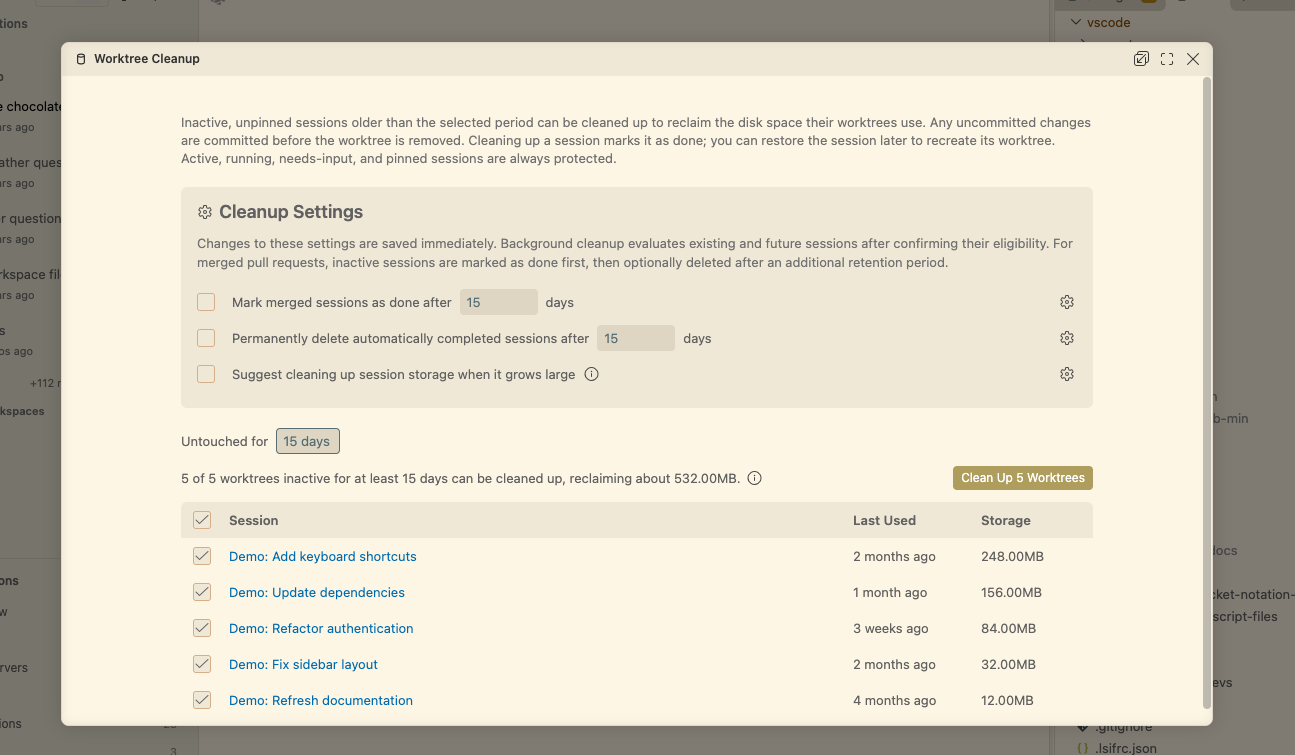
- Choose an inactivity filter and, if needed, a workspace.
- Review the selected worktrees, including their branches, paths, and estimated sizes. Clear any selected worktrees you want to keep.
- Save open file edits in the selected worktrees, then confirm cleanup.
Normal cleanup marks listed sessions done, commits nonignored uncommitted changes to their branches, and schedules the worktree folders for removal. Branches and session history are retained, so restoring a listed session re-creates its worktree. Ignored files in removed worktrees are deleted. Normal cleanup protects worktrees used by other sessions or chats.
The cleanup editor also includes:
- Leftover worktrees from done or archived sessions. Marking a session done does not guarantee that its worktree was removed. Eligible leftovers can be cleaned up even though their storage sizes are not measured.
- Managed worktrees without a listed session. Git-registered session worktrees under the managed
<repository>.worktreesdirectory can be cleaned up while retaining their branches, even when storage and last-used time are unknown. Arbitrary external worktrees and unregistered folders are excluded.
Storage sizes are estimates. Unchanged idle estimates are reused across refreshes and restarts; new, changed, or active worktrees are measured on request. An unknown size does not mean zero storage or confirmed removal.
If cleanup fails, review the error and use Retry Failed Worktrees for eligible failures. If instructed, restore the session and mark it done again. Failed or unresolved cleanup does not confirm that the worktree was removed.
Force Remove permanently discards uncommitted changes and can remove a worktree used by other sessions or chats. Review the separate confirmation and preserve any needed work before proceeding.
Open Cleanup Settings to configure automatic completion, deletion retention, or storage suggestions.
Storage suggestions (Experimental): Enable chat.agentSessions.sessionStorageCleanupSuggestion.enabled for a suggestion in the Agents window when inactive worktrees use at least 5 GiB or 20 worktrees qualify. Selecting it opens the cleanup editor. Dismiss it for the current window, or select Don't Show Again or run Chat: Disable Session Storage Cleanup Suggestions to turn it off.
Automatically clean up merged sessions
For Copilot, Claude, and the experimental Codex integration, configure two separate inactivity periods. Both default to 0 (off). Use positive whole numbers of days, with 15 recommended:
- chat.agentSessions.autoMarkAsDoneMergedSessionsAfterDays : Days before an eligible session is automatically marked done.
- chat.agentSessions.autoDeleteMarkedAsDoneMergedSessionsAfterDays : Grace period after automatic completion before permanent deletion.
Eligible sessions aren't in progress, exceed the inactivity threshold, have at least one merged pull request, and have no related open pull requests. External sessions aren't eligible. Checks run at startup and hourly while either setting is on.
Only automatically completed sessions qualify for automatic deletion. Manually completed sessions don't qualify. Restoring an automatically completed session clears its deletion eligibility.
Unlike manual archiving, automatic cleanup removes a worktree only if its branch tracks an upstream and has no outgoing commits or uncommitted changes. Unknown Git state or unmet conditions retain the worktree. It is never force-removed.
When a merged pull request makes a session eligible, Configure Automatic Cleanup in the Mark as Done suggestion opens both settings without turning them on.
To retain or share conversation content separately, export a chat as JSON or copy messages as Markdown. Review the contents before sharing.
Move a chat to another folder or worktree
In the Agents window, continue a task in another folder or a new worktree without losing its conversation history. This requires a single-chat Agent Host session with one local folder. Use the Copilot harness, or Codex (Experimental) in Interactive mode.
Ask the agent to move the chat. There isn't a separate move button:
Move this chat to <absolute folder path> and continue the current task there.
The destination must be on the same host. To isolate implementation before making changes, request a new worktree instead:
Continue this task in a new Git worktree of the current repository before implementing it.
Confirm the destination and whether to use it directly or create a worktree. Review tool approvals and Workspace Trust requests. The agent finishes its turn and moves the chat. Wait for the workspace-change notice and automatic continuation before sending more prompts.
A folder move uses the destination's existing files, without moving or copying the original files. A new worktree starts from committed Git state and requires at least one commit. Uncommitted changes stay in the original folder, except files copied by configured worktree include rules. See code isolation prerequisites and file-copy behavior.