Use canvases with agents
Canvases are interactive visual surfaces that you and an agent use together in Visual Studio Code. For example, plan work on a Kanban board, inspect a diagram that the agent updates, or adjust controls whose values flow back to the agent. You interact directly with the canvas instead of describing every change in chat.
Every canvas is provided by a canvas extension. This guide shows you how to find a canvas, open it in a Copilot session, and manage its extension.
Prerequisites
Canvases work in the VS Code desktop app in local sessions that use the Copilot harness. You can use them in both the Chat view and the Agents window.
-
Turn on chat.canvases.enabled .
-
Start a new session and select the Copilot harness. Changes to the canvas setting apply to newly created sessions.
-
Send your first message to initialize the session before opening the canvas menus or managing canvas extensions.
Canvases aren't supported in Claude, Codex, extension-host Local sessions, remote Agent Host sessions, browser clients, or auxiliary windows.
Get a canvas
Install an existing canvas extension or create one for your project.
Install a canvas extension
Agent plugins can include canvas extensions. To find one in VS Code:
-
With your Copilot session active, open the Agent Customizations editor. Run Chat: Open Customizations from the Command Palette, or select Customizations in the Agents window sidebar.
-
Select Browse, then select Canvases to filter the results.
The filter lists plugins whose metadata identifies them as canvas providers. These plugins also appear under Plugins.
-
Select a plugin, review its publisher and contents, and select Install.
For marketplace configuration and plugin trust prompts, see Install an agent plugin.
You can also use compatible canvas extensions from plugins installed through the GitHub Copilot app.
Create a canvas for your project
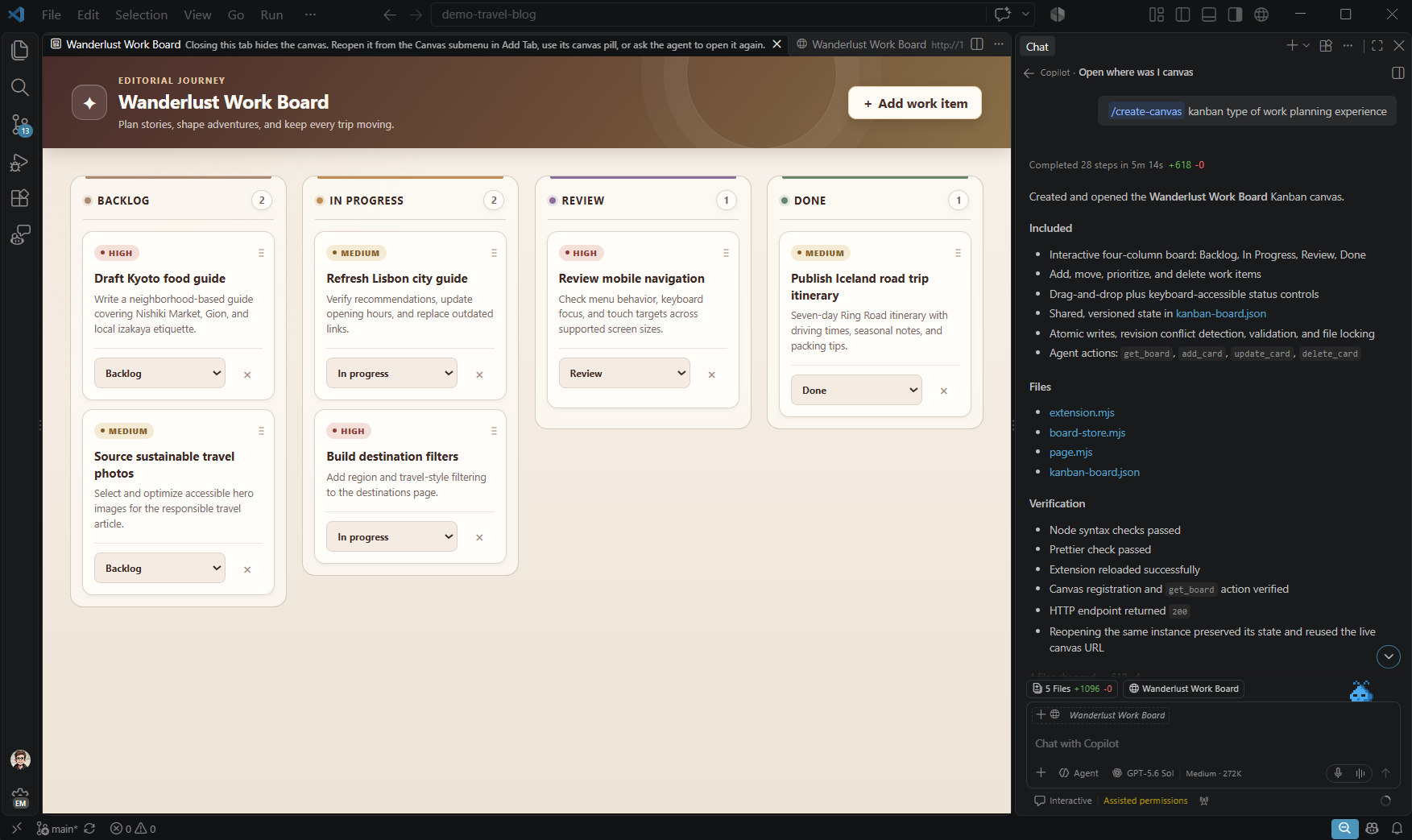
When the /create-canvas skill is available in your session, enter /create-canvas in chat and describe the interface you need. The skill creates a workspace canvas extension and opens its canvas.
For example:
/create-canvas Create a Kanban board for this project with Backlog, In progress, and Done columns.
Open a canvas
Ask the agent to list the available canvases and open one. Include any information the canvas needs, such as the project or data it should display.
You can also open a canvas that doesn't require input without asking the agent:
| Location | Action |
|---|---|
| Chat input in either window | Select Add Context (+) > Canvas... to open or refocus an available canvas. |
| Chat view title bar | Select New Chat (+) > Canvas. |
| Agents window editor area | Select Add Tab (+) > Canvas. |
| Agent Customizations editor | Select Canvases, then double-click a canvas marked Ready to Open. You can also select it and press Enter, or select More Actions > Open Canvas. |
For a canvas marked Requires Input, ask the agent to open it and describe the information or configuration it should use.
Interact with a canvas
A canvas opens in an editor tab and stays associated with the chat that opened it. The controls and supported actions depend on the canvas extension.
- Interact directly: Use the canvas controls to inspect or change its content. For example, create a card or move it between columns on a Kanban board.
- Ask the agent to make changes: Describe what you want to update in chat. The agent can use actions exposed by the canvas to inspect or update its state.
- Return to a canvas: Close and reopen a live canvas when the extension supports it. Use the canvas menus to return to an available canvas.
Depending on the extension, your interactions can also update the agent session.
Manage canvas extensions
Use the Canvases section of the Agent Customizations editor to inspect canvas sources and manage supported extensions:
-
Select your active local Copilot session and open the Agent Customizations editor.
-
Select Canvases.
-
Expand the user, workspace, plugin, or other source group, then expand an extension to see its canvases.
-
To inspect an extension's origin, use More Actions to open its source folder. For an extension owned by a plugin, select Show Plugin to view the plugin details.
-
Use the switch on a user or plugin extension to turn the extension on or off.
The switch applies to the extension, not an individual canvas. Workspace extensions can't be turned on or off from this editor.
When you turn off an extension, its last-known canvas entries might remain visible so that you can identify the extension and turn it on again. You can't open canvases from an extension that's turned off.
Troubleshooting
| Problem | What to check |
|---|---|
| A canvas menu doesn't appear | Check that chat.canvases.enabled is on, start a new local Copilot session, and send a message. Install a canvas extension if none are available. |
| Canvases are only available inside a session appears | Select an active local Copilot session, then reopen the Agent Customizations editor. |
| A canvas is marked Requires Input | Ask the agent to open it and provide the required information. It can't be opened directly from the list. |
| An extension is listed but its canvases won't open | Check whether the extension is turned off. Last-known entries can remain visible after an extension is turned off. |