Manage and troubleshoot MCP servers
Change, stop, share, or troubleshoot an existing MCP server in Visual Studio Code. For first-time setup, see Add MCP servers. For formats and properties, see the MCP configuration reference.
Use the Agent Customizations editor (Preview) to edit connections, start or stop servers, change their enabled state, and view output. The editor is scoped to the selected agent harness. The configuration form steps below use the Copilot harness. For differences in server support and configuration, see Agent harnesses.
Open the server controls
-
In the Chat view, select the agent harness whose servers you want to manage.
-
Select Open Customizations in the title bar, or run Chat: Open Customizations from the Command Palette (⇧⌘P (Windows, Linux Ctrl+Shift+P)).
-
Select MCP Servers. Select a server to edit its configuration, use its toggle to change its enabled state, or open its ellipsis (...) menu for server actions.
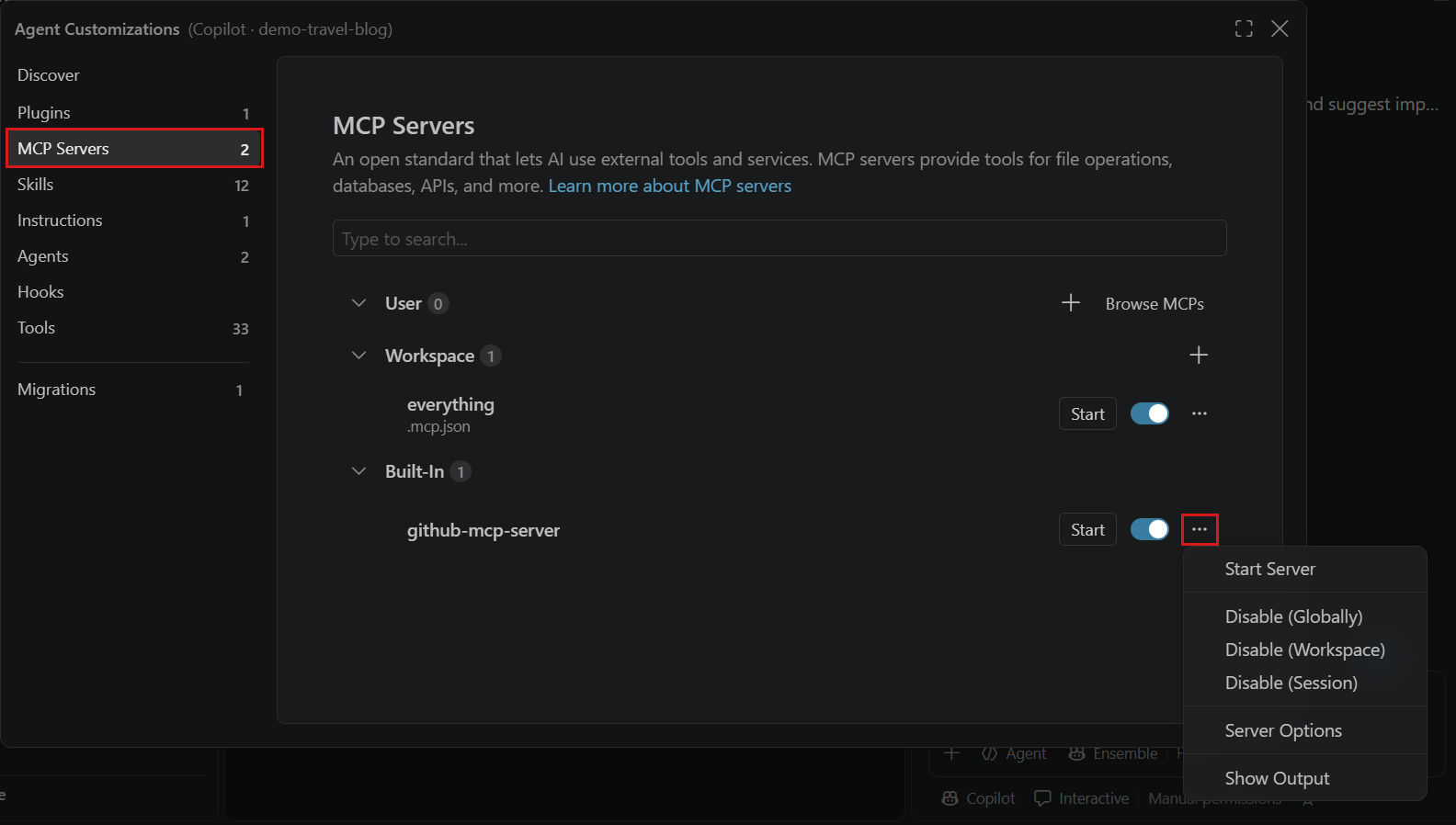
Edit an MCP server configuration
To edit an existing server, open the server controls:
-
In MCP Servers in the Agent Customizations editor, select the server from the list.
-
Change the server type or fields: command, arguments, and environment variables for stdio, or URL and headers for HTTP.
-
Select Save. If a value isn't supported by the destination file, Save is unavailable and the form explains what to change.
Select Discard Changes to restore saved values. Saving preserves unchanged file content and properties the form doesn't display, such as tools. Select Other Properties to open the entry in its source JSON file.
Enter arguments as a space-separated string or a JSON array of strings. With focus in the form, press Alt+F1 (Option+F1 on macOS) to open Accessibility Help.
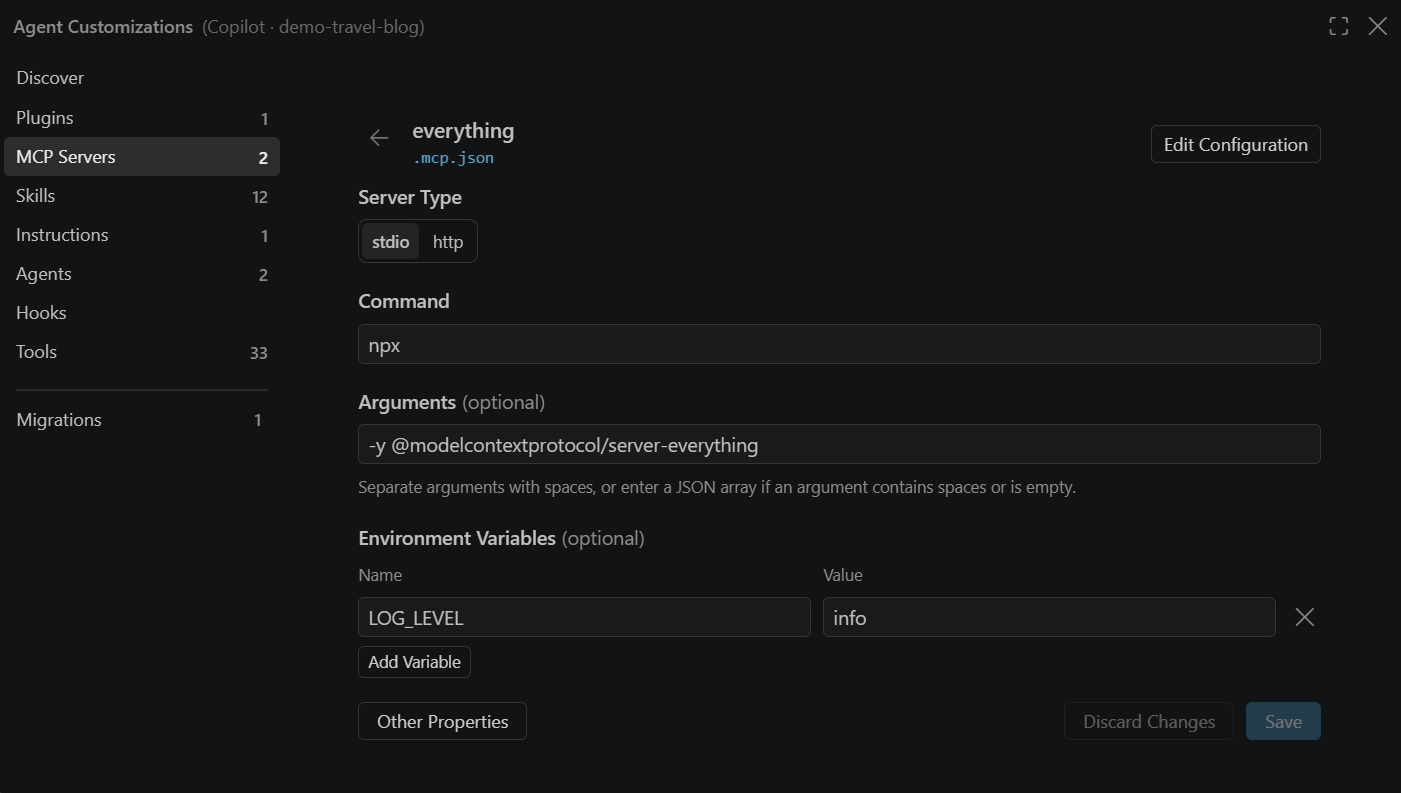
Portable configurations support form editing. VS Code formats appear as read-only JSON, so edit their source file instead. Check the configuration file comparison for supported fields and forwarding restrictions. Legacy destinations can still be necessary for VS Code-specific capabilities.
Control or remove a server
In MCP Servers in the Agent Customizations editor, open the server's ellipsis (...) menu and choose an available action. Alternatively, run MCP: List Servers from the Command Palette, select the server, and choose an available action.
| Action | When to use it |
|---|---|
| Start Server | Start a configured server. |
| Stop Server | End the current run. A later request can start the server again. |
| Restart Server | Restart after changing configuration or resolving a problem. If this action isn't offered, stop the server and then start it again. |
| Enable or Disable | Control availability without deleting the configuration. |
| Uninstall | Remove a server you no longer need. |
Starting can require trust or authentication. If the server fails to start, view its output before retrying.
Disabling is different from stopping. A disabled server doesn't start, and its tools, resources, prompts, and MCP apps are unavailable. Use the toggle beside the server, or select an enablement action from its menu to choose a scope. Depending on the server and harness, global, workspace, or session scope is available. The enabled state is separate from shared configuration, so disabling a server doesn't change your teammates' configuration.
Removal depends on the configuration source. If Uninstall isn't available for a manually configured server, remove only its entry from the source configuration, not the whole file. If automatic discovery restores it, review its discovery source. You can also uninstall an installed server from the MCP SERVERS - INSTALLED section of the Extensions view.
Automatically start MCP servers
When you submit a chat message, VS Code can start servers to discover their tools. The chat.mcp.autostart setting controls this editor autostart pass:
never: Don't start servers during this pass.onlyNew: Start servers that have never run.newAndOutdated(default): Start servers that have never run or whose configuration has changed.
Disabled servers and servers in an error state are excluded.
Setting
chat.mcp.autostart
to never doesn't prevent the Copilot harness from starting its own configured MCP servers independently. To prevent a server from starting, disable it.
Share and reuse configuration
For compatible Copilot configurations, commit a workspace-root .mcp.json to share server definitions with your team. Review the supported configuration formats before copying entries between files.
Don't commit secrets. Follow the authentication and secrets guidance for the configuration format you use. Each environment needs its own runtime, credentials, and access to external services. Sharing a configuration doesn't install a server runtime or transport those credentials.
To reuse configuration from another application, see automatic MCP server discovery.
Remote workspaces and dev containers
Local user-profile stdio servers run locally. For remote execution, configure the server in the remote workspace or use MCP: Open Remote User Configuration. Install its runtime and dependencies where the command executes.
An HTTP server's URL identifies the service. Storing its configuration remotely doesn't move the service.
To include a server in a Dev Container, add customizations.vscode.mcp to devcontainer.json. This example uses an image with Node.js for the npx command:
{
  "image": "mcr.microsoft.com/devcontainers/typescript-node:latest",
  "customizations": {
    "vscode": {
      "mcp": {
        "servers": {
          "playwright": {
            "type": "stdio",
            "command": "npx",
            "args": ["-y", "@playwright/mcp@latest"]
          }
        }
      }
    }
  }
}
When the container is created, VS Code writes this configuration to the remote mcp.json. This is the VS Code format, not portable .mcp.json. Its forwarding restrictions still apply, including restrictions on configurations that require interactive input.
Synchronize MCP configuration across devices
To synchronize your VS Code user-profile MCP configuration:
- Turn on Settings Sync.
- Run Settings Sync: Configure from the Command Palette.
- Select MCP Servers.
This synchronizes the user-profile mcp.json, not workspace .mcp.json files or the Copilot user mcp-config.json. Sync doesn't install runtimes or provision access to external services. Check those prerequisites on each device.
Review trust and isolation
Trust controls whether a server can start. Authentication controls access to its service. Tool availability controls what the agent can use, while approvals control individual actions. Resolving one of these doesn't automatically resolve the others.
MCP server trust
Workspace .vscode/mcp.json and .mcp.json configurations inherit Workspace Trust. Restricted mode prevents these servers from starting. In a trusted workspace, they can start without a separate MCP trust prompt, including after configuration changes.
Review MCP configuration before trusting a repository because stdio servers can run code in their execution environment.
Non-workspace sources can use a separate trust decision and might prompt on first start or after a configuration change. Review the configuration linked from the prompt. If you don't trust it, continue without that server.
Run MCP: Reset Trust to reset separate MCP trust decisions. This doesn't reset Workspace Trust.
Sandbox MCP servers
On macOS and Linux, per-server sandboxing restricts file system and network access for stdio MCP servers. Set sandboxEnabled in a supported VS Code-format configuration and define the required access rules. Follow the sandbox configuration reference for the schema and example.
This mechanism isn't available on Windows. It's separate from the Copilot harness sandbox, which uses chat.agent.sandbox.mcpServers for its servers. Their scope and approval behavior differ.
Troubleshoot MCP servers
Start with the symptom, then inspect the server output. A running server doesn't guarantee that its tools are available to the current session or that the agent chooses to call them.
| Symptom | What to check |
|---|---|
| The server is missing or changes don't appear. | Confirm the selected harness, workspace, and configuration source. Check the configuration format and schema, including forwarding restrictions. |
| A stdio server fails to start. | Check the command, arguments, runtime installation, and PATH in the execution environment. A command available locally might be missing remotely. |
| Startup is blocked by trust. | Review the server configuration and Workspace Trust. Don't bypass restricted mode for a repository you haven't reviewed. |
| A Docker stdio server exits or doesn't connect. | Check its arguments. Don't use detached mode (-d), because the client needs the stdio connection. |
| An HTTP server fails to connect or authenticate. | Check the endpoint and network access. Follow the publisher's sign-in instructions and inspect authentication errors without exposing credentials. |
| An enterprise restriction blocks a server. | Ask your administrator about the enterprise MCP allowlist. Local configuration can't override organizational restrictions. |
| The server runs, but its tools aren't available. | Check that the server is enabled, supports the selected harness, and exposes the expected tools. Review available tool selection. |
| A tool is available, but the agent doesn't call it. | Follow An MCP tool is not being invoked to inspect tool selection and the request. |
After correcting the cause, restart the server and retry a request that needs its tools. Inspect the returned tool output to verify that it contains the expected result, not only that startup succeeded.
View server output
In the Agent Customizations editor, open MCP Servers, select the server's ellipsis (...) menu, and choose Show Output. The Output view opens with that server's output channel selected.
Alternatively, run MCP: List Servers, select the server, and choose Show Output.
If the problem persists, report it to the server publisher with the error, relevant configuration, execution environment, and reproduction steps. Redact tokens, authorization headers, and other sensitive values from configuration and logs before sharing them.