Organize and triage agent sessions
Keep related agent tasks together and focus on work that needs attention. In the Visual Studio Code Agents window, use groups to organize sessions by project or topic, and Inbox mode to decide what to address next without archiving unfinished work.
This article covers pinning, custom groups, Inbox triage, follow-up actions, and moving conversations between sessions. To locate an earlier conversation, see Find and resume a session.
Pin and group sessions
Hover over a session to pin it at the top of the list. Right-click it for additional actions, which depend on its harness and state. Pinning is also available in the Chat view.
In the Agents window, use Filter Sessions > Grouping to group sessions by workspace or timeframe. Collapse group headers to focus on the projects you're working on. Use Inbox mode instead when you want to prioritize attention across projects.
Create a custom group
Group related top-level sessions and quick chats, including work across projects:
- Right-click a session, quick chat, or empty area of the list and select Create Group.
- Enter a name and press Enter.
- Right-click another session and select Add to Group > your group, or Move to Group if it already belongs to one.
You can also drag multiple selected sessions into a group. Create subgroups with Create Subgroup, or drag a group into another group. Drag sessions and group or workspace headers to reorder them, or drop a session on Pinned to pin it.
Hover over a group header to start a session in that group or mark its sessions as done. Custom groups organize top-level sessions, not individual nested sessions.
To distinguish groups visually, set a custom group icon and color.
Triage sessions with Inbox mode
Group sessions by workspace or topic when you want to find a conversation. Use Inbox mode in the Agents window when you want to decide what needs your attention next, such as a question to answer, a result to review, or a pull request to follow up on. It changes how the sessions list is organized without changing your custom groups or archiving sessions.
Turn on Inbox mode
-
Open Settings (⌘, (Windows, Linux Ctrl+,)) and turn on sessions.list.inboxEnabled . The setting is off by default.
-
In the sessions list, select Filter Sessions > Grouping > Inbox Mode.
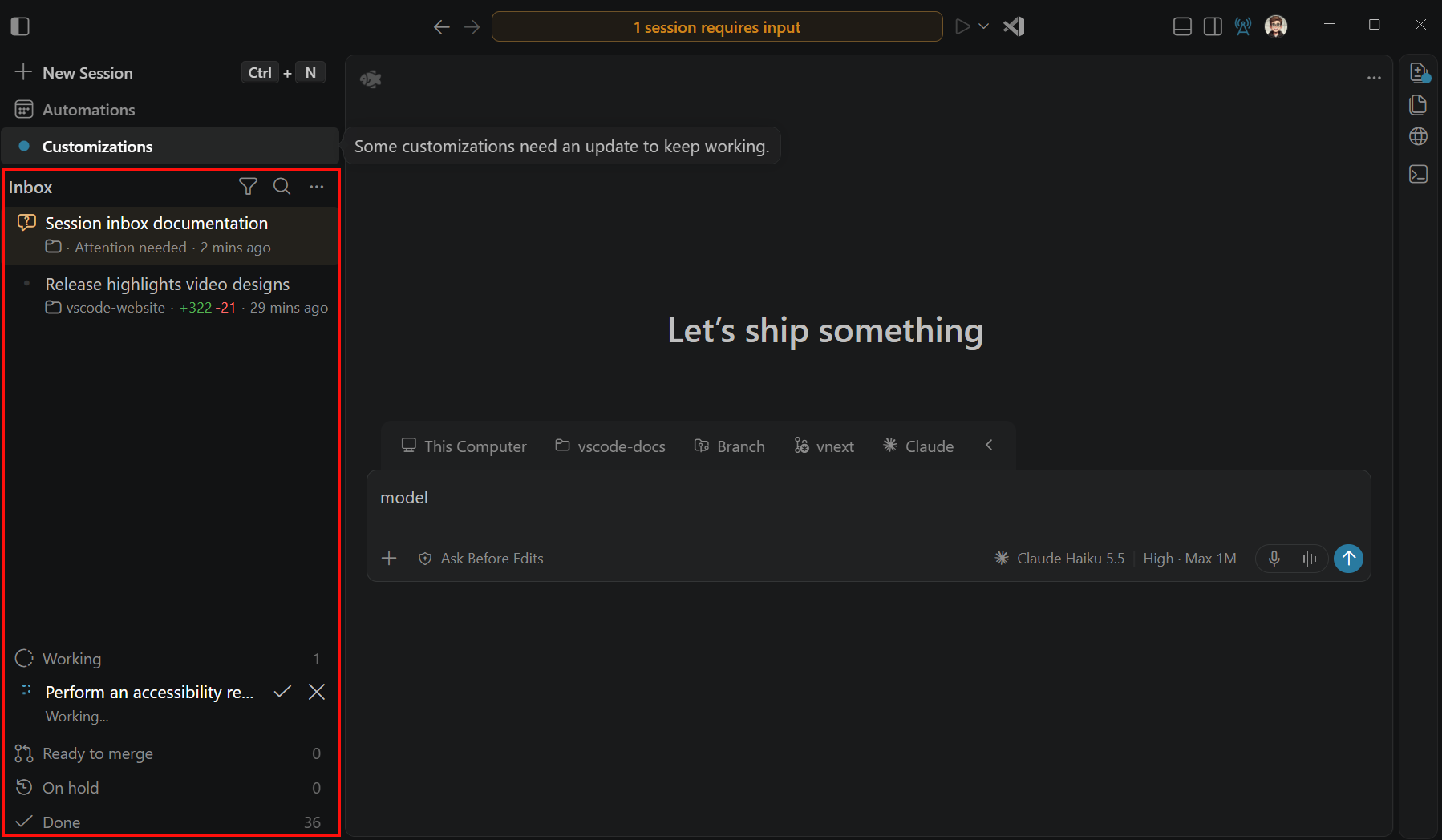
Pinned and Inbox appear above the other categories:
| Category | What to look for |
|---|---|
| Inbox | Work needing attention, such as questions, approval requests, errors, failing pull request checks, or completed responses to review. |
| Working | Sessions whose agents are still working. |
| Ready to merge | Sessions whose relevant open pull requests are all non-draft and have passing CI, with no other requests for attention. |
| On hold | Sessions you've put on hold or snoozed. |
| Done | Dismissed work and earlier completed sessions. Placement here doesn't by itself mean a session is archived. |
Failed, pending, or absent checks don't qualify a session for Ready to merge. Passing CI doesn't guarantee that a pull request can be merged. Review the changes before merging.
Dismiss, defer, or finish work
Right-click a session to choose a triage action. You can select multiple sessions to apply the same action together.
| Action | Effect |
|---|---|
| Dismiss from Inbox | Move the session to Done in Inbox mode without archiving it. New activity or notifications can bring it back. |
| Return to Inbox | Clear the triage choice. The session returns to the category appropriate to its current status. |
| Put on Hold | Keep the session in On hold until you return it to the Inbox workflow. |
| Snooze | Move the session to On hold until a chosen time or new activity, depending on the option you select. |
| Mark Session as Done | Archive the session, which can also clean up its worktree or container. |
Dismissing, holding, or snoozing a session doesn't stop its agent or archive the session. The row's close icon is Dismiss from Inbox; the checkmark is Mark Session as Done.
Select Undo in the notification to reverse a triage action. Triage choices persist after reloading the window.
To return to project-based organization, choose another option under Grouping. Switching grouping or turning off sessions.list.inboxEnabled preserves your custom organization and saved triage choices.
Fix checks and address comments from the sessions list
Ask an agent to resolve failing checks or existing review feedback without leaving your current conversation. These actions work across grouping modes and don't require Inbox mode.
-
Enable sessions.list.inlineActions in Settings (⌘, (Windows, Linux Ctrl+,)). It is off by default.
-
Select Fix Checks, Address Comments, or Fix Checks & Address Comments beneath the relevant session or nested chat. The combined action addresses checks and comments for the same pull request.
The request runs in that row's chat without opening it or changing your active draft. A top-level session row targets its main chat. Selecting multiple rows doesn't apply the action to all of them.
Actions appear for chats that have finished responding and can accept requests, with failed required checks or supported review feedback already available. Remote sessions must be connected.
Turning on this setting doesn't start work automatically, enable agent merge, or change permissions. A corresponding pull request action is hidden when agent merge is handling that blocker.
Move chats between sessions (Experimental)
Enable chat.agentHost.moveChats.enabled in the Agents window to reorganize conversations. It is on by default in Insiders.
These moves change how conversations are grouped, not where they work. History and working folders are preserved, including worktrees and temporary folders. Conversations sharing a worktree still share file changes after a move or promotion.
Reorder nested sessions: Select Filter Sessions > Ordering > Created to retain a manual order. Drag a nested session above or below a sibling, or use Move Up and Move Down in its context menu. With the row focused, use ⇧⌥↑ (Windows, Linux Shift+Alt+Up) or ⇧⌥↓ (Windows, Linux Shift+Alt+Down). Available commands depend on the row's position, and the order persists after reopening the window.
Move a conversation:
- Select Move to Session from a nested session's context menu to choose a destination session.
- Drop a nested session on another session to append it, or on the top or bottom half of a nested row to insert it there. Hover over a collapsed destination to expand it.
- Select Move to New Session from a nested session's context menu, or drag it to empty space below the list or a section header. Send at least one prompt before moving it to a new session.
- Drag a top-level session containing only one chat onto the center of another session, or above or below one of its nested rows, to nest it.
Source and destination must use the same host, the destination must support multiple chats, and neither session can be archived. By default, they must also use the same harness. Enable mixed-harness chats to move chats between sessions that use different harnesses. The moved chat keeps its harness, model, and permission settings rather than adopting the destination session's settings.
In Pinned and custom groups, dropping near a top-level row's top edge can reorder it instead of nesting it. An insertion line indicates reordering, and a highlighted destination indicates nesting.
A chat moved to a new session inherits the parent's custom group, but not its pinned state. A workspace-less conversation moved to a top-level session appears in Chats.
Moves don't ask for confirmation. A notice shows progress and the result. Select Undo within 10 seconds to restore the previous parent and position. A streaming response continues after a move. Linked subagent conversations, pull requests, and agent merge monitoring stay with the conversation, including after undo.
To change working files rather than grouping, move the chat to another folder or worktree.