Manage approvals and permissions
In VS Code, agent permissions control which actions an agent can take without asking you, such as editing files or running terminal commands. When a prompt appears, you can approve or decline the requested action. Depending on the harness, you can also save an approval for matching requests in the current session or across sessions.
How approvals work
Approving a command lets it run but doesn't expand its access. Sandboxing limits which files and network destinations the command can access, even after you approve it.
The available controls depend on the agent harness selected for your session, not the model. For example, a Copilot session that uses a Claude model still follows Copilot approval rules.
- Copilot approvals: choose a permission level, configure terminal command rules, or withdraw a saved approval.
- Claude permission modes: choose when to review edits and other tool calls.
- Codex approval presets: choose what the agent can access and who reviews approval requests.
- Local harness (deprecated): check compatibility differences for existing Local workflows.
Your organization can restrict which harnesses and permission levels are available. For example, when Copilot enterprise-managed settings apply, Claude and Codex aren't available unless your administrator permits them.
Copilot approvals
A tool approval gives Copilot permission to take a specific action, such as running a terminal command. When Copilot asks, you can approve or decline that action without changing the session's permission level.
The permission level is a session-wide preset that determines when Copilot asks for your approval. With Manual permissions, you review actions that aren't already approved. Assisted permissions uses a model to decide which actions need your review. Allow all skips ordinary tool confirmations. None of these levels overrides organization policy or expands sandbox access.
Tool approval
When a prompt appears, check the tool name, its inputs, and the command, path, or destination it will act on. Choose Allow Once if only this call should run, or Skip to decline it. If the command or its target is wrong, don't approve it. Tell the agent what to change.
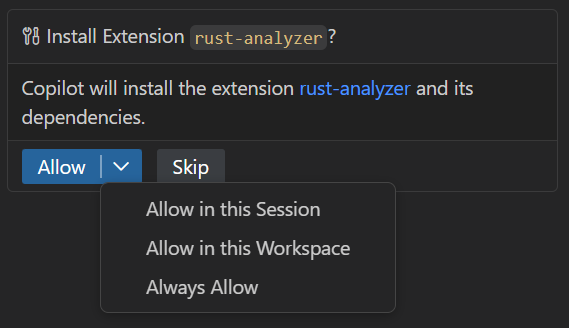
To approve similar calls without being asked each time, see Scope approvals in Copilot sessions.
Permission levels
In the chat input, open the permissions picker and choose how much review you want for the current Copilot session.
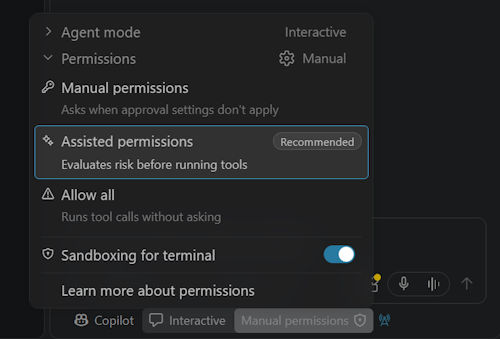
| Permission level | When to choose it |
|---|---|
| Manual permissions (default) | You want to review actions that the runtime hasn't approved and that no rule or saved approval covers. Manual doesn't mean that every command prompts. |
| Assisted permissions | You want a model to assess proposed actions and ask you about those that need review. The reviewer can make mistakes. You can give the reviewer instructions. |
| Allow all | You trust the workspace and want to skip ordinary tool confirmations, including for destructive actions. This doesn't override organization policy or grant access outside an enabled sandbox. |
To start new Copilot sessions with a particular permission level, set approvals in
chat.defaultConfiguration
. For example, to start with Assisted permissions, add this to your settings:
{
  "chat.defaultConfiguration": {
    "approvals": "assisted"
  }
}
You can change the level during a session. The session remembers your choice when you resume it. Your organization can set a managed default or restrict which levels you can select.
Autopilot is a mode, not a fourth permission level. It tells the agent to keep working, not which actions you've approved.
Scope approvals in Copilot sessions
A scoped approval lets you approve matching requests, such as fetches from the same host, without approving every use of the tool.
With Manual permissions, check what each option in the approval dropdown covers:
| Action | What you're approving |
|---|---|
| Terminal command | The exact command or a suggested prefix. For example, approving the prefix npm run build covers other arguments to that script, but not npm run deploy. |
| Web fetch | The displayed host. Approving https://example.com doesn't cover http://example.com or https://sub.example.com. |
| File read or edit | The selected file or, when offered, a folder. A folder approval covers the nearest parent Git repository, or the file's parent folder if there is no repository. Approval to read doesn't imply approval to edit. |
Then choose whether to approve this request once or save the approval for matching requests:
- Allow Once saves nothing. Choose it if you haven't decided whether similar calls should run automatically.
- In this Session applies when you continue or resume this session. A new session doesn't inherit the saved approval.
- Always Allow saves the approval for future sessions on the same Agent Host, including after a restart. Terminal approvals saved on a remote host stay there. You can't remove them from the local approval picker. Prefer one-time or session approval if you don't need it to persist.
These are tool approvals. A prompt to grant sandbox path access asks a different question and has different scopes.
Automatically approve terminal commands
A terminal approval rule matches a shell command or command pattern and specifies whether to run it without asking or request your confirmation. In a Copilot session with Manual permissions, not every command reaches these rules.
- Runtime approval: The runtime can approve a read-only or sandboxed command without checking terminal rules. A rule can't force a prompt for that command, and approval in chat can't override a policy block.
- Terminal rules: If the command still needs a decision, the Agent Host checks terminal rules and saved approvals together. An explicit ask rule wins over a matching allow rule or saved approval. If neither an explicit rule nor a saved approval matches, built-in rules allow some commands to run automatically and require confirmation for others.
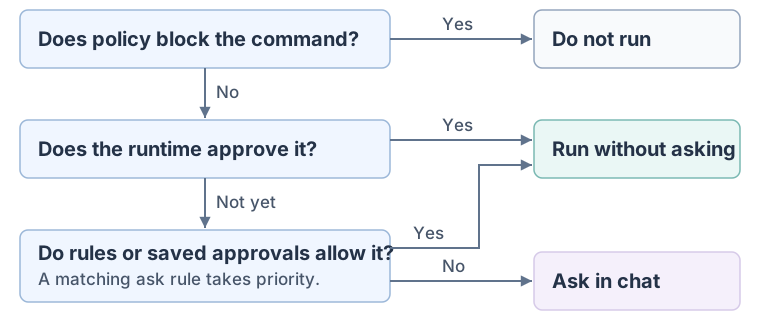
If the command still needs confirmation, review it in chat. You might see only Allow Once and Skip, for example if an explicit rule calls for confirmation, rule-based approval is off, or the shell command can't be analyzed safely.
Configure terminal approval rules
For Copilot sessions on your machine, add your rules to chat.tools.terminal.autoApprove in User settings, not Workspace settings. To view these settings, select the User tab in the Settings editor. If you connect to a remote agent session, your local terminal approval rules don't apply to that session.
Each entry pairs a command pattern with a decision: true lets a matching command run without asking, and false asks for confirmation rather than blocking it. For example:
{
  "chat.tools.terminal.autoApprove": {
    "npm run lint": true,
    "npm run build": false
  }
}
When a command reaches the rule check, npm run lint can run without asking. npm run build prompts, even if you previously approved it for the session. Running npm run lint && npm run build also prompts because the build requires confirmation.
Choose what to match. Use a plain command prefix such as "npm run lint" to include calls with additional arguments. To match only npm run lint without arguments, use an anchored regular expression as the key: "/^npm run lint$/".
By default, rules match each subcommand separately. To check the entire command line instead, use matchCommandLine: true. For example, this rule asks for confirmation when the command line contains the --fix flag:
{
  "chat.tools.terminal.autoApprove": {
    "/--fix\\b/": { "approve": false, "matchCommandLine": true }
  }
}
Change how rules are applied (optional). You don't need to change these settings to add a rule:
- To stop using both command rules and saved command approvals, turn off chat.tools.terminal.enableAutoApprove . This also removes the option to save a new command approval at the prompt. It doesn't change your permission level or force a prompt for commands the runtime already approves, including sandboxed commands.
- To review the built-in rules, run Preferences: Open Default Settings (JSON) from the Command Palette and search for
chat.tools.terminal.autoApprovein the read-only file. To ignore those defaults on the local Agent Host but keep your rules and saved approvals, leave rule-based approval on and turn on chat.tools.terminal.ignoreDefaultAutoApproveRules (Experimental).
Command matching is best effort. To restrict file or network access, use sandboxing. For settings specific to the integrated terminal tool, see the AI settings reference.
Manage tool approvals
To review a terminal approval saved with Always Allow on your machine:
-
Focus a session on the local Agent Host. Run Chat: Manage Tool Approval from the Command Palette (⇧⌘P (Windows, Linux Ctrl+Shift+P)).
-
Find the terminal command rule. Clear its checkbox to change it to an explicit ask, or select Delete to remove the rule from your User settings.
Deleting the rule withdraws that saved approval. The command might still run without asking because of another saved approval, a built-in default, or an earlier runtime decision. You can also edit chat.tools.terminal.autoApprove directly in User settings.
For an approval saved with In this Session, start a new session to work without it. The original session keeps the approval. If you chose Always Allow on a remote host, neither starting a new session on that host nor editing local User settings withdraws the approval.
The same command lists supported tool approvals for the active Agent Host, including approvals for an MCP server or its individual tools. In the client-managed tool picker, without approval lets a tool run without asking, while without reviewing result lets its result enter the chat context without review. Don't treat approving execution as trusting external content.
Reset tool confirmations
Chat: Reset Tool Confirmations clears client-managed tool confirmation preferences. It doesn't delete terminal rules from User settings, remove approvals saved on the Agent Host, or reset approvals on another host.
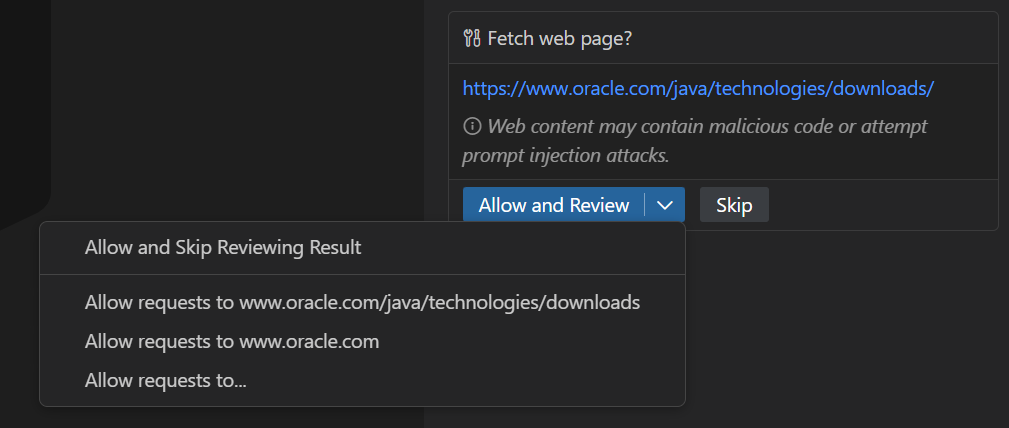
URL approval
URL approval controls whether Copilot can contact a website to retrieve information, such as API documentation. Approving the request doesn't mean you trust the content the site returns.
Review the destination in the web fetch prompt. In a session on your machine, Always Allow Fetching saves approval for requests to the displayed website in chat.tools.urls.autoApprove . Remote agent sessions keep their own saved approvals. See scope approvals to approve one fetch or limit approval to the current session instead.
Sandbox agent commands
Sandboxing limits which files a terminal command can read or change and which network destinations it can reach. These limits apply on the machine where the command runs, including to programs the command starts.
Your permission level determines when Copilot asks to run a command. Approving the command doesn't change its sandbox limits. For example, even with Allow all, a command can't write to a folder the sandbox marks read-only. With Manual permissions, a sandboxed command can run without a prompt and still face the same restriction.
If a command needs more file access, prefer allowing access to the specific path when offered. The command retries inside the sandbox. Allow Outside Sandbox is a different approval: it lets the command run without the sandbox's file and network restrictions.
To turn sandboxing on or off for the current session, select Sandboxing for terminal in the permissions picker. Your organization can require sandboxing. See agent sandboxing for platform support and configuration.
Advanced approval options
Customize Assisted permissions
With Assisted permissions, a model reviews proposed tool calls to decide whether they can run automatically or need your confirmation. Use chat.permissions.assisted.instructions to specify which actions it should ask you to approve and which it can approve automatically. For example, ask before installing packages or pushing changes, but approve test runs:
{
  "chat.permissions.assisted.instructions": "Ask before installing packages or pushing to a remote. Running tests doesn't need my approval."
}
These instructions guide approval decisions, not the tasks the agent performs. Changes apply to open sessions using Assisted permissions. Your instructions take precedence over the reviewer's default guidance, but can't override permission rules, organization policy, or sandbox restrictions. They are model guidance, not guaranteed checks.
The reviewer also considers your answers to questions and plan reviews, including when you decline an action. It doesn't treat requests from automations or other agents as requests you made yourself.
Autopilot mode
In Autopilot mode, Copilot continues working across turns without waiting for you to send another prompt, until it determines that your request is complete. Select Autopilot from the mode picker in the chat input.
Autopilot doesn't replace the session's permission level. With Assisted permissions, tool calls still undergo model-based review rather than receiving unrestricted approval. Sandbox restrictions also remain in effect. If an unattended Assisted permissions session needs a person to approve running outside the sandbox, that command can't proceed outside it.
By default, Autopilot relies on the agent to signal that the task is complete. Turn on the experimental chat.autopilot.advanced.enabled setting to have a separate model check progress against your original request after each turn. If it finds unfinished work, its feedback guides the agent's next turn.
Allow all tools globally
To skip ordinary tool confirmations across workspaces, turn on chat.tools.global.autoApprove in User settings. Unlike selecting Allow all for one session, this setting affects work in other workspaces too. Prefer the session's Allow all level when you only need automatic approval for one task.
Global auto-approval lets agents edit files, run commands, and call external tools without asking. Prompt injection in files or tool results, or an agent mistake, can cause unintended changes or actions on external services. Organization policies and sandbox restrictions still apply, but they don't eliminate these risks. Review the security implications before turning it on.
Tool auto-approval restrictions
Your organization can use a policy for chat.tools.eligibleForAutoApproval to mark specific tools as ineligible for automatic approval. In Copilot sessions, this removes Allow all from the permissions picker for the entire session, not just for the listed tools.
This restriction doesn't require you to approve every call to those tools. Assisted permissions or saved approvals can still let them run automatically. The same policy behaves differently in the deprecated Local harness The Local harness is deprecated and will be removed in February 2027. Move your workflows to the Copilot harness before then. Learn more about Local harness deprecation. . See tool approval policy by harness for details.
Claude permission modes
In a Claude harness session, the permission mode controls when the agent asks before editing files or using other tools. These modes are specific to the Claude harness, rather than the Copilot permission levels described above.
Open Approvals in the chat input to choose a mode. You can change it during the session as your task or review needs change.
| Mode | Approval behavior |
|---|---|
| Ask Before Edits (default) | Claude asks before editing files. |
| Edit Automatically | File edits proceed without confirmation. Claude asks before using other tools. |
| Plan Mode | Claude outlines the work before making changes. |
| Auto Mode | Claude decides which tool operations need your confirmation. |
| Bypass Permissions | File edits, terminal commands, and other tool calls run without asking. |
Choose Edit Automatically if you want to skip prompts for file edits but still review other tool actions. Choose Auto Mode if you want Claude to decide which actions need review. Auto Mode can still ask for confirmation, and its assessment can make mistakes.
Bypass Permissions removes the opportunity to review tool calls before they run. An agent mistake or prompt injection can cause unintended file changes, command execution, or actions on external services. Use this mode only in an isolated environment where you understand these risks.
Codex approval presets
In a Codex harness session, an approval preset determines both what the agent can access and who reviews requests for additional access. Changing the preset can therefore change the sandbox restrictions, not just whether you see approval prompts.
Use the permissions picker in the chat input to choose a preset. The following options apply to the experimental direct Codex integration. If you installed the OpenAI Codex extension instead, use that extension's permission controls.
| Preset | What the agent can access | Who reviews requests |
|---|---|---|
| Default Permissions | Read and edit workspace files and run routine commands within the sandbox. | You review requests for additional access, such as using the network. |
| Auto-Review | The same workspace sandbox as Default Permissions. | An automatic reviewer assesses requests instead of prompting you. |
| Full Access | Disk and network access without the Codex sandbox restrictions. | No approval prompt. |
Keep Default Permissions to review requests for access beyond the sandbox yourself. Choose Auto-Review to delegate those decisions to an automatic reviewer while keeping the same initial sandbox restrictions. The reviewer can make mistakes; Auto-Review isn't a guarantee that every approved action is safe.
If you switch to or from Full Access while a turn is running, select Apply Now in the confirmation dialog to stop that turn and continue with the new preset. Otherwise, the change applies with your next message after the turn finishes.
Full Access turns off the Codex sandbox and skips approval prompts. An agent mistake or prompt injection can cause unintended changes outside your workspace or actions on external services. Operating system permissions still apply, but they don't provide the same isolation as the sandbox.
Local harness (deprecated)
The deprecated Local harness The Local harness is deprecated and will be removed in February 2027. Move your workflows to the Copilot harness before then. Learn more about Local harness deprecation. uses the editor's tool approval controls and integrated terminal. Its permission levels and saved approvals differ from Copilot sessions. Use the guidance below for existing Local workflows. For new work, see Move to Copilot.
Local permission levels
In a Local session, open the permissions picker in the chat input:
| Permission level | What happens |
|---|---|
| Default permissions (default) | Uses your configured approval settings and asks when they don't approve an action. |
| Allow all | Automatically approves tool calls without asking. |
| Autopilot (Preview) | Automatically approves tool calls and continues working until the agent determines the task is complete. |
Unlike the Copilot harness, Local treats Autopilot as a permission level, not a separate mode. Assisted permissions isn't available. Use chat.permissions.default to set the starting level for new Local chats, rather than chat.defaultConfiguration .
Allow all and Autopilot skip ordinary tool confirmations. Agent mistakes or prompt injection can cause unintended changes. Use Default permissions when you want to review actions that aren't already approved.
Local tool and terminal approvals
When a tool asks for approval, review its inputs before allowing it to run. Where supported, you can approve only the current call or save approval for the session, workspace, or user profile. Run Chat: Manage Tool Approval to review client-managed tool approvals.
For terminal commands, configure chat.tools.terminal.autoApprove in User or Workspace settings. Unlike the Copilot shell, the Local integrated terminal applies Workspace rules. The terminal prompt can also offer session-only rules or save a rule to User or Workspace settings.
Set a tool to false in
chat.tools.eligibleForAutoApproval
to require manual approval for that tool and remove its auto-approval option. Local also has different sandbox behavior. Turning off rule-based terminal approval doesn't force a prompt for commands already approved through sandboxing or the session's permission level.
Local URL approvals
Local tools such as #web/fetch can ask for two separate approvals:
- Request approval: contact the URL or domain.
- Response approval: add the returned content to the chat context, where the model can use it.
Approving the request doesn't approve the response. A domain in Trusted Domains doesn't need request approval, but its response can still need review.
In
chat.tools.urls.autoApprove
, use approveRequest and approveResponse to configure those decisions separately for a URL pattern. For example, approveRequest: true and approveResponse: false permit the request but retain review of its response. A boolean value sets both decisions.