View source control history
Source control history helps you understand how a codebase changed, which commits affected a file, and who last changed a line. VS Code provides the Source Control Graph for repository history, the Timeline view for file history, and Git blame information for individual lines.
- Inspect or compare commits in the Source Control Graph.
- Review a file's revisions in the Timeline view.
- Find who last changed a line with Git blame.
View branch and commit history
The Source Control Graph in the Source Control view (⌃⇧G (Windows, Linux Ctrl+Shift+G)) shows your commit history and branch relationships. When your branch has an upstream branch, the graph also identifies incoming and outgoing commits.
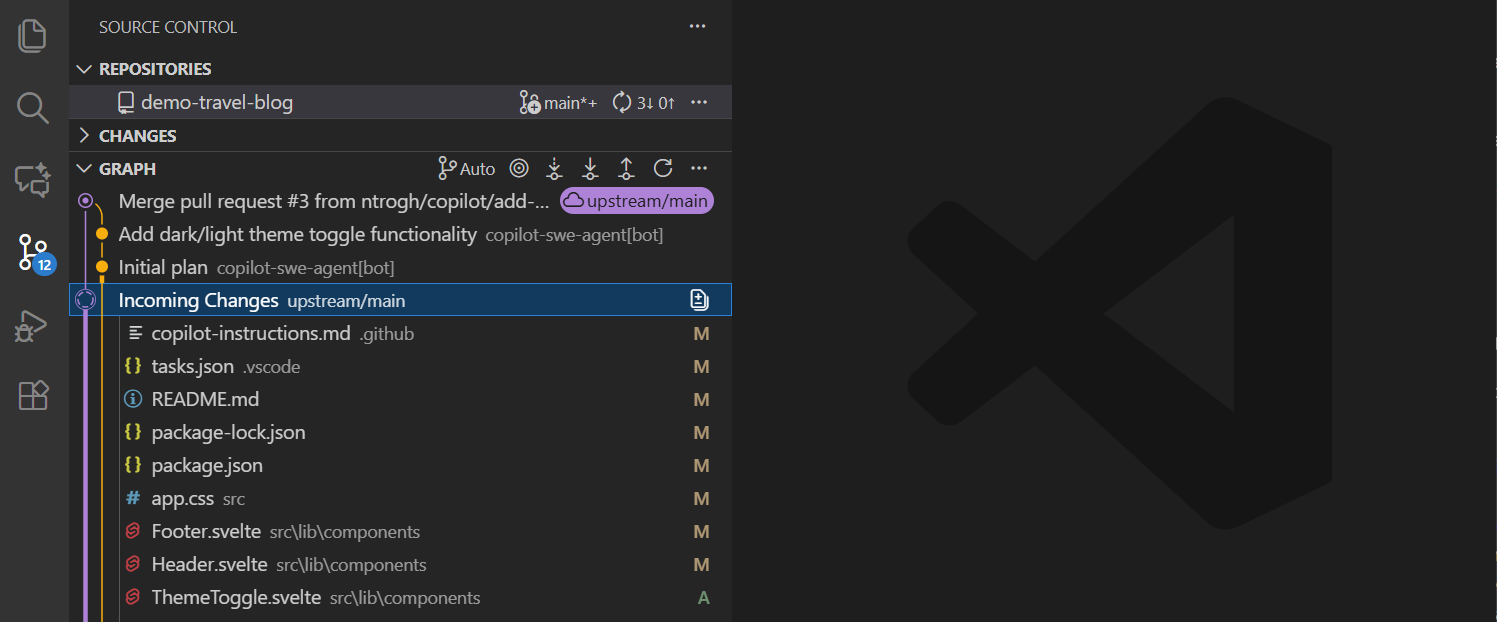
Inspect a commit
-
In the Source Control Graph, select a commit to expand its list of changed files.
-
Select a changed file to open its diff.
To review the commit's changes together in a multi-file diff, right-click the commit and select Open Changes. Selecting a commit to inspect it doesn't check it out or change your working files.
Changed binary files, such as images, remain in the multi-file diff and show Binary file changed instead of a text diff. When both file versions are available, select Open Diff to open the file in the normal diff editor, such as an image diff or applicable custom editor.
Compare a commit with a branch or tag
-
In the Source Control Graph, right-click the commit you want to compare.
-
Select Compare with....
-
In the reference picker, select a local branch, remote branch, or tag.
The comparison opens in a multi-file diff. The selected reference is on the left and the commit is on the right.
The commit's context menu also provides these shortcuts when the current branch has the corresponding references:
- Compare with Remote compares the commit with the current branch's upstream reference.
- Compare with Merge Base compares the commit with the base branch that VS Code identifies for the current branch.
These actions compare committed revisions and don't switch your checked-out branch.
Apply or check out a commit
- To apply a commit's changes to your current branch, right-click the commit in the Source Control Graph and select Cherry Pick.
- To check out the exact revision, right-click the commit and select Checkout (Detached).
Checkout (Detached) updates your working files and leaves HEAD detached from any branch. Create a branch before making commits you want to keep.
Understand incoming and outgoing commits
The graph identifies commits that differ between your current branch and its upstream branch:
- Incoming commits are available on the remote and have not been pulled.
- Outgoing commits exist locally and have not been pushed.
Select an Incoming Changes or Outgoing Changes entry to inspect its files, or right-click an individual commit and select Open Changes. Use the graph toolbar to fetch, pull, push, or sync changes.
View file history with the Timeline view
The Timeline view shows events for the file that is active in the editor. These events can include Git commits and local file saves.
-
Open a file in the editor.
-
In the Explorer view (⇧⌘E (Windows, Linux Ctrl+Shift+E)), expand the Timeline view.
-
Select an event to inspect the corresponding file changes.

Use the Timeline filter to show only Git commits or to include events from other timeline providers. Learn more about the Timeline view.
To compare two committed versions of the same file:
-
In the Timeline view, right-click a Git commit and select Select for Compare.
-
Right-click another Git commit for that file and select Compare with Selected.
The diff shows the first selected revision on the left and the second on the right. This compares file revisions, not all files in those commits. To identify who last changed a particular line in the current file, use Git blame.
View Git blame information
Git blame information identifies the commit and author that last changed a line. VS Code can show this information in the editor and in the Status Bar.
-
Open a tracked file and place the cursor on the line you want to inspect.
-
If inline blame is hidden, run Git: Toggle Git Blame Editor Decoration from the Command Palette (⇧⌘P (Windows, Linux Ctrl+Shift+P)). Use Git: Toggle Git Blame Status Bar Item to show or hide the Status Bar version.
-
Hover over the blame decoration to view commit details.
The hover includes co-author trailers. If VS Code adds AI co-author attribution to a commit, the blame hover includes that attribution.
Configure history views
Configure the Source Control Graph
Use the scm.graph.showIncomingChanges and scm.graph.showOutgoingChanges settings to control whether incoming and outgoing commits appear. Use the scm.graph.pageSize setting to configure how many commits the graph loads initially and each time you load more.
Customize blame information
- git.blame.statusBarItem.enabled : shows blame information in the Status Bar.
- git.blame.editorDecoration.enabled : shows blame information inline in the editor.
- git.blame.editorDecoration.disableHover : hides the blame hover in the editor.
- git.blame.ignoreWhitespace : ignores whitespace changes when Git determines line authorship.
Use the git.blame.editorDecoration.template and git.blame.statusBarItem.template settings to choose which commit details appear.
For example, the following template shows the commit subject, author name, and relative author date:
{
  "git.blame.editorDecoration.template": "${subject}, ${authorName} (${authorDateAgo})"
}
Use the git.blame.editorDecorationForeground theme color to change the color of inline blame information.