Use artifacts in agent sessions
The artifacts panel in Visual Studio Code surfaces important resources, such as screenshots, plans, and documents, alongside the chat conversation. Artifacts can come from multiple sources simultaneously and are displayed in a collapsible tree control, grouped by origin.
The features on this page work in both the Chat view and the Agents window.
To enable the artifacts panel, set
chat.artifacts.enabled
to true.
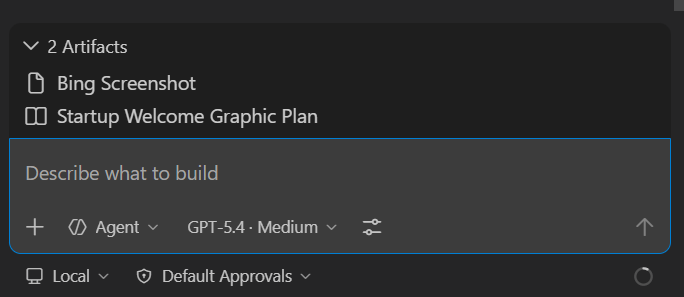
Artifacts and references
Agent sessions can surface both artifacts and references next to the chat input. Artifacts represent notable results or resources the session works on, while references provide supporting information that the session only consults.
For GitHub issues and pull requests, an item is an artifact when the session works on it, even if the item existed before the session started. An issue or pull request that the session only uses for information is a reference.
Artifact sources
Artifacts can appear in the panel from different sources, which are merged and grouped by origin:
- Rules-based extraction: VS Code automatically extracts artifacts from conversation content based on configurable MIME type patterns, file path globs, or memory file paths. For example, the built-in rules surface screenshots and plan documents. See Configure artifact extraction rules for details.
- Agent-set artifacts: the agent explicitly sets artifacts by using the
#artifactstool. Each update replaces the previous agent artifact list. - Subagent artifacts: when the agent delegates work to subagents, each subagent can set its own artifacts, shown in separate groups labeled with the subagent's name.
Configure artifact extraction rules
Rules-based extraction uses three settings, each mapping a pattern to a group configuration. The group configuration has a groupName (display label) and an optional onlyShowGroup flag (when true, only the group header is shown instead of individual items).
| Setting | Description | Default |
|---|---|---|
| chat.artifacts.rules.byMimeType | Match tool results by MIME type pattern, such as "image/*". |
{ "image/*": { "groupName": "Screenshots", "onlyShowGroup": true } } |
| chat.artifacts.rules.byFilePath | Match workspace files by glob pattern, such as "**/*plan*.md". |
{ "**/*plan*.md": { "groupName": "Plans" } } |
| chat.artifacts.rules.byMemoryFilePath | Match memory tool writes by glob pattern, such as "**/*plan*.md". |
{ "**/*plan*.md": { "groupName": "Plans" } } |
For example, to add a rule that surfaces HTML files written by the agent as artifacts, add the following to your settings:
"chat.artifacts.rules.byFilePath": {
    "**/*.html": { "groupName": "Web Pages" }
}
To disable rules-based extraction entirely, set all three rule settings to {}.
Use artifacts
When artifacts are available, the artifacts panel appears alongside the conversation. Artifacts are organized in groups based on their source.
- Select an artifact to open the corresponding resource. For example, selecting an image artifact shows a preview, while selecting a document artifact opens the file in the editor.
- Artifacts from the agent replace the previous agent list each time the agent updates them.
- Each subagent's artifacts are shown in a separate group. You can clear a specific subagent's artifacts independently.
- Rules-based artifacts update automatically as the conversation progresses. If you change the rule settings, the artifacts panel reflects the updated rules.
Remove an artifact or reference
To remove an individual recorded item, hover over or focus the item next to the chat input, and then select its remove action. If a group contains multiple items, first select the group to open the list. The removal persists when you reload or reopen the session.
Removing an item deletes only its record from the current session. It doesn't delete a file or website, revert file changes, or modify an issue or pull request.
Not every displayed item is removable. The remove action is available only when the session provider supports removal and the recorded item has a stable ID. An issue or pull request association that VS Code discovers independently might remain visible or reappear after you remove a recorded item. Derived file changes and independently discovered associations can't be removed with this action.
Ask the agent to create artifacts
You can ask the agent to store something as an artifact by describing what you want in your prompt. For example:
- "Take a screenshot of my app and set it as an artifact"
- "Write a project plan and set it as an artifact"
- "Save these links as artifacts"
The agent then uses the #artifacts tool to add the resource to the artifacts panel. You don't need to reference the tool directly. Just describe what you want to keep, and the agent determines when to surface it as an artifact.
The agent can also use the #artifactRules tool to override the extraction rules for the current session. This replaces any settings-based rules for the duration of the session.