Add context to chat
Providing relevant context helps the AI give more accurate responses. Add files, folders, symbols, images, web content, and other information directly to your prompt when you want the AI to consider specific details.
Unless otherwise noted, the features on this page work in both the Chat view and the Agents window.
For background on what context is and how VS Code assembles it, see Context concepts.
#-mentions
You can explicitly add context to your prompt by typing # followed by the context item you want to mention. VS Code supports different types of context items: files, folders, code symbols, tools, terminal output, source control changes, and more.
Type the # symbol in the chat input field to see a list of available context items, or select Add Context (+ icon) in the Chat view to open the context picker.
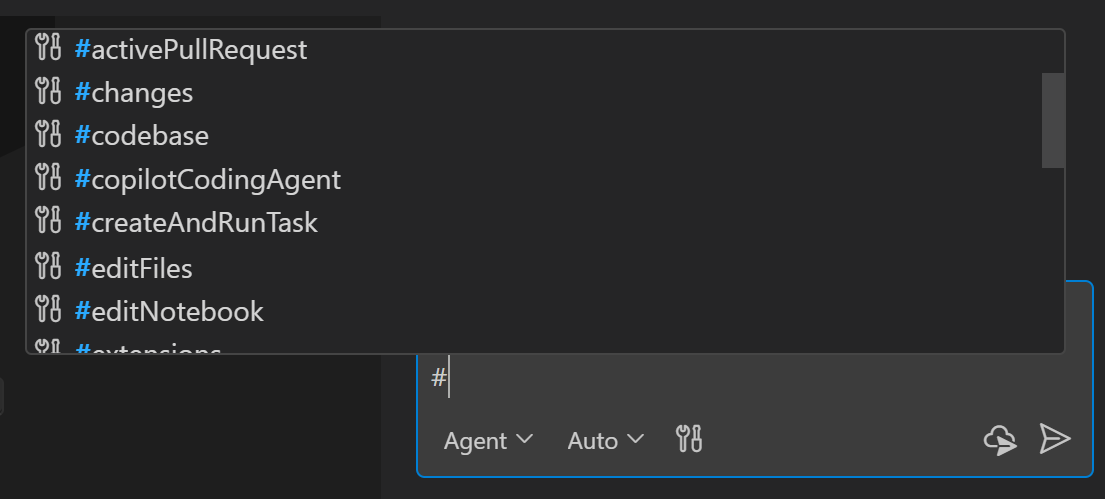
For tool names and context references, see the Tools and context reference.
Add files as context
Agents can use workspace search and file-reading tools to gather relevant context. A workspace index helps locate code, but doesn't attach every file to the conversation. Add specific files, folders, or symbols by using #-mentions or the context picker when you know which sources the agent should consider.
To provide specific files, folders, or symbols as context, add them to the chat using the following methods:
-
#-mention the file, folder, or symbol in your chat message by typing
#followed by the name of the file, folder, or symbol. To reference a symbol, make sure to open the file containing the symbol in the editor first. -
Drag and drop files or folders from the Explorer view, Search view, or editor tabs onto the Chat view to add them as context.
-
Select Add Context (
+icon) in the Chat view and select Files & Folders or Symbols from the Quick Pick.
Use #codebase to request a search for relevant code across the workspace. It doesn't add the entire codebase to the model's context. Learn about workspace search and indexing.
Add project and GitHub context
When you start a session in the Agents window, the first folder or repository you select is the primary execution workspace. It determines where the agent runs and changes files.
You can attach project and GitHub context to a request:
-
In the Agents window, select Folder or Repository to attach another project. An attached project provides request context and doesn't become another workspace root.
-
In any chat input, select Add Context (
+icon), and then select Issue... or Pull Request.... If multiple GitHub repositories are available, select a repository before you choose the issue or pull request. -
Paste a GitHub issue or pull request URL directly into the prompt. The URL remains in the prompt, and VS Code automatically adds the item as a context attachment.
You can attach multiple items. The attachments are preserved in a draft and included when you send the request. Learn more about starting an agent session in the Agents window.
Reference content from the web
You can reference content from the web in your chat prompts, for example to get the latest API reference or code examples.
You can directly include a URL in your prompt to get information from that webpage, or use the #fetch tool to indicate that you want to retrieve content from the web. For example:
"What are the highlights of the latest VS Code release #fetch""Update the asp.net app to .net 9 #fetch https://learn.microsoft.com/en-us/aspnet/core/migration/80-90"
VS Code caches the content of the web page for a limited time to improve performance. If the content of the page changes, you can force a refresh by restarting VS Code. If the page cannot be reached, the cache will expire after a short time (approximately five minutes).
VS Code prompts for confirmation before accessing external URLs to protect your privacy and security. Learn more about configuring URL auto-approval.
Learn more about using tools with agents.
@-mentions
Chat participants invoked with @name are deprecated and are not supported in the Copilot harness. They remain available for Local harness compatibility.
Ask Copilot directly about your code, terminal output, or editor settings and attach the relevant context. For domain-specific integrations, use plugins with skills and MCP tools, or extension tools when editor context is required. See Replace chat participants.
Vision
Chat supports vision capabilities, which means you can attach an image as context to your chat prompt and ask questions about it. For example, attach a screenshot of a block of code and ask to explain it, or attach a sketch of a UI and ask the agent to implement it.
You can drag and drop an image from a web browser onto the Chat view to add it as context.
Add browser context
Use the integrated browser to preview web pages and attach information from the current page to a prompt.
The browser toolbar has an Add to Chat split button with actions that let you attach different types of context from the current page to your chat prompt:
- Add Element to Chat: select HTML elements from the page to add as context, including their CSS styles and screenshots.
- Add Screenshot to Chat: capture a screenshot of the current browser viewport and attach it as an image.
- Add Console Logs to Chat: capture console output from the page and attach it as context for debugging runtime errors.
Learn how to add browser context to chat. To let an agent interact with a page instead of attaching it as prompt context, see browser tools for agents.