Foundry Toolkit for Visual Studio Code
Foundry Toolkit is an extension for building, testing, deploying, evaluating, and monitoring AI applications and agents in Visual Studio Code. It brings local development tools and access to Microsoft Foundry resources into one workspace.
Use Toolkit to create agents, connect tools and knowledge, experiment with models, and investigate application behavior. This overview helps you choose a starting point and find the guide for your task, whether you are exploring an idea or working on an existing application.
Choose your starting point
Start with the task that matches your project, whether you are creating an agent, exploring an idea, or investigating an existing application.
| Goal | Toolkit capabilities | Get started |
|---|---|---|
| Build an application or agent. | Agent Builder, hosted-agent samples, and Copilot tools and skills. | Choose an agent development route. |
| Connect an agent to information and actions. | Tool Catalog, configured connections, and knowledge resources. | Discover and configure tools. |
| Explore a model's capabilities. | Model Catalog, chat and image playgrounds, and model client samples. | Discover and set up a model. |
| Investigate behavior and measure quality. | Agent Inspector, tracing, and dataset-based evaluation. | Debug an agent or run evaluations. |
| Deploy and test an agent in Foundry. | Hosted-agent deployment, remote playgrounds, and project resource management. | Deploy a hosted agent. |
Build applications and agents
An agent combines a model with instructions, tools, or application logic to complete a task. Toolkit provides different ways to create and iterate on that behavior:
- Use Agent Builder to configure a prompt agent's instructions and supported tools. You maintain the configuration, connections, and saved versions without a hosted-agent code project.
- Use hosted-agent samples or Copilot-assisted coding when you need custom logic, dependencies, or code-based orchestration. You maintain the code, tests, packaging, and deployment configuration.
Connect agents to external information and actions through Tool Catalog. Use the selected project's knowledge resources when the task requires retrieval from your data. Available integrations depend on the agent, model, service, and permissions.
Samples and coding assistance are creation methods, while workflows coordinate steps or agents. Routines (Preview) schedule or trigger an existing agent. See Create agents for the distinctions and supported starting points.
Explore and customize models
Use Model Catalog to find and deploy Foundry models, connect provider-hosted endpoints, or add supported local models. The source you choose determines where inference runs and which credentials, deployments, or runtime components you maintain.
In Model Playground, test prompts and model-specific parameters, compare chat responses, or generate images with a supported image-generation deployment. Use its client code samples to integrate a model into an application. A client sample is not a complete agent project or a deployed service.
For specialized model work, Toolkit also provides fine-tuning, model conversion, and Model Profiling (Preview). These experiences have model-specific, runtime-specific, and hardware-specific requirements.
Test, evaluate, and monitor
Use different tools to answer different development questions. An interactive test helps you inspect one execution; repeatable evaluations help you compare behavior across changes.
- Agent Inspector: Send requests to a locally running agent, inspect responses and tool calls, and debug its code. Available views depend on the agent's protocol and instrumentation.
- Evaluation: Assess models, prompts, and agents with datasets, built-in evaluators, or custom criteria. Choose local tests or Foundry evaluation based on your workflow.
- Tracing: Collect local telemetry or inspect hosted-agent traces to investigate model calls, tool activity, latency, and failures. Live Inspector events and stored traces are separate data sources.
Running your development tools or agent server locally does not mean every operation stays on your device. Requests to cloud models and live tools can consume quota, incur charges, or access external data.
Deploy and manage Foundry resources
Select a Foundry project to work with its models, agents, tools, knowledge, and evaluations from Toolkit. The project provides the cloud context for resource operations, so confirm the target before creating or changing resources.
For code-based agents, use hosted-agent deployment to deploy source code or a container image. After deployment, use the Hosted Agent Playground to test the remote agent and inspect its behavior. Local test results do not replace verification of the deployed version and its access to dependencies.
Saving a prompt-agent version, deploying hosted-agent code, and publishing an agent application are separate operations. Follow the Foundry agent lifecycle for service identity, permissions, publication, and production operations.
Install and setup
Install the current public extension, then follow the prerequisites for your chosen workflow. Foundry Toolkit includes the capabilities previously provided by the separate Microsoft Foundry extension.
- Install Visual Studio Code and the .NET Runtime.
- In the Activity Bar, select Extensions and search for Foundry Toolkit for VS Code.
- Select the Foundry Toolkit extension published by Microsoft, then select Install.
- Open Foundry Toolkit from the Activity Bar.
- For cloud resources, sign in and select a Foundry project. For local inference or an existing provider endpoint, follow the corresponding model setup procedure.
Azure sign-in is required when you use Foundry resources, but not for every local development task. Agent frameworks, model runtimes, and tool connections have their own prerequisites, which are covered in their task guides.
Under Help And Feedback, open What's New to review changes in your installed version. The public changelog identifies released features and previews.
Explore Foundry Toolkit
The Toolkit sidebar separates the resources you have from the actions you can take.
| Section | Use it to |
|---|---|
| My Resources | Open models, agents, tools, knowledge, and evaluations in the selected Foundry project, or manage local resources and recent items. |
| Developer Tools | Discover models and tools, build and test applications, and inspect evaluations and telemetry. |
| Help And Feedback | Ask Copilot, open getting-started material, read documentation and release notes, or report an issue. |
The following example shows these three sections in the default lifecycle layout. Tool availability depends on your platform and installed runtime components.
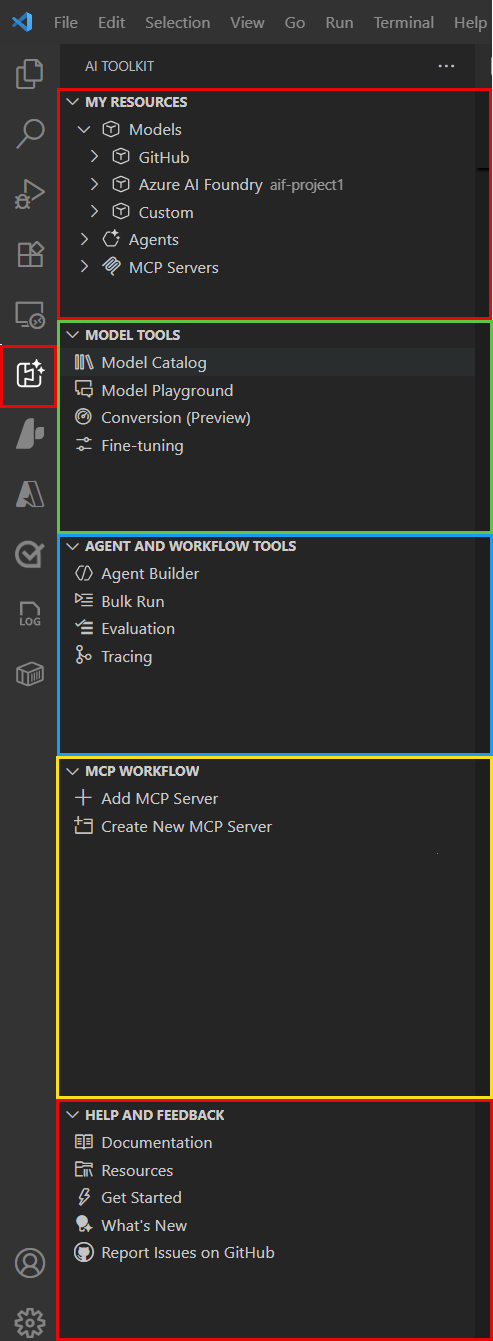
In the default layout, Developer Tools groups actions under Discover, Build, and Monitor. Use the catalogs to find models and tools, the build tools to create and test agents or models, and the monitoring tools to investigate behavior and quality.
For Foundry deployments, Toolkit uses your selected project as its default cloud context. Confirm that project before you create resources. The Foundry project setup guide covers sign-in, project selection, and switching projects.