Create and deploy a hosted agent in Foundry Toolkit for VS Code
Hosted agents run your agent code in Microsoft Foundry Agent Service. Choose a hosted agent when you need custom logic, code-based orchestration, or control over dependencies that a prompt-agent definition doesn't provide. You maintain and test the code and its dependencies. Foundry manages the hosting infrastructure and scaling. For a comparison with prompt agents, see Choose an agent type.
In this article, you use Foundry Toolkit for Visual Studio Code to create a Python Agent Framework sample, test it locally with Agent Inspector, and deploy its source code to Foundry. The sample uses the Responses protocol for conversational requests. After deployment, you test the remote agent and inspect its status, versions, and logs.
Prerequisites
For the Python walkthrough, prepare:
- Visual Studio Code with the current public Foundry Toolkit extension. See Install Foundry Toolkit.
- Python 3.13 and the Python extension, including Python debugger support. Use a Python environment for the sample's dependencies.
- An Azure subscription and a Foundry project in a region that supports hosted agents.
- A deployed Foundry model compatible with the sample's chat client. The basic sample is configured for
gpt-5.4-mini, so use an existing deployment of that model for this walkthrough. See Deploy a model to Microsoft Foundry. Other samples can have different model requirements. - The Azure CLI for local authentication, and permission to deploy to the project. The hosted-agent permissions reference explains deployment, registry, and runtime permissions.
The main source-code deployment path doesn't require a local Docker build. Container images and Activity Protocol samples have additional requirements, described in their branches below. GitHub Copilot is optional for the project validation step.
Create a new hosted agent
Create a local project from a sample before changing its behavior. This gives you agent code, dependency declarations, and a deployment configuration that you can keep in source control. For a comparison of samples, Agent Builder, and Copilot-assisted coding, see Choose a creation route.
-
Select Foundry Toolkit in the Activity Bar. Under Developer Tools > Build, select Create Agent.
-
Under Code an agent from samples, choose one of three hello-world starters: Agent Framework, Copilot SDK, or LangGraph. For this walkthrough, select Agent Framework to open the Create tab with the basic Responses sample selected.
To explore more options, select Browse all samples instead. In Create Hosted Agent from Sample, search or filter by Language, Framework, and Protocol Type. To follow this walkthrough from the gallery, select the Python Agent Framework Basic Hosted Agent sample, then select Next.
The catalog can refresh independently of the extension. If the sample is labeled Basic, select the Agent Framework Responses sample for basic requests and multi-turn conversations.
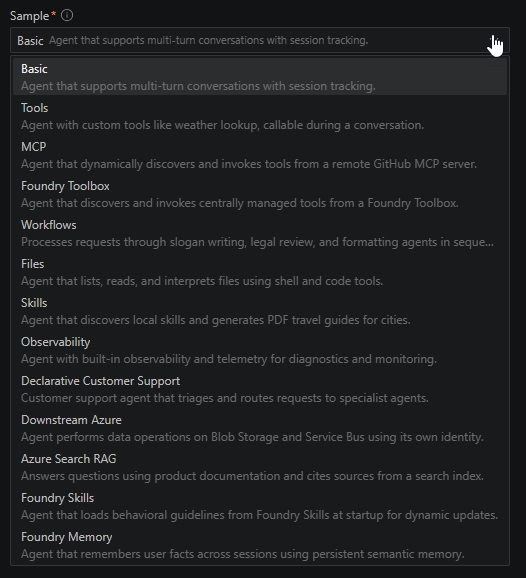
-
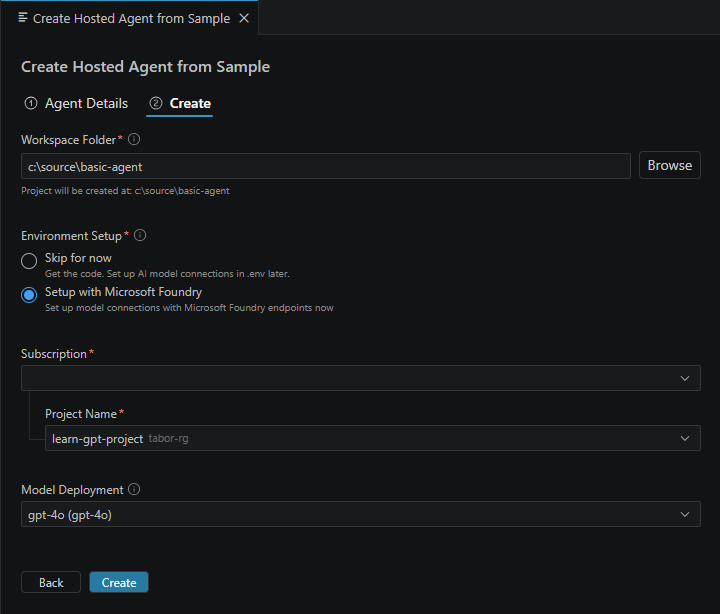
On the Create tab, select Workspace Folder. If the selected folder already contains files, enter a Folder Name for a new child folder. Review the destination shown in the form.
-
If Environment Setup is shown, select Setup with Microsoft Foundry, then select your subscription and project. When a default project is already selected in the Toolkit, the form uses that project.
-
Select an existing compatible Model Deployment. For this walkthrough, reuse the model prepared in the prerequisites.
Skip for now lets you generate code without finishing model setup. You must complete the model configuration before running the agent. Selecting Deploy & use new model, when offered, provisions a model deployment, not the hosted agent.
The following screenshot shows example settings with local paths redacted. Use your own destination and the model deployment prepared for this walkthrough.
-
Select Create and open the generated project's
README.md. The Toolkit can reuse the current window or open another window, depending on the destination and open workspace.
For this sample, keep the folder that contains azure.yaml open as the workspace root. The generated project separates deployment settings from agent source:
| Artifact | Purpose |
|---|---|
azure.yaml |
Declares the hosted-agent service, source directory, runtime, protocols, and deployment configuration. |
src/agent-framework-agent-basic-responses/main.py |
Implements the agent and starts its Responses server. |
requirements.txt and .env in that source directory |
Declare Python dependencies and local project and model configuration. The Toolkit creates .env from the sample's .env.example. |
.vscode/launch.json and .vscode/tasks.json |
Configure local launch, debugger attachment, and Agent Inspector. |
Creating these files is not cloud deployment. Other samples can have different layouts. Use their README.md and the service's project path in azure.yaml to locate the source.
Choose another protocol or sample
The sample gallery also offers other frameworks, C#, and custom-code starting points. Filters show compatible sample combinations, not a promise that every framework supports every protocol. Selecting a sample chooses an implementation. Changing a protocol name in a configuration file doesn't add that protocol to your server.
Use the following table to decide when to take a different path. See Hosted-agent protocols for the service contracts.
| Protocol | Use it for | Local testing |
|---|---|---|
| Responses | Conversational requests, streaming responses, and multi-turn interactions. | Use Agent Inspector with the running Responses server. This is the walkthrough's path. |
| Invocations | Custom JSON payloads, webhooks, or non-conversational processing. | Use the HTTP Invocations view in Agent Inspector with the sample's request format. |
| Invocations (WebSocket) | Bidirectional streaming, such as real-time voice. | Use the sample's WebSocket client. The HTTP Invocations view isn't a WebSocket client. |
| Activity | Agents that handle Microsoft 365 or Teams activities. | Python Activity scaffolds use Microsoft 365 Agents Playground. Follow the sample's platform and tool prerequisites. |
For C#, install the SDK and debugger required by the selected sample and use its generated launch configuration. See C# debugging for debugger controls and configuration. A Toolbox-connected sample also needs tool configuration and runtime access. Follow Tool Catalog setup rather than treating model setup as tool authentication.
Run and test locally
Test the basic agent before adding custom behavior or deploying it. Its server runs on your computer, but model requests go to the configured Foundry deployment and can incur charges. The steps below use this sample's generated configuration. For the shared playground and inspection controls, see Use the Inspector.
-
In the generated workspace, use Python: Create Environment or Python: Select Interpreter to select a Python 3.13 environment. See Create environments or Select an environment for setup details.
-
Open a terminal with that environment active. Change to the sample's source directory,
src/agent-framework-agent-basic-responses, and install its dependencies:python -m pip install -r requirements.txtThe sample includes
debugpyfor debugging. -
Check the source directory's
.env. SetFOUNDRY_PROJECT_ENDPOINTto your project endpoint andAZURE_AI_MODEL_DEPLOYMENT_NAMEto the compatible deployment name if setup didn't fill them in. -
Sign in for the local agent's Azure credentials:
az login -
In Run and Debug, select Debug Local Agent HTTP Server and press
F5. Keep the generated workspace root open. The tasks start the server on port 8088, open Agent Inspector, and attach the debugger. -
Send a message such as
Suggest a name for a weather app., then ask a related follow-up. Set a Python breakpoint when you need to inspect your own code.
Opening Agent Inspector alone doesn't start the server. If the connection fails, check the terminal output, selected interpreter, dependencies, credentials, and whether port 8088 is available. For debugger-specific failures, see Python debugging troubleshooting. Inspection features depend on the server and its instrumentation. Not every sample provides a workflow graph.
After the basic interaction works, modify the agent and repeat the local test. If you add tools, use a request that requires a real tool result and inspect the call. A model-only answer or a mocked tool response doesn't prove that the live integration works.
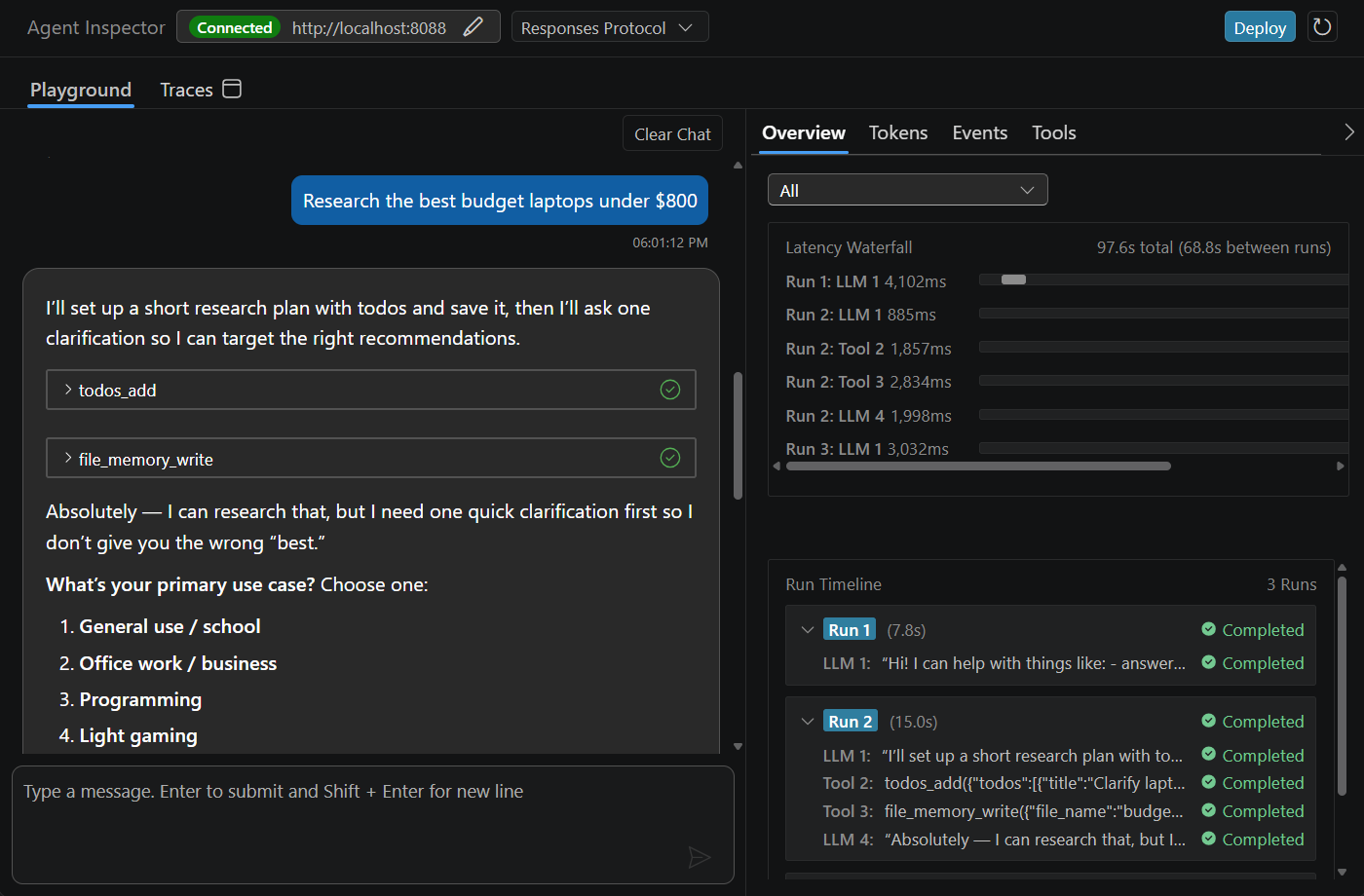
The following example shows a local agent with tools, rather than the basic sample. Agent Inspector displays the response and tool calls alongside a latency waterfall and run timeline.
Optionally, run /validate-microsoft-foundry-hosted-agent in GitHub Copilot Chat to review the project against Foundry best practices and open a report. This is a Chat command, not a terminal command or a substitute for running the agent. For help modifying agent code, see Foundry Toolkit's Agent Code Gen tool.
Deploy your hosted agent
Deploy the project only after its local behavior meets your needs. This walkthrough uses Code with Remote package mode: the Toolkit uploads source code as a ZIP, and Foundry installs its dependencies during provisioning. For service-side requirements and packaging details, see Deploy a hosted agent from source code.
Before opening the deployment wizard, review and save the hosted-agent service in azure.yaml. Preserve the sample's protocol configuration and declare the model and other runtime settings there. Deployment resolves declared environment values from the source directory's .env or process environment. It doesn't forward every local .env entry.
Also review the source directory's ignore rules. The basic sample's .dockerignore excludes .env, the virtual environment, and Python caches. For ZIP deployment, a source-root .agentignore replaces the rules from .gitignore and .dockerignore. Preserve the required exclusions if you add one.
Don't commit or package secrets. Local sign-in doesn't transfer your user's permissions to the deployed agent. Configure runtime access through the agent's identity and supported connections, and review the hosted-agent permissions reference.
-
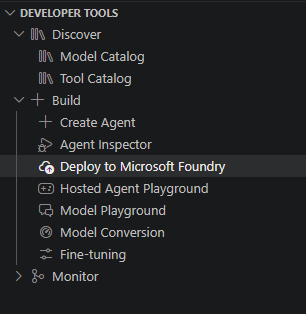
In the Foundry Toolkit sidebar, select Developer Tools > Build > Deploy to Microsoft Foundry.
-
If Foundry Project Setup appears, select the subscription and project, then select Next. Otherwise, confirm that the Toolkit's default project is the intended destination.
-
On Basics, select Code as the deployment method and Remote as the package mode.
-
Select New agent and enter a name. To release changes to an agent you already deployed, select Existing agent instead. This creates a new version rather than editing the previous version in place. Select Next.
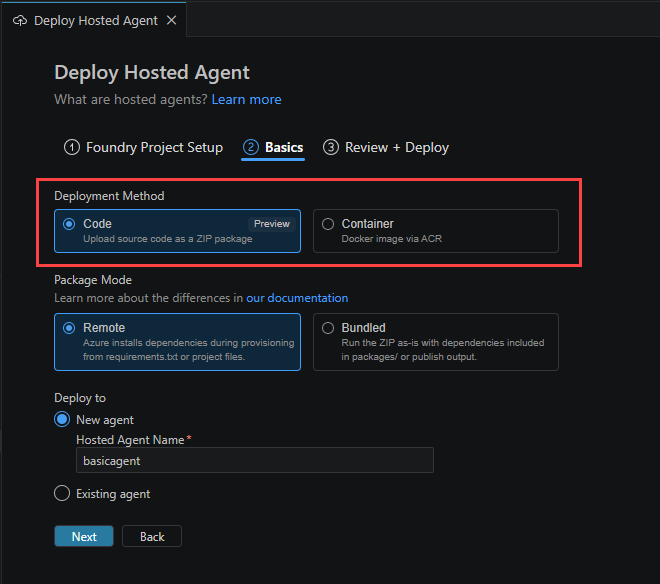
-
On Review + Deploy, review Language, Runtime Version, Entry Point, and CPU and Memory. For the basic Python sample, use Python 3.13 to match its manifest and local environment, with
python3 main.pyas the entry point. Confirm that the source directory matches the service'sprojectpath.The following screenshot shows example settings with Python 3.14 and a project-specific entry point redacted. For this walkthrough, select Python 3.13 and enter
python3 main.pyrather than using the example settings.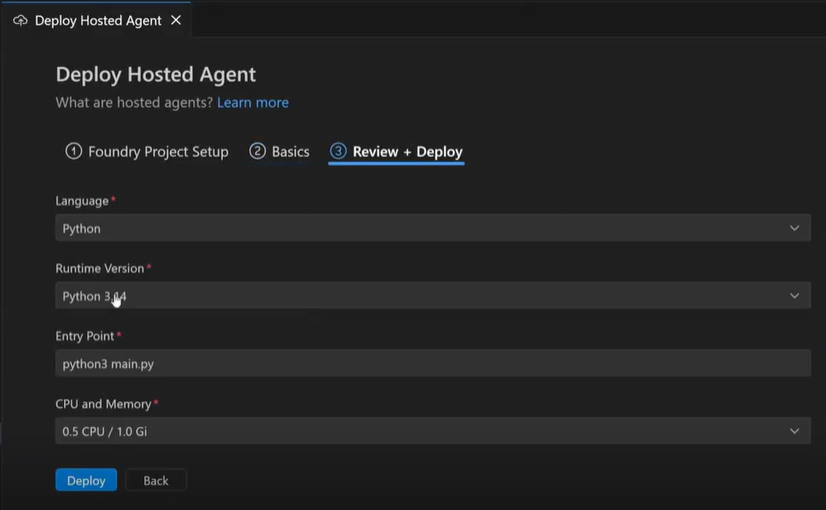
-
Select Deploy, then follow Deployment progress and success.
The Toolkit saves deployment choices to the project configuration when you submit the form. Those saved settings don't mean the cloud deployment succeeded. CPU and memory allocation affect runtime charges. See Hosted-agent pricing.
Deploy your hosted agent as source code in a ZIP package
Use the same deployment procedure for either ZIP package mode. Choose based on where you need dependencies prepared:
| Package mode | What happens | What to prepare |
|---|---|---|
| Remote | The Toolkit packages source. Foundry restores Python requirements or the .NET project during provisioning. | Source, dependency declarations, and a compatible entry point. This is the recommended starting point. |
| Bundled | The Toolkit stages source and runs the Package Command locally before creating the ZIP. Foundry runs the prepared package. | Compatible Linux dependencies. The default Python command prepares wheels in packages/. The .NET command creates publish output. Review the command and local tool requirements before deployment. |
The selectable ZIP runtimes are Python 3.13, Python 3.14, and .NET 10. Match the runtime to your agent and dependencies rather than accepting a default that differs from your local environment. See Supported hosted-agent runtimes for the service's runtime support policy.
Deploy your hosted agent as a Docker container via ACR
Choose Container on Basics when you need a custom runtime image or already have an image to deploy. Azure Container Registry (ACR) stores the image that Foundry runs. The registry choice determines what the Toolkit builds and what you maintain:
| Registry choice | Toolkit behavior | Your responsibility |
|---|---|---|
| Default ACR | Creates or reuses a registry for the selected project, then builds and pushes the image through ACR. | Review the Dockerfile, build context, resource access, and registry costs. |
| Custom ACR | Uses an existing registry you select, then builds and pushes through ACR. | Maintain the registry and grant the required build, push, and pull access. |
| Custom ACR image | Uses a prebuilt ACR image reference without building or pushing source. | Supply a compatible image with a tag or digest and the required registry access. |
For the first two choices, review the selected Dockerfile and source before continuing to Review + Deploy. If you generate a Dockerfile in the wizard, the Toolkit opens it for review. Use Continue Deploy when ready. These are remote ACR builds, not local Docker builds.
For either custom option, use a registry in the selected Azure subscription. Custom ACR image doesn't require a Dockerfile, but the Toolkit still checks registry permissions. This option doesn't configure private connectivity for you. The custom-registry build path rejects restricted public network access. Private-registry image deployment has separate service requirements. See Container deployment requirements and Foundry private networking.
Current hosted-agent deployments target Foundry Agent Service, not the retired Azure Container Apps hosted-agent path. Don't treat an older Container Apps agent as an in-place deployment target.
Deploy an Activity Protocol sample
An Activity sample adds channel setup to the agent deployment. First follow its README.md for local testing with Microsoft 365 Agents Playground. Python Activity debugging requires the sample's Node.js, npm, and shell setup. Don't use the Responses sample's Inspector procedure.
When the deployment wizard detects Activity, review the Azure Bot settings. The Toolkit can create or reuse a compatible Bot, configure the Teams channel, and generate a Teams setup guide. Follow that guide for the remaining app setup. Bot configuration can fail or be skipped after the agent itself exists, so confirm both results. Creating the agent and configuring its Bot are not the same as publishing a Teams app. See the current agent endpoint and publishing model for the service's channel-publishing guidance.
Deployment progress and success
The Toolkit reports deployment progress through notifications and Output. A successful create request doesn't prove that the runtime is ready or that its model and tools are reachable.
- Open My Resources > Agents > Hosted Agent and select the agent's name. For the Responses sample, the Toolkit also attempts to open its details after deployment.
- On Details, wait for the deployment status to indicate that the agent is running. If it fails, inspect the deployment output before retrying.
- Open Playground and send the same prompt and follow-up used locally. If you added tools, test a request that requires them.
Local and cloud runs use different credentials, dependency environments, and network paths. A local response doesn't guarantee a remote response. Activity deployments don't automatically open this playground. Use the sample's channel-testing path instead.
Inspect and update the deployed agent
Use the remote agent playground to test and inspect your deployed agent. Unlike local testing with Agent Inspector, requests in this playground run against the agent hosted in Foundry.
-
Select Foundry Toolkit in the Activity Bar. Under Developer Tools > Build, select Hosted Agent Playground.
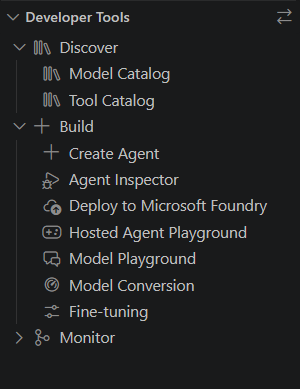
-
In the Hosted Agent dropdown, select the deployed agent you want to inspect. Open Playground to send requests and view the response and session details.
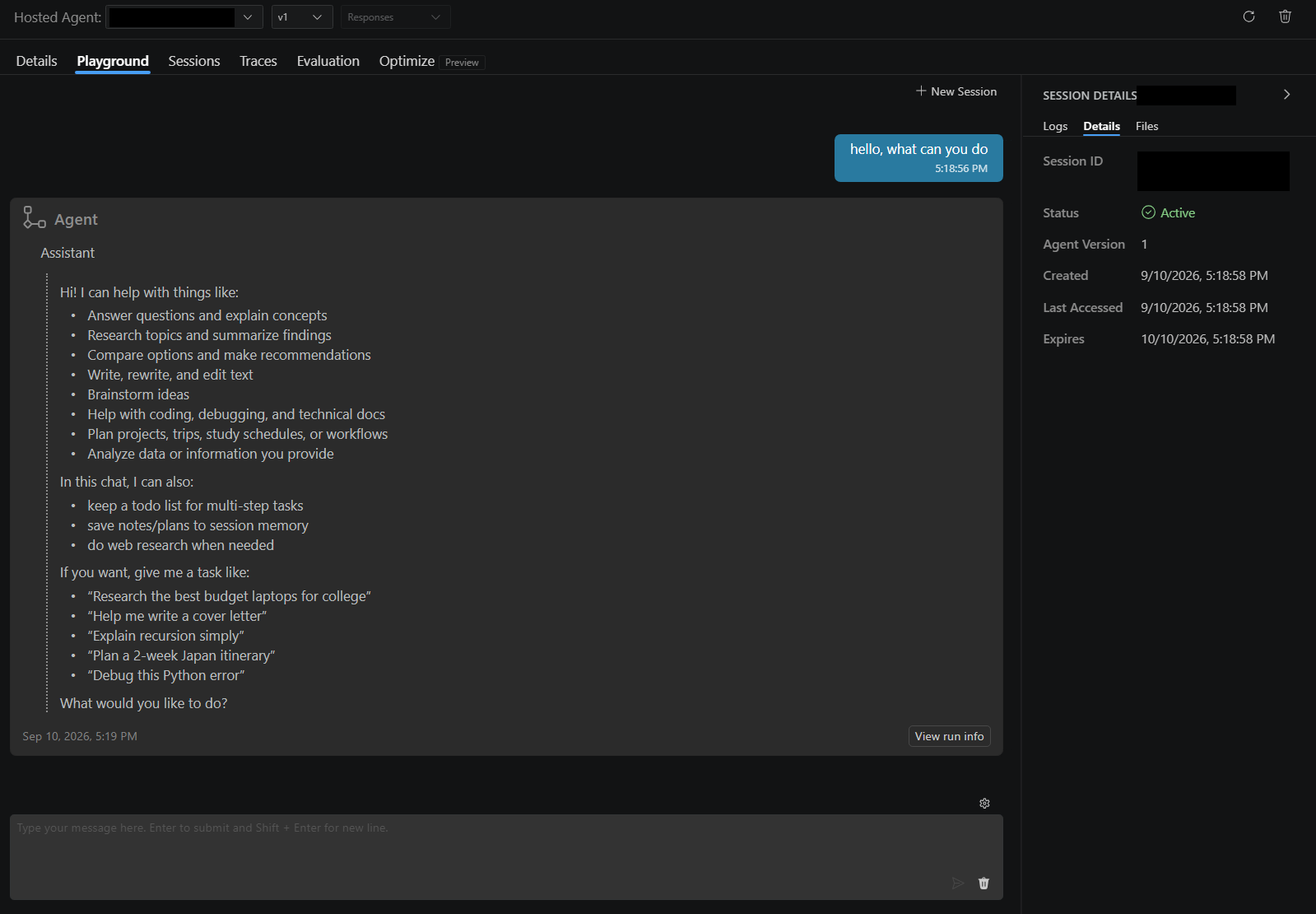
Use the following controls to inspect and update the agent. The available tabs depend on the agent, protocol, and connected services.
| Task | How to use it |
|---|---|
| Inspect deployment details | Use Details to review status, configuration, and the copyable endpoint. |
| Test a version | Select a numbered version for playground requests. Automatic follows the version selected by the service endpoint, which isn't necessarily the latest. This picker doesn't change routing for other clients. |
| Review sessions and logs | Use Sessions and the session's log view. Runtime logs need a session. Build output is separate. Stopping a log stream or canceling a request doesn't stop the hosted agent. |
| Retrieve deployed source | Download the code asset for a ZIP deployment. An image deployment exposes the image reference, not a downloadable source project. |
| Update behavior | Edit and test the local code, then repeat the deployment procedure with Existing agent to create a new version. |
| Remove the agent | Use Delete Hosted Agent and review the confirmation. Deletion removes the agent and its versions and sessions. It isn't a general cleanup of every associated Azure resource. See Manage hosted agents for service lifecycle operations. |
Use Traces and Evaluation, when available, to investigate behavior and measure quality beyond a single successful response. Follow the service prerequisites for hosted-agent tracing and hosted-agent evaluation. See Built-in evaluators for an overview of evaluation metrics. Local instrumentation is covered in Set up instrumentation.
Optimize is in preview and requires a Responses agent. It can compare generated candidates against a baseline before you choose a candidate to deploy. See Hosted-agent optimization for the service workflow.
Deployment gives the agent an endpoint for programmatic use. A separate publication step isn't required for API access. Distribution through Teams or Microsoft 365 is a separate task. See the current agent endpoint and publishing model.