Extending agents with MCP servers
MCP servers connect agents to external tools and data sources. In this guide, you will install an MCP server, use one of its tools in chat, choose the right configuration scope, and decide when to sandbox the server.
Prerequisites
Before you start, install VS Code, enable AI features, and sign in to GitHub Copilot. You also need access to an MCP server or the ability to add one from the marketplace.
Start with a concrete server
For this lesson, use the Playwright MCP server as the example. It gives the agent browser tools so it can open pages, interact with them, and capture screenshots.
-
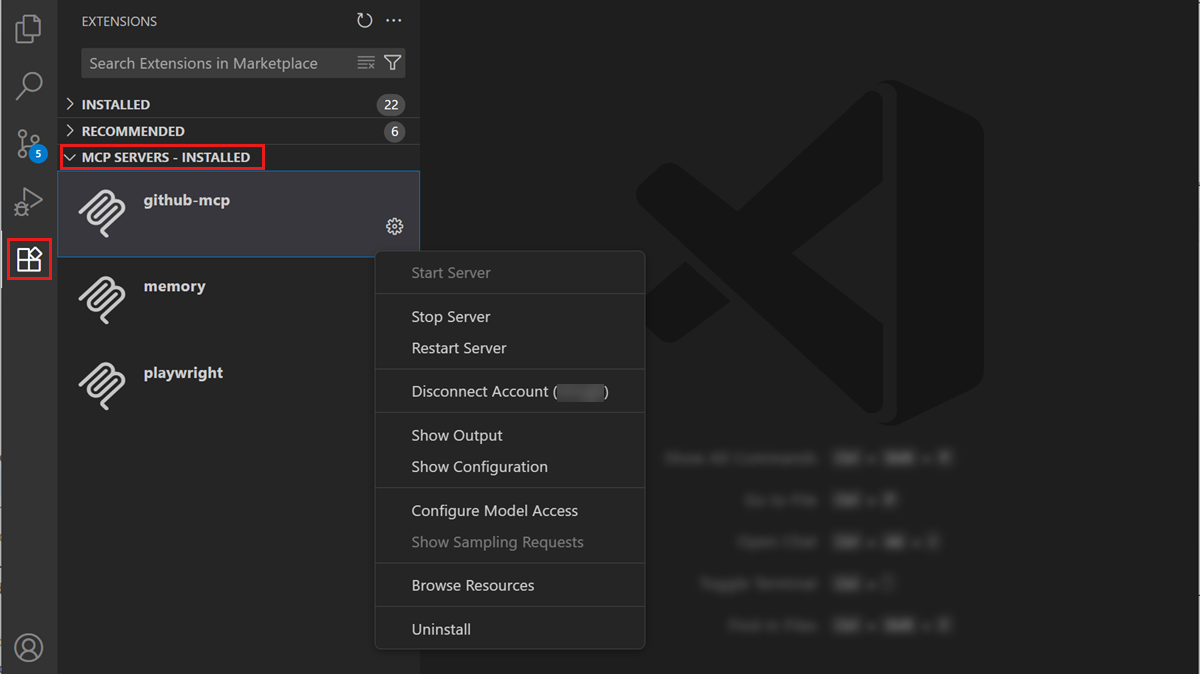
Open the Extensions view.
-
Search for
@mcp playwright. -
Select Install to install the Playwright MCP server in your user profile.
-
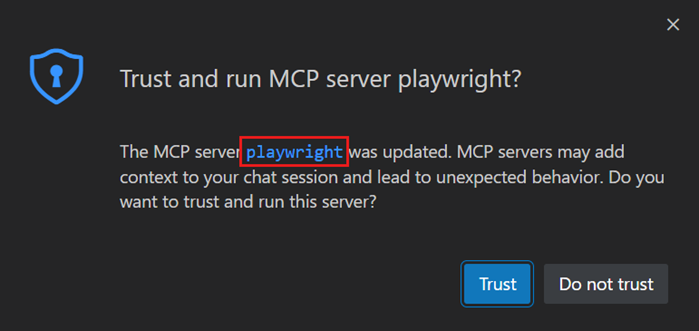
When VS Code asks whether you trust the server, review the publisher and server details, then confirm if you trust it.
When the server starts, VS Code discovers its tools and makes them available in chat.
Use the server in chat
Now give the agent a task that actually needs browser access.
-
Open the Chat view.
-
Select Agent.
-
Select Configure Tools.
-
Enable the Playwright tools.
-
Send this prompt:
Go to code.visualstudio.com, decline the cookie banner if it appears, and describe the main navigation items on the homepage.
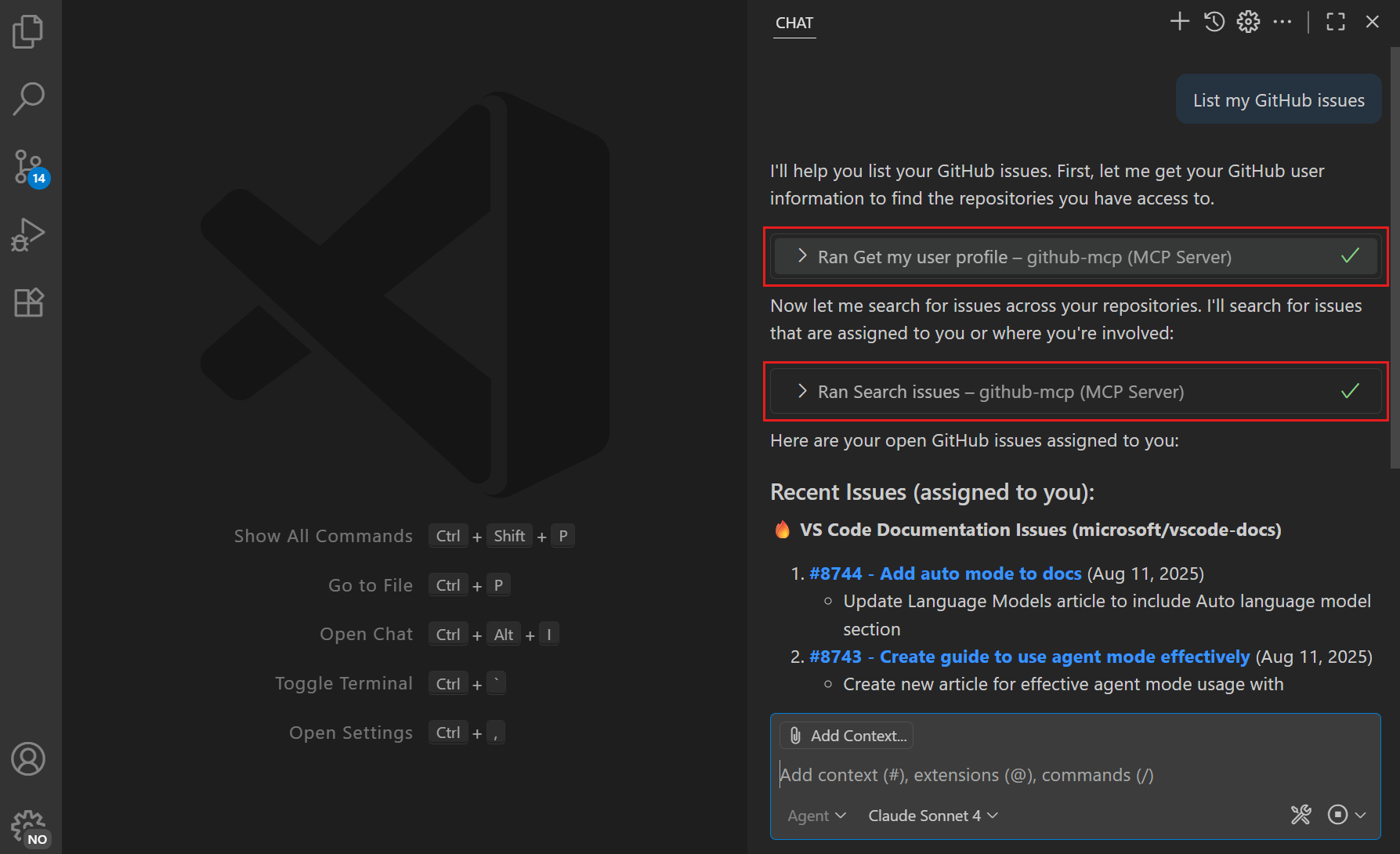
The agent should call the Playwright MCP tools because the task requires browser interaction. If it asks for approval before a tool call, review the action and approve it when it matches the task.
Decide where the configuration belongs
Installing a server writes configuration to an mcp.json file. Choose the scope based on who should use the server.
| Scope | Use it when | Example |
|---|---|---|
| User profile | The server is useful across your own workspaces. | A browser automation server or documentation lookup server. |
| Workspace | The server is part of how the project works. | A project-specific API server or database inspection tool. |
| Remote user profile | The server must run on a remote machine. | A server that needs access to tools installed in a dev container or remote environment. |
Use MCP: Open User Configuration to inspect your user profile configuration. Use MCP: Open Workspace Folder Configuration when you want a .vscode/mcp.json file for the current project.
For servers that need credentials, do not hardcode secrets in a workspace file. Store sensitive values with input variables or environment files.
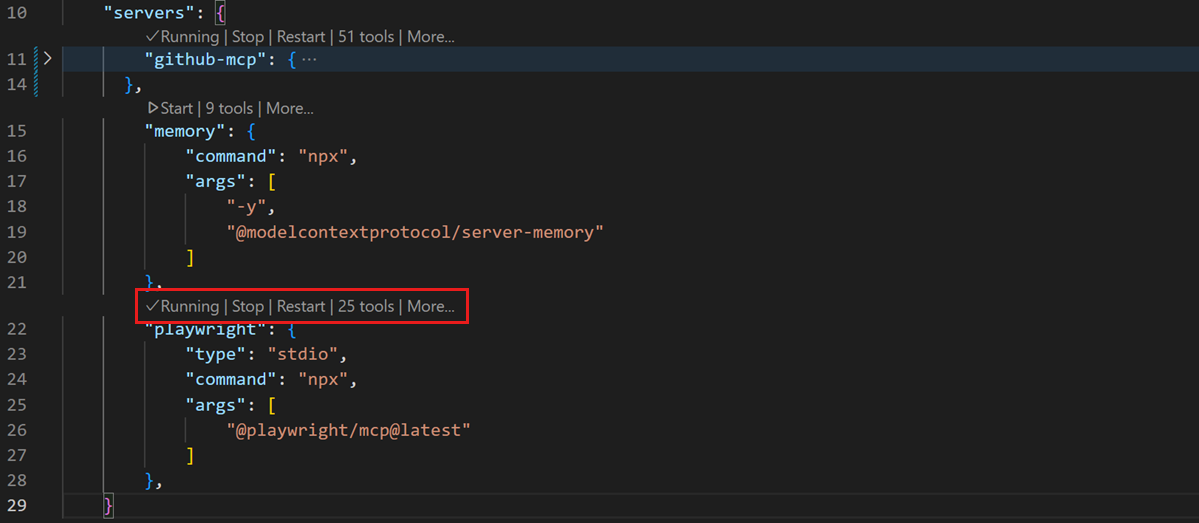
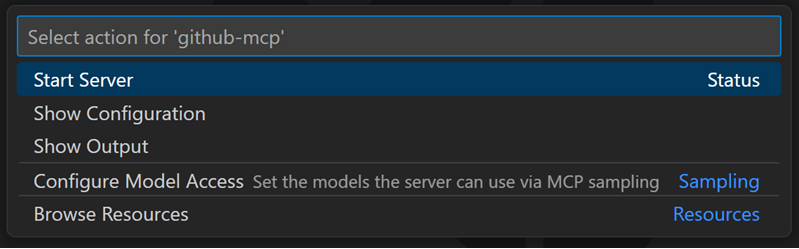
VS Code provides IntelliSense and inline actions for mcp.json, which makes it easier to start, stop, and inspect servers.
Learn what MCP can provide
MCP is built around a few capabilities. Each one solves a different problem.
- Tools let the agent take actions, such as opening a browser or querying an API.
- Resources provide read-only context that you attach to a request, such as a database schema or document.
- Prompts provide reusable templates from the server, such as a standard research prompt.
- MCP Apps render interactive UI in chat when a server supports richer input or output.
Use tools when the agent needs to do something. Use resources when it needs to read something. Use prompts when your team wants a repeatable interaction pattern.
Sandbox a local server
Treat local MCP servers as code that can run on your machine. Review the publisher and configuration before you install one.
By default, MCP tool calls prompt for approval before running, which keeps a human in the loop. For local stdio servers on macOS and Linux, you can enable sandboxing to restrict file system and network access.
Add sandboxing when a server needs useful powers but should stay inside clear boundaries. For example, with the Playwright MCP server, sandboxing lets the agent navigate pages and run browser tasks without prompting on every step because the work is isolated from your host.
To enable sandboxing for a local stdio server, set sandboxEnabled to true in the server configuration. If the server needs more access, update the sandbox rules for that server instead of widening access for the whole machine.
{
  "servers": {
    "playwright": {
      "command": "npx",
      "args": ["-y", "@microsoft/mcp-server-playwright"],
      "sandboxEnabled": true
    }
  }
}
Practice with a second server
After you try Playwright, install a documentation or API-focused MCP server and compare the workflow.
-
Search for
@mcpin the Extensions view. -
Pick a server that connects to documentation, issue tracking, or another system you use.
-
Install it in your user profile if it is personal tooling, or in the workspace if the project should share it.
-
Enable its tools in Chat.
-
Ask a prompt that requires that external source.
For example, with a documentation MCP server enabled, ask a question that should be grounded in that documentation instead of the model's general knowledge.
Manage MCP servers
You can manage servers from several places in VS Code:
- The Extensions view.
- The
mcp.jsoneditor. - The Command Palette, including MCP: List Servers.
- The Agent Customizations view from the cog in the Chat view.
Use these surfaces to start or stop a server, browse the marketplace, and install additional servers.
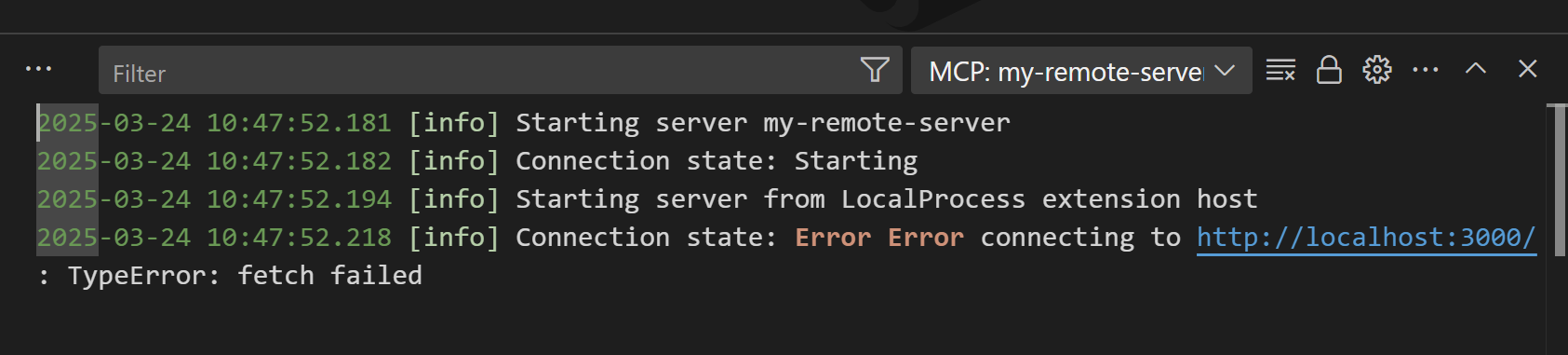
To debug a server, select Show Output from the server's actions to see logs from every request the server handles.
Why this matters
MCP gives agents a standard way to reach outside the model and work with the systems you already use. That means less ad hoc prompting and more repeatable workflows.
What's next
Next, you will see how agent plugins package skills, agents, hooks, and MCP servers into a single installable bundle.