Customization features in practice
You may have seen quite a few videos about customization features in VS Code.
Things like prompt files, custom instructions, agent skills, custom agents, and hooks can make sense individually. But the best way to truly understand them is to see them working together in a real project.
In this guide, we’ll build an app from scratch and use multiple customization features throughout the workflow.
Prerequisites
Before you start: you'll need VS Code Insiders installed and the GitHub Copilot and GitHub Copilot Chat extensions set up and signed in.
The project: Repo Analyzer
The app we’re building is called Repo Analyzer.
Its purpose is simple: take in the URL of a GitHub repository, analyze the codebase, and grade the quality of the project on a scale from 1 to 10.
It also provides recommendations to improve the score, helping developers understand what changes could make the project stronger.
The features working together
This project uses several customization features simultaneously.
Each one handles a specific part of the workflow:
- Custom Agent → Applies the arcade-themed visual style
- Agent Skill → Automatically updates the README when features change
- Custom Instructions → Ensures SOLID principles and accessibility standards are applied
- Prompt File → Simplifies bloated code in open files
- Hook → Automatically formats files after modifications
This saves time because you don’t need to repeat these instructions manually.
Building the app with a custom agent
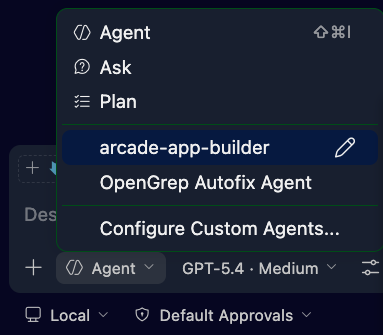
To start, the Arcade App Builder custom agent is selected.
This agent already understands the design language and architectural style of the project. When asked to create the Repo Analyzer app, it automatically applies the arcade-inspired theme.
Prompt Can you go ahead and create an app that will take in the URL from a GitHub repo and analyze the code, grading the quality from 1 to 10 and giving recommendations to improve the score.
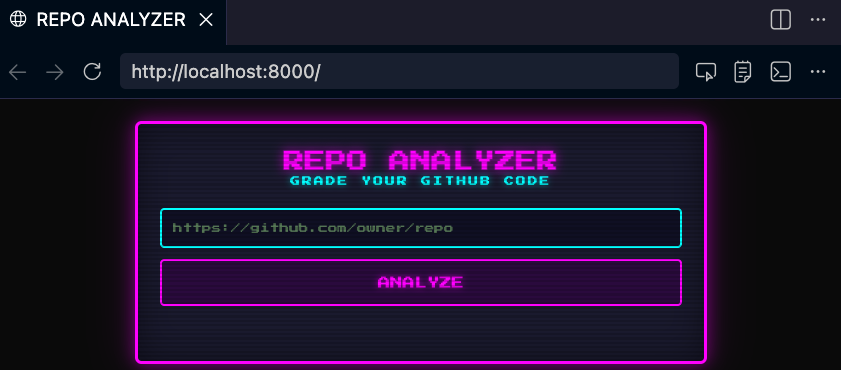
The result is a working first version of the app, complete with styling and validation logic.
Testing the app
Once the app is generated, it can be tested against real repositories.
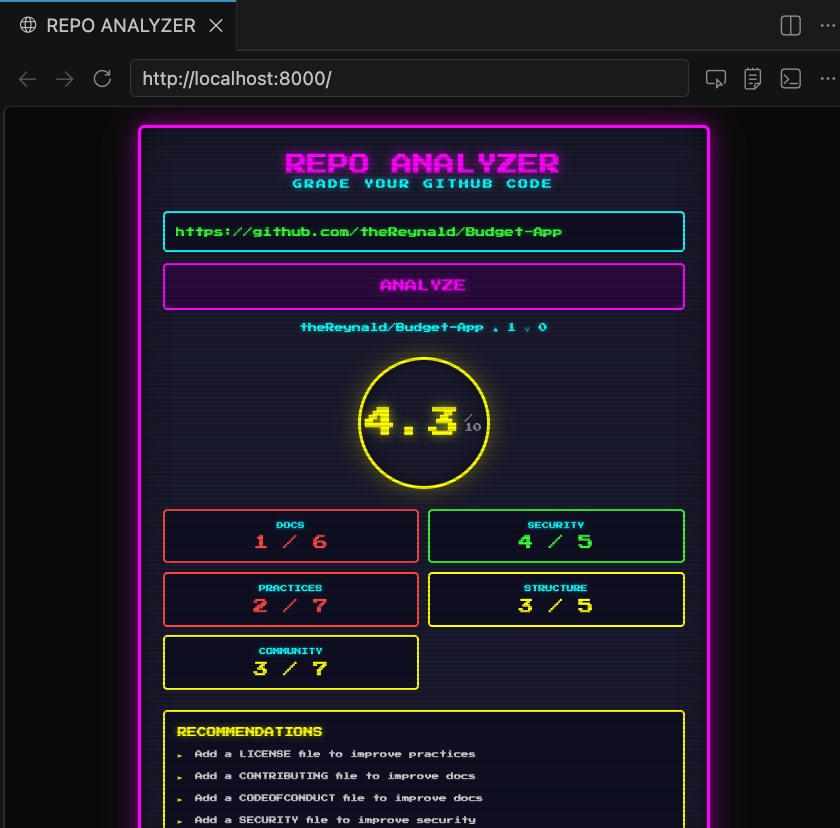
For example, entering the URL of a GitHub project returns:
- an overall score
- specific recommendations
- documentation or structural improvements
This makes the app useful immediately, even in its first iteration.
Testing the README skill
Next, the Update README skill is tested.
When the app is created, we can add a readme.
Prompt Create a README for this project.
Later, if features are added or removed, the skill updates the README to reflect those changes.
For example, you can confirm the dark/light mode feature is mentioned in the README. After removing this feature causes the README to update automatically so it no longer references that functionality.
Prompt Remove the dark mode / light mode feature from the app.
Verifying custom instructions
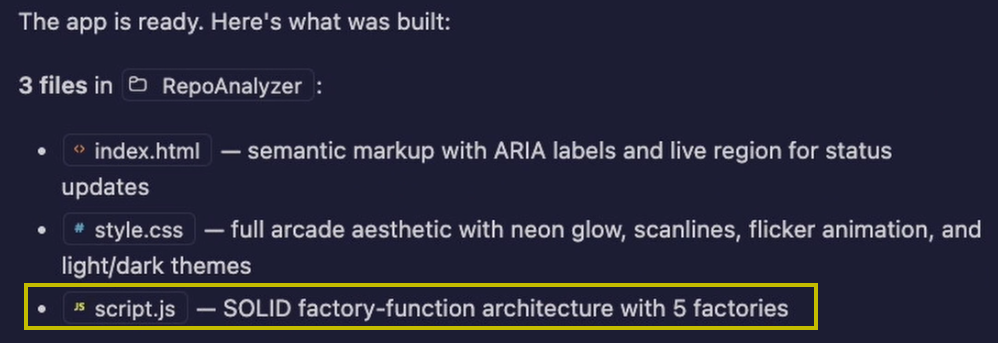
During development, custom instructions are applied automatically.
Without being explicitly prompted, Copilot confirms that it followed:
- SOLID principles
This ensures the app is being built according to the standards you’ve already defined.
Testing hooks
Hooks run in the background when files are modified.
For example, after changing the README title, the hook automatically formats the file without any extra steps.
Prompt Can you go ahead and modify the README so that the name is not just Repo Analyzer, but it says Fantastic Repo Analyzer.
This keeps files clean and consistent as changes are made.
Testing prompt files
Finally, the Simplify Code prompt file is used.
This prompt analyzes the currently open file and looks for:
- bloated or verbose code
- dead code
- opportunities for simplification
It then explains exactly what changes were made and why.
Prompt Simplify code for open files.
This is especially useful because code simplification is something you may do repeatedly across multiple files.
Why this matters
This demo shows the full picture.
Instead of manually asking Copilot to follow standards, update docs, format files, or simplify code every time, these systems work together automatically.
The result is:
- faster workflows
- less repetitive prompting
- more consistent outputs
This represents a shift from:
single prompts → integrated workflows
You’re no longer using AI one request at a time.
You’re building an environment where multiple AI systems collaborate automatically during development.
Your challenge
Now it’s your turn.
Build the Repo Analyzer app we created in this guide, leverage the customization features we used (or create your own!), and then extend it.
Ideas:
- Add support for private repositories using authentication
- Add deeper analysis for code quality, security, or performance issues
- Build an analytics dashboard to compare multiple repositories side by side
- Add AI-generated recommendations with code examples for improving scores
Use the customization features together as part of your workflow:
- Use a custom agent to maintain a consistent design or architecture
- Use custom instructions to enforce coding standards like SOLID or accessibility
- Use skills to automate repetitive tasks like updating documentation
- Use hooks to automatically format or validate files in the background
- Use prompt files for tasks you find yourself repeating often
When you finish, review how each customization feature helped reduce repetitive work and improved consistency across your project.
The more you combine these systems together, the faster and more consistent your workflow becomes.
BONUS: If you’d like to share what you’ve learned, provide a GitHub repo link to your project in the comments and include a readme (in your project) detailing what you did. We’d love to see it.
Happy coding!