Why agent customization matters
Most developers are using VS Code the same way: open chat, type something, and hope for a good result. Sometimes it works. Sometimes it doesn't.
But here's the problem. They never configure it.
VS Code is no longer just an editor. It's an environment where you can define how AI works across your entire workflow. And if you're not doing that, you're essentially starting from scratch every time.
This guide covers what agent customization is, why it matters, and how to use the Agent Customizations view in VS Code.
Prerequisites
Before you start: you'll need VS Code Insiders installed and the GitHub Copilot and GitHub Copilot Chat extensions set up and signed in.
What is agent customization?
Agent customization in VS Code Copilot Chat lets you define how the AI behaves, responds, and operates within your workflow.
Instead of relying on one-off prompts, you can create reusable building blocks:
- Agents - specialized modes for different tasks
- Skills - domain-specific capabilities and workflows
- Instructions - persistent rules and coding conventions
- Prompts - reusable prompt templates
- Hooks - automated actions triggered by events
We'll cover the above in depth in later guides, but for now, just note that together these allow you to shape Copilot into a context-aware assistant that follows your standards, understands your project, and automates repetitive work.
Why customization matters
You may ask yourself: Is customization really needed? Why not just jump into doing the work without it? Without customization, every interaction looks like this:
- You restate context
- You restate expectations
- You restate how you want things done
This leads to:
- Inconsistent results
- More effort
- More trial and error
Customization changes that. It allows you to:
- Define behavior once
- Reuse it across your workflow
- Get consistent, higher-quality outputs
Instead of prompting better, you're building a system that works for you.
The Agent Customizations
VS Code provides a single place to manage all customization features.
To get started:
- Open the Chat view (select the chat icon in the VS Code title bar).
- Select the Configure (gear) icon in the Chat view header.

This opens the Agent Customizations view.
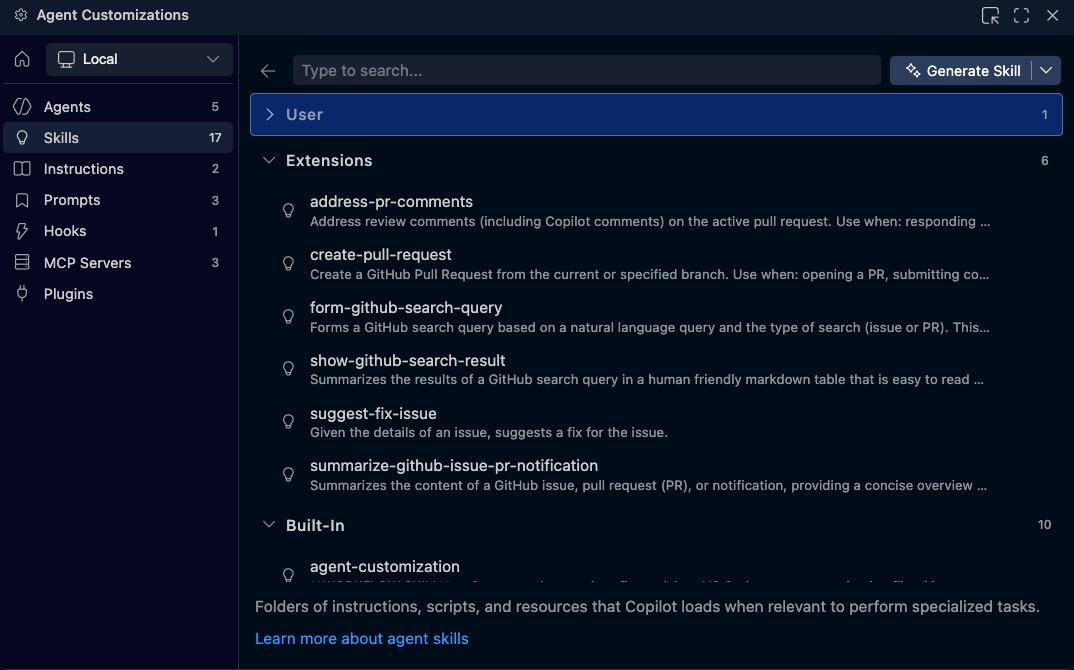 From here, you can create and manage:
- Agents
- Skills
- Custom instructions
- Prompt files
- Hooks
Instead of searching across folders, everything is centralized for easier discovery and management.
The Agent Customizations view brings everything into one place. It makes it easier to define how your development environment behaves, not just what it generates. That's the shift.
Instead of interacting with AI one prompt at a time, you're building a system that consistently works the way you want.
What's next
You now understand what customization is and how the Agent Customizations view brings it all together.
To learn more about each customization type and how to use them effectively, continue with the customization guides and videos in this series.